> [!IMPORTANT]
> **For UU Remote VIP members**: from December 1, 2026, UU Remote moves multi-display and virtual display features to VIP. Snug is built on virtual displays; if you happen to be a UU Remote VIP member, give it a try.
>
> **Our position**: Snug is an independent community project with no commercial ties to UU Remote. Whether to subscribe is a decision about UU Remote itself; there is no need to subscribe just for Snug. Support for other remote desktop apps, both open-source and established, is under evaluation.
> Continued from [aoyamashou/UUyc-companion](https://github.com/aoyamashou/UUyc-companion) (UU Remote Companion by AoyamaShou, MIT License), with the original copyright notices and commit history fully preserved. Redesigned around the phone screen in 2.0; extended to tablets and computers in 2.6.
## 📥 Download
**Snug for macOS** [](https://github.com/zephyr4123/snug/releases/latest) Universal package for Apple silicon and Intel, macOS 14 or later Signed and notarized by Apple; drag into Applications to install
| Source | Notes | Download |
| :--- | :--- | :--- |
| **China mirror** | Tencent Cloud CDN; recommended in mainland China | [Snug.dmg](https://dl.zephyrxiang.com/snug/latest/Snug.dmg) |
| **GitHub Releases** | Release notes, checksums, and previous versions | [Go to Releases](https://github.com/zephyr4123/snug/releases/latest) |
Identical packages from both sources. Snug runs only on the Mac being controlled; the controlling device needs only UU Remote.
> Windows hosts: see [Community Ports](#-community-ports).
## ✨ Native on Every Device
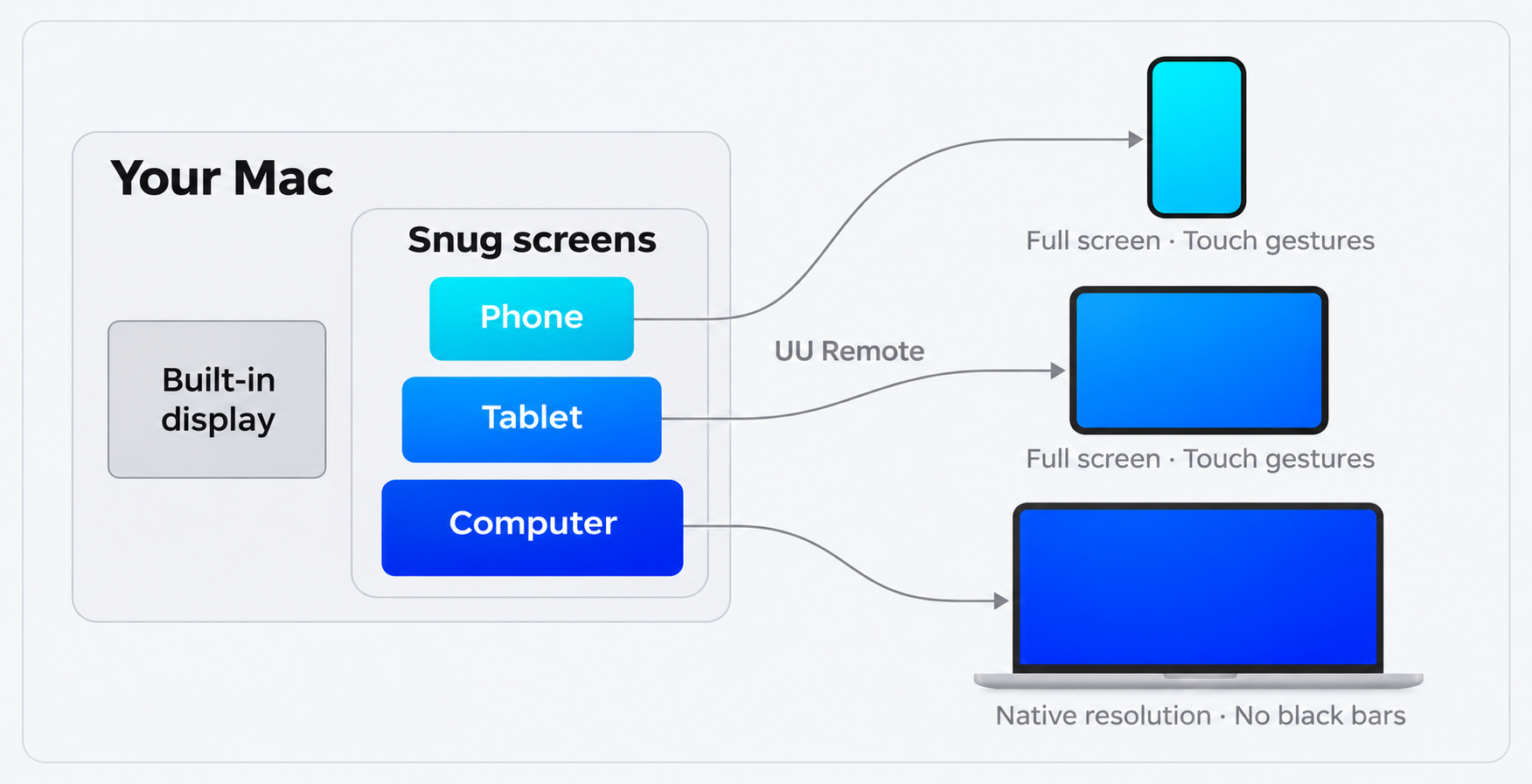
UU Remote scales the entire desktop to fit the controlling device, leaving black bars when proportions differ and shrinking text and controls. Snug adds a screen with matching proportions for each device: full-screen windows at a mobile scale with touch-first controls on phones and tablets; the device's own resolution with no black bars on computers.
### Phone: Portrait · Landscape
Same content · Left: UU Remote alone · Right: Snug
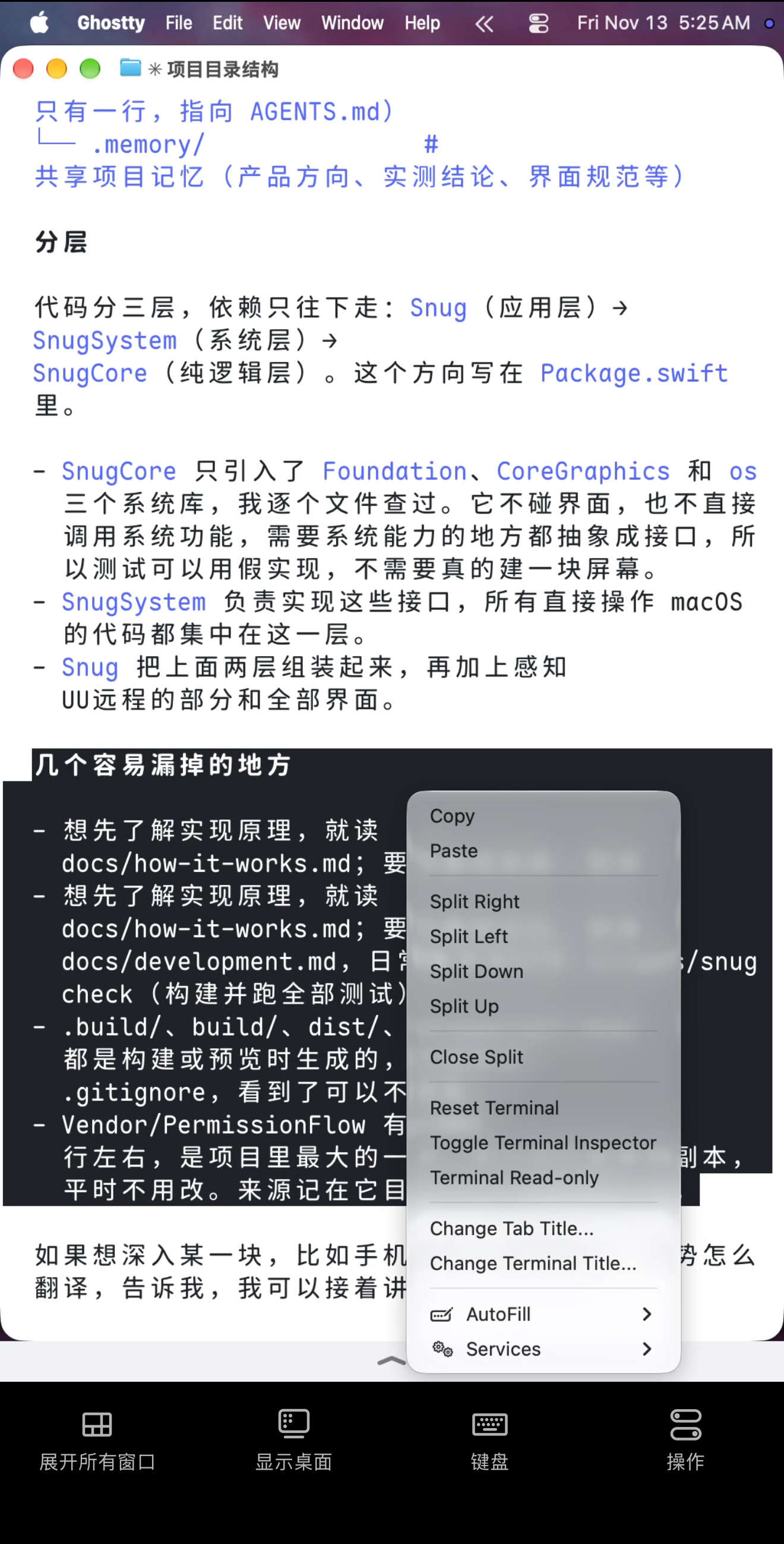
- **Portrait and landscape**: proportions calculated per model, clear of UU Remote's toolbar, 2x HiDPI; landscape for code, terminals, and wide pages
- **Full-screen windows**: the selected window occupies the entire screen
- **Larger text**: automatic in Ghostty, Terminal, iTerm2, VS Code, Cursor, and Zed, remembered per app
Landscape: wide pages in full
### Native Gestures
UU Remote's mobile client follows trackpad gesture conventions. On phone and tablet screens, Snug remaps them to touchscreen conventions.
| Touch | UU Remote alone | Snug |
| :--- | :--- | :--- |
| One-finger swipe | Mouse drag, prone to accidental text selection | Scrolling, with momentum |
| Long-press, then drag | Mouse drag | Text selection |
| Long-press, then release | Regular click | Context menu |
One-finger scrolling · Long-press context menu
- Limited to phone and tablet screens; other displays and the Mac's own trackpad and mouse are unaffected
### Tablet: Full Screen · Native Gestures
Controlling a Mac from a tablet has typically required an external keyboard and trackpad. Snug's tablet screen fills the display per model, ready for touch.
- **Landscape and portrait**: proportions calculated per model, edge to edge
- **Native gestures**: as on the phone; scrolling, right-clicking, and text selection by touch, no external trackpad required
- **Comfortable text size**: slightly larger than the tablet's native size, suited to long sessions
- **Two columns**: apps and windows side by side in landscape; see [App Library](#-app-library)
iPad · Landscape · Portrait
### Computer: Full Screen · No Black Bars
Snug's computer screen is created at the controlling computer's resolution, matching what the computer shows natively.
> Black-bar removal for computers originates from Snug's predecessor, [UUyc-companion](https://github.com/aoyamashou/UUyc-companion) (UU Remote Companion by AoyamaShou). Snug carries it forward as an added screen: existing displays remain as they are, and the main display is unchanged by default.
- **Native resolution**: default resolutions for the entire Mac lineup and common computer resolutions built in, Windows PCs included; custom sizes supported, see [Custom Screens](#custom-screens)
- **Pixel for pixel**: the notch area on MacBooks left clear, no scaling
- **Computer controls preserved**: no gesture remapping or text enlargement; mouse and trackpad unchanged
- **Set as main display** (optional, off by default): every connection lands directly on this screen, along with the menu bar, the Dock, and the windows from the original main display, for seamless continuity; see [Set as Main Display](#set-as-main-display)
- **App Library**: opened from the menu bar; moves windows from other screens to this one, with one-click restore; see [App Library](#-app-library)
## 🧩 One Mac, Every Device
### Custom Screens
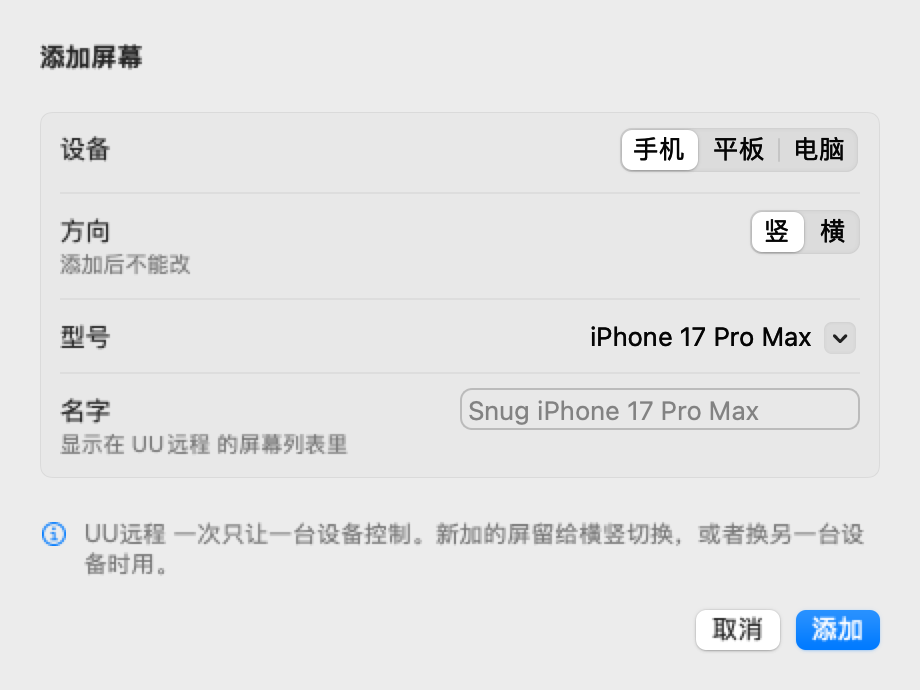
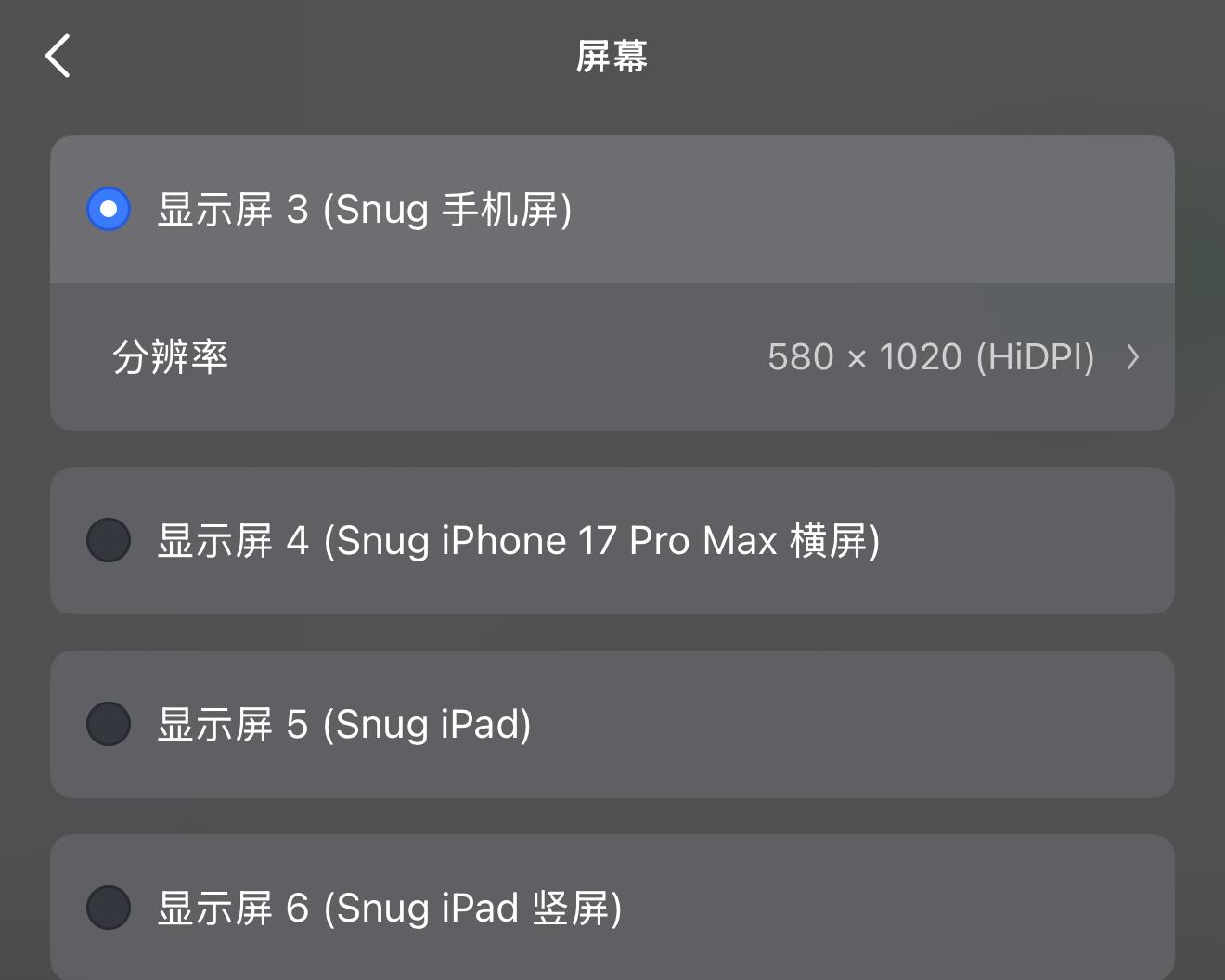
Device, model, orientation, and name configurable per screen; up to 4 screens, each switched on or off independently.
| Setting | Details |
| :--- | :--- |
| Device | Phone, tablet, or computer; proportions and on-screen features follow the type, see the table below |
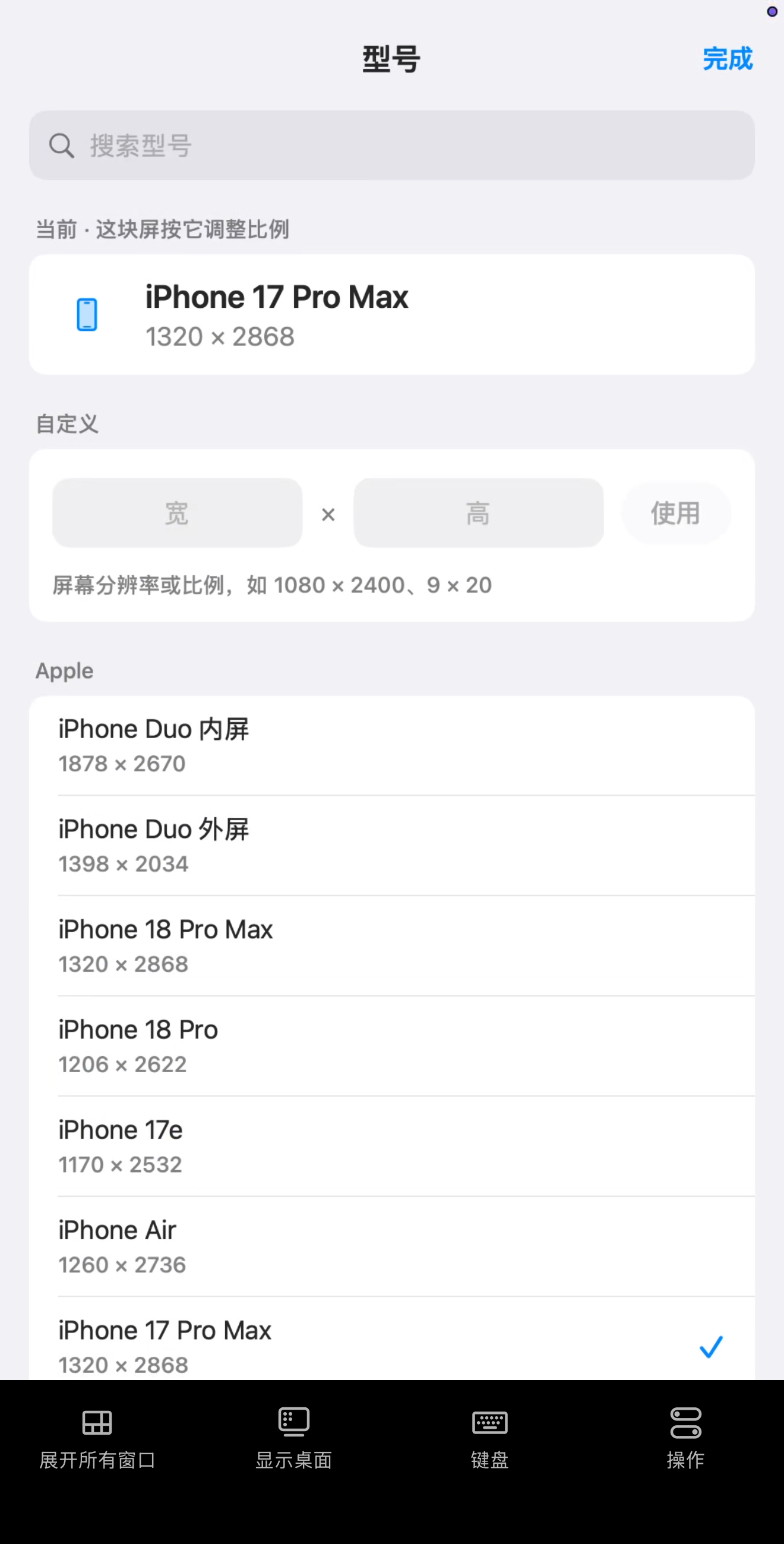
| Model | From the model library, or a custom resolution or aspect ratio (e.g. 1080×2400, 9×20); changes take effect immediately, no reconnection required |
| Orientation | Portrait or landscape, chosen when the screen is added |
| Name | Shown in UU Remote's screen list for easy identification |
Add Screen: device · orientation · model · name
| Screen | Proportions and size | On screen |
| :--- | :--- | :--- |
| Phone · portrait / landscape | Calculated per model, clear of UU Remote's toolbar | App Library, home indicator, native gestures, larger text |
| Tablet · landscape / portrait | Calculated per model, text slightly larger than native | Same as above; two columns in landscape |
| Computer · landscape | The controlling computer's resolution; notch area on MacBooks left clear, pixel for pixel | Nothing added, as with an ordinary display |
- **Both orientations**: one phone, a portrait and a landscape screen, switched in UU Remote when rotating
- **Multiple phones**: one screen per phone or tablet, each with its own model
- **Across devices**: one screen each for a phone, a tablet, and a computer, selected per device in use
### Screen List
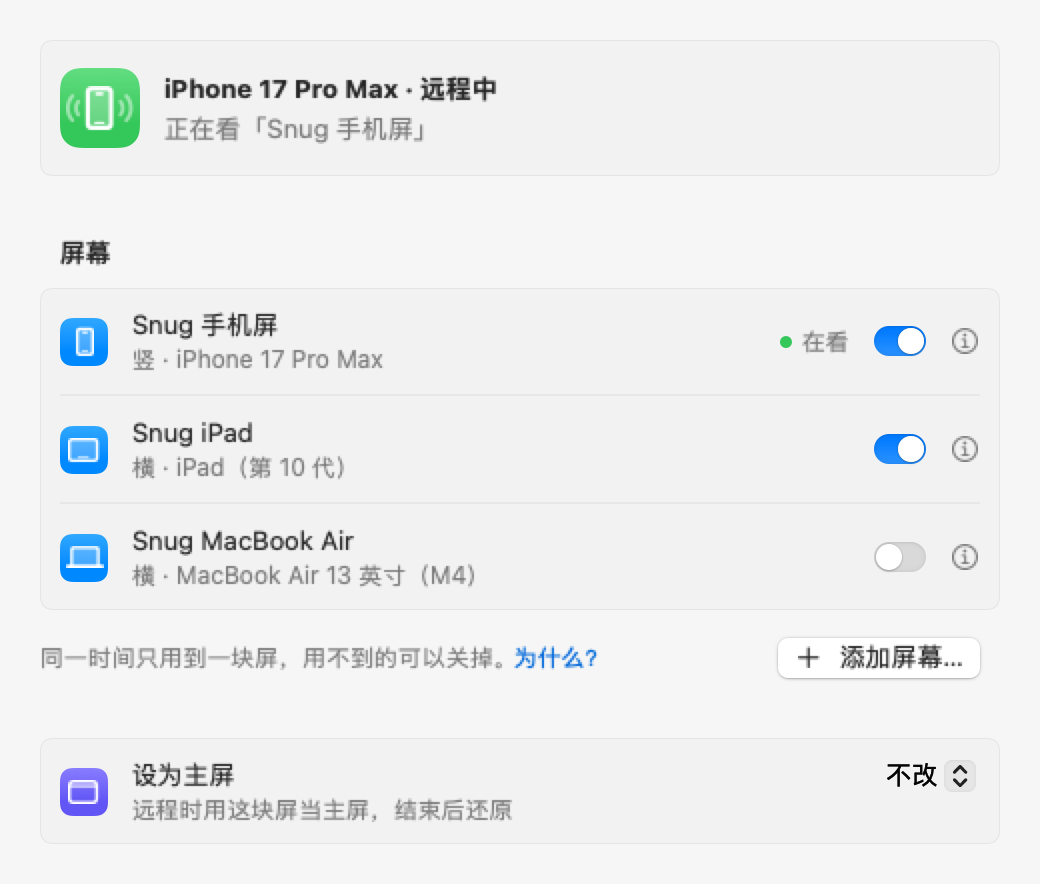
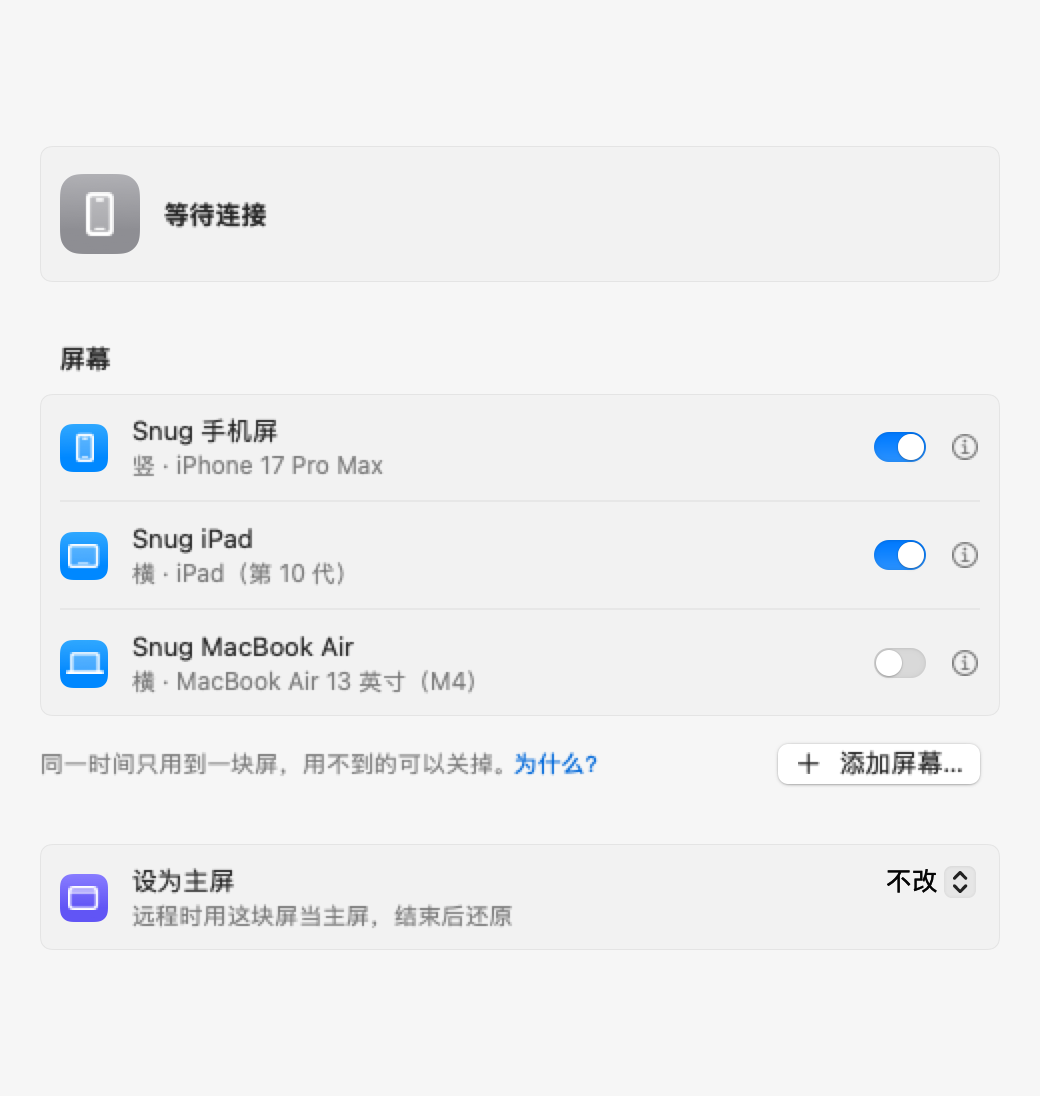
All screens managed on the Screens page of Settings; the screen in use selected from UU Remote's screen list during a session.
Left: the screen list in Snug's settings · Right: the screen list in UU Remote during a session
- **On demand**: unused screens can be switched off and are not created during sessions
- **Set as main display** (optional, off by default): available for any Snug screen, which then stays in place and receives every connection; see [Set as Main Display](#set-as-main-display)
- **Mac mini and Mac Studio without a display**: Snug's screen replaces the system's default screen, providing a full desktop at the controlling device's resolution
- **Model library**: 785 phones and 46 tablets across 19 brands (every iPhone from iPhone 8 onward; mainstream Android models from Huawei, Xiaomi, OPPO, vivo, Samsung, and others; inner and outer screens of foldables listed separately), plus 13 Macs and 9 common computer resolutions
Models: listed by brand, with custom resolutions
### Set as Main Display
Optional, off by default; at the bottom of the Screens page in Settings. The chosen screen stays in place as the Mac's main display, and UU Remote lands on it with every connection, along with the menu bar, the Dock, and the windows from the original main display.
- **Why it stays**: UU Remote picks the main display at the moment a connection is made and does not follow later changes. Snug uses no UU Remote interface and can detect a connection only from the windows and stream logs UU Remote leaves on the Mac, by which time the picture is already streaming. The chosen screen must therefore exist and be the main display before the connection, the only approach available under these conditions
- **Trade-offs**: the Dock, new windows, system alerts, and the lock-screen login prompt all appear on this screen, invisible at the Mac itself; when the Mac locks during a session, it can be unlocked from the controlling device. Intended for Macs without a display or used mainly remotely; confirmation required before enabling
- **Turning it off**: set it back to "不改" (No change) in Settings; "取消设为主屏" (Cancel Main Display) in the menu bar; or "取消主屏" (Cancel Main) at the top right of the App Library on phone and tablet screens. Turn it off before working at the Mac again; if the Mac is already locked, connect remotely and turn it off on this screen
- **When a session ends**: the screen and the windows on it stay as they are, ready for the next connection; turning the setting off or quitting Snug returns the windows and restores the main display and arrangement
## 🗂 App Library
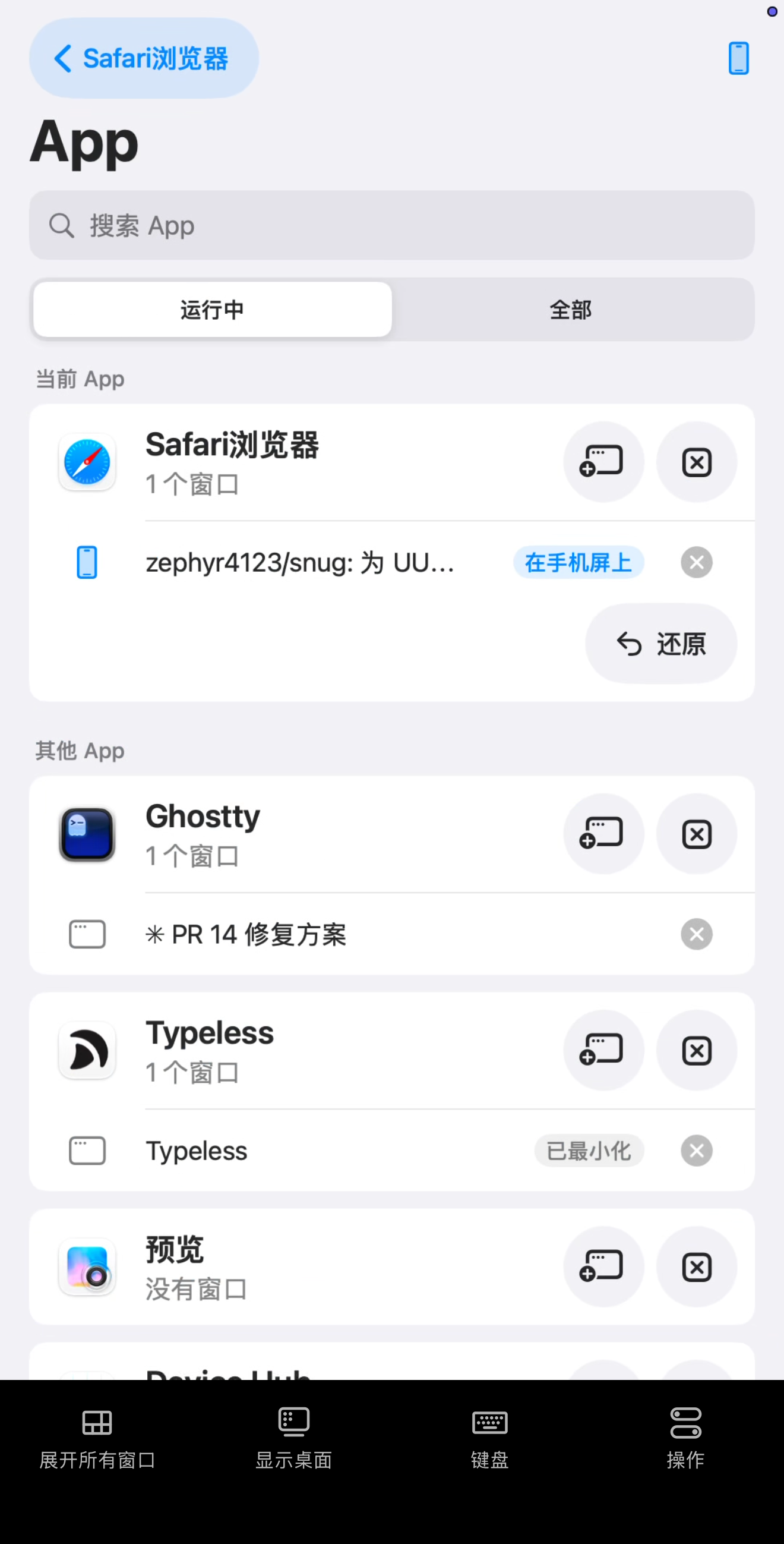
The home page of phone and tablet screens (「App 资源库」), for managing the Mac's apps from a mobile device: find, open, switch, create, close, and quit, all without returning to the desk. On computer screens, opened from the menu bar.
- **Running** (「运行中」): one card per running app, with its windows listed beneath; every window included, on any display or Space, full-screen or minimized
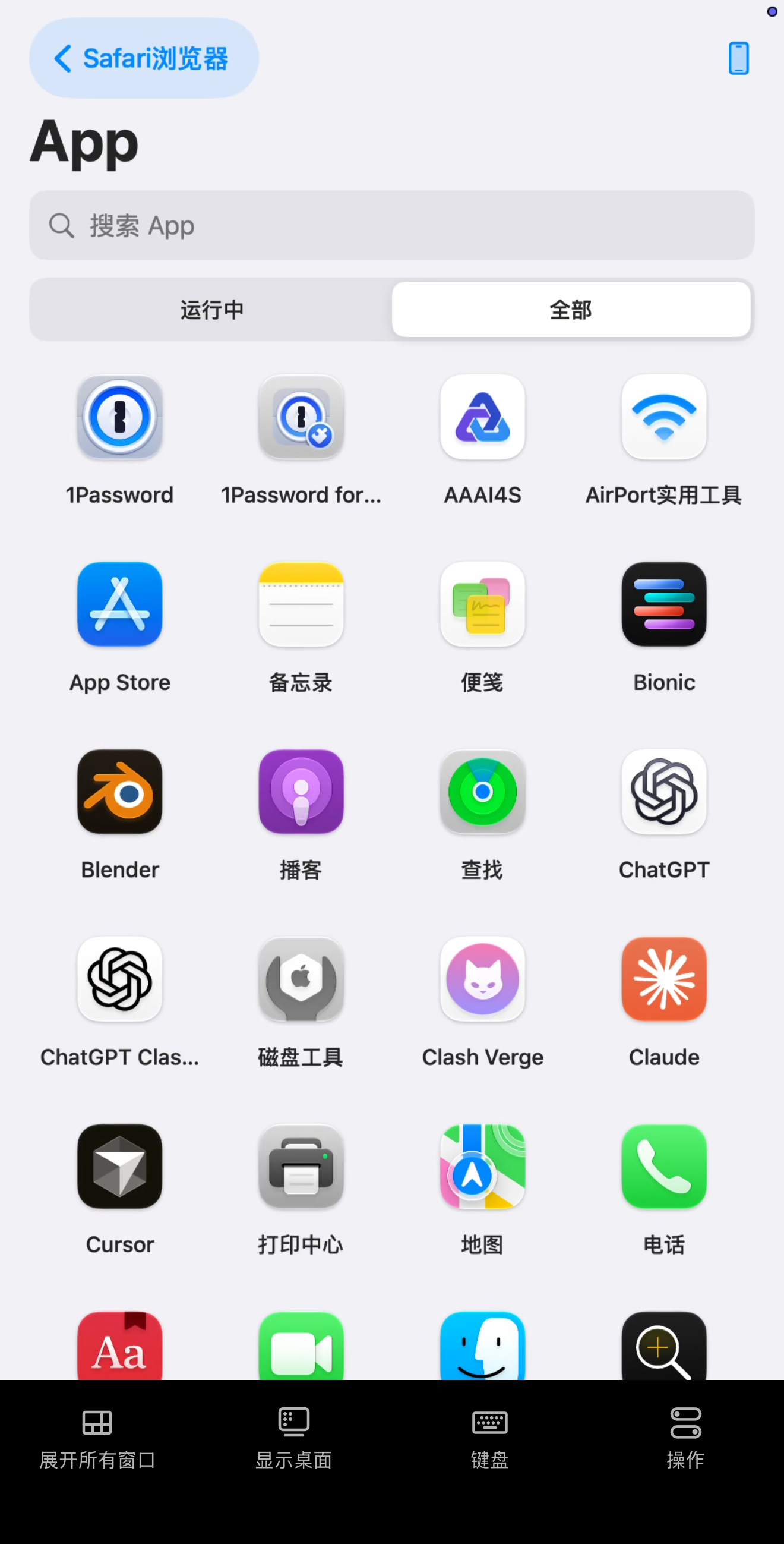
- **All** (「全部」): a grid of every app on the Mac, sorted by name; tapping an app that isn't running launches it
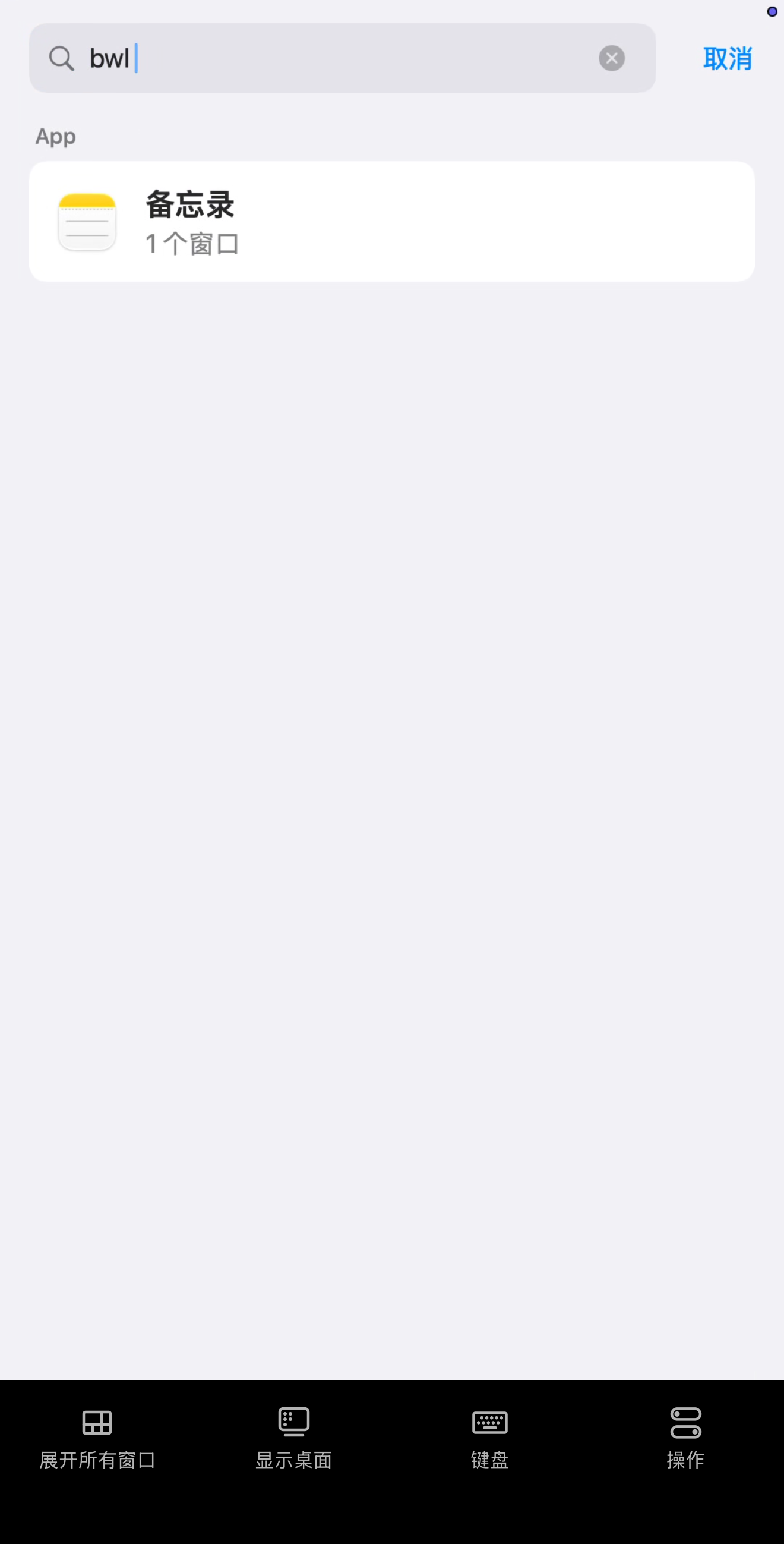
- **Search**: app names and window titles, in Chinese, English, full pinyin, or pinyin initials; "bwl" finds Notes (「备忘录」)
Running · All · Pinyin-initial search
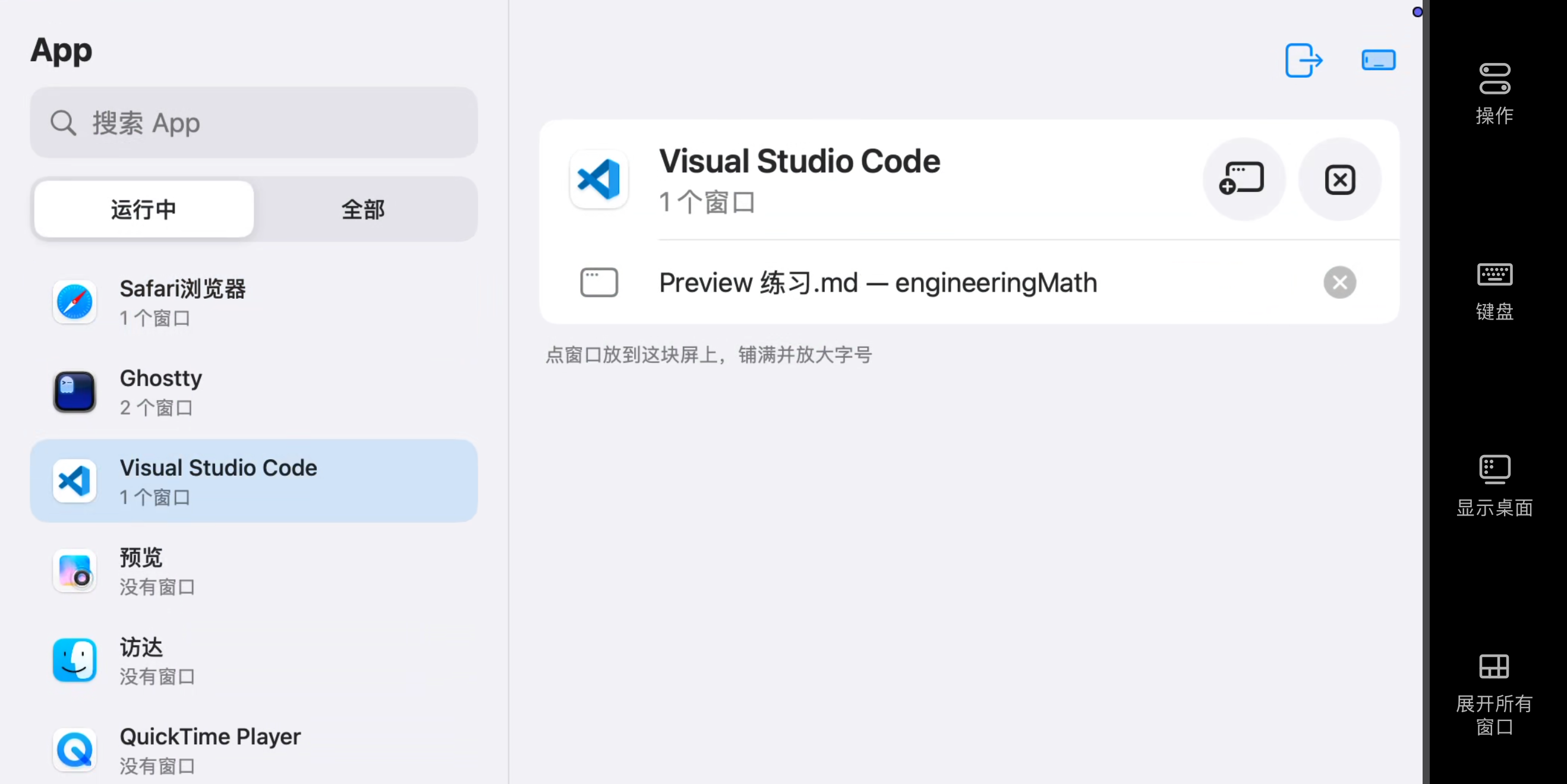
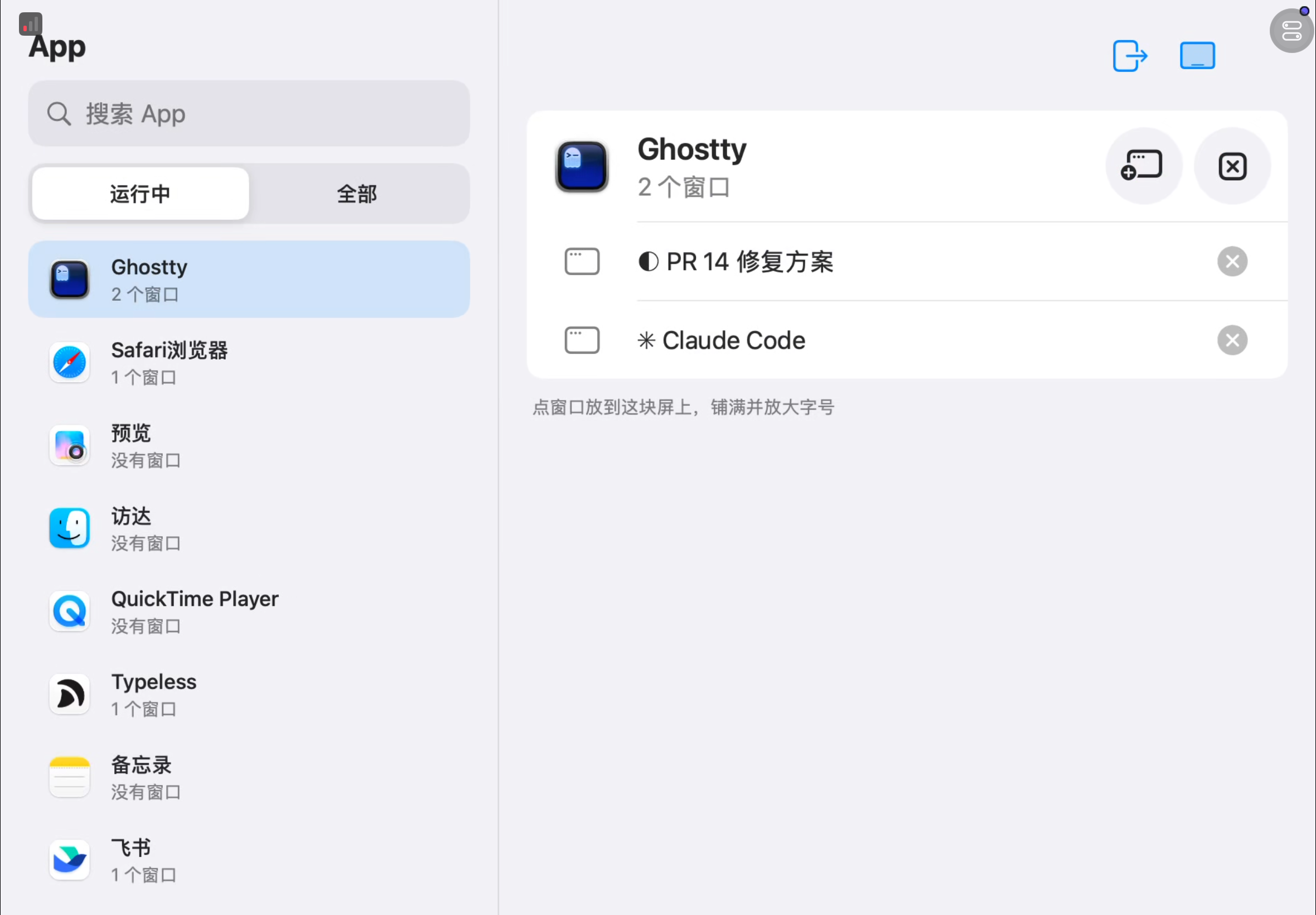
- **Two columns**: on landscape phones and tablets, apps on the left, the selected app's windows on the right
Two columns · Landscape phone · Tablet
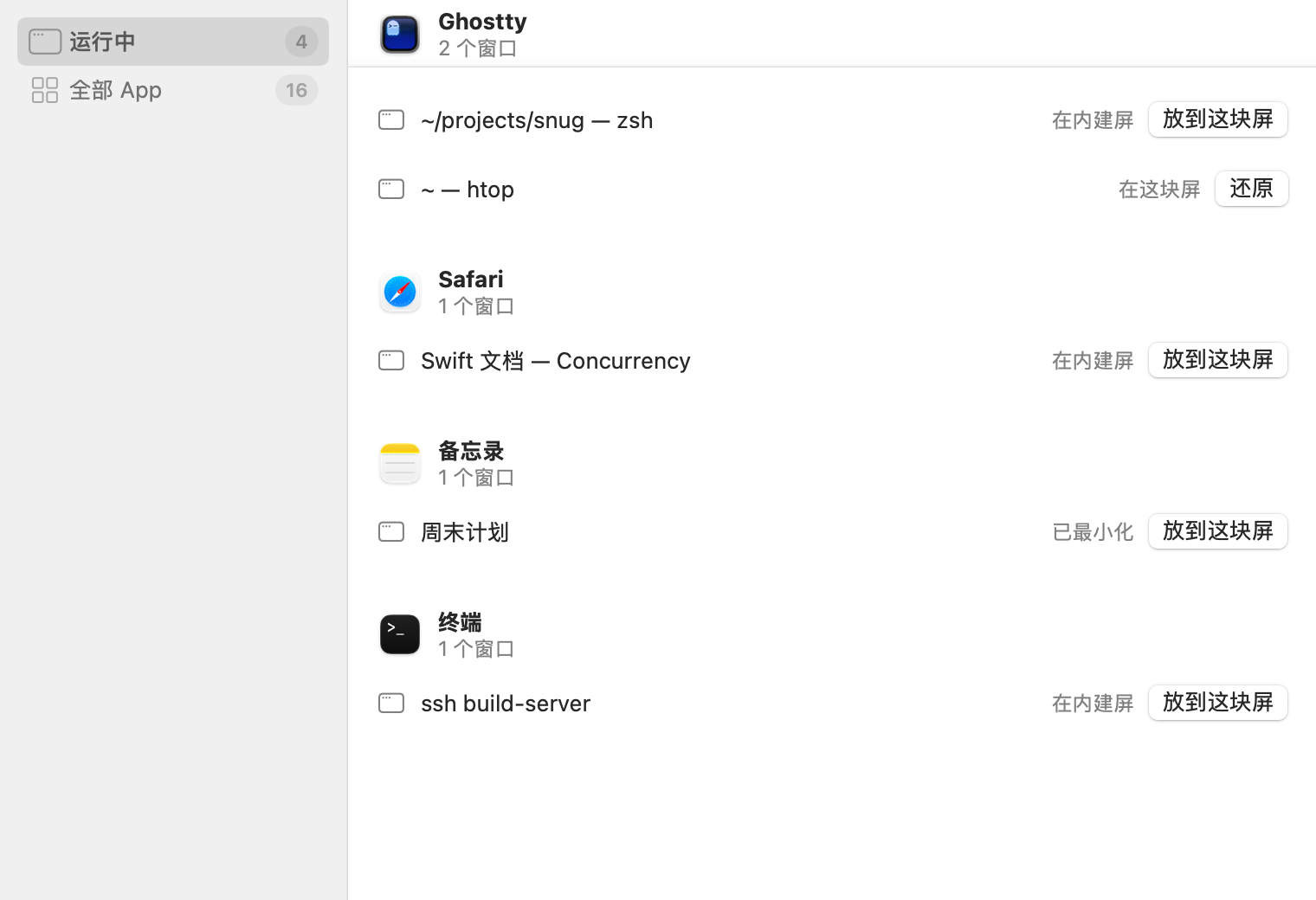
- **Computer screens**: no library panel; an App Library window opened from the menu bar instead. Shows the screen each window is on, full-screen windows included; moves any window to this screen and restores moved windows with one click. Essential when the remote side cannot see other screens or drag windows across
Computer screen: the App Library from the menu bar
| Action | How |
| :--- | :--- |
| Open a window | Tap a window to fill the screen; tap an app to open its most recently used window |
| New window | Tap "New Window" on the app's card; opens at the screen's width |
| Close a window | Tap the close button next to the window, then tap again to confirm |
| Quit an app | Tap "Quit" on the app's card, then tap again to confirm; force quit available after 10 seconds |
| Save unsaved changes | The save prompt on closing or quitting appears on the current screen, answerable from the mobile device |
| Exit this screen | Tap "Exit This Screen" at the top right and confirm: windows returned, screen removed for the rest of the session, restored next session (reconnecting within 15 seconds counts as the same session) |
| Cancel main display | On the screen set as main, tap "Cancel Main" at the top right and confirm: the main display returns to the Mac, and this screen is removed when the session ends |
### Works Like an iPhone
| iPhone | Snug phone and tablet screens |
| :--- | :--- |
| App Library | Home page: find, open, and manage the Mac's apps |
| Home indicator | Bottom indicator bar, returning to the App Library |
| "‹ Back" in the top-left corner | "‹ App name" in the top-left corner, returning to the current window |
### Works with Any App
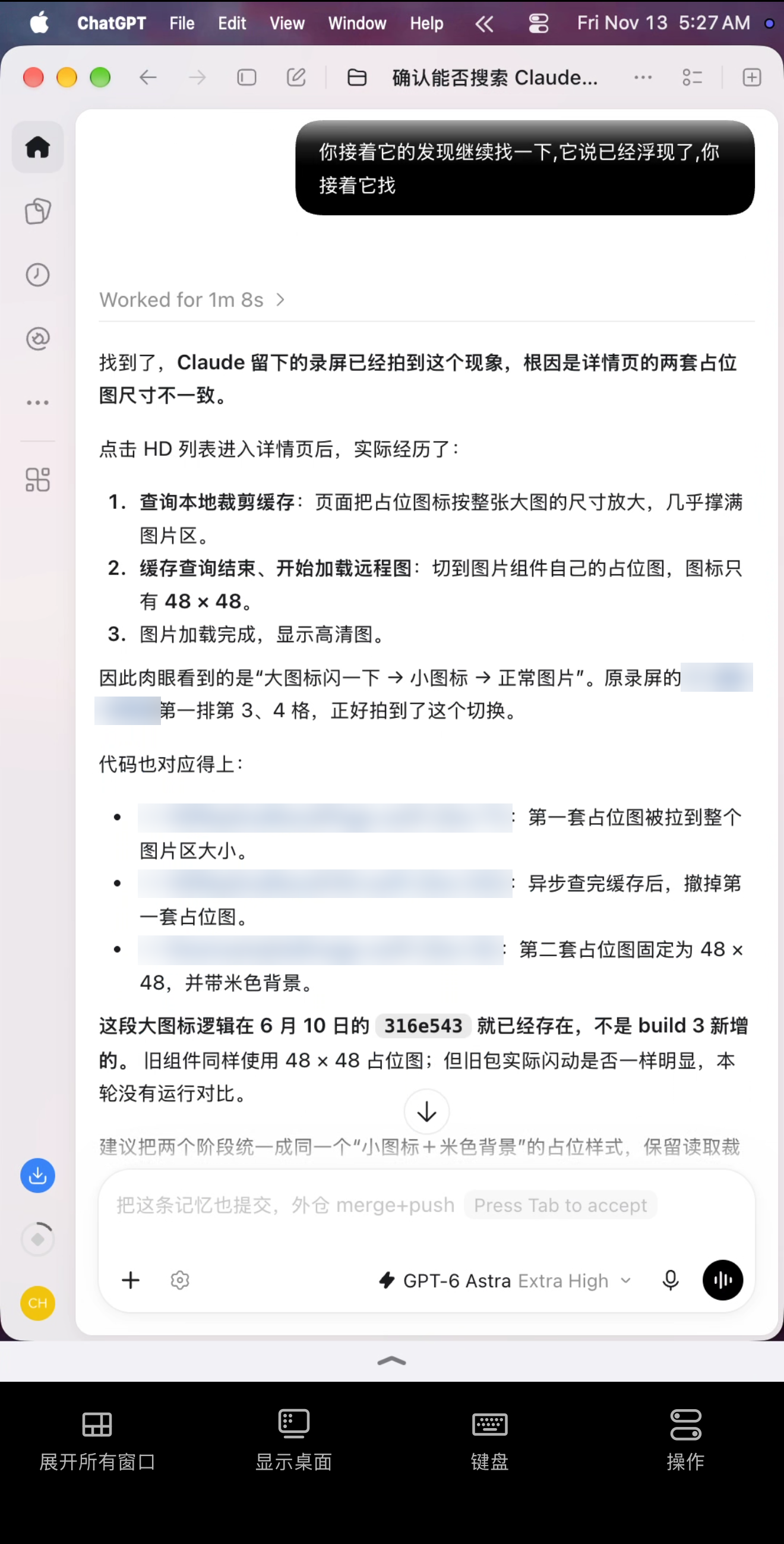
Snug presents the Mac's own windows, so any app works, with no tie to a particular AI vendor: Claude Code in a terminal and Codex in the ChatGPT desktop app behave exactly as they do at the desk.
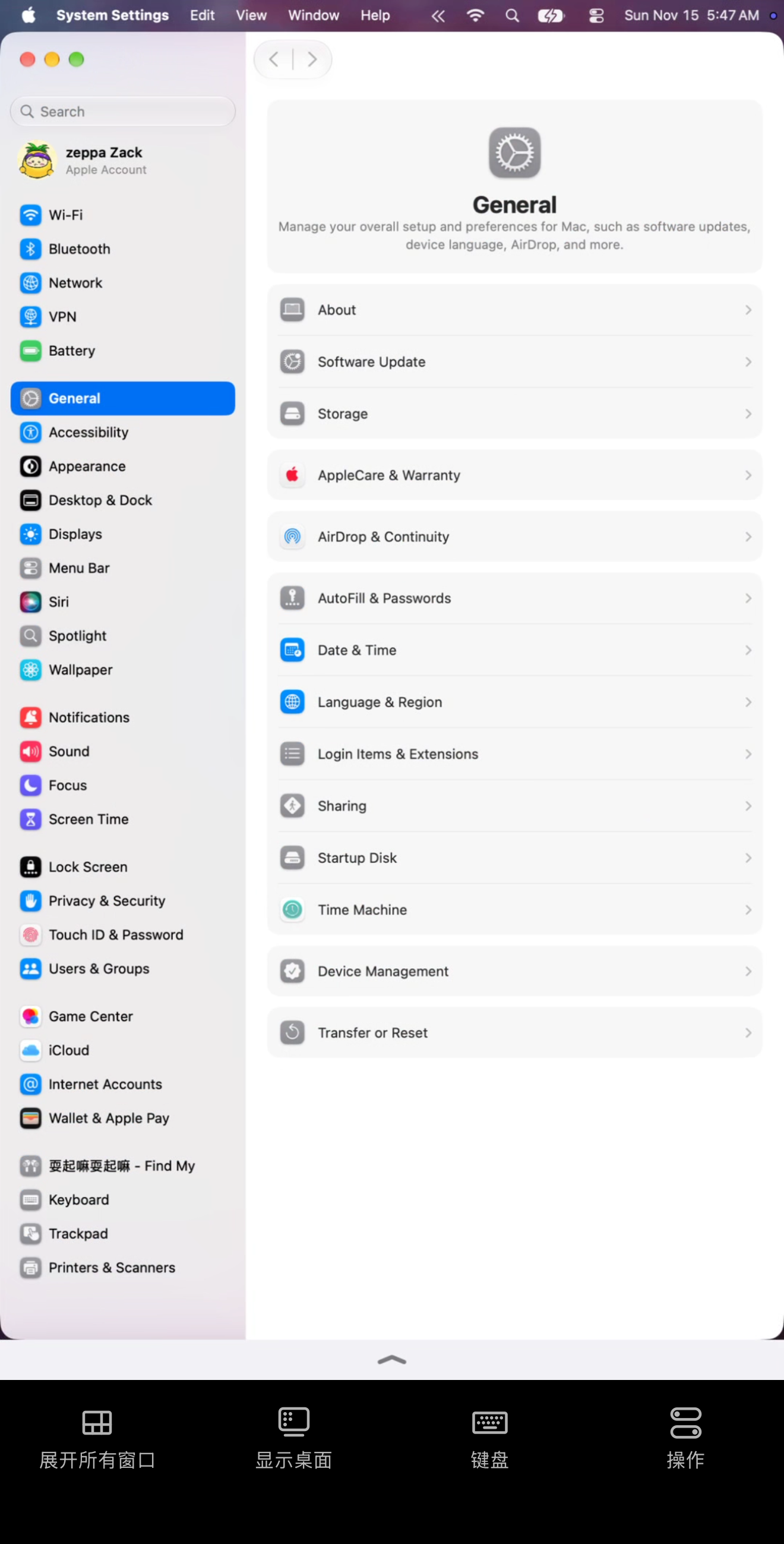
Some apps enforce a minimum width narrower screens cannot accommodate. Snug fits the window to the screen's width first; when the app refuses to shrink further, the screen switches to a resolution just wide enough, and the window fills it again.
- Every window shown in full, never cut off
- Proportional scaling without distortion; taps land precisely
- Slightly smaller text in such windows; pinch to zoom on the mobile device
Left: Codex in the ChatGPT desktop app (file links redacted) · Right: System Settings, despite its minimum width, filling the screen
## 📸 Screenshots
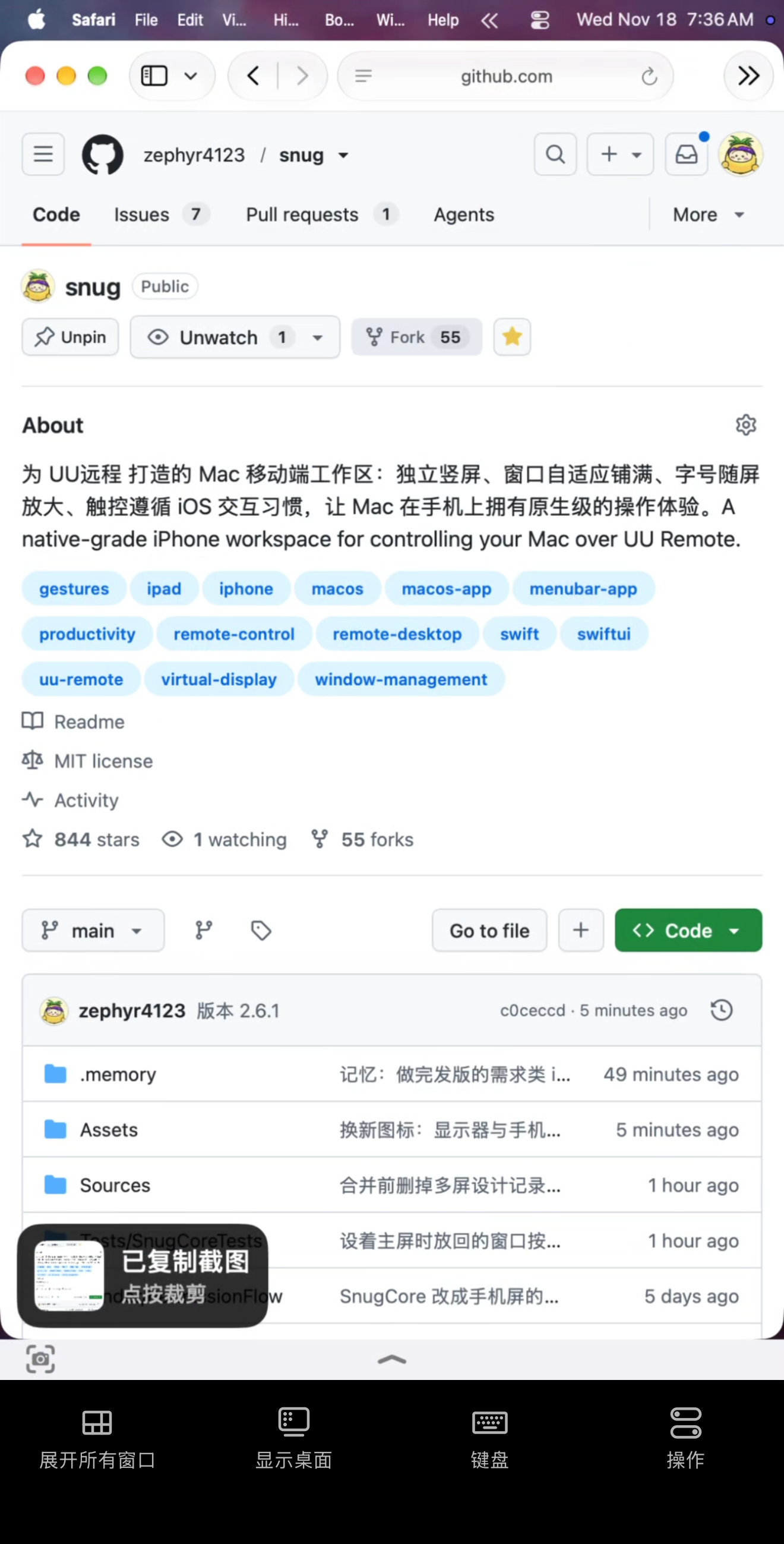
Available on phone and tablet screens. With Screenshot (「截图」) turned on in the Touch page (「触控」) of Settings, a camera button appears to the left of the bottom indicator bar; one tap captures the full-screen window to the Mac's clipboard, ready to paste into any app. Captures use the window's native pixels, free of remote compression.
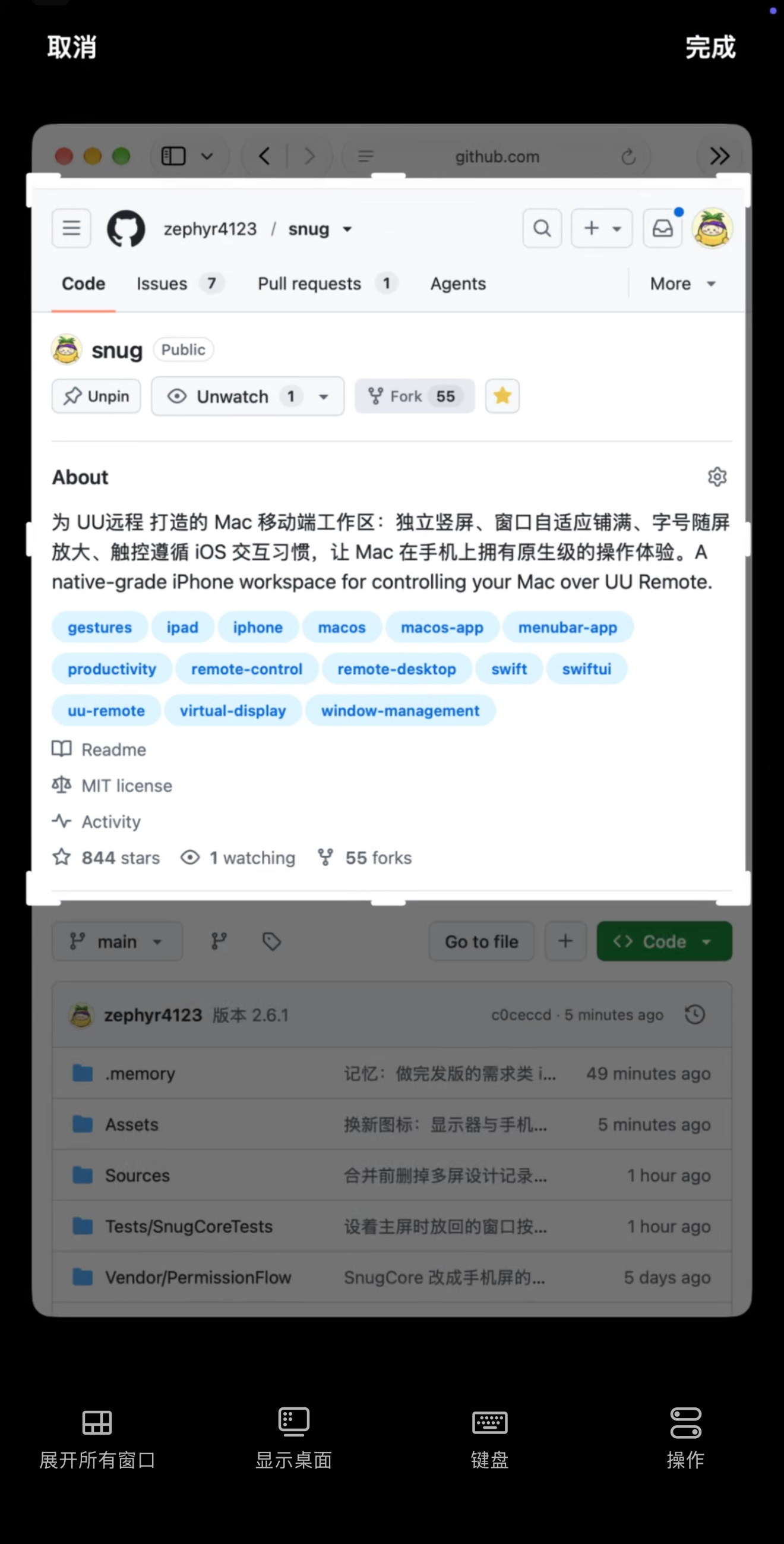
- **Crop**: a thumbnail appears in the bottom-left corner after each capture; tap to crop. Full image selected by default; drag a corner or edge to narrow the selection, then tap Done (「完成」) to replace the clipboard image
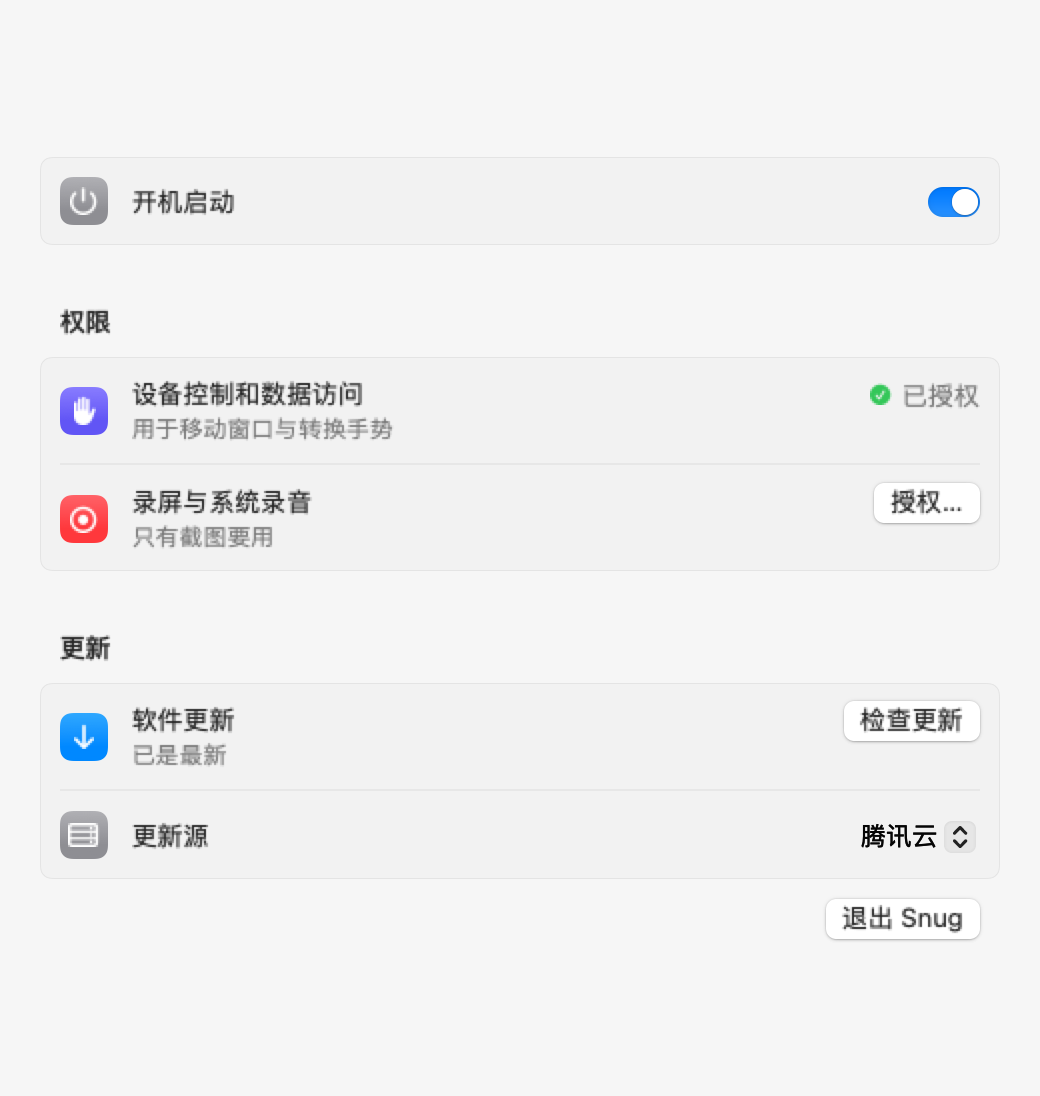
- **Permission**: requires the separate Screen & System Audio Recording permission (Screen Recording on macOS 14): click Authorize… (「授权…」) on the General page (「通用」) of Settings and reopen Snug when prompted; independent of the Accessibility permission
- **Off by default**: no camera button and no recording permission needed while off
Left: thumbnail after a capture · Right: cropping
## 🆚 Compared with Alternatives
| Approach | Limitation | Snug |
| :--- | :--- | :--- |
| **Remote control in AI assistants** | Limited to the vendor's own AI sessions | Any terminal or app; see [Works with Any App](#works-with-any-app) |
| **UU Remote's built-in terminal** | Separate from local terminals; processes persist after disconnecting | The Mac's existing terminal windows |
| **Display emulators and virtual display tools** | One set of proportions, so black bars return with each device switch; no touch gestures or window management | A dedicated screen for every device; native gestures and the App Library on phones and tablets |
- **Remote control in AI assistants**: e.g. Claude Remote Control and Codex in ChatGPT, each tied to a single product
- **UU Remote's built-in terminal**: runs in UU Remote's own tmux, unable to resume work in progress on the Mac (such as Claude Code in a terminal)
## 📦 Installation
> **Requirements**: macOS 14 or later on the Mac being controlled, with [UU Remote](https://uuyc.163.com/) installed; any phone, tablet, or computer with UU Remote as the controlling device.
**Download and install (recommended)**
1. Download the installer from [Download](#-download) (the China mirror is recommended in mainland China)
2. Drag Snug into Applications and open it
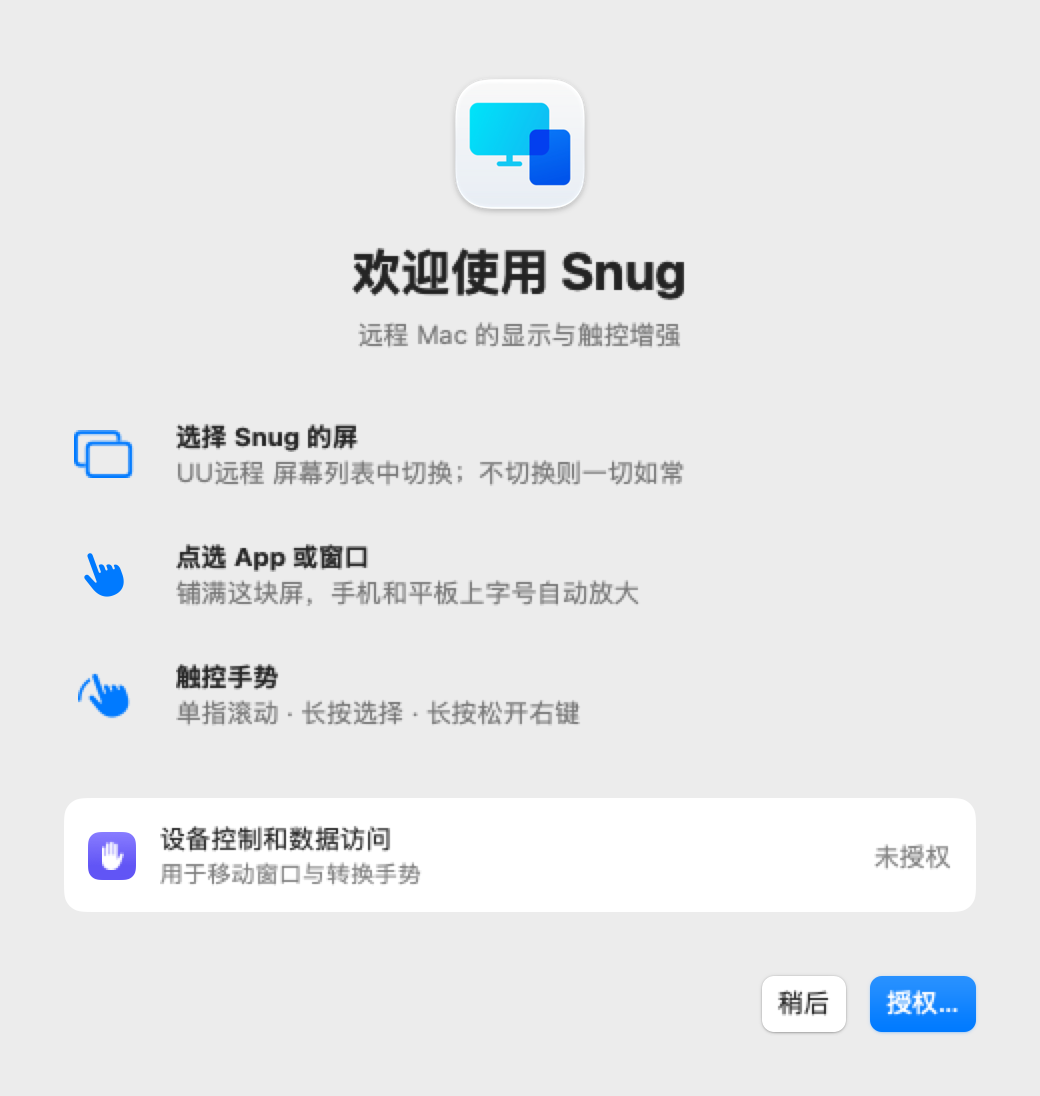
3. Grant the Accessibility permission when the welcome window prompts (renamed in macOS 27)
Snug then stays in the menu bar with no further setup; reopening Snug shows Settings.
**Updates**: checked at launch and installed with one click, keeping settings and permissions; manual checks and update source on the General page (「通用」) of Settings. Versions before 2.1.0 require manual replacement.
Welcome window · Settings: Screens · Settings: General
**Build from source** (Xcode and Swift 6 required)
```bash
git clone https://github.com/zephyr4123/snug.git
cd snug && scripts/snug install
```
Migrating from UU Remote Companion
The two apps conflict when running together; Snug prompts to quit the old app at launch. If its watchdog helper was enabled, also run:
```bash
launchctl bootout gui/$(id -u)/com.corndog.uudisplay.watchdog-agent
rm ~/Library/LaunchAgents/com.corndog.uudisplay.watchdog-agent.plist
```
## 🧭 Usage
1. **Add screens** (as needed): a single portrait screen, "Snug 手机屏" (Snug Phone Screen), by default; tablet, computer, or landscape phone screens added on the Screens page of Settings, each with its model
2. **Switch screens**: once connected, choose the matching screen in UU Remote's screen list
3. **Pick an app or window**: on phone and tablet screens, tap an app or window in the App Library to fill the screen; on computer screens, open the App Library from the menu bar
4. **Switch windows**: tap the bottom indicator bar to return to the App Library; choosing another window returns the previous one to its place
5. **End the session**: windows returned, text sizes restored, Snug's screens removed, except the one set as main display, which keeps its windows
> 💡 Set UU Remote's picture quality to the highest: lower settings blur the picture, especially on tablets.
## 🔒 Isolation and Restoration
- **Only Snug's screens affected**: no display turned off, no other window touched; outside Snug's screens, UU Remote behaves exactly as before. The main display changes only with "Set as main display" on, which keeps the chosen screen as main until the setting is turned off or Snug quits
- **Cleared before removal**: windows opened directly on a Snug screen moved to the main display before the screen is removed, never pushed into a corner
- **Record first, then change**: original window positions and text sizes recorded in advance, restorable even if Snug quits unexpectedly
- **Restored even after a direct close**: a window closed directly on the mobile device returns to its place, with its text size restored, the next time the app opens it at the Snug screen's size
- **Unresponsive apps left as they are**: no forced window moves while an app is unresponsive, with the reason shown on screen
- **No data collection**: no server connections beyond update checks, no data collected; screenshots go only to the Mac's clipboard and are not kept
## 🚧 Known Limitations
| Limitation | Details |
| :--- | :--- |
| Relies on undocumented macOS APIs | May break after a major macOS update |
| UU Remote allows only one controlling device at a time | Screens used in turn; simultaneous sessions from several devices not supported |
| UU Remote starts every connection on the main display | One manual selection in the screen list; with "Set as main display", every connection lands on that screen; see [Set as Main Display](#set-as-main-display) |
| UU Remote on a Mac lists at most 5 screens | The Mac's own displays included; when controlling from a Mac, switch off unused Snug screens first |
| No automatic portrait–landscape rotation | One screen per orientation, switched in UU Remote when rotating |
| Not an official NetEase product | Unaffiliated with UU Remote or its developer; UU Remote updates may affect some features |
| A Snug screen may occasionally remain after a session | Occurs when the system log misses the end of the stream, with the menu bar still showing the session as active (「远程中」); switch off the active screens in Settings to restore |
| VS Code and Cursor may keep the enlarged text size after a window is closed on the mobile device with a shortcut or menu | If the text appears too large after the session, press ⌘- to restore it (the number of steps is shown on screen at closing); unaffected when closing via the window's own close button with gestures on, or from the App Library |
| No return to the original screen on a Mac without a display | macOS provides a default screen only when no display is connected, and removes it once a Snug screen appears; exit the screen from the top right of the App Library, or switch it off in Settings, to restore the original screen |
Technical background for each limitation: [How It Works](docs/how-it-works.md#已知限制的技术原因) (in Chinese).
## 🔧 Development
```bash
scripts/snug check # build and run all tests
scripts/snug install # build, install, and launch
```
- Three layers: `SnugCore` (pure logic) → `SnugSystem` (system interfaces) → `Snug` (UI)
- Packaging, releases, launch arguments, and data locations: [Development guide](docs/development.md) (in Chinese)
- Connection detection, window placement, and gesture translation: [How It Works](docs/how-it-works.md) (in Chinese)
## 🧹 Uninstall
1. Quit Snug from the menu bar (windows are restored first)
2. Move Snug from Applications to the Trash
3. Optional: remove settings and logs with `rm -rf ~/Library/Application\ Support/Snug ~/Library/Logs/Snug.log*`
4. Optional: remove Snug from Accessibility in System Settings, and from Screen & System Audio Recording if Screenshot was used
## 🌐 Community Ports
| Platform | Project | Maintainer | Notes |
| :--- | :--- | :--- | :--- |
| Windows x64 | [Snug for Windows](https://github.com/rizetngan/snug-for-windows) | [rizetngan](https://github.com/rizetngan) | Ported from Snug 2.5.0; C# / .NET 10 / WPF; stable release available |
| Windows 10 / 11 | [snug-win](https://github.com/nicocart/snug-win) | [nicocart](https://github.com/nicocart) | Ported from Snug 2.5.0; C# / .NET 8 / WPF |
Community ports are developed, released, and maintained independently by their authors. This repository develops and tests only the macOS version and has not tested these ports; please report issues to the respective repositories.
## 🙏 Acknowledgments
First and foremost, we extend our sincere respect to **[UU Remote](https://uuyc.163.com/)**.
- **Exceptional quality**: stable connections, responsive control, and freely adjustable image quality and frame rate. Remote control spans encoding, transport, and connectivity across networks, among many other engineering challenges; reaching a standard that everyday work can depend on is a formidable technical achievement in its own right.
- **Three years free**: a product with so high a technical barrier stayed free for everyone for three years, a genuine gift to the entire remote-access ecosystem. This openness is what allows the community to keep building on it, from companion apps and one-finger scrolling to virtual displays, and Snug grew from it as well.
- **Supporting commercialization**: a great product deserves to be rewarded. We fully support UU Remote's premium services, and the author subscribed to VIP right away.
With heartfelt thanks.
We are equally grateful to the following projects and contributors:
- [UUyc-companion](https://github.com/aoyamashou/UUyc-companion) (MIT): by AoyamaShou, Snug's predecessor
- [Better Remote](https://github.com/pincc-debug/better-remote) (MIT): by pincc-debug, the approach to one-finger scrolling in UU Remote
- [PermissionFlow](https://github.com/jaywcjlove/PermissionFlow) (MIT): by jaywcjlove (小弟调调), the permission onboarding and drag-to-authorize panel
- [FreeDisplay](https://github.com/huberdf/FreeDisplay) (MIT): by huberdf, the `CGVirtualDisplay` interface declarations
- Community PR authors: bubble, gencheng liu, and Rongzheng Liu (#10, reading UU Remote windows in full-screen Spaces); yupeng (#26, routing cross-display windows through the main display); 李小双 (#30, #36, ending a session immediately after disconnecting and moving the pointer off a screen before removal and while waiting to reconnect); LI Long (#31, investigating multi-display window restoration and menu bar placement)
- The virtual display implementation draws on [DeskPad](https://github.com/Stengo/DeskPad), [Side Screen](https://github.com/tranvuongquocdat/SideScreen), and Chromium
## ⭐ Star History
 # Snug
**Make UU Remote Native on Any Device**
Built for UU Remote · Display and touch enhancements for remote Macs