Pinky

Let AI use your iPhone or Android phone, with you in the loop: any agent from macOS, Windows or Linux, or Pinky itself, right on the phone.

Download · Get started · FAQ · Discord
English · 简体中文 · 日本語

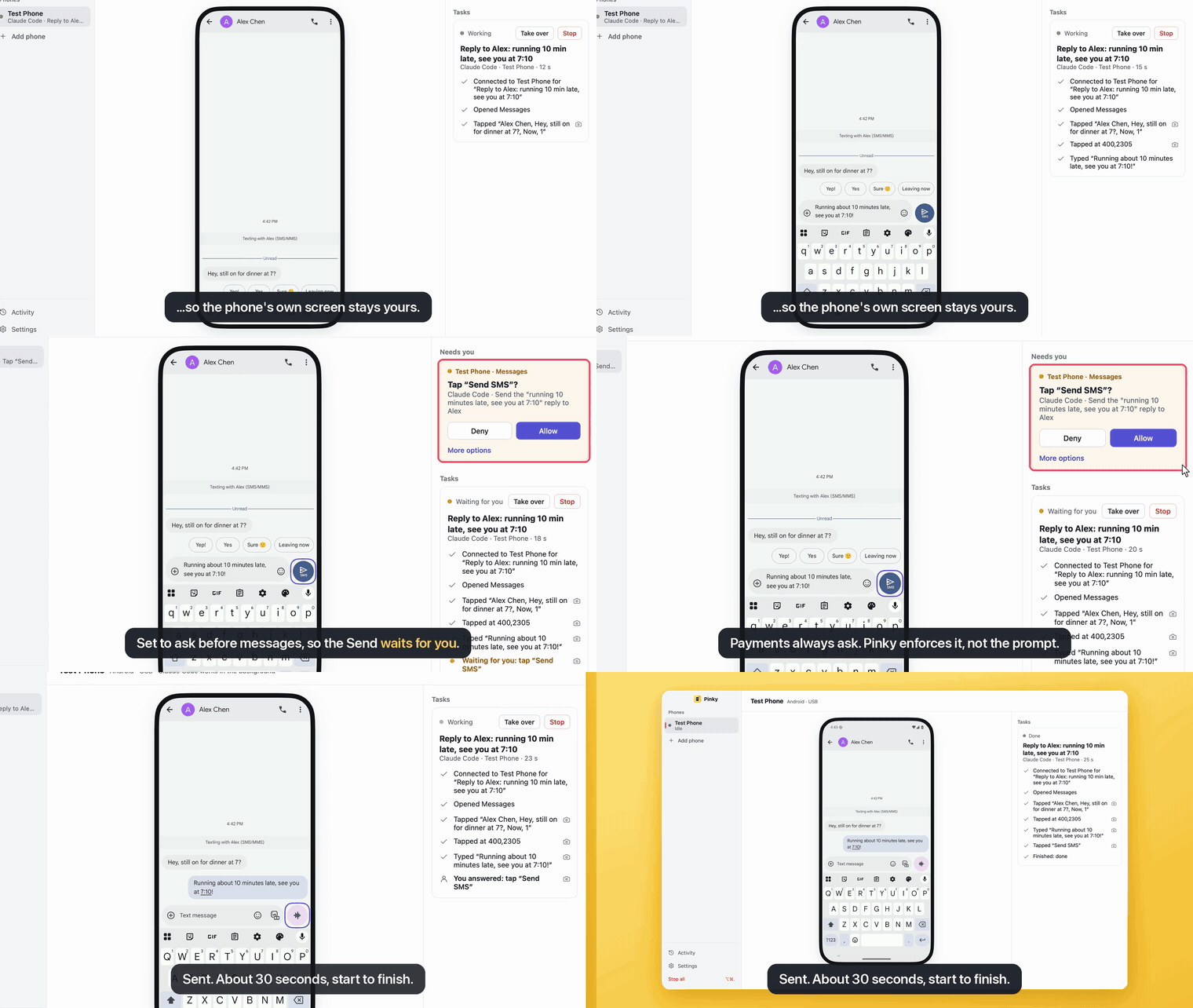
Claude Code types a reply in Messages; Pinky holds the Send tap until it is allowed, then the text goes out
A real Claude Code run on an Android 16 emulator. Pinky asks before payments by default; this run also asks before messages.
Pinky lets any agent (Claude Code, Claude Desktop, Codex, Cursor or a script) operate a real iPhone or Android phone over MCP, while you watch on your computer, approve risky steps, take over and review what happened. Pinky can also do tasks by itself, with an AI model you choose: from your computer, or in Pinky's app right on the phone, with no computer at all. Whoever does the task, approvals are enforced by Pinky's gateway, not by instructions to the agent. - **Every platform.** One app for macOS (Apple silicon and Intel), Windows and Linux. It drives Android phones (Android 10 to 17) and iPhones on iOS 17.4 or later: nothing to install on iOS 27 and later, and Pinky on the iPhone, Pinky's app, installed once from a Mac with Xcode on iOS 17.4 to 26, which you can also choose on iOS 27 (tried there, on a phone below it and on Simulators; [details](#phones)). - **Tiny and native.** The window is drawn by [MyGo](https://github.com/egoist/mygo) on the GPU, with no Electron and no webview: a 16–22 MB download that idles at about 70 MB of memory and 0% CPU on a Mac. - **Any agent, one click.** Settings › Agents connects Claude Code, Claude Desktop, Codex, Cursor and more, and any agent that can use MCP servers works, on the same computer or over HTTP. - **Pinky on the phone, no computer needed.** Pinky's app on Android and iPhone does tasks by itself with a model you choose, from DeepSeek, Qwen, Kimi and GLM to Claude, GPT, Gemini and local models in Ollama or LM Studio. Type or speak a task, or share something to it; on Android, ask about what the screen shows from a floating button, and let it work on a hidden background screen while you keep using the phone ([how](#pinky-on-the-phone)). - **Scheduled tasks and memory.** Pinky can run a task at set times or tell you when a condition holds, on the computer and on Android. After a task it may suggest a note to remember, such as a preference you told it, and keeps it only if you say yes ([more](#ask-pinky)). - **Locked phone? Unlock it from your computer.** Save the phone's PIN in Pinky once, then confirm each unlock with Touch ID, Windows Hello or your keyring's password. Agents never see the PIN. - **Free and open source** under the Apache-2.0 license, with no account to create.
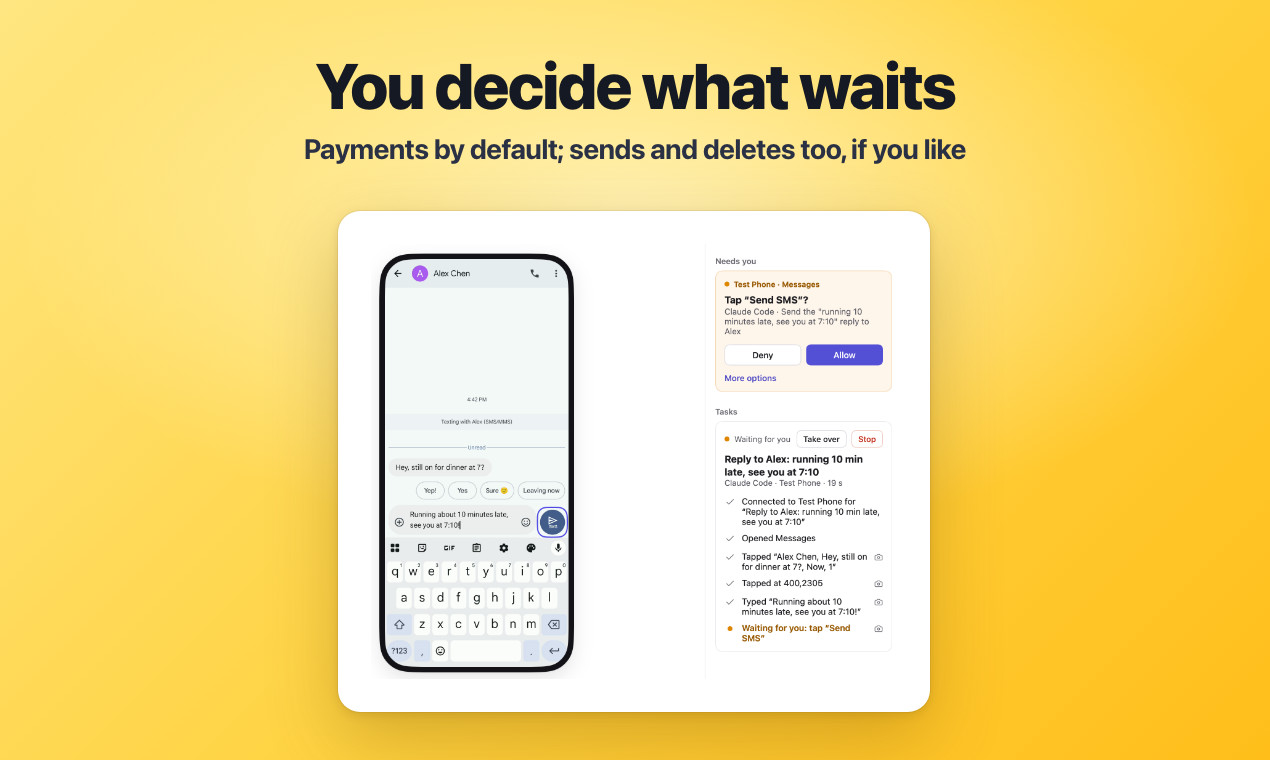
You decide what waits: Pinky's window holds an agent's Send tap until you click Allow
You approve the risky steps. Payments, trades and transfers wait for your click; in Settings › Safety you can have sends, orders, deletions, calls, installs, links that leave the app and settings changes wait too, or every step. Pinky spots these buttons in 10 languages. The rules run in Pinky's gateway, so an agent can't approve itself, even when text on the screen tries to talk it into it.
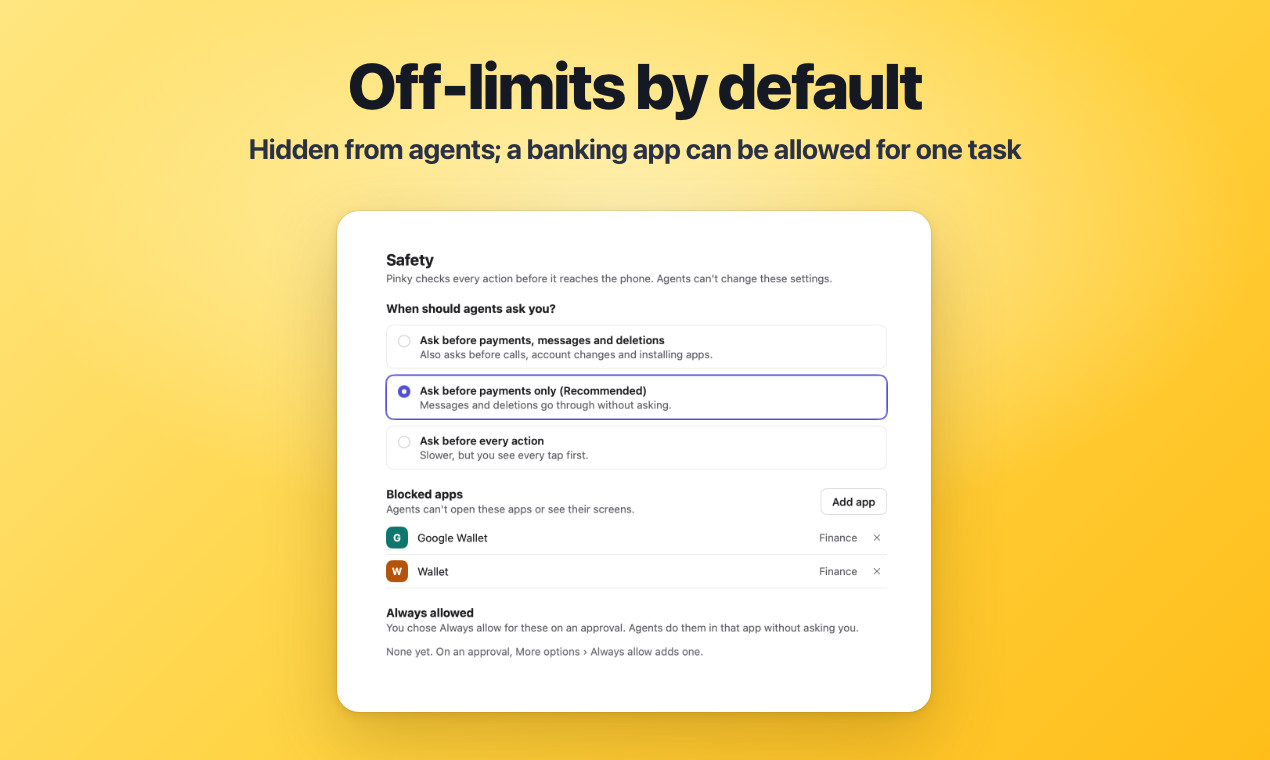
Off-limits by default: Settings › Safety with when agents ask you, and the blocked apps
Off-limits by default. Banking, wallet and password-manager apps are invisible to agents, and agents can't type into password or one-time-code fields. When an agent needs a banking or wallet app for a task, it asks, and you can allow that app for that task only. Every new agent needs your approval and gets only the scope you give it.
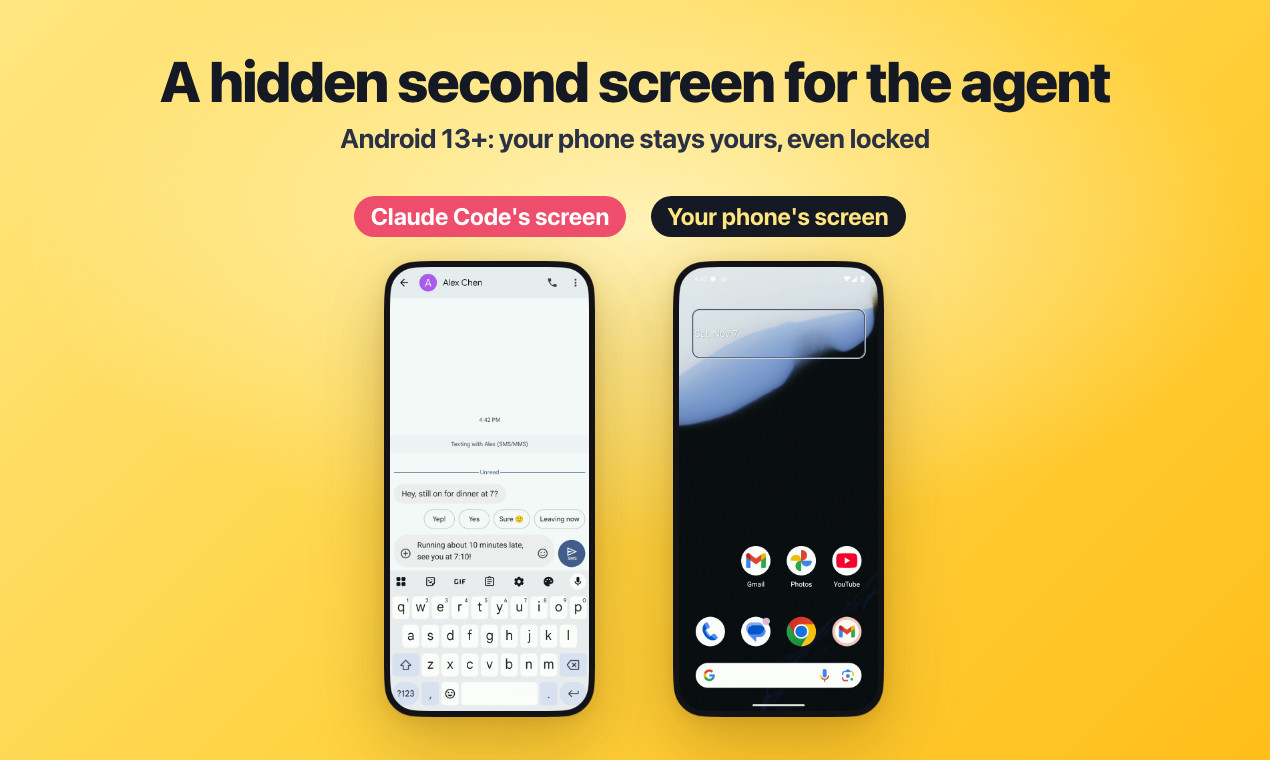
A hidden second screen for the agent: the agent's screen beside the phone's own home screen
Your phone stays yours. On Android 13 and later, agents work on a hidden second screen, so the phone's own screen stays yours, or off and locked. On older Android phones and on iPhones they use the main screen.
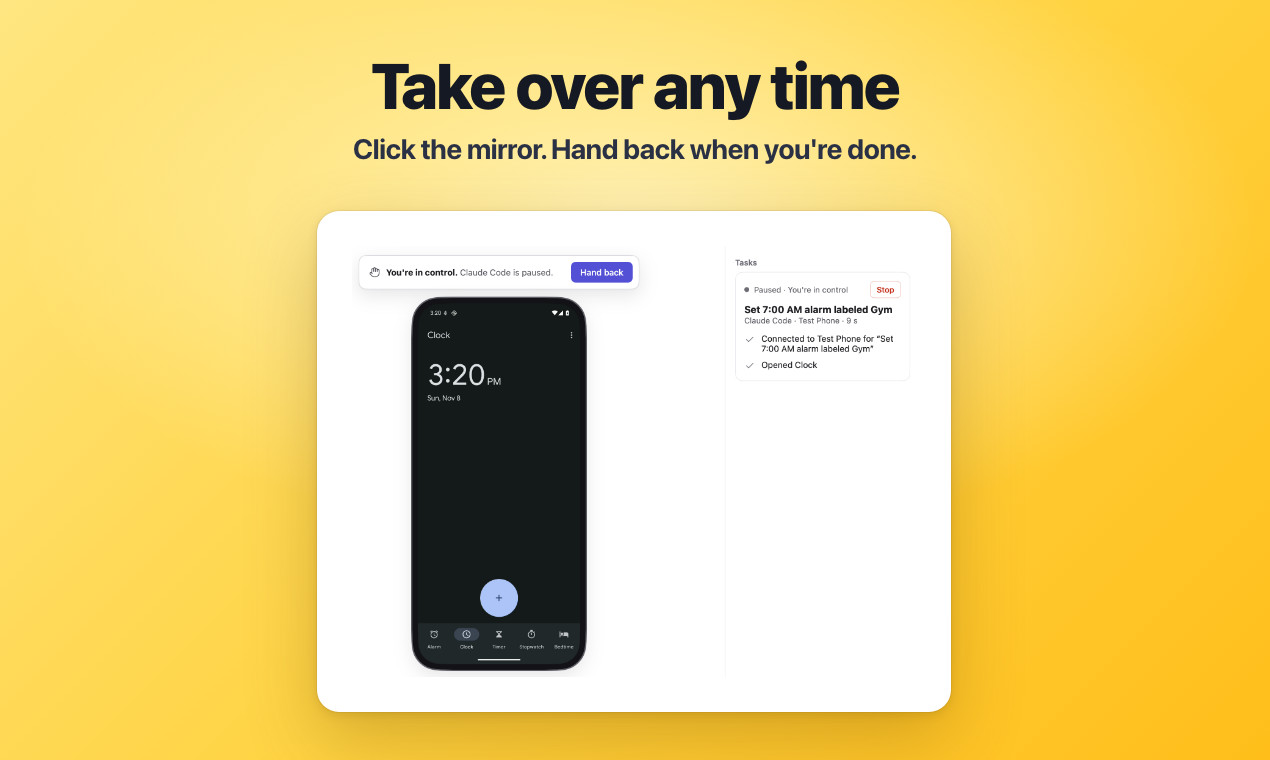
Take over any time: Claude Code is paused while you are in control, until you hand back
Take over any time. Click the mirror and the agent pauses until you hand back; on Android, touching the phone yourself pauses it too. Stop all is ⌥⌘. (Ctrl+Alt+. on Windows and Linux) from anywhere.
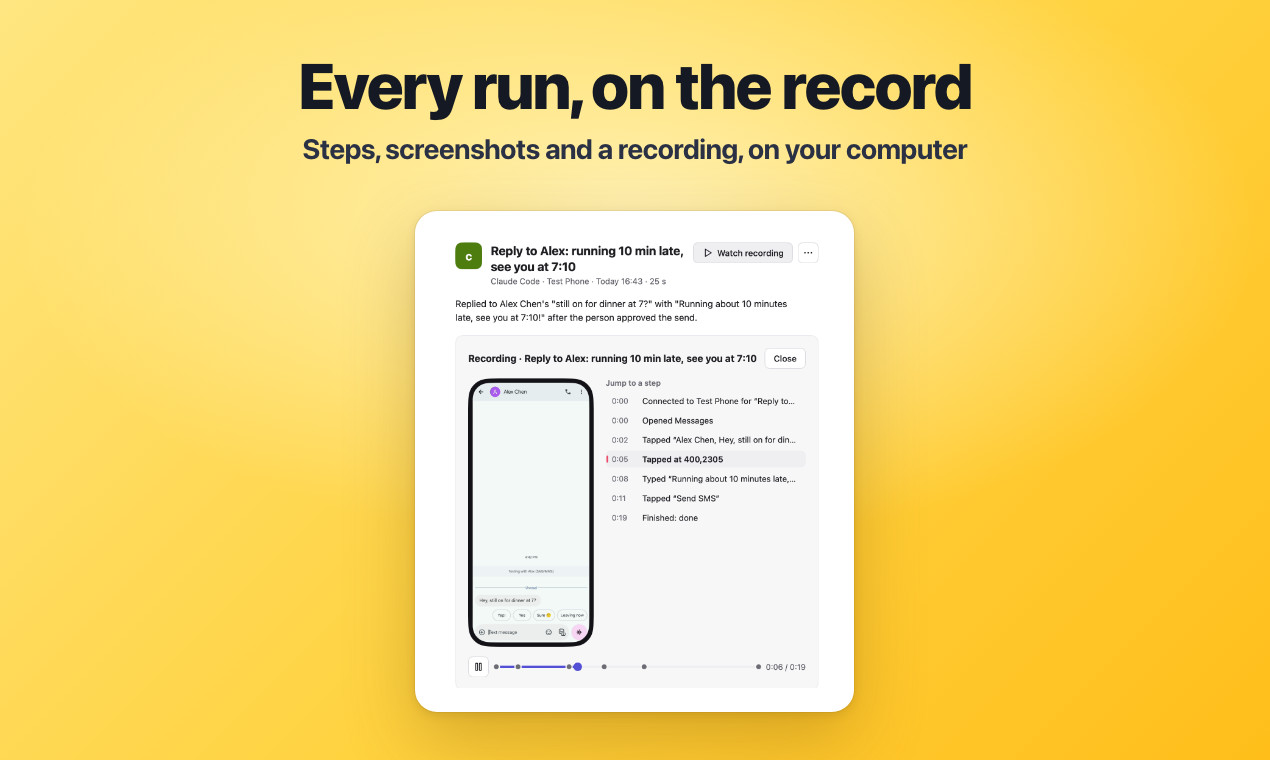
Every run, on the record: a finished task's steps beside its screen recording
Every run is on the record. Each step in plain words, screenshots and a screen recording with a mark per step, exportable as an HTML report. It all stays on your computer.
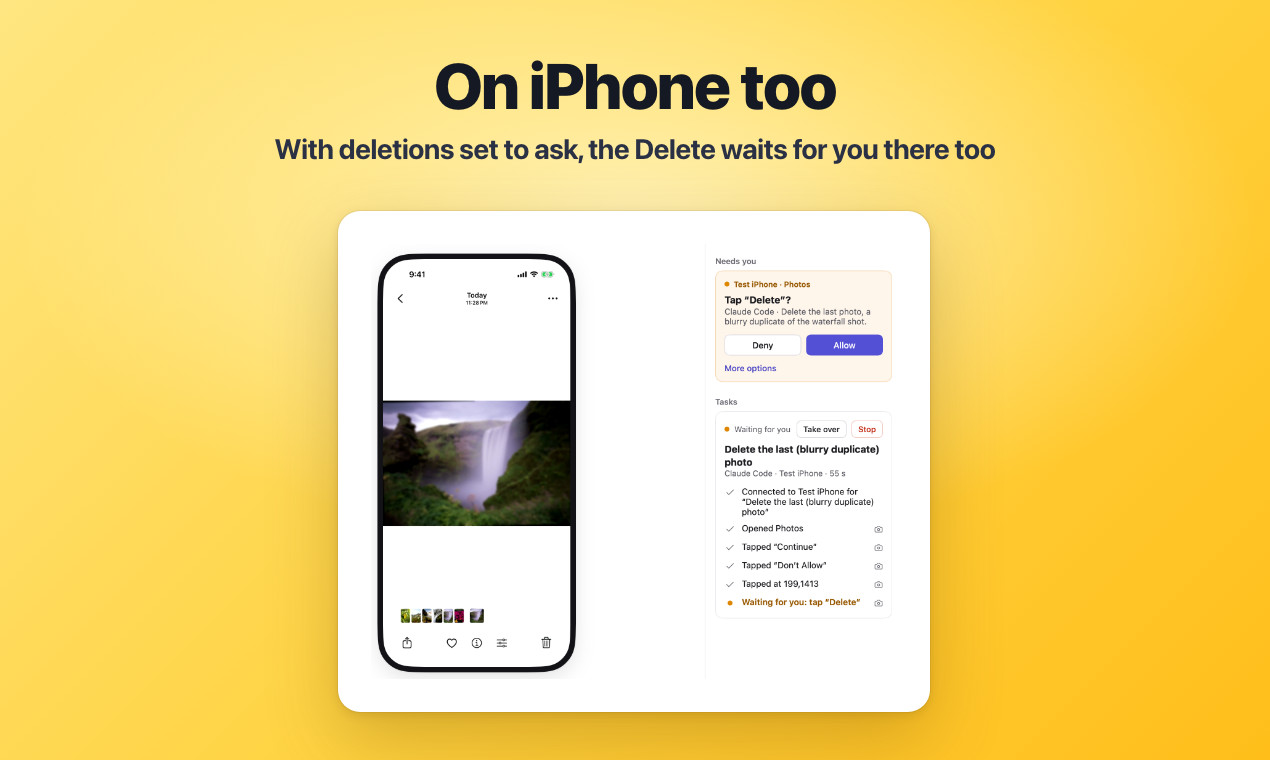
On iPhone too: Pinky holds a Delete tap in Photos until you click Allow
iPhones too. The same gateway, approvals and records work on iOS 17.4 and later (what works). Shown here on the iOS Simulator, with deletions set to ask.
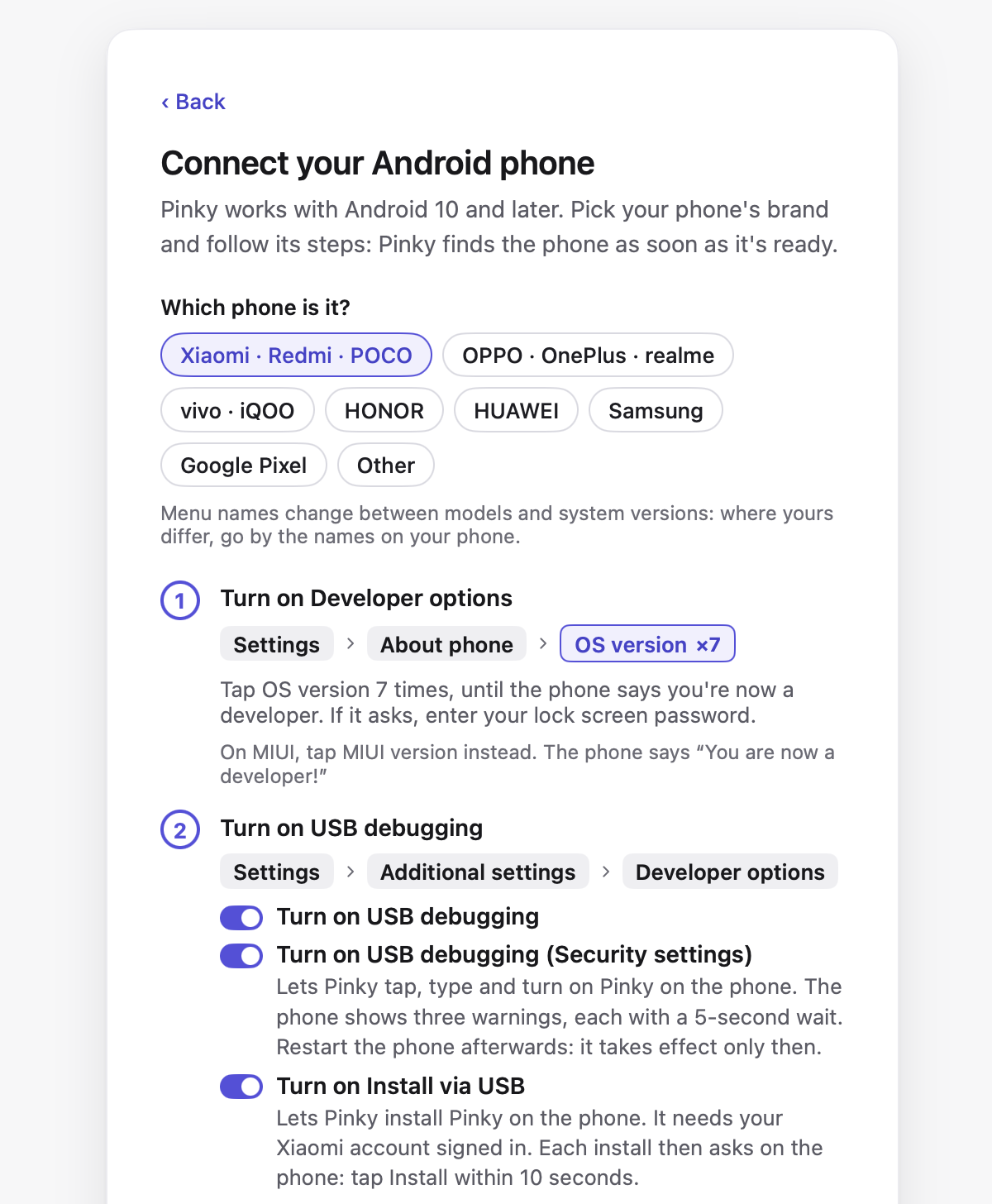
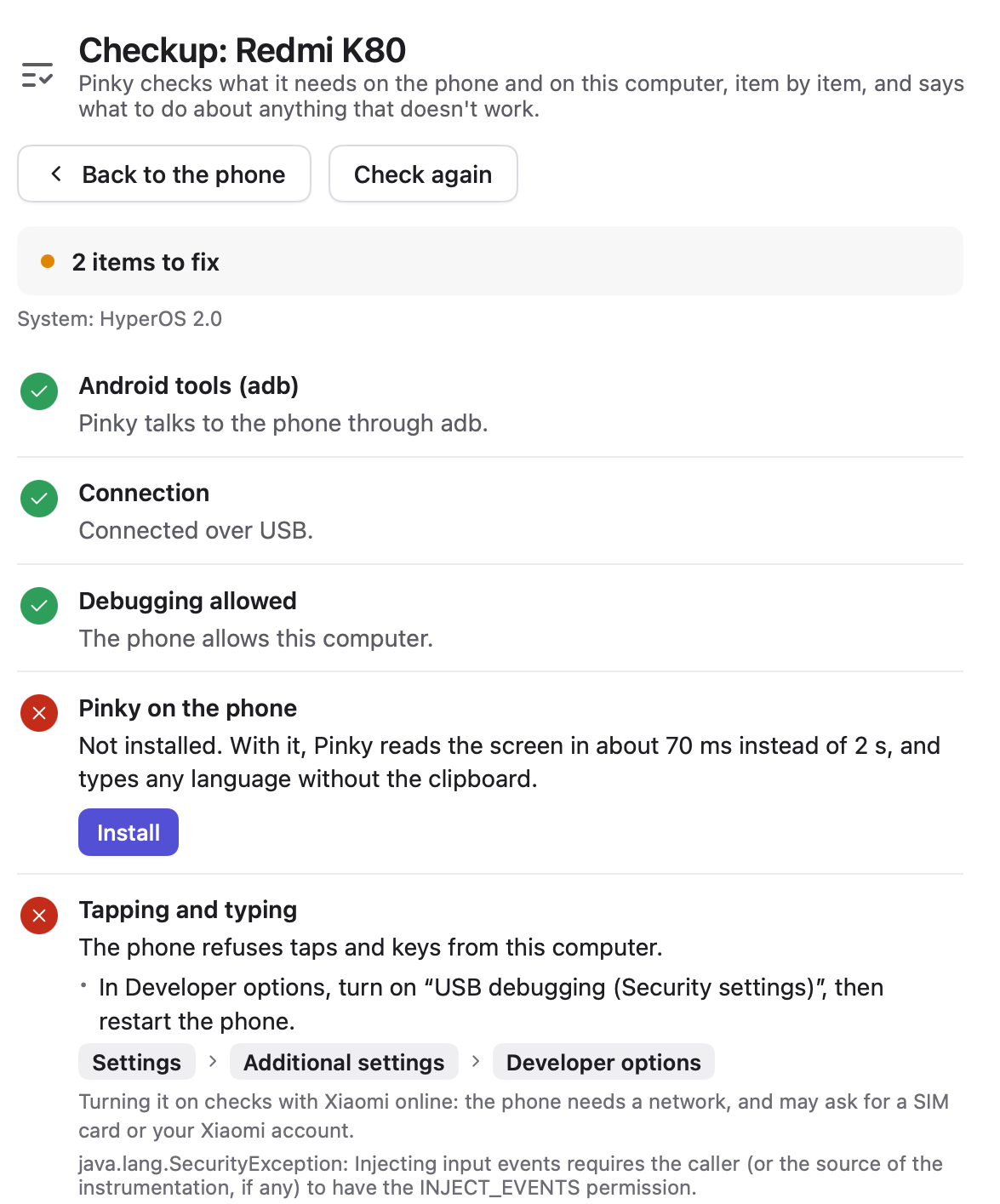
**Status:** pre-alpha. Claude Code has used real phones through it end to end (an Android phone over USB, an iPhone on iOS 27, and an iPhone XS Max on iOS 18.7.11 through Pinky Helper, the app Pinky on the iPhone replaces), and agents can connect over stdio or HTTP. Pinky on the phone has done tasks with a real model on a Mi 10 Pro (Android 17) and an iPhone 13 mini (iOS 27.0.1). Unlocking from the computer, background work on Android, recordings, export, Wi-Fi pairing and the phone's files are built; some of it still waits for a person to try it. See [docs/ACCEPTANCE.md](docs/ACCEPTANCE.md) for what works today and how to try it. ## Get started Install Pinky, connect your phone and add Pinky to your agent. Then ask the agent to do something on the phone, and watch it work in Pinky's window. ### What you need | | You need | | --- | --- | | **Mac** | macOS 13 or later, with Apple silicon or Intel | | **Windows** | Windows 10 or 11, 64-bit (x64) | | **Linux** | A 64-bit PC (x86-64) with Ubuntu 20.04, Debian 11 or a newer system (glibc 2.29 or later), and GTK 3 | | **Android phone** | Android 10 to 17 and a USB cable. Pinky brings its own adb; on Windows some phones need a USB driver, and on Linux USB access ([below](#usb-on-windows-and-linux)) | | **iPhone or iPad** | iOS 17.4 or later, and a USB cable to set it up; afterwards it works over Wi-Fi too ([below](#iphones-and-ipads-over-wi-fi)). Pinky prepares it itself, with Apple's developer disk image, which comes with Xcode or which Pinky can download from a third-party mirror when you ask ([below](#iphone)). On iOS 17.4 to 26 also Pinky on the iPhone, Pinky's app ([below](#iphones-on-ios-174-to-26)) | | **Simulators and emulators** | Optional, in place of a phone or next to one: an iOS Simulator on a Mac with Xcode, or an Android emulator from Android Studio. You create them there; Pinky starts them ([below](#phones)) | | **Agent** | Any agent that can use MCP servers, such as Claude Code, Claude Desktop, Codex or Cursor | ### 1. Download and install Pinky Get Pinky from [the latest release](https://github.com/DIYgod/pinky/releases/latest): - **Mac:** download `pinky--arm64.dmg` for a Mac with Apple silicon (M1 or later) or `pinky--amd64.dmg` for an Intel Mac. Open it and drag Pinky to Applications. With [Homebrew](https://brew.sh), `brew install --cask diygod/tap/pinky` does the same. - **Windows:** download `pinky-setup--amd64.exe` and run it. It installs Pinky for your account, without administrator rights. The installer is not signed yet, so SmartScreen may say that Windows protected your PC: choose **More info**, then **Run anyway**. To use Pinky without installing it, unzip `pinky--windows-amd64.zip` and open `Pinky.exe`. - **Linux:** on Debian and Ubuntu, download `pinky__amd64.deb` and install it with `sudo apt install ./pinky__amd64.deb`. On other systems, unpack `pinky--linux-amd64.tar.gz` into a folder of its own and run `pinky` in it. Pinky looks for new versions by itself and, on a Mac, with the Windows installer and unpacked from the Linux `.tar.gz`, installs them too ([Updates](#updates)). ### 2. Connect your phone Open Pinky and choose **Add phone**. A phone that is ready shows up in Pinky's window; when something is missing, the phone's page in Pinky says what. #### Android **Add phone › Android** shows these steps for your phone's brand, with its own menu names and extra switches: Xiaomi, OPPO, vivo, HONOR, HUAWEI, Samsung and Pixel, and general steps for the rest. 1. On the phone, turn on USB debugging: in Settings › About phone, tap **Build number** 7 times, then turn on **USB debugging** in Settings › System › Developer options. Some brands name these menus a little differently. 2. Plug the phone into the computer. When the phone asks whether to allow USB debugging, tap **Allow**. On Android 11 and later you can pair it over Wi-Fi instead, from **Add phone** ([when it fails](#when-pairing-over-wi-fi-fails)). Android 10 has no Wireless debugging: once it is plugged in, **Use Wi-Fi instead…** moves it to Wi-Fi ([below](#phones)). 3. Pinky offers to install its app for the phone, Pinky on the phone (it shows there as Pinky), which makes reading the screen many times faster and lets Pinky type in any language. The phone may ask you to allow the install once. Each phone has a **Checkup**, in the ··· menu under its mirror, that lists what works and how to fix what doesn't, such as a Xiaomi's USB debugging (Security settings) switch. Over Wi-Fi, Pinky makes sure the phone that answers is yours: it leaves a mark on each phone it sets up, which only the phone's debugging connection can read, and checks it whenever adb connects the phone, so another device on the network can't answer in its place. A phone connected over Wireless debugging that Pinky hasn't used, by another tool for example, shows as found on Wi-Fi, and Pinky leaves it alone until you choose **Use**. If a phone's page says **This may not be …** after you reset the phone or set it up again yourself, choose **Trust this phone…** there, or plug it in once. Taking the phone out? With Tailscale, Pinky reaches it away from home too ([how](#phones-away-from-home)).
Add phone › Android with a Xiaomi picked: where to turn on Developer options, and the three USB debugging switches
Add phone › Android, with a Xiaomi picked.
A Redmi's checkup: adb, the connection and debugging pass; Pinky on the phone and tapping need fixing, with the steps
A Redmi's Checkup, with two things to fix.
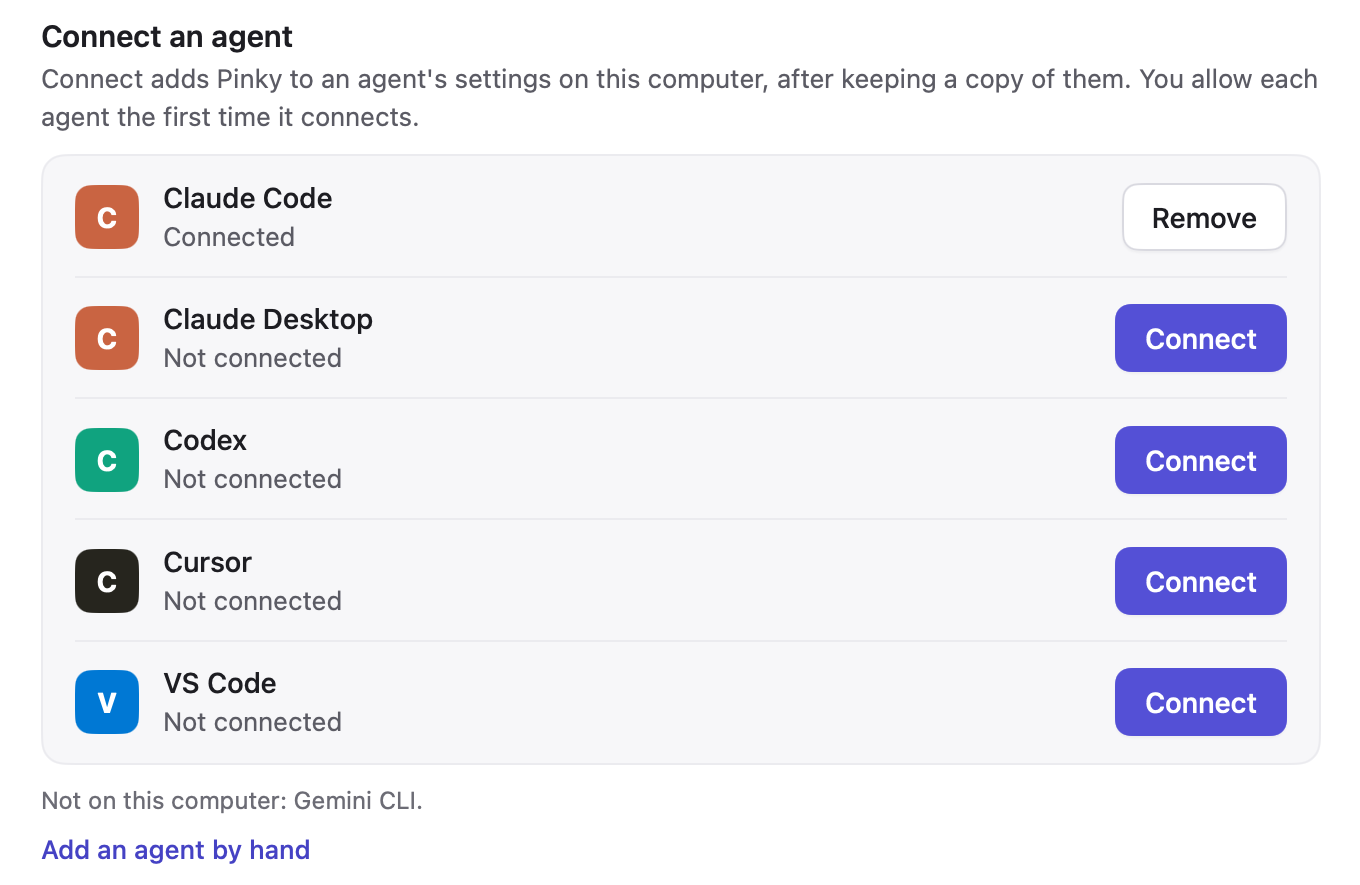
#### Android tools Pinky brings its own adb, the tool it reaches Android phones with, built from Android's source, so nothing else needs installing. When the computer has Android's platform tools already, from Android Studio, Homebrew or the system's packages, Pinky uses those, and shares their adb server with Android Studio and other tools. When Pinky quits, it stops the adb it brought, unless another app such as Android Studio is using it; Settings › Advanced › **Stop adb when Pinky quits** turns that off. An adb you installed keeps running. #### USB on Windows and Linux - **Windows:** the phone's USB debugging needs a driver. Windows installs one by itself for many phones; when it has none, Pinky lists the phone as needing setup and says which driver to install: the [Google USB Driver](https://developer.android.com/studio/run/win-usb) for Pixels, [Samsung's](https://developer.samsung.com/android-usb-driver) for Samsung phones, the [phone maker's](https://developer.android.com/studio/run/oem-usb) for others. Unplug the phone and plug it in again afterwards. - **Linux:** the computer must let Pinky open the phone's USB device, which takes udev rules for Android phones: `sudo apt install android-sdk-platform-tools-common` on Debian and Ubuntu, `android-udev` on Arch, `android-tools` on Fedora. You may also need to be in the `plugdev` group. Then plug the phone in again. Pinky says so when they are missing. #### When pairing over Wi-Fi fails When a phone works on the cable but **Pair over Wi-Fi** does not finish, the pairing page says within half a minute what Pinky sees: - **The phone hasn't shown up on the network yet:** check that Wireless debugging is on and that the phone is on the same Wi-Fi as the computer. Guest Wi-Fi, routers with AP (client) isolation and many office networks keep devices from finding each other. There, choose **Pair with a code instead**: on the phone, tap **Pair device with pairing code** and enter the IP address and port and the six-digit code it shows, which change each time that dialog opens. Pinky then needs no search to pair; if it still cannot find the phone afterwards, it asks for the IP address and port at the top of Wireless debugging (not the pairing dialog's) and connects there. If it cannot reach the phone at those addresses either, the network keeps its devices apart: use a Wi-Fi where they can reach each other, such as your home network rather than its guest network, or the cable. - **Pinky isn't allowed to look for phones on this network:** on a Mac, Pinky needs Local Network access, and macOS gives no error without it: the search just finds nothing. Choose **Open Local Network settings**, turn on Pinky under System Settings › Privacy & Security › Local Network and try again (if macOS asks whether Pinky may find devices on your local network, click **Allow**). On a Mac, a phone's **Checkup** shows this too, under **Local network**. On Windows and Linux, a firewall can block the search the same way: let Pinky use the local network, or pair with a code. - **Pinky can't look for phones on this network:** check that the computer is connected to Wi-Fi or Ethernet. - **The phone showed up, but pairing hasn't finished:** if the phone shows an error or went back to Wireless debugging, scan the code again, or pair with a code. When pairing stops with an error, the page says what adb reported: - **The phone ended the pairing before it finished** (QR code): the phone left its scanning screen, changed Wi-Fi, or something between it and the computer cut the connection; adb cannot tell which. Keep the phone on the scanning screen and try again, or choose **Pair with a code instead** next to the message. - **The phone didn't accept the pairing** (pairing code): a wrong code, or a port that is not the pairing dialog's. The address at the top of Wireless debugging is for connecting, not pairing, and adb answers the same way for both mistakes. - **Nothing at that address is waiting to pair** or **The phone stopped waiting to pair:** the pairing dialog or the scanning screen closed, or the port is wrong. Open it again and use what it shows now. - **Couldn't reach the phone at that address** or **Pinky couldn't connect to it:** the network keeps the computer and the phone apart, as above; a VPN or firewall on the computer can too. - **The adb server running on this computer is too old:** another program started an adb older than platform-tools 30. Quit it, or update it, and Pinky starts its own. Pinky writes adb's own words to its log, which **Help › Send Feedback…** attaches with the diagnostics. Pairing over Wi-Fi needs Android 11 or later; an Android 10 phone moves to Wi-Fi from the cable instead (**Use Wi-Fi instead…**, [below](#phones)). Up to Android 16, Wireless debugging turns itself off when the phone leaves the Wi-Fi network, even for another access point of it, or restarts: turn it on again, or pair again from **Add phone**. #### iPhone Pinky prepares an iPhone itself; **Add phone › iPhone** walks you through it. 1. Plug the iPhone into the computer, unlock it, tap **Trust** and enter its passcode. On Windows, install Apple Devices from the Microsoft Store (or iTunes) first; on Linux, the `usbmuxd` package. Add phone says when they are missing. 2. On the iPhone, turn on **Developer Mode** in Settings › Privacy & Security: Pinky makes the switch appear there. The iPhone restarts; unlock it, tap **Turn On** and enter the passcode. 3. Pinky mounts Apple's developer disk image on the iPhone and lists it as ready. An iPhone on iOS 27 keeps the image when it restarts; below iOS 27 Pinky mounts it again after each restart, once you unlock the iPhone. The developer disk image comes with [Xcode](https://apps.apple.com/app/xcode/id497799835), Apple's free app for developers, and Pinky does not ship it. On a Mac, install Xcode once and open it: Pinky uses the image it installs, and Xcode never has to run again. An iPhone on iOS 27 or later needs the image of Xcode 27 or later: Apple's signing server no longer signs older ones, and Add phone then says which image Pinky used and how to get a newer one. On Windows and Linux, copy `/Library/Developer/DeveloperDiskImages/iOS_DDI` from such a Mac into Pinky's folder ([where](docs/notes/ios.md#preparing-a-phone-without-xcode)). Without either, or when Apple refuses the image Pinky found (Xcode's, or one copied into Pinky's folder), Add phone offers to download the image from a third-party mirror, github.com/doronz88/DeveloperDiskImage (Xcode 27.0 beta 4, 32 MB, kept by the author of pymobiledevice3, not by Apple), only when you click Download; Pinky checks every file against the checksum it expects, and from then on uses it instead of an image Apple refused. On iOS 27 and later, no app gets installed on the iPhone. Checked on the iPhone 13 mini (iOS 27.0.1): Pinky mounting Xcode's image itself (in about 1.5 s, after the image had been taken off), keeping the image already on the phone, and that the iPhone keeps the image when it restarts. Not yet tried on a phone: the downloaded image, the Developer Mode switch, iPhones below iOS 27, and pairing an iPhone on Windows. Contributors have used an iPhone and an iPad on iOS 27.2 on Linux (Arch Linux), and an iPhone on iOS 27.2 on Windows 11, on the cable and over Wi-Fi, with the image already on them. #### iPhones and iPads over Wi-Fi Pinky also uses an iPhone or iPad over Wi-Fi while it is on the same Wi-Fi as the computer, and the computer lists it there, which it does once Wi-Fi connections are on for the phone. Pinky turns them on when you plug the phone in and it trusts the computer: it is the same setting as Finder's **Show this iPhone when on Wi-Fi**, so a phone already set up that way stays as it is. It is on by default; **Settings › Phones › Use iPhones and iPads over Wi-Fi** turns it off, which leaves the phones' setting alone. If a phone doesn't show up on Wi-Fi when you unplug it, its **Checkup** says where it stands under **Wi-Fi**: whether its Wi-Fi connection is on and whether Pinky turned it on, why Pinky couldn't, and whether this computer sees the phone on Wi-Fi. - An iPhone or iPad Pinky has used keeps working when you unplug it, as the same phone with its settings: Pinky moves it to Wi-Fi by itself, and back to the cable when you plug it in, and an agent's task goes on; its calls wait a few seconds meanwhile. - One Pinky has not used, such as a family member's iPad paired with this computer, shows as **Found on Wi-Fi**. Pinky reads its name, model and iOS version and does nothing else, and agents don't see it, until you choose **Use**, which sets it up over Wi-Fi, or **Ignore**, which keeps it off the list until you plug it in. - A locked iPhone or iPad on Wi-Fi shows as **Locked on Wi-Fi**, and Pinky connects to it once you unlock it: while it sleeps it drops off the network every minute or so, and connecting to it then lights its screen. - Setting one up over Wi-Fi: trusting the computer needs the cable, and so does making the Developer Mode switch appear while it is hidden (on a phone used with Xcode it shows already). Turning Developer Mode on happens on the phone, and Pinky mounts the developer disk image over Wi-Fi too, in about 9 s instead of 1.5 s. **Add phone › iPhone** says which step needs the cable. - Over Wi-Fi, Pinky talks only to the phone it paired with: it checks the certificate the phone got when it first trusted this computer, so another device on the network can't answer in its place. Below iOS 27, the connection to WebDriverAgent in Pinky on the iPhone isn't encrypted, so there it is only as safe as the Wi-Fi. Over Wi-Fi each step is slower than on the cable, screenshots most of all. Measured on an iPad Pro 11-inch (3rd generation, iPadOS 27.0.1), Wi-Fi against the cable: a swipe shows on screen after 80 to 210 ms (60 to 90 ms), the home screen reads in 0.6 to 2.6 s (0.5 to 0.6 s), a screenshot takes 5 s (1 s), and 0.2 % of the video's packets were lost (none). Unplugging moved a running task to Wi-Fi in about 5 s, and plugging in moved it back in 2 to 6 s ([details](docs/notes/ios.md#wi-fi)). On a Mac, the system's device service, usbmuxd, can lose an iPhone on Wi-Fi after its connection broke once (its Wi-Fi turned off and on, say), and not look for it again for up to about an hour; Finder loses it too. Pinky notices when a phone you use is on the network but no longer listed, shows it as **Lost on Wi-Fi**, and offers **Restart device service…** on its page: after you confirm, macOS asks for an administrator's password, and every iPhone and iPad, also on a cable, disconnects for a second or two. `sudo killall usbmuxd` in Terminal does the same. Right after you unplug a phone it says so within about 10 seconds; it waits a minute otherwise, as a phone that wakes comes back by itself. A phone you unplug that this computer doesn't see on Wi-Fi at all shows as **Not seen on Wi-Fi**, with what may hide it: it's asleep, on another network or one that keeps devices apart (guest networks, some routers), a VPN, or Pinky not allowed on the local network. On Linux and Windows, the system's device service does not list iPhones and iPads on Wi-Fi by itself: on Linux (the `usbmuxd` package) it lists them only on the cable, and on Windows (Apple Devices or iTunes) only while they are on the cable too. So there Pinky runs a small device service of its own in front of the system's, while it uses phones over Wi-Fi: it finds the phones paired with this computer on the network and connects to them directly, and passes everything about phones on a cable to the system's. All of Pinky's connections to iPhones and iPads go through it then, on the cable too. There is nothing to install or set up for it beyond the system's own (`usbmuxd` on Linux, Apple Devices on Windows). If you run a device service that lists phones on Wi-Fi itself, such as netmuxd, and start Pinky with `USBMUXD_SOCKET_ADDRESS` pointing at it (`unix:///path/to/socket` or `tcp://127.0.0.1:port`), Pinky uses that one instead and runs none of its own. While Pinky opens a phone, or moves it between the cable and Wi-Fi, it shows **Connecting** or **Moving to Wi-Fi** rather than offline. Over Wi-Fi Pinky reads text from the live picture rather than from screenshots, which take about 5 s there. An iPhone or iPad without a passcode never reads as locked, so after it has dropped off the network to sleep, Pinky connects to it only once it has been back for 30 seconds. #### iPhones on iOS 17.4 to 26 Below iOS 27, an iPhone takes taps and typing from a computer only through an app on the phone that hosts WebDriverAgent: Pinky on the iPhone, Pinky's own app, which you install once from a Mac with Xcode, signed with your Apple ID: plug the iPhone in and click **Install Pinky on the iPhone** on its page in Pinky (or in Add phone › Try an older iPhone), or run `pinkyctl helper install` in Terminal. Either builds it, signs it and installs it, and Pinky's window shows each step and asks you to unlock the phone when Xcode waits for it ([how](docs/notes/ios.md#installing-pinky-for-iphone)). While Pinky on the computer uses the phone, the app says so on the iPhone. Pinky Helper, the app Pinky installed for this before November 2026, keeps working, and Pinky still installs it when Pinky on the iPhone can't be built (`pinkyctl helper install --helper-only` asks for it). With a free Apple ID it has to be installed again every 7 days: two days before, the phone's page and its checkup remind you, with **Install again**, and once it has run out the phone shows as needing setup and says why ([how to install it again](docs/notes/ios.md#when-pinky-for-iphones-signature-runs-out)). Pinky Helper has been tried on an iPhone XS Max on iOS 18.7.11, on Windows, over its cable and Wi-Fi; Pinky on the iPhone in its place has been installed over Pinky Helper on an iPhone 13 mini on iOS 27.0.1, where the computer started and stopped its testing service; not yet on iOS 17.4 to 26. Without it, Pinky can only show and read the screen (on a Mac) and open apps: no taps, swipes or typing. iOS 17.3 and earlier are not supported. ### 3. Add Pinky to your agent In Pinky, open **Settings › Agents** and click **Connect** next to your agent. Pinky finds Claude Code, Claude Desktop, Codex, Cursor, VS Code, Copilot CLI, Windsurf (Devin Desktop) and Gemini CLI on your computer and adds itself to the agent's MCP servers, by the app's own path: with the agent's own command where it has one, such as `claude mcp add`, or in its settings file, which Pinky copies first and changes only in Pinky's entry. It also installs Pinky's agent guide, [SKILL.md](docs/SKILL.md), where the agent reads skills, and keeps it current: when Pinky updates, it rewrites the guide it installed to the new version's. Until an agent is connected, a card in Pinky's sidebar offers to do it, or says where to get one.

Settings › Agents › Connect an agent: Claude Code connected; Claude Desktop, Codex, Cursor and VS Code with Connect buttons

- **Claude Desktop:** Connect opens Pinky's extension in Claude Desktop; click **Install** there. Double-clicking `pinky-.mcpb` from the [release page](https://github.com/DIYgod/pinky/releases/latest) does the same. - **Other agents:** **Settings › Agents › Add an agent by hand** shows the command for your copy of Pinky, with buttons that copy it. Add an MCP server (stdio) that runs it. In a JSON config, with the Homebrew cask or a Linux package: ```json { "mcpServers": { "pinky": { "command": "pinkyctl", "args": ["mcp"] } } } ``` Claude Code in a terminal: `claude mcp add --scope user pinky -- pinkyctl mcp`. Most agents read the guide from `~/.agents/skills/pinky/SKILL.md`, Claude Code from `~/.claude/skills/pinky/SKILL.md`. The command is `pinkyctl`, not `pinky`: many computers already have another program named `pinky`. An agent on another computer or in a container can connect over HTTP instead ([how](docs/mcp.md#over-http)). [docs/mcp.md](docs/mcp.md#connecting-an-agent) says what Connect changes for each agent. ### 4. Try it Ask the agent to do something on your phone, for example "Open Messages on my phone and tell Sam I'm running late." The first time an agent connects, Pinky asks whether to allow it and what it may do. Payments wait for your click in Pinky's window; in Settings › Safety you can have sends, deletions and more wait too. No phone at hand? Start an iOS Simulator or an Android emulator in **Add phone › Virtual phone** ([below](#phones)). Or quit Pinky and start it with two scripted demo phones (a payment to approve, a blocked banking app, a password field): `/Applications/Pinky.app/Contents/MacOS/Pinky --fake` on a Mac, `pinkyctl --fake` on Linux, or `& "$env:LOCALAPPDATA\Programs\Pinky\Pinky.exe" --fake` in PowerShell on Windows. ## Using Pinky ### Phones - **Android:** connected over USB or Wi-Fi ([above](#android)). Pinky works over adb and a bundled scrcpy server. Pinky on the phone, Pinky's Android app, which ships with Pinky, reads the screen in about 70 ms instead of 2 s and types any language without the clipboard: the phone's page offers to install it (the phone may ask you to allow it once). Its accessibility service is on only while an agent works on the phone, as banking apps refuse to run next to one ([why](#faq)). On Android 13 and later, agents work on a background display, so the phone's own screen can stay off and locked. Text that an app draws without describing it to the accessibility tree, as in mini-programs and other web pages inside super-apps, games and maps, is read from the screen's pixels (OCR) on macOS and Windows, so agents can read it and tap it. Pinky reads a blocked app this way only once you allow it for the task, never a locked phone, and keeps no picture. - **Wi-Fi on Android 10:** Android 10 has no Wireless debugging. Plug the phone in and choose **Use Wi-Fi instead…** in the ⋯ menu under its picture (or in Settings › Phones): Pinky has the phone's adb listen on the network (`adb tcpip`, port 5555), connects to it at its Wi-Fi address and says when you can unplug it. It connects again by itself when the phone is back on the network, also at a new address. While it is on, any computer on the same network can try to connect to the phone: if the phone asks **Allow USB debugging?** when you are not connecting it yourself, tap **Cancel**, and use it only on Wi-Fi you trust. It lasts until the phone restarts; then plug it in once and choose **Use Wi-Fi again**. **Stop the Wi-Fi connection** in the same menu turns it off ([details](docs/away-from-home.md#wi-fi-without-wireless-debugging)). - **iPhone:** connected over USB or Wi-Fi ([above](#iphones-and-ipads-over-wi-fi)) and prepared by Pinky ([above](#iphone)); iPads work the same way. What Pinky can do depends on the iOS version and on how Pinky connects, which you can choose for each iPhone in Settings › Phones (Automatic picks by version, as below): | iOS | How | What works | Tested on | | --- | --- | --- | --- | | 27 and later | Xcode's Device Hub protocol; nothing installed on the phone | Everything but pinching. Typing pastes the text and puts your clipboard back | iPhone 13 mini, iOS 27.0.1 | | 17.4 and later, with Pinky on the iPhone | Pinky on the iPhone, Pinky's app with WebDriverAgent in it (or Pinky Helper, installed before), installed once on a Mac with Xcode, from Pinky's window or with `pinkyctl helper install` ([how](docs/notes/ios.md#installing-pinky-for-iphone)): automatic on iOS 17.4 to 26, your choice on 27 | Everything, and the phone shares no screen, so banking apps that refuse screen sharing keep working (DBS digibank and China Merchants Bank in testing). Slower than Device Hub: a home screen reads in about 7 s instead of under 0.5 s, a tap takes 0.5 to 0.8 s. Now and then iOS asks for the passcode on the phone before it starts. The live picture works on macOS and Windows | With Pinky on the iPhone: installed on an iPhone 13 mini, iOS 27.0.1, its testing service started and stopped from the computer. With Pinky Helper: iPhone 13 mini, iOS 27.0.1, with it chosen; iPhone XS Max, iOS 18.7.11, on Windows: the live picture over its cable and Wi-Fi, and its keys and swipes; iOS 18.5 and 26.5 Simulators | | 17.4 to 26, without it | The developer services alone; nothing installed | Watching (a few frames a second, macOS and Windows), reading the screen (placed by OCR, macOS only) and opening apps and links. No tapping, swiping, typing or Home: the phone offers no input without Pinky on the iPhone | The same services on iOS 27.0.1; not yet on a phone below iOS 27 | | 17.3 and earlier | | Not supported: before 17.4 the connection needs administrator rights, and iOS 16 and earlier need a developer disk image that current Xcode no longer includes | | Pinky on the iPhone carries Appium's WebDriverAgent and is signed with your own Apple ID. The signature lasts 7 days with a free Apple ID and a year with a paid developer account. Pinky reads on the iPhone when it runs out: two days before, the phone's page and its checkup remind you to install it again (**Install again** in Pinky, or `pinkyctl helper install`, on a Mac with Xcode), and once it has run out the phone shows as needing setup and says why, instead of failing to start it ([how](docs/notes/ios.md#when-pinky-for-iphones-signature-runs-out)). - **Screen sharing on iPhone:** while Pinky streams an iPhone's screen, iOS tells apps that the screen is being shared, and some banking apps (DBS digibank and China Merchants Bank among them) refuse to run or warn you. iOS also keeps the camera and microphone from apps then, so the camera shows black and scanning a code fails. It works the other way round too: while an app uses the camera or microphone (a call or FaceTime, Camera, Voice Memos), iOS 27 doesn't let Pinky show the iPhone over Device Hub. Its page then says **Camera or microphone in use** and what to do, and Pinky connects by itself once the call ends or the app closes. Pinky streams it while the phone's page or tile is open in Pinky, while an agent works on it, and for 30 seconds after; then such apps work again. Over CoreDevice, agents cannot use them. Install Pinky on the iPhone as well, and leave the phone on Automatic (Settings › Phones): tasks use CoreDevice, and Pinky moves a task to Pinky on the iPhone, which shares no screen, when it opens DBS digibank or China Merchants Bank, or when the agent asks for it; the phone goes back to CoreDevice after the task. Or connect the iPhone through Pinky on the iPhone for every task. - **Simulators and emulators:** an iOS Simulator (on a Mac with Xcode) or an Android emulator (from Android Studio) can be a phone too. **Add phone › Virtual phone** lists the ones on the computer: **Start** starts one, and once it runs it shows up as a phone, marked Simulator or Emulator; **Shut down** stops it. An Android emulator Pinky starts has no sound, so it never switches a Bluetooth headset to its microphone. Only you start them: agents have no tool for it. The live picture, recordings, approvals and rules work as on a phone. Pinky finds the Android SDK the way Android Studio does (`ANDROID_HOME`, then `ANDROID_SDK_ROOT`, then where Android Studio installs it), and an emulator then works like an Android phone on a cable. For Simulators, Pinky builds Appium's WebDriverAgent with your Xcode the first time: from the source of one release, whose files it checks before building, unsigned and without an Apple ID. That takes 20 seconds to a few minutes, and the build is kept until Xcode changes. Pinky creates no Simulators or emulators and downloads no system images: create them in Xcode (Window › Devices and Simulators) or in Android Studio's Device Manager ([details](docs/notes/ios.md#ios-simulators)). - **Locked phones:** Pinky never keeps a phone awake. It wakes the screen before a step; save the phone's PIN in Settings › Phones to unlock it from the computer with Touch ID. Agents never see the PIN. On Android this is checked on AOSP-style lock screens (LineageOS on a Mi 10 Pro, the Android 10, 16 and 17 emulators); the lock screens of Xiaomi, Samsung, OPPO, OnePlus, vivo, Honor and Huawei are only covered by tests made from what is known of them, and where Pinky cannot read the PIN pad with confidence it enters nothing ([details](docs/notes/integration.md#unlocking-other-android-phones)). - **Pinching:** agents pinch to zoom maps, photos and pages in and out, and turn them with two fingers. You can too, on the phone's picture in Pinky: pinch on the trackpad (on Linux, under Wayland only), or drag with Option held (Alt on Windows and Linux), as in Xcode's Simulator, and a second finger moves opposite the pointer across the screen's centre. Like any touch of yours, it pauses the agent. iPhones pinch through Pinky on the iPhone. On iOS 27 left on Automatic, Pinky moves to it for a pinch, an agent's or yours (your first pinch only starts the move, which takes a few seconds), and back afterwards; without it they cannot pinch, and agents are told so. - **Dragging:** agents drag with `phone_drag`: press and hold to pick something up, move through the points they name, rest where needed, and let go. They move app icons to another home screen page (resting near the screen's edge turns the page) or into a folder, reorder lists and move sliders. The rules and approvals treat a drag like a swipe, checking what lies under every point the finger touches, and the approval's screenshot draws the whole route. It works on Android and on iPhones through Device Hub or Pinky on the iPhone. Tried on an Android emulator and an iOS Simulator, not yet on a phone. - **Files:** on Android, agents copy files between the phone's Pinky folder (`/sdcard/Pinky`, the only place on the phone they may reach) and a folder on the computer, and copying to the phone asks you first. Pictures copied there show in the phone's gallery and photo pickers, so an agent can attach them in a chat app. An agent on another computer cannot reach that folder, so it sends Pinky the file first: small files in the call, larger ones to a one-time link Pinky gives it. Copying the file to the phone then asks you as usual ([details](docs/mcp.md#uploading-a-file)). Not on iPhones. - **Screenshots and reports for bug reports:** an agent testing an app can save a screenshot as a file, and, as the task ends, the task's report (its steps with screenshots, as HTML and JSON), to put in a bug report or a pull request. They go into the phone's folder on the computer, on iPhones too, and saving asks nothing, as nothing on the phone changes. They show only what the agent may see: codes covered, nothing of a locked phone or a blocked app, even one you allowed for the task. The task's screen recording covers neither codes nor blocked apps, so it goes to the agent only when you allow it: when the agent exports a recorded task, Pinky asks you whether it gets the recording too (an MP4 next to the report), every time, and no preset or Always allow answers that for you. If you decline or don't answer, the agent gets the report alone. An agent on another computer gets a one-time link for each file ([details](docs/mcp.md#saving-screenshots-and-reports)). - **Links:** agents open links with `phone_launch`: web pages, an app's own links (`myapp://…`), and links for calls, texts and email. Before anything opens, Pinky finds the app the phone would open the link in, and treats the link as opening that app and as tapping what it stands for: a blocked app's links stay blocked, links into apps outside the task are refused, and a payment link waits for you like a Pay button. Links that read files on the phone, run code or run shortcuts (`file:`, `content:`, `intent:`, `javascript:`, `data:`, Shortcuts) are always refused, and so is a link the phone would ask you to pick an app for. The approval and Activity name the link and the app. On an iPhone a web link opens in Safari; through Pinky on the iPhone, links need WebDriverAgent 4.11 or later ([details](docs/mcp.md#opening-a-link)). - **Apps you build:** agents can install an app from the phone's folder on the computer (an APK, or the split APKs of one app, on Android; an `.ipa` or `.app` development-signed for that iPhone), update it, uninstall it and force-quit it, so a coding agent can put its build on the phone, open it and check it. Installing and uninstalling ask you, with the app's name, id, version and who signed it; **Allow for this task** lets the agent install its next builds of the same app, signed the same way, without asking again, and **More options › Always allow** does so in later tasks too, for that agent and phone, until you take it back in Settings › Safety. A build signed by someone else, or another app, still asks, and uninstalling asks every time. Pinky's own apps, system apps, finance apps, password managers and apps you blocked can't be installed over, uninstalled or stopped ([details](docs/mcp.md#phone_app)). - **App logs:** an agent testing an app can read that app's own log lines and crash reports, to see why it failed. The first time in a task, Pinky asks you (**Allow for this task** covers the rest of it, and **More options › Always allow** stops asking for that agent, phone and app until you take it back in Settings › Safety), unless the app is a development build (a debug build on Android, an app Xcode installed on an iPhone). Agents get only that app's lines, never other apps' or the system's, and never the logs of blocked, banking, wallet or password-manager apps, the phone's own apps or Pinky's. History keeps how many lines were read, not the lines. An iPhone keeps no log history Pinky can read, so there Pinky listens from the agent's first read until the task ends ([details](docs/mcp.md#phone_logs)). - **Testing an app:** agents can flip the switches developers test with: turn the screen, switch between light and dark appearance, simulate a location, and open an app in another language and region. These change the phone's settings, so on a real phone you approve them first (**Allow for this task** covers the rest of the task, and **More options › Always allow** stops asking for that agent on that phone until you take it back in Settings › Safety); on emulators and Simulators they go through at once unless you chose to approve more than payments. Pinky puts everything back when the task ends, and leaves alone what you changed yourself meanwhile. Rotation and appearance work on Android and on iPhones with Pinky on the iPhone; a simulated location on Android emulators, iOS Simulators and iPhones with Pinky on the iPhone; another language on Android 13 and later and on iPhones ([details](docs/mcp.md#phone_device)). You can turn the screen yourself too, with **Rotate** in the ⋯ menu under its picture (on an iPhone or iPad, Pinky on the iPhone installed: on iOS 27 Pinky moves to it for the turn, and agents' turns and pinches move their task to it too): like a touch on the picture, it pauses an agent working on the phone's screen, but not one working on a background display. Rotation was tried on a Samsung Galaxy A12 (Android 13), a Pixel 9a (Android 17), an iPhone 12 Pro Max (iOS 18), an iPhone Air (iOS 27) and an iPad mini (iPadOS 27); the rest on an Android emulator and an iOS Simulator, not yet on a phone. - **Removing a phone:** **Remove this phone…** in the phone's ⋯ menu (also on its page while it is offline, on its tile in All phones, in its right-click menu in the sidebar and in Settings › Phones) takes it off the list and deletes its saved PIN and its settings. Its tasks, screenshots and recordings stay in Activity unless you tick the box to delete them too, and a task running on it stops. A phone on a cable comes back at once, as a new phone, until you unplug it. A phone on Wi-Fi is disconnected and stays off the list, even when adb connects it again by itself; to add it back, pair it again in Add phone or plug it in. An iPhone or iPad on Wi-Fi stays off the list until you plug it in. Pinky does not unpair the phone from your computer: its USB or wireless debugging pairing, or the iPhone's trust, stays for other apps ([details](docs/notes/gateway.md#removing-a-phone)). - **Pausing a phone:** **Pause connection** in the phone's ⋯ menu (also in its right-click menu in the sidebar and on its tile in All phones) keeps the phone in Pinky but stops its screen stream and Pinky's connection to it: an iPhone's tunnel and WebDriverAgent, an Android phone's scrcpy and its connection to Pinky on the phone. A task on it ends, agents are told it is paused, and Pinky does not reconnect it over Wi-Fi. It stays paused when Pinky restarts. Resume it with **Resume** on its page or **Resume connection** in its right-click menu, or plug it in by cable. A phone paused while plugged in stays paused until you unplug it and plug it in again, so pausing a phone that charges does not undo itself. The phone page's header says when the phone is streaming its screen to Pinky; an iPhone stops 30 seconds after you last look at it or use it. All phones shows an iPhone that no task works on with its last picture rather than live, so leaving Pinky there does not keep the iPhone awake or sharing its screen ([details](docs/notes/gateway.md#pausing-a-phone)). - **Approvals away from the computer:** with the web mirror served through Tailscale (Settings › Phones › Web mirror), turn on **Answer approvals in the browser**, click **Make a link** next to **Add a phone** and open the link on your own phone. The phone makes a passkey for this computer and shows a code; when Settings shows the same code, say which phone the browser is on and click **Allow**. While an agent uses that phone, and for 30 seconds after, the page there answers nothing: whoever drives the phone could tap Allow. The page then lists the steps waiting for you, with the screenshot and what the agent wants to tap, and you tap **Allow** or **Deny** twice there; the second tap asks for Face ID, a fingerprint or the phone's passcode. It answers a payment, a send or an agent's question with **Allow** (this step only) or **Deny**; a new agent, a blocked app and handoffs stay in Pinky's window. No answer within 60 seconds still means no, and the first answer, on the computer or the phone, counts. Pinky forgets the phones you added when it quits ([details](docs/notes/remote-approvals.md)). Tried with fake phones, not yet in Safari on an iPhone. ### Phones away from home An Android phone does not have to be on the computer's network. With [Tailscale](https://tailscale.com) on the computer and on the phone, signed in to the same account, Pinky reaches the phone through it: leave the computer at home and take the phone out, on mobile data or another Wi-Fi. Android runs one VPN at a time, so keep other VPN and proxy apps off on the phone: they turn Tailscale off. 1. Set the phone up once while it is near the computer, by cable or on the same Wi-Fi: **Settings › Phones › Use away from home › Turn on…**. **Add phone › Android › Phone not on this network? Use Tailscale** walks you through Tailscale on both sides and lists the phones on your tailnet. 2. Pinky has the phone's adb listen on the network (`adb tcpip`, port 5555) and connects to the phone at its Tailscale address. It uses that connection whenever the phone has no connection on the computer's network, so the phone stays in the list as you leave. 3. The phone's adb then takes connections on every network the phone joins, from the computers it already trusts; any other computer makes the phone ask. Only the way through Tailscale is encrypted. It lasts until the phone restarts, and **Turn off** stops it at once. Pinky only reads Tailscale's status and never changes its settings. 4. **Keep this computer awake for phones away** (Settings › Phones, on by default) stops the computer's idle sleep while a phone is connected through Tailscale. A MacBook still sleeps when its lid closes. At home, Tailscale is as fast as Wi-Fi; away, the phone's upload carries the picture, so Pinky streams lighter through Tailscale (1 Mbit/s), and on a weak 4G hotspot each step takes seconds. Details, measurements, data use and what to do when it does not connect: [docs/away-from-home.md](docs/away-from-home.md). An agent can be away from the computer too: [Remote agents](docs/mcp.md#over-http). ### Ask Pinky No agent of your own? Pinky can do a task on one phone by itself. In **Settings › Agents**, under **Ask Pinky**, choose a service and add its API key. Ready-made settings cover DeepSeek, Qwen, Kimi, Zhipu GLM, SiliconFlow, Volcengine Ark, OpenRouter, Anthropic, OpenAI, Gemini, Ollama and LM Studio, and any other service compatible with Anthropic's or OpenAI's API works with its address and the model's name. Saving checks the model at once and says clearly what went wrong. The key is kept in the Mac's Keychain, Windows Credential Manager or your keyring, like phones' PINs, and goes only to that service. **Usage** shows how many tokens Pinky's own agent used today and in the last 7 and 30 days, by service and model, with the cost where the price is known; it stays on your computer. Then type the task at the top of **Tasks** on the phone's page, for example "Set an alarm for 7:00", and press **Start** (or ⌘↩, Ctrl+Enter on Windows and Linux); on **All phones**, pick the phone first. **About the screen** starts a task about what the phone shows now. Pinky works step by step as the agent **Pinky**, through the same way in as any agent: your rules, approvals, blocked apps, **Take over**, **Stop all** and recordings apply to it, and its tasks show in Activity. It never types passwords or one-time codes (unless you allowed that on a virtual phone and the task gives them); it hands the phone to you instead. **Stop** ends the task at once. While it works, you can send it a message from the box, and edit or withdraw it until Pinky reads it; once the task has ended, **Continue** carries it on from a new message. A task stops at 100 steps, 20 minutes or US$2, whichever comes first; you can change these in Settings › Agents, and time spent waiting for you doesn't count. Cost is counted at Anthropic's prices; for a model Pinky has no prices for, a million tokens count as US$1. Ask Pinky works on one phone at a time: for anything bigger, connect an agent ([details](docs/notes/builtin-agent.md)). **Memory:** after a task, Pinky may suggest a note for later tasks, such as a preference you told it or a quicker way through an app, and keeps it only if you choose **Remember**. See, edit or delete the notes, or turn memory off, in Settings › Agents › Memory. Notes never hold passwords, codes, card, account, ID or phone numbers, or addresses, and each device keeps its own. Pinky also knows its way around WeChat, Alipay, Meituan, Taobao, Xiaohongshu, Amap, Google Maps, Apple Maps, Clock, Calculator and Settings: it reads a short guide when it opens one of them ([details](docs/notes/builtin-agent.md#memory-and-app-guides)). **Scheduled tasks:** **New schedule…** under **Scheduled** on the phone's page runs a task once, daily, on weekdays, weekly or every few hours, or only tells you when a condition holds. Scheduled tasks run on the computer and on Android (not on iPhone). While nobody watches, they never pay, ask for approvals by notification, and skip, with a note, when the phone is locked, in use or off. Your agent can hand Ask Pinky a whole task too, instead of driving the phone step by step: `phone_task_run` starts it with the model and limits you set here, `phone_task_wait`, `phone_task_status` and `phone_task_list` follow it, `phone_task_steer` corrects it or carries it on, and `phone_task_cancel` stops it. Such a task works as that agent, not as Pinky: its first connection asks you, its access in Settings › Agents and your rules apply, and only you answer its approvals. The box at the top of **Tasks** shows it, with the agent's name: you can write to it and **Continue** it there as your own, and it still works as that agent; **Stop** ends it, and then the agent cannot carry it on. It works while Pinky's window is open, not in `pinky daemon` ([details](docs/mcp.md#phone_task_run)). Scripts can do the same from a shell: `pinkyctl task run "Set an alarm for 7:00"` waits for the task and prints how it went, as an agent named "Pinky CLI" (or `-as "Nightly tests"`), and `pinkyctl task status|steer|cancel|list` follow it ([details](docs/mcp.md#from-a-shell-pinkyctl-task)). ### Pinky on the phone Pinky's app on the phone, named Pinky there, can also do a simple task on that phone by itself, without a computer. It works like Ask Pinky, with an AI model and API key you choose: you type the task in Pinky on the phone and tap **Start**, and Pinky leaves its own screen and works in the other apps while you watch. Pinky's rules apply there too: it asks you before risky steps (Settings › When should Pinky ask you?), hands the phone to you for passwords and codes, stops at its limits and when you tap **Stop**, and keeps the tasks in its Activity. The key stays on the phone and goes only to that service. Pinky on the phone offers the same model services, the check on saving and the usage as Pinky on the computer. You can speak a task instead of typing it, message Pinky while it works and **Continue** a task that ended, and it remembers notes you keep, in its own Settings › Memory. While Pinky on a computer uses the phone, the app says so, and you can start a task there once it is done. Desktop Pinky says this once on the phone's page, and in Settings › Phones under **Tasks on the phone**, with how to set it up. - **Android:** install Pinky's app from the phone's page in Pinky (**Install**), or without a computer: open [`pinky-android.apk`](https://github.com/DIYgod/pinky/releases/latest/download/pinky-android.apk) of the latest release on the phone and install it ([more](#install-companion-by-hand)). Open Pinky on the phone and follow its steps: turn on Pinky in Android's Accessibility settings (from Android 13, Android may first ask you to allow restricted settings in Pinky's App info; the app shows how), then choose the AI model and add its API key. Pinky then offers to keep itself running, as Android and some phone makers stop apps in the background. While a task runs, a small pill over other apps shows what Pinky does, and a card asks you when it needs you. Pinky on Android can also: - run its tasks on a hidden **Background screen** and show them in a small floating window, so you keep using the phone meanwhile (Settings › Background screen; Android 13 and later, with Wireless debugging); - show a **Floating button** over other apps that asks Pinky about what the screen shows: double-tap to type a question, touch and hold to speak (Settings › This phone, or its Quick Settings tile); - start a task from text, links and pictures you share to Pinky from other apps, or a new task from its Quick Settings tile; - run scheduled tasks, as on the computer (above). Tried on a Mi 10 Pro (LineageOS, Android 17) with a real model. - **iPhone:** install Pinky's app from a Mac with Xcode: **Install Pinky on the iPhone** on the phone's page or in Settings › Phones, or `pinkyctl helper install` ([how](docs/notes/ios.md#installing-pinky-for-iphone)). Open Pinky on the iPhone and follow its steps: pair it with the iPhone (on iOS 27 in the iPhone's Settings, with a code Pinky shows; below iOS 27 from a Mac with Pinky, once), turn on Pinky's VPN, which keeps its connection to the phone on the phone itself, then choose the AI model and add its API key. Approvals wait in Pinky and as notifications, and the Live Activity shows the task with **Stop**. The **New task in Pinky** shortcut opens Pinky with a task, and text or a link from the share sheet, ready to start. The app with its own VPN needs a paid Apple developer account; with a free Apple ID, Pinky builds a lighter app that needs LocalDevVPN from the App Store ([details](docs/notes/iphone-app.md)). Tried on an iPhone 13 mini (iOS 27.0.1) with a real model, on a short task started from a debug build ([the run](docs/notes/iphone-app.md#a-real-model-on-the-phone-run)). ### Updates Pinky looks for a new version at launch and every few hours, and shows a card with what changed, **Update now** and **Later**. With Settings › Advanced › **Update automatically** (on by default) it installs it by itself once no agent is working and nobody has used Pinky for ten minutes, and it updates Pinky's app on phones that are free; its accessibility service stays off until the next task. A copy of Pinky on the phone signed with the public key that its builds had until 8 November 2026 is uninstalled and installed again, signed with Pinky's private key, and Pinky tells you; on a phone that asks before installing apps over USB, the phone's page says why and waits for your **Update**, and when a phone refuses them, a card in the sidebar tells you once about each new version, to install by hand ([how](#install-companion-by-hand)). After an update, **What's new** lists the changes since the version you had (from [CHANGELOG.md](CHANGELOG.md), or its Chinese version, [CHANGELOG.zh-CN.md](CHANGELOG.zh-CN.md), when Pinky is in Chinese). - **macOS:** Pinky.app replaces itself after checking the download's checksum, that it is signed by Pinky's developer and that Apple notarized it, and goes back to the old version if the new one does not start. The Homebrew cask's copy updates itself the same way, and `brew upgrade` leaves it alone while it is current. A copy run from the disk image or from a folder you cannot write to says how to update it instead. - **Windows:** a Pinky that its installer installed runs the new installer quietly, after checking its checksum, starts the new version and goes back to the old one if that does not start. The portable copy downloads the installer for you. - **Linux:** a Pinky unpacked from the `.tar.gz` into a folder of its own replaces its files with the new release's, after checking its checksum, starts the new version and goes back to the old one if that does not start. Your package manager updates the `.deb`; other copies download the release for you to install. - **Terminal:** `pinkyctl update` installs an update while Pinky is not running; `pinkyctl daemon` only logs that one is out. Details: [docs/notes/updates.md](docs/notes/updates.md). ### Usage statistics, crash reports and feedback Pinky shares anonymous usage statistics (counters such as tasks run, tools called and phones connected, about once a day, with a random install id) and crash reports; turn both off in Settings › Privacy or with `DO_NOT_TRACK=1`. Screens, typed text, app names, phone names and ids, PINs and file names are never sent. Help › Send Feedback… opens a GitHub issue with your message and diagnostics filled in, which you read and submit yourself. [docs/TELEMETRY.md](docs/TELEMETRY.md) lists everything. ## FAQ
Which agents work with Pinky? Any agent that can use MCP servers: over stdio, by running `pinkyctl mcp`, or over HTTP with an agent token ([how](docs/mcp.md#over-http)). **Settings › Agents** connects Claude Code, Claude Desktop, Codex, Cursor and other agents it finds on your computer in one click. Claude Code is the one that has used real phones end to end so far. Your agent does the thinking; for simple tasks without one, [Ask Pinky](#ask-pinky) uses a model with your own API key.
Where does Pinky keep its files, and can I move them? Pinky keeps its settings, history and the socket agents reach it through in your user folders: `~/Library/Application Support/Pinky` on a Mac; `%APPDATA%\Pinky` and `%LOCALAPPDATA%\Pinky` on Windows; `~/.config/pinky`, `~/.local/share/pinky` and `$XDG_RUNTIME_DIR/pinky` on Linux. To keep all of them in one folder of your choice instead, set the environment variable `PINKY_HOME` to it: Pinky then uses `config`, `data` and `run` inside it. Set it where both Pinky and your agents see it, such as a user environment variable on Windows, or also in the agent's MCP settings (`"env": { "PINKY_HOME": "…" }`): a Pinky started without it uses the usual folders and doesn't see the other. On macOS and Linux the socket's path has to stay short, about 100 characters, and Pinky says so when `PINKY_HOME` makes it too long. On Windows, agents reach Pinky through a named pipe, which works from packaged (MSIX) apps such as the Claude and Codex desktop apps too. Older versions of Pinky listened on a socket file in AppData, which those apps can't see; update Pinky if an agent in one of them can't reach it.
Can an agent approve its own risky step, or be talked into it? No. The rules run in Pinky's gateway, between the agent and the phone. A step that needs you comes back to the agent as `approval_pending`, and nothing happens on the phone until you click **Allow** in Pinky; the agent has nothing it could send to confirm it. Before acting, Pinky checks that the button is still where it was, and no answer within 60 seconds means no. Pinky finds these buttons by their labels in 10 languages, so an unusual one could slip through: for more control, Settings › Safety has **Ask before every action** and **Read-only mode**.
What can't agents see? Banking, wallet and password-manager apps, from a list that comes with Pinky and that you can add to in Settings › Safety, where you pick the app from those on your phones: agents get no screen from them, and their notifications are hidden, in the notification shade and on the lock screen too. Where another screen shows a blocked app, as its notification in the shade or in a banner, or its card in recent apps, the agent reads only that something is hidden there, and the screenshots it gets, and those in Activity, cover it with a gray box (screen recordings show it as it was, so they stay on your computer: an agent gets one only when you allow it at an export). Agents can't type into password or one-time-code fields. To test sign-ins with test accounts on an emulator or a Simulator, you can let them there: Settings › Safety › **Allow passwords on virtual phones**, off by default; on phones they never can. When an agent needs a banking or wallet app for a task, Pinky asks you first. If you allow it, the agent may open and read that app for the rest of the task, what your rules ask about there still asks, and Pinky keeps no screenshots or recordings of it: to read text that only its pixels show, Pinky looks at its screen in memory and gives the agent the text, never the picture. Password managers are never offered. One-time codes are masked before an agent reads them: in a text message, an email, a notification or anywhere else on the screen, "Your code is 482913" reaches the agent as "Your code is ••••••", and the screenshots it gets, and those in Activity, have the code covered with a gray box. Prices, phone numbers, dates and numbers in text that is not about a code stay as they are. Screen recordings show codes as they were, so they stay on your computer: an agent gets one only when you allow it, each time it exports a task's report. You can turn this off in Settings › Safety › Hide codes from agents.
Does my phone's screen go to the cloud? Not through Pinky. Screenshots, recordings and history stay on your computer, for 30 days unless you change it in Settings › Privacy, where you can also delete them. What the agent reads, the screenshots and reports it saves, and a screen recording when you allow it at an export go to the agent you chose, as with any tool you give it. Pinky's anonymous usage statistics never include screens, typed text or app names ([above](#usage-statistics-crash-reports-and-feedback)).
What does Pinky install on my phone? On Android, Pinky's app, Pinky on the phone, when you click Install; it shows on the phone as Pinky (Pinky Companion before November 2026). Pinky keeps it up to date and turns its accessibility service on only while an agent works ([why](#faq)). On an iPhone, no app on iOS 27 and later: Pinky mounts Apple's developer disk image, as Xcode does. On iOS 17.4 to 26, Pinky on the iPhone, Pinky's app with WebDriverAgent in it, which you install once from a Mac with Xcode (**Install Pinky on the iPhone** in Pinky, or `pinkyctl helper install`, [how](docs/notes/ios.md#installing-pinky-for-iphone)) and which shows on the phone as Pinky (Pinky Helper before November 2026).
How do I install Pinky on the phone by hand? When a phone won't let the computer install apps over USB, such as a Xiaomi without a SIM card, which can't turn on Install via USB, you can install Pinky on the phone yourself. Its APK, `pinky-android.apk`, comes with Pinky: - **macOS:** inside the app, at `Pinky.app/Contents/Resources/pinky-android.apk`: in Applications, right-click Pinky and choose **Show Package Contents**. - **Windows:** next to `Pinky.exe` in Pinky's folder. - **Linux:** next to `pinky` in the folder you unpacked the `.tar.gz` into, or in `/opt/pinky/` if you installed the `.deb`. When an install over USB fails, **Show pinky-android.apk** on the phone's page shows you the file. Copy it to the phone, over the cable or through a chat app for example, and open it there; the phone may ask you first to let the app you open it with install apps. Pinky recognizes the copy you installed, as it is the same app with the same signature, and stops offering to install it. On a Xiaomi, Redmi or POCO phone, Pinky still needs **USB debugging (Security settings)** in Developer options to tap and type, and to turn on the accessibility service of Pinky on the phone; restart the phone after you turn it on. Like Install via USB, that switch checks with Xiaomi online and may ask for a SIM card. Without it, Pinky on the phone installs but can't come on, and Pinky can't tap or type on the phone. Pinky on the phone gets a new version only when its own code changes, not with every Pinky update. With **Update automatically** on, Pinky tries once to install a new version over USB; when the phone refuses, a card in the sidebar tells you, with **Show pinky-android.apk**, and Pinky doesn't try that version again. Install the new `pinky-android.apk` the same way. With **Update automatically** off, the phone's page offers the new version when you open it.
Will banking or other apps notice Pinky on the phone? While its accessibility service is on, they can. Malware abuses accessibility services, so many banking apps refuse to sign in while an app from outside an app store has one turned on: in Malaysia (Maybank, CIMB, HSBC and the other members of the Association of Banks in Malaysia, since 2024) and in Singapore (DBS, OCBC and UOB, since 2023) among others. Pinky on the phone is such an app, as Pinky installs it over USB. Apps such as WeChat, Douyin and Xiaohongshu can see the service too and watch for automated use; we know of no report that they flagged Pinky on the phone, but letting an agent use them may be against their terms. Apps can also see that USB debugging or Wireless debugging is on, which Pinky needs on every Android phone; some apps, banking apps among them, warn you or refuse to run while it is. It stays on for as long as you use the phone with Pinky. So Pinky turns the service on only while an agent works on the phone: as a task starts, and off again a few seconds after the task ends or you take over the phone, or a minute after the agent's last step. The rest of the time it is off, and those apps work as usual. While an agent works, even on the phone's background display, they see it: to use one of them then, click **Take over** in Pinky first, or end the task. To keep Pinky from turning the service on at all, uninstall Pinky from the phone (Android's Settings › Apps › Pinky). Pinky works without it, only more slowly: it reads a screen in about 2 s instead of 70 ms, and types text other than plain English through the phone's clipboard. **Not now** on the phone's page puts away Pinky's offer to install it again.
How is Pinky different from other phone tools for agents? We looked at more than a dozen before building it. None of the open-source ones covers iPhone and Android, runs on macOS, Windows and Linux, works with any agent and keeps a person in the loop, all at once. Most leave it to the agent to ask first, or block whole kinds of actions; Pinky holds the one risky tap itself, outside the agent, and records every run.
Is it safe to give my phone to an agent that can run commands? An agent that can run commands as you could reach the phone without Pinky, through adb for example, and skip its rules. Run such agents in a sandbox without access to the phone, or plug the phone into another computer and let the agent connect to Pinky there over HTTP ([how](docs/mcp.md#over-http)).
## Build from source To use Pinky, install a release ([Get started](#get-started)). Building it yourself, to work on it, needs Go 1.27.3 or later, and on a Mac Xcode's command line tools. Pinky is one Go binary without cgo; MyGo (`go tool mygo build`) packages it for each system. The live mirror and recordings use FFmpeg 9's shared libraries, which Pinky loads at run time: from `PINKY_FFMPEG_DIR`, from the app (macOS), next to the executable, then from where the system keeps libraries. Every release carries its own minimal LGPL build (`scripts/ffmpeg.sh`, the H.264 and HEVC decoders): in Pinky.app, and next to the executable in the Windows installer and zip and in the Linux `.tar.gz` and `.deb` ([docs/RELEASING.md](docs/RELEASING.md#ffmpeg)). A build of your own needs one too: `make app` adds it to Pinky.app, and `scripts/release.sh build` makes every package with it. Without FFmpeg everything but the mirror works, and Pinky says what is missing. ### macOS ```sh make companion # optional: the APK of Pinky on the phone (Android SDK and JDK) make app # build/pinky/darwin-/Pinky.app and pinky--.dmg ``` `make app` builds a minimal LGPL FFmpeg 9 from source the first time (`make ffmpeg`, about a minute: the H.264 and HEVC decoders with VideoToolbox), puts it in `Pinky.app/Contents/Frameworks`, with CMake installed (`brew install cmake`) also builds Pinky's own adb (`make adb`) into `Contents/Helpers`, adds the APK of Pinky on the phone when it is built (`COMPANION_APK=path` picks another), signs the app and makes the `.dmg` from the finished app. Install from the `.dmg` by dragging Pinky to Applications. The app is signed ad hoc unless `macos.signingIdentity` in `cmd/pinky/mygo.json` (or `make app MACOS_SIGN=…`) names a Developer ID; an ad-hoc signed app runs on the Mac that built it, and another Mac's Gatekeeper refuses it. `make app` does not notarize. `make release` signs with the Developer ID in `RELEASE_SIGN` and notarizes the `.dmg` (`make notarize`: submit, wait, staple), with the notarytool profile in `NOTARY_PROFILE` (`pinky-notary`), which you store once with `xcrun notarytool store-credentials pinky-notary --apple-id --team-id `. Releases themselves are built, signed and published by a workflow for both kinds of Mac, Windows and Linux; see [docs/RELEASING.md](docs/RELEASING.md). To try your build, open it (`open build/pinky/darwin-arm64/Pinky.app`) and connect your agent to it with Connect in its Settings › Agents, which uses this build's path, or for Claude Code from the checkout: ```sh claude mcp add --scope user pinky -- "$PWD/build/pinky/darwin-arm64/Pinky.app/Contents/MacOS/Pinky" mcp mkdir -p ~/.claude/skills/pinky && cp docs/SKILL.md ~/.claude/skills/pinky/SKILL.md ``` `go run ./cmd/pinky` does not see the app's FFmpeg: install FFmpeg 9 with Homebrew (`brew install ffmpeg`) or point at the build, `PINKY_FFMPEG_DIR=build/ffmpeg/lib go run ./cmd/pinky`. Unlocking a phone from the computer keeps its PIN in the login keychain and asks for Touch ID or the Mac's password each time. ### Windows ```sh go tool mygo build -platform windows/amd64 cmd/pinky # build/pinky/windows-amd64/Pinky.exe (and an installer where NSIS is installed) go build -o pinky.exe ./cmd/pinky # a console build, for pinky devices and other commands in a terminal ``` Pinky.exe is a windowed program: agents that start `Pinky.exe mcp` talk to it over pipes, but a terminal shows nothing it prints, so use the console build there. A release's installer and zip carry FFmpeg next to `Pinky.exe` (with D3D11VA). For a build of your own, `scripts/ffmpeg.sh build/ffmpeg-windows windows-amd64` makes the DLLs in `build/ffmpeg-windows/bin` (in a Docker container); put them next to the executable, or set `PINKY_FFMPEG_DIR` to their folder (the `ffmpeg-n9.0-…-win64-lgpl-shared` builds at [FFmpeg-Builds](https://github.com/FFmpeg-Builds/FFmpeg-Builds/releases) work too). A build of your own carries no adb, so Android phones need the one of Android's platform tools; `scripts/adb.sh build/adb-windows windows-amd64` builds Pinky's own (in a Docker container), whose `adb.exe` and two DLLs go next to the executable. iPhones are untested on Windows. PINs are kept in the Credential Manager, and each unlock asks through Windows Hello, or for the account's password where Hello is not set up. ### Linux ```sh go tool mygo build -platform linux/amd64 cmd/pinky # build/pinky/linux-amd64/: pinky, a .deb, a .tar.gz with install.sh, a PKGBUILD ``` The window needs GTK 3 and EGL (`libgtk-3-0`, `libegl1`; Mesa draws it in software where there is no GPU). A release's `.tar.gz` and `.deb` carry FFmpeg next to `pinky`; it needs glibc 2.29 or later (Ubuntu 20.04, Debian 11 and newer) and decodes in software. For a build of your own, `scripts/ffmpeg.sh build/ffmpeg-linux linux-amd64` makes the libraries in `build/ffmpeg-linux/lib` (in a Docker container); put them next to the executable, or set `PINKY_FFMPEG_DIR` to their folder. For hardware decoding (VA-API), point `PINKY_FFMPEG_DIR` at an FFmpeg 9 that has it, such as the distribution's or FFmpeg-Builds' shared builds (which need `libva2` and `libva-drm2`); Pinky looks there first. iPhones are untested on Linux. PINs are kept in the Secret Service (GNOME Keyring, KWallet, KeePassXC) in a keyring of Pinky's own, which the first save asks you to give a password and which Pinky locks again after each use, so every unlock asks for that password. ## Build and test ```sh make check # build (CGO_ENABLED=0), vet, test make app # Pinky.app with FFmpeg and Pinky on the phone, and a .dmg (macOS) make ffmpeg # FFmpeg 9 for Pinky.app, in build/ffmpeg make adb # Pinky's own adb for Pinky.app, in build/adb (needs CMake) make companion # the APK of Pinky on the phone (Android SDK and JDK needed) make e2e # a binary with MyGo's automation socket, for UI checks scripts/smoke.sh # the fake gateway, pinky devices and a task through pinky mcp make dist # a dry run of a release, in dist// (docs/RELEASING.md) ``` `go run ./cmd/pinky --fake` runs the app with two scripted phones (a payment to approve, a blocked banking app, a password field), so it needs no phone. Tests that need a real phone use the `device` build tag; see [docs/WORKING.md](docs/WORKING.md). `go run ./scripts/secretcheck` checks by hand that unlocking asks you (Touch ID, Windows Hello). `PINKY_FFMPEG_APP=build/pinky/darwin-arm64/Pinky.app go test -run TestPackagedFFmpeg ./internal/video/` checks that the app decodes with its own FFmpeg; given the folder of an unpacked Windows or Linux package, it checks that package's. CI ([.github/workflows/ci.yml](.github/workflows/ci.yml)) builds, vets and tests on Linux and Windows, builds and vets on macOS, runs `scripts/smoke.sh` on all three, packages for Linux and Windows, and on Linux opens the window under Xvfb and captures it through the automation socket. It runs for `main`, pull requests, by hand, and the platform session's `claude/platform-*` branches. ## Code layout ```text cmd/pinky/ app, daemon and MCP shim in one binary internal/screen/ the screen format agents read internal/driver/ driver interfaces; android/ and ios/ implement them internal/gateway/ sessions, leases, the action pipeline, the client API internal/policy/, approval/ rules and approvals internal/history/ task history (SQLite) internal/mcp/ the MCP server internal/api/ the local socket for agents and clients internal/demo/ scripted fake phones internal/update/ new versions: the feed, checks, the swap, What's new internal/video/, ui/ the desktop client (MyGo native UI, FFmpeg decoding) internal/telemetry/ usage statistics, crash reports and feedback worker/ the Cloudflare Worker that receives usage statistics and crash reports android/companion/ Pinky on the phone, the app for the phone (Kotlin) scripts/ device locks and an MCP call script for checks docs/ design, agent guide, MCP reference and notes ``` ## Documents - [Acceptance checklist](docs/ACCEPTANCE.md) - [Design](docs/DESIGN.md) - [Agent guide (SKILL.md)](docs/SKILL.md) and [MCP reference](docs/mcp.md) - [Phones away from home](docs/away-from-home.md) - [Working on Pinky](docs/WORKING.md) - [Usage statistics, crash reports and feedback](docs/TELEMETRY.md) - Notes: [integration](docs/notes/integration.md), [gateway](docs/notes/gateway.md), [Android](docs/notes/android.md), [Pinky on the phone](docs/notes/companion.md), [iOS](docs/notes/ios.md), [client](docs/notes/client.md), [updates](docs/notes/updates.md), [telemetry](docs/notes/telemetry.md), [app logs](docs/notes/app-logs.md) - [Changelog](CHANGELOG.md) ## Community Ask questions, share what your agent does on your phone and follow development on [Discord](https://discord.gg/S27b7SHjng). Bugs and feature requests are welcome as GitHub issues; Help › Send Feedback… in Pinky opens one with diagnostics filled in. ## License Apache-2.0