
EasyRead
A more comfortable way to read papers.
Drop in a PDF and it gets translated page by page in the background. Equations and tables keep their original layout, the source is always one click away, and you can highlight, take notes and ask AI as you read.
Runs locally. You choose the model service and whether to keep your library in a synced folder.
简体中文 · English
▶ Try the demo · Chinese translation · Homepage · Download




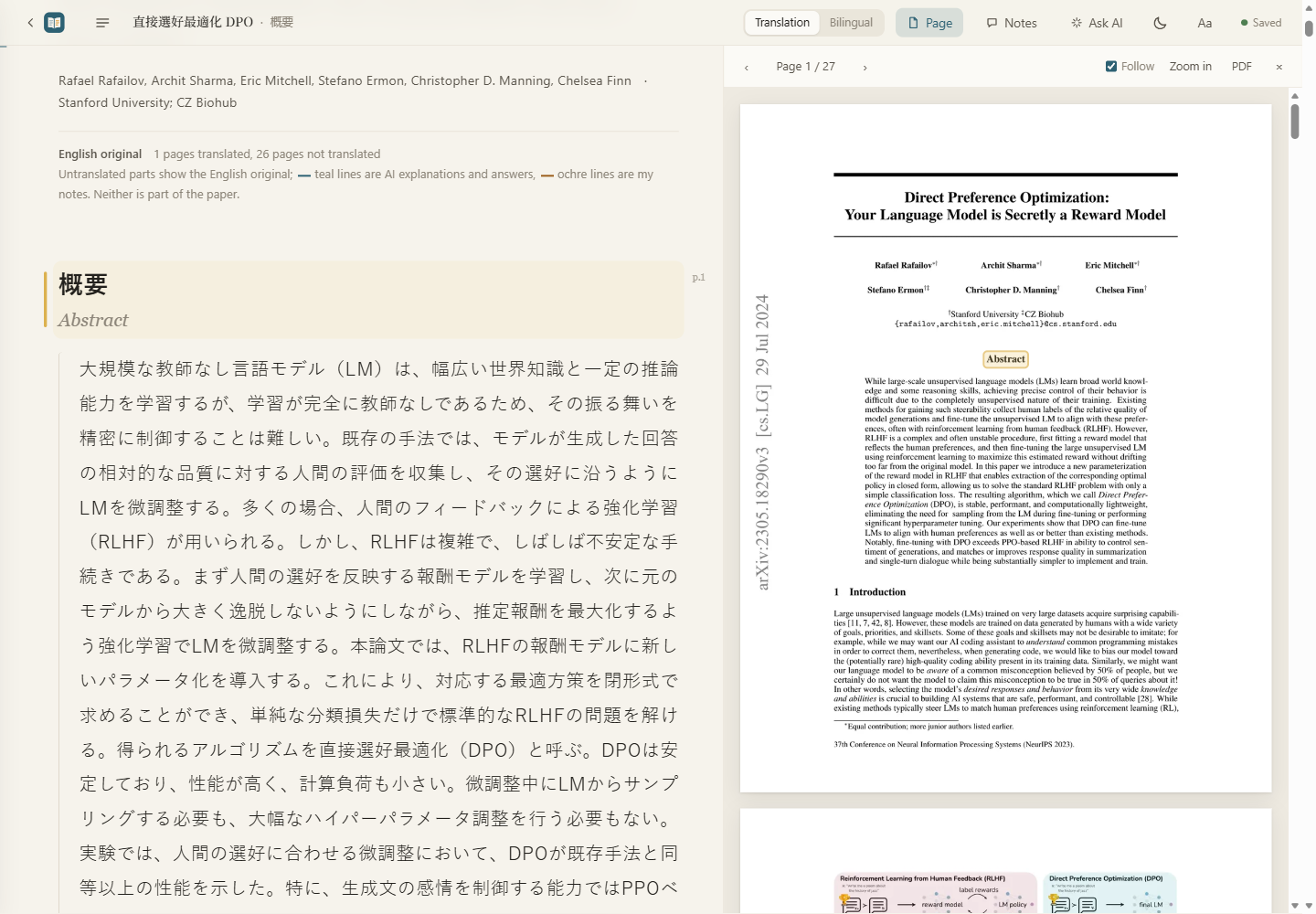
> **Choose your reading language.** Translate papers into **Simplified or Traditional Chinese, English, Japanese, Korean, Spanish, French, German or Italian** (English is for papers written in other languages, such as German or French). Choose a language when importing, or set your default in Settings → Reading → Translate papers into (initially Chinese). The interface supports **English and Chinese**, independently of the translation language. You can also choose "Read the English original" on import and use the layout, highlights, notes and Ask AI without translating.
## How it differs from "throw the PDF into a translator"
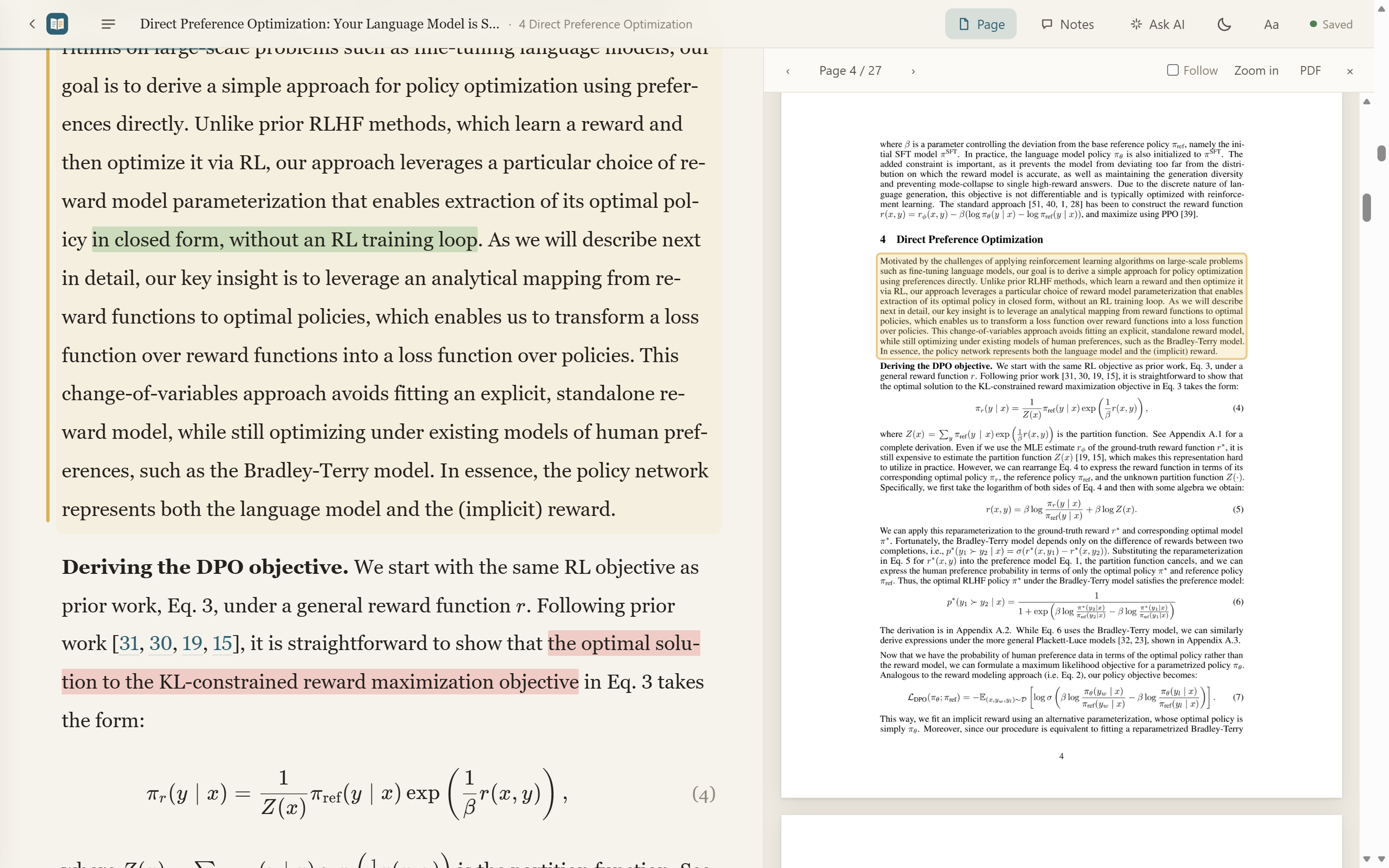
- **Reads like a typeset book.** Serif body text, comfortable line length and spacing. Equations are re-rendered with KaTeX, tables become clean three-line tables, references stay in the original. One click in the top bar for dark mode.
- **The original is always right there.** Toggle "bilingual" to show the English under each paragraph. Open the original page on the right: it follows your reading position and draws a box around the paragraph you're on.
- **Find text in a paper.** Press Ctrl / ⌘ + F to search both the original and the translation, with a match count and highlighted results. Enter / Shift + Enter moves to the next / previous match.
- **Translation and commentary are kept apart.** The main text is only the faithful translation. AI explanations and answers go in the margin, so you always know what the paper actually says.
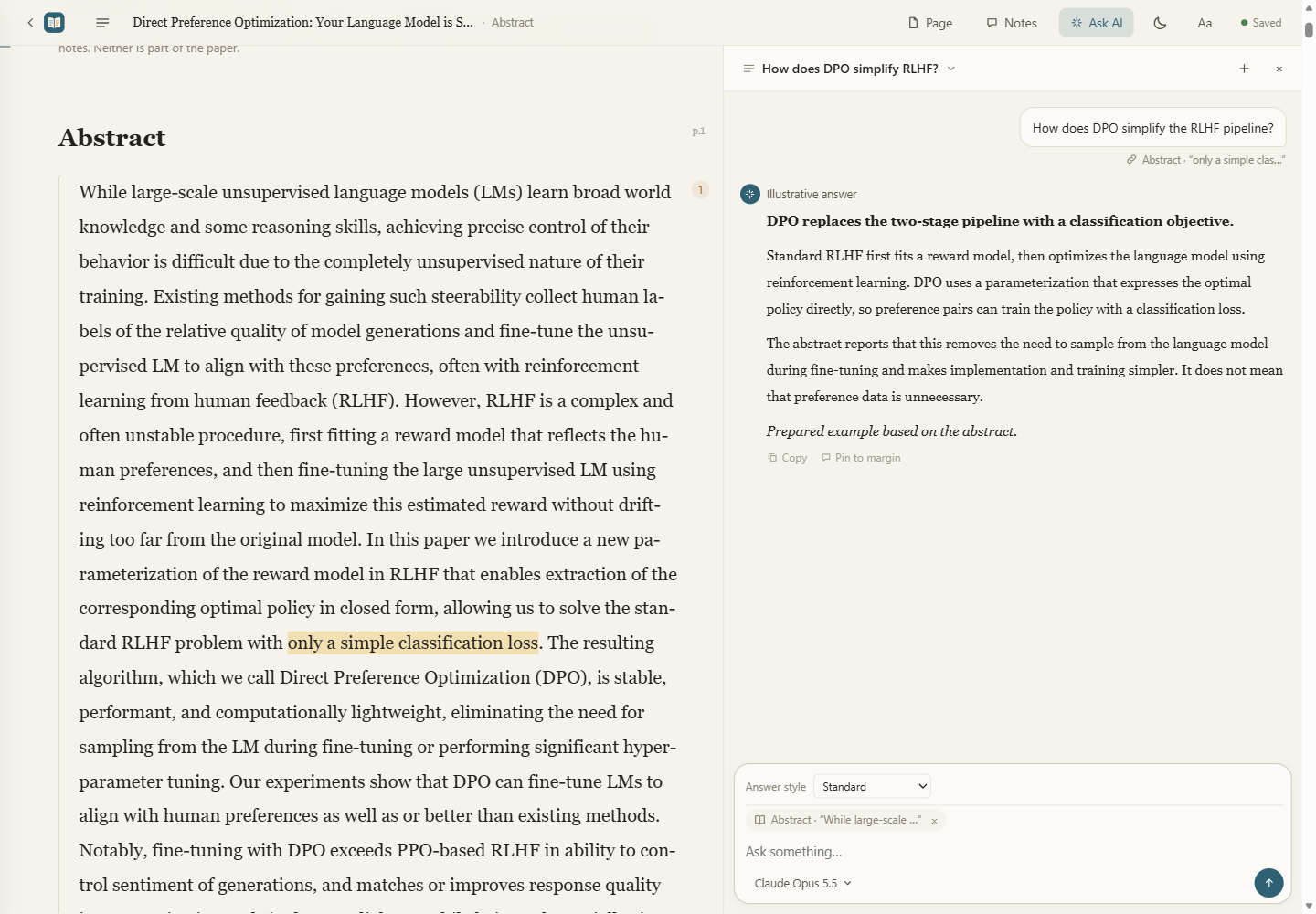
- **Ask AI while you read.** A chat panel with streaming answers. Quote several paragraphs at once (drag selected text into the input). Ask "how do the equations I highlighted in red relate?" and it finds your red highlights. Multiple chats, each with its own model: Claude, GPT (Codex), DeepSeek, Qwen, local Ollama… Pin a good answer to the margin in one click.
- **Annotate.** Four highlighter colors or underline, notes, questions. Send a question to AI with one click, or ask it to comment on a note. The notes panel collects annotations in reading order; filter and scroll through them. Clicking a card jumps to the passage; use Edit to change the note. Attach figures and tables by choosing thumbnails or dragging them from the paper, then expand them or edit their names. Hover over figure and table references in the text to preview them. Export selected annotations to Markdown (Obsidian, Notion).
- **Edit the translation.** Double-click a paragraph to edit it; change a term in the glossary and it's replaced everywhere.
- **Not just arXiv.** Drop in any PDF, or paste an arXiv ID, DOI, paper title or paper page (OpenReview, ACL, NeurIPS, bioRxiv, PMC, journal sites). It finds the open PDF and fills in authors, year and venue.
- **Move over from Zotero.** In the import dialog, "Move your whole Zotero library" finds your Zotero data folder and brings over every paper with a PDF, along with its collections (nested ones stay nested), title, authors, year, venue, DOI and abstract. It only reads a copy of the Zotero database and never changes Zotero; you can run it again later. "Import a whole folder" does the same for a folder of PDFs: subfolders become nested folders in the library. Both run in the background and can be stopped; nothing is translated until you ask.
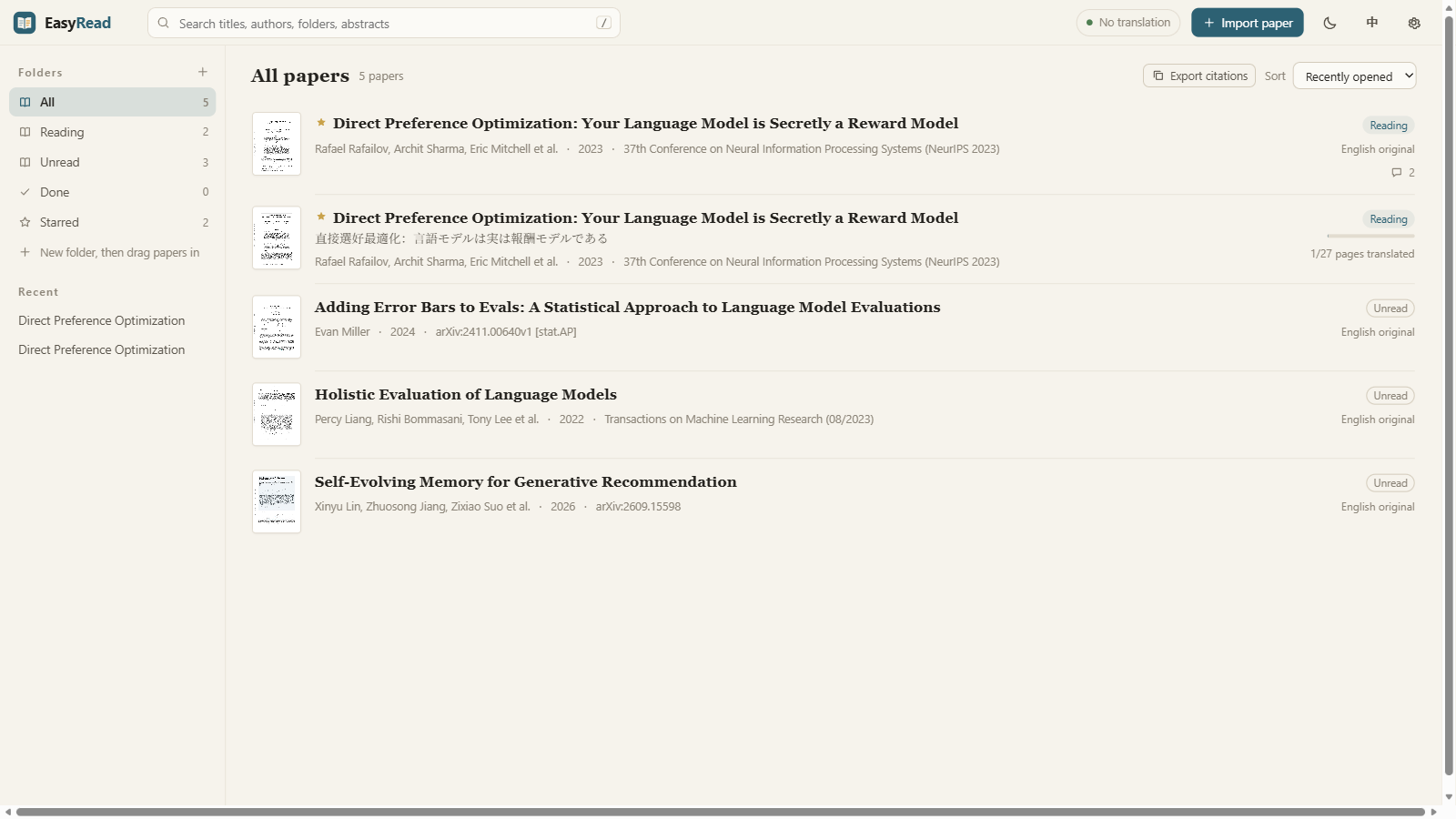
- **A library of your own.** Pin papers and folders, create folders and drag papers into them, nest folders (right-click → "New sub-category" / "Move to…"; a parent folder lists everything inside it), recent reads, search, unread / reading / done, stars, reading progress, copy citation (GB/T 7714, APA, BibTeX), export a single-file offline HTML to share, or "Export for phone" (read-only and small, open it in a phone browser). Deleted papers go to a trash you can restore from. Custom keyboard shortcuts.
- **Cloud library and batch citations.** Move your library to another drive or a synced folder in Settings → Cloud library; your cloud drive client handles syncing. Copy or save citations for a paper list or folder in GB/T 7714, APA or BibTeX.
- **ASD-STE100 Chinese answers.** Choose this answer style in Ask AI for concise Chinese explanations that retain technical terms, equations and conditions. It borrows writing principles from the English standard; it does not certify Chinese answers as compliant.
- **Close reading answers.** The third answer style in Ask AI, for when you want to know why the authors did something and how far a result really holds: it reconstructs the problem they set out to solve, separates load-bearing design from decoration, works key formulas through with concrete numbers, and checks reported numbers and baseline conditions. Anything the paper does not report is called out rather than filled in. Like the concise style, it sends the whole paper as context and uses more quota.
- **Know what you're spending.** Every translation and every AI answer records its token usage; with a Claude subscription you also see how much of the 5-hour / 7-day quota is used and when it resets.
- **Doesn't lose your work.** Every edit is saved in the browser first and only cleared once the local server confirms it's on disk. If a re-translation touches a paragraph you edited, you get a notice, not an overwrite.
## Pick your translation model
| Engine | What you need | Notes |
|---|---|---|
| **Claude Code** (recommended) | [Claude Code](https://docs.claude.com/en/docs/claude-code/setup) installed and logged in | No API key, uses your subscription. Looks at the page image to check equations. Best quality |
| **Codex CLI** | [Codex](https://github.com/openai/codex) installed and logged in | No API key, uses your ChatGPT account |
| **CodeBuddy CLI** | Install and sign in using the [official CLI docs](https://www.codebuddy.cn/docs/cli/headless); your account needs CLI access | No API key. Type the model name, or leave it empty for the CLI default. [The current free trial does not include CLI access](https://www.codebuddy.cn/docs/workbuddy/Pricing); credits are shared with WorkBuddy on the same account |
| **ZCode CLI (experimental)** | Install and sign in using the [official CLI guide](https://github.com/zai-org/ZCode/tree/main/apps/zcode-cli/docs/usage), with `zcode` available on PATH | Reuses the local login and model settings. Supports translation, Ask AI and image attachments when the selected model supports them. Real-account calls still need verification |
| **Grok Build / Antigravity CLI / Cursor CLI** | [Grok Build](https://x.ai/cli), [Antigravity CLI](https://antigravity.google/docs/cli) or [Cursor CLI](https://cursor.com/docs/cli/installation) installed and logged in | No API key, uses that subscription. Type the model name, or leave it empty for the CLI's default |
| **API · China**: DeepSeek / Zhipu / Alibaba Bailian (Qwen) / Kimi / SiliconFlow / ModelScope | API key | Zhipu GLM-4.7-Flash and SiliconFlow small models are free; DeepSeek costs cents per paper |
| **API · International**: OpenAI / Anthropic / Gemini / OpenRouter / Groq / Cerebras | API key | Gemini, OpenRouter, Groq, Cerebras have free tiers |
| **API · Local**: Ollama / LM Studio | [Ollama](https://ollama.com) or [LM Studio](https://lmstudio.ai) | Fully offline. qwen3.5:9b recommended (4b for small GPUs) |
| **API · Custom endpoint**: any OpenAI-compatible API or relay | URL + key | Both Chat Completions and Responses formats; save named endpoints for reuse, with a separate key for each URL; "Fetch model list" pulls model names from the endpoint |
Settings auto-detect what's installed; "Test one sentence" tells you right away whether an engine works. A failed page (rate limit, network, quota) is retried automatically, then skipped so the rest keeps going, and you can retry all failed pages in one click at the end.
Papers are translated one at a time by default, with parallel batches still available within each paper. In Settings → Models → Translation, choose 1–4 concurrent papers and restart EasyRead to apply. Paper concurrency multiplies batch concurrency, increasing memory use and the risk of model rate limits; keeping the default of one paper is recommended. See the [configuration notes](docs/paper-concurrency.md).
## Install
**Easiest: download the installer** (no Python needed). From [Releases](https://github.com/Edwardxlai/easyread/releases/latest):
- **Windows**: `EasyRead-Setup-x.x.x.exe`. It is not code-signed; if SmartScreen says "Windows protected your PC", click "More info → Run anyway".
- **macOS** (Apple silicon): `EasyRead-x.x.x-arm64.dmg`, drag EasyRead into Applications. If macOS blocks the first launch, follow the matching instructions below.
- **Linux**: `EasyRead-x.x.x.AppImage`, `chmod +x` and run it.
Where papers and settings live: the Windows installer keeps them in a `data` folder inside the install directory (kept on updates and uninstall); macOS and Linux use the `EasyRead` folder in your home directory (same place as the pip install). Reinstalling keeps them.
Updating: the Windows and macOS apps and a directly launched Linux AppImage update in-app. When a new version is out the top bar shows it (or check from the question mark at top right); click "Update", let it download in the background, then click "Update and restart". An extracted AppImage or a source install downloads the new version from Releases. macOS and Linux users on 1.3.2 or earlier need to download 1.3.3 manually once; on macOS, keep EasyRead in Applications for in-app updates to work.
### First launch on macOS
1. **“Developer cannot be verified” or “Apple cannot check it for malicious software”**: click **Done** (not **Move to Trash**), open **System Settings → Privacy & Security**, scroll down to the security message, and click **Open Anyway**. Click **Open** in the confirmation dialog, then enter your login password or use Touch ID when prompted.
2. **“EasyRead is damaged and can’t be opened”**: download it again from the [official EasyRead Releases](https://github.com/Edwardxlai/easyread/releases/latest) and drag the app into Applications. This warning can also mean the file is damaged or has been modified; it does not identify the cause by itself. Only after confirming that your copy came from that official repository and that you trust it, run the following in **Terminal**, then open EasyRead again. This removes the quarantine attribute; it does not repair a damaged file.
```bash
xattr -dr com.apple.quarantine /Applications/EasyRead.app
```
3. **Why verification may fail**: the macOS package is signed with the project's own self-signed certificate (so in-app updates work), not an Apple developer certificate, and is not notarized, so macOS may block it. The code is open source; you can also [run from source](#run-from-source).
If macOS says the app **“will damage your computer”**, or explicitly detects malware and asks you to move it to the Trash, stop the installation and do not use the steps above to bypass the warning. Follow [Apple’s official guidance](https://support.apple.com/en-us/102445).
**Or run from source** (needs Python 3.10+): download the latest zip from [Releases](https://github.com/Edwardxlai/easyread/releases/latest) and unzip it (or `git clone` this repo).
**Windows**: double-click `start.cmd`. The first run sets up the environment (about a minute); after that it opens right away.
**macOS / Linux**: in the unzipped folder, run
```bash
./start.sh
```
When started this way, the background service quits on its own about 15 seconds after you close every EasyRead page in the browser; if a translation is still running, it waits until that finishes.
**Or with pip** (data goes to `~/EasyRead`):
```bash
pip install git+https://github.com/Edwardxlai/easyread
easyread
```
Your browser opens `http://127.0.0.1:8765`. The server only listens on localhost.
## Usage
1. Open Settings (top right) → Model: add the models you want and choose "Use for translation" on one card. Models for translation and Ask AI are managed on the same page.
2. Drag a PDF into the window, or paste an arXiv ID, arXiv / OpenReview link or a direct PDF link (`Ctrl+V` on the library page works too). For long papers you can translate just the main text, or a page range such as pages 5–12. You can also pick the model and target language for this import, or choose "Read the English original" to lay out the paper without translating; use "Translate to…" any time later. Whole-paper jobs above 60 pages ask for confirmation by default; change the limit in Settings → Model.
3. Translation runs in the background page by page. Translated parts are readable immediately; untranslated pages show the original. Importing more than 5 PDFs at once asks before translating them all (the default is "Import only"); "Stop translation" at the top of the list stops every running job and keeps what is already translated.
4. Click a paragraph for its action bar; select text to highlight, note or ask. Shortcuts are listed and editable under Settings → Shortcuts; the question mark at top right has help and updates.
## Reading with an AI agent
EasyRead ships with a CLI, so agents like Claude Code or Codex can read your notes and questions in a conversation, write answers next to the right paragraphs, or translate / re-translate pages themselves. The skill is in [`skill/paper-reading/SKILL.md`](skill/paper-reading/SKILL.md); put that folder in `~/.claude/skills/` or `~/.codex/skills/`.
To have an agent explain a paper in depth rather than only translate it — reconstruct where the authors actually started, make the key formulas concrete enough to work through by hand, then check where the conclusions stop holding — use [`skill/paper-xray/SKILL.md`](skill/paper-xray/SKILL.md). It reads the same `library//` and writes its findings as discussion entries anchored to the paragraphs they belong to.
```bash
easyread list # list the library
easyread import paper.pdf # or an arXiv ID / link
easyread status ID # progress, your edits, notes, open questions
easyread discuss ID --from answers.json # write discussion into the margin
easyread export ID # export single-file offline HTML
```
See `easyread --help` for all commands and [docs/data-format.md](docs/data-format.md) for the data format.
## FAQ
**Does it cost anything?** EasyRead is free and open source. Translation uses your own model: Claude Code / Codex use your existing subscription, local and free-tier models cost nothing, paid APIs bill per use.
**Where is my data? Is anything uploaded?** By default, files stay on your machine: `data\library\` inside the install folder for the Windows installer (1.3.1 and earlier used `~/EasyRead`; the first launch after upgrading moves it over), `library/` in the project folder when run from source, `~/EasyRead/library/` after pip install. One folder per paper holds the original PDF, page images and JSON files. Settings → Cloud library can move the library to your synced folder; your cloud drive client then handles uploads and syncing. Translation and AI questions send the relevant content to the model you chose.
**Can I read offline or share a paper?** Yes. Right-click a paper → "Export offline HTML" (or `easyread export ID`) for a single-file web page. The recipient doesn't need EasyRead: double-click to open it in a browser with the translation, equations, page images, your highlights and notes, bilingual view and the original-page panel all working. Page images are embedded, so the file is not small (about 10 MB for a 27-page paper). New highlights made in the offline copy stay in that browser; to bring them back, use "Export my changes" under About in the left drawer and run `easyread merge ID --from export.json`.
To publish on a site such as GitHub Pages, use `easyread demo ID --out DIR`: images are saved as separate files and loaded on demand, and AI chats are included (read-only).
**Can it translate into languages other than Chinese?** Yes: Simplified and Traditional Chinese, English (for papers written in other languages), Japanese, Korean, Spanish, French, German and Italian are available under Settings → Reading → Translate papers into, and in the import dialog. You can also read the English original. Interface language is independent: choose Chinese or English under Settings → Reading → Language.
## Development
No frontend build step: `easyread/web/` is plain HTML/CSS/JS, just refresh after editing. The backend uses the Python standard library plus PDF libraries.
```bash
python -m unittest discover tests # unit tests
node tests/e2e.cjs library/ # browser end-to-end test (needs Playwright and a translated paper)
```
Design notes in [docs/design.md](docs/design.md), changes in [CHANGELOG.md](CHANGELOG.md) (both in Chinese).
## License
MIT. Math rendering by [KaTeX](https://katex.org) (MIT).
The demo paper is Rafailov et al., *Direct Preference Optimization: Your Language Model is Secretly a Reward Model* ([arXiv:2305.18290](https://arxiv.org/abs/2305.18290), CC BY 4.0). The Chinese translation was generated by EasyRead using Claude; highlights and notes in the demo are examples.
Screenshots use a demonstration library. The Japanese sample translates the abstract; highlights, notes and the English AI answer are illustrative examples.
## Contributors
- [@Wang-auspicious](https://github.com/Wang-auspicious) — Electron desktop packaging and release workflow; the paper-xray deep-reading skill ([#40](https://github.com/Edwardxlai/easyread/pull/40)); the close reading answer style in Ask AI ([#41](https://github.com/Edwardxlai/easyread/pull/41))
- [@bisuwuss-netizen](https://github.com/bisuwuss-netizen) — missing PDF dependency in desktop builds, two-column page locating; Markdown tables and blockquotes in Ask AI and notes; model JSON parsing, academic reading prompts and parallel paper translation ([#64](https://github.com/Edwardxlai/easyread/pull/64), one paper by default, optionally up to four)
- [@MeshedPoto](https://github.com/MeshedPoto) — PDFium errors during parallel translation, cross-column page highlights, macOS desktop reliability, HTTPS certificates and streaming fixes; ASD-STE100 Chinese answers and math rendering in v1.3; figure cropping fixes in v1.3.1 ([#22](https://github.com/Edwardxlai/easyread/pull/22))
- [@Lzy22301093](https://github.com/Lzy22301093) — malformed table validation and rendering resilience ([#17](https://github.com/Edwardxlai/easyread/pull/17))
- [@NGman-s](https://github.com/NGman-s) — pages that only continue the previous paragraph no longer reported as failed translations ([#30](https://github.com/Edwardxlai/easyread/pull/30))
- [@TWwWT1](https://github.com/TWwWT1) — patches for memory blow-up when importing cropped-page PDFs ([#28](https://github.com/Edwardxlai/easyread/issues/28)) and for papers stuck loading on open ([#35](https://github.com/Edwardxlai/easyread/issues/35))
- [@kevin9327](https://github.com/kevin9327) — apostrophes in page metadata no longer truncate titles and author names ([#37](https://github.com/Edwardxlai/easyread/pull/37))
- [@Zhoushuren12](https://github.com/Zhoushuren12) — the library list no longer jumps while refreshing in the background ([#43](https://github.com/Edwardxlai/easyread/pull/43))
- [@02Ychase](https://github.com/02Ychase) — translating papers with code listings no longer fails whole batches ([#44](https://github.com/Edwardxlai/easyread/pull/44)); deleting a paper mid-translation no longer stalls the background queue ([#56](https://github.com/Edwardxlai/easyread/pull/56))
- [@88lin](https://github.com/88lin) — figures display at their size on the original page instead of always filling the column ([#47](https://github.com/Edwardxlai/easyread/pull/47))