[](https://opensource.org/licenses/Apache-2.0)
[](https://nextjs.org/)
[](https://www.typescriptlang.org/)
[](https://tailwindcss.com/)
An AI painting application developed with Next.js, featuring:
- 🎨 Support for multiple AI models (Sora, DALL-E, GPT, etc.) and custom model addition
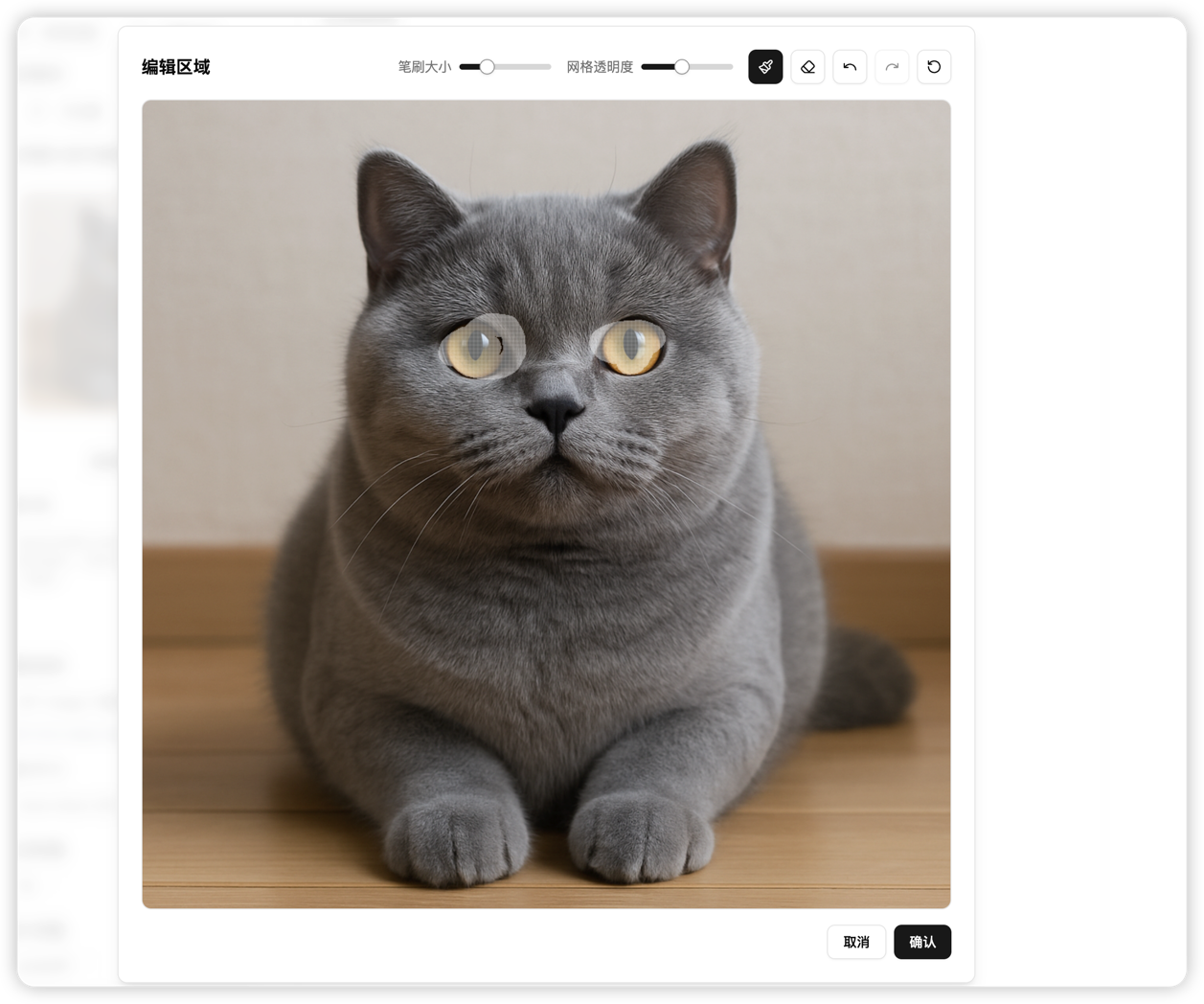
- 🖼️ Text-to-image and image-to-image capabilities with multi-image reference and region editing
- 🔐 Local storage of all data and API keys for privacy protection
- 💻 Available as web app and desktop application for cross-platform use
## Online Demo
Visit: [https://image-front-eight.vercel.app/](https://image-front-eight.vercel.app/)
### Application Screenshots
## Features
- 🎨 Multiple AI Models Support
- GPT Sora_Image Model
- GPT 4o_Image Model
- GPT Image 1 Model
- DALL-E 3 Model
- 🆕 Custom Models (support for private models)
- ✍️ Text-to-Image
- Custom prompt support
- Aspect ratio selection
- Multiple image sizes
- 🖼️ Image-to-Image
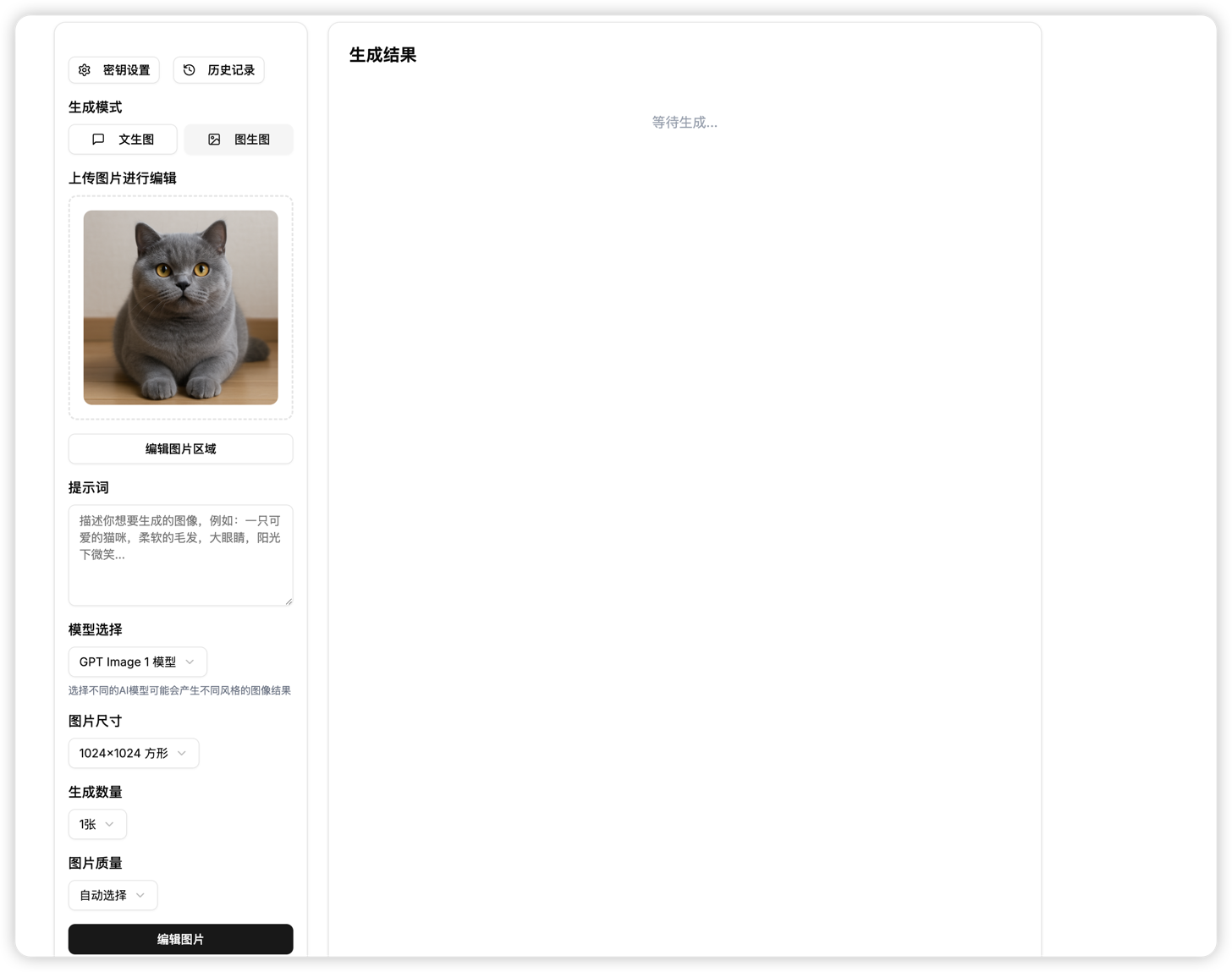
- Image editing
- Region mask editing
- Image quality adjustment
- Multi-image reference (upload multiple images at once)
- 🔒 Data Security
- All generated images and history are stored locally in the browser
- Custom API proxy address support
- API Key configuration
- 📱 UI Design
- Modern user interface
- Smooth interaction experience
- Markdown format display
- Code highlighting support
- 🖥️ Cross-platform Support
- Desktop application packaging (Windows, macOS, Linux)
- Offline usage support (API configuration required)
## Tech Stack
- Next.js 14
- TypeScript
- Tailwind CSS
- shadcn/ui
- React
- Tauri (desktop application packaging)
## Local Development
1. Clone the project
```bash
git clone https://github.com/HappyDongD/magic_image.git
cd magic_image
```
2. Install dependencies
```bash
npm install
# or
yarn install
# or
pnpm install
```
3. Start the development server
```bash
npm run dev
# or
yarn dev
# or
pnpm dev
```
4. Visit [http://localhost:3000](http://localhost:3000)
## Desktop Application Packaging
This project uses Tauri for desktop application packaging, supporting Windows, macOS, and Linux systems.
### Environment Setup
Before packaging the desktop application, you need to install the following dependencies:
1. **Install Rust**:
- Visit [https://www.rust-lang.org/tools/install](https://www.rust-lang.org/tools/install)
- Follow the guide to install Rust and Cargo
2. **System Dependencies**:
- **Windows**: Install [Visual Studio C++ Build Tools](https://visualstudio.microsoft.com/visual-cpp-build-tools/)
- **macOS**: Install Xcode Command Line Tools (`xcode-select --install`)
- **Linux**: Install related dependencies, see [Tauri Documentation](https://tauri.app/v1/guides/getting-started/prerequisites)
### Development Mode
```bash
# Install Tauri CLI
npm install -D @tauri-apps/cli
# Start desktop application development mode
npm run tauri:dev
```
### Build Desktop Application
```bash
# Build desktop application installer
npm run desktop
```
After building, you can find the installer for your system in the `src-tauri/target/release/bundle` directory.
## Vercel Deployment
1. Fork this project to your GitHub account
2. Create a new project on [Vercel](https://vercel.com)
3. Import your GitHub repository
4. Click Deploy
## Usage Guide
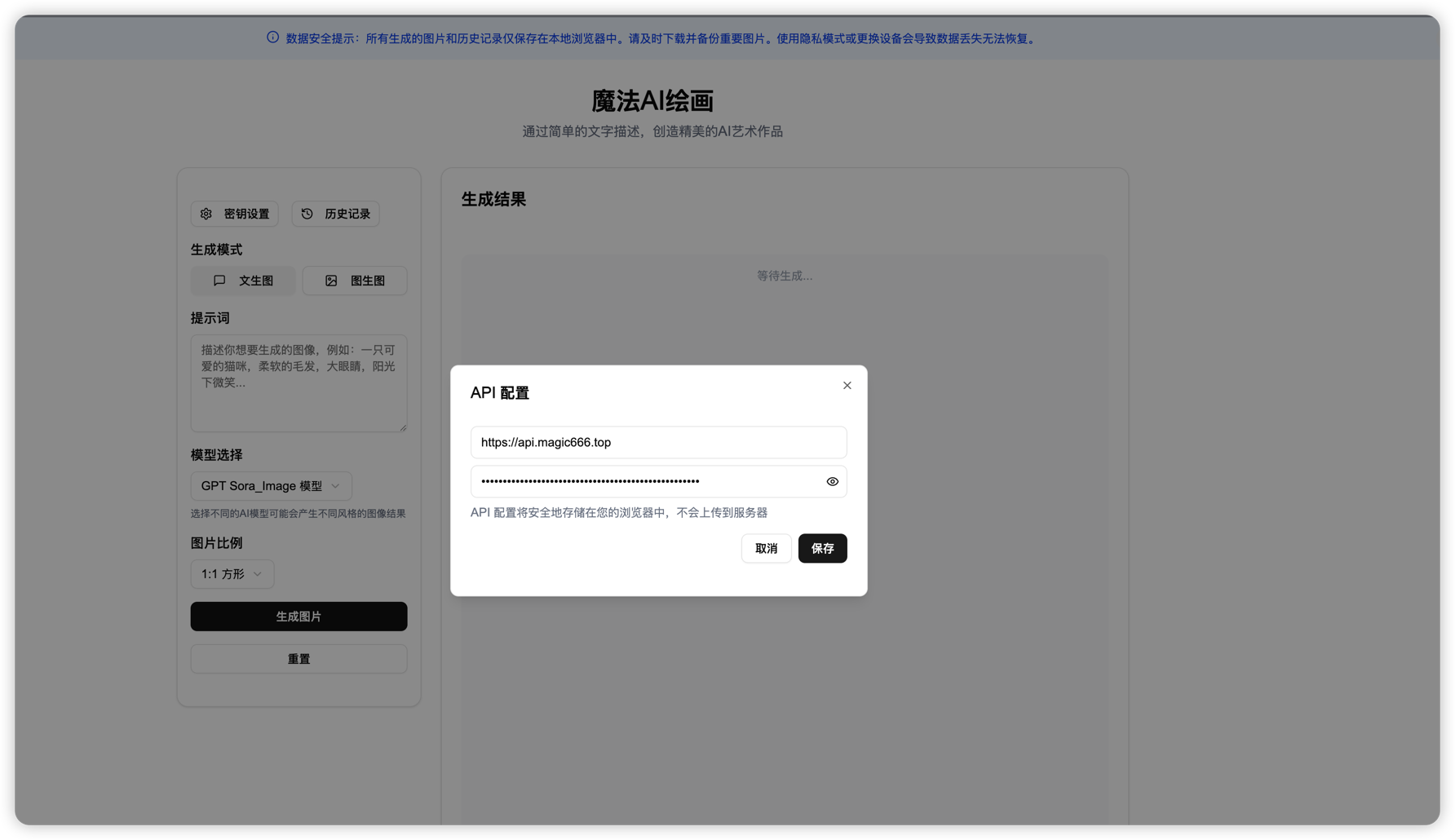
1. First-time setup requires API key configuration
- Click "API Settings" in the top right corner
- Enter API key and base URL
- Click Save
- You can also quickly configure via URL parameters:
```
http://localhost:3000?url=your-api-url&apikey=your-api-key
```
Example:
```
http://localhost:3000?url=https%3A%2F%2Fapi.example.com&apikey=sk-xxx
```
Note: Special characters in the URL need to be URL encoded
2. Select generation mode
- Text-to-Image: Generate images from text descriptions
- Image-to-Image: Upload and edit images
3. Set generation parameters
- Select AI model (built-in or custom models)
- Set image aspect ratio
- Adjust image quality (Image-to-Image mode)
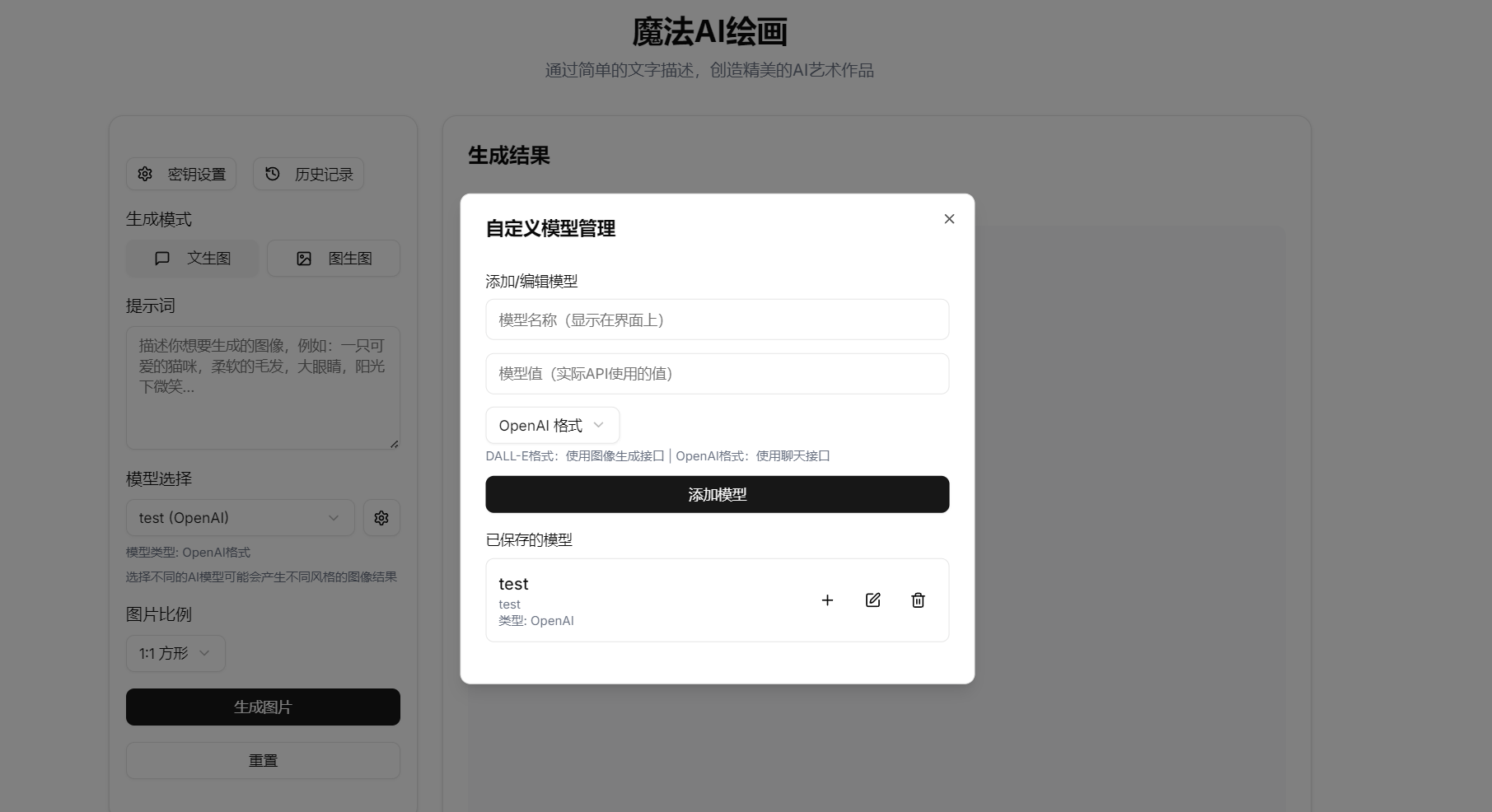
4. Custom Model Management
- Click the settings icon next to the model selection box
- Add a new model: Enter model name, model value, and select model type
- Edit model: Click the edit button on an existing model
- Delete model: Click the delete button on an existing model
- Select model: Click the plus button on a model to immediately use that model
5. Model Type Explanation
- DALL-E format: Uses the image generation API endpoint (/v1/images/generations)
- OpenAI format: Uses the chat API endpoint (/v1/chat/completions)
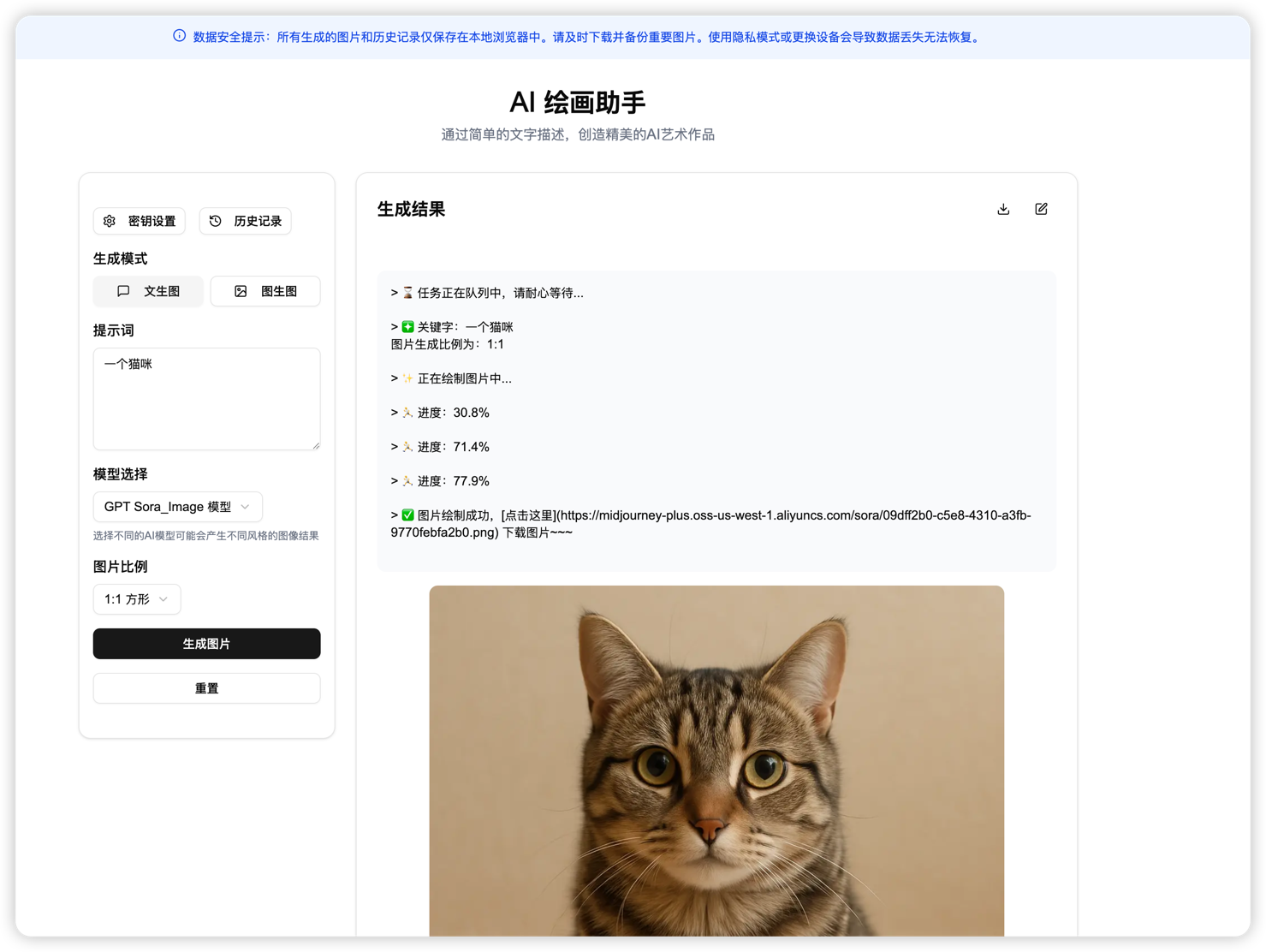
6. Generate images
- Enter prompts
- Click "Generate Image" button
- Wait for generation to complete
7. Image management
- View history
- Download generated images
- Edit existing images
## Notes
- All generated images and history are stored locally in the browser
- Using private mode or changing devices will result in data loss
- Please download and backup important images promptly
- API configuration is securely stored in your browser and will not be uploaded to the server
- HTTPS websites loading HTTP resources will be blocked by browsers; the application automatically converts HTTP APIs to HTTPS
## Contributing
Welcome to submit Issues and Pull Requests to help improve the project.
## License
This project is licensed under the [Apache License 2.0](https://www.apache.org/licenses/LICENSE-2.0).
Under this license, you can:
- ✅ Commercial Use: Use the software for commercial purposes
- ✅ Modification: Modify the software source code
- ✅ Distribution: Distribute the software
- ✅ Private Use: Use the software privately
- ✅ Patent Use: This license provides an express grant of patent rights
Subject to the following conditions:
- 📝 License and Copyright Notice: Include the original license and copyright notice
- 📝 State Changes: State significant changes made to the code
- 📝 Trademark Notice: Do not use contributors' trademarks
---
## Buy Me a Coffee
If this project has been helpful to you, feel free to buy me a coffee ☕️
Buy me a coffee
## Contact
If you have any questions or suggestions, feel free to contact me via WeChat: