5.2.1. Access sub system
Login
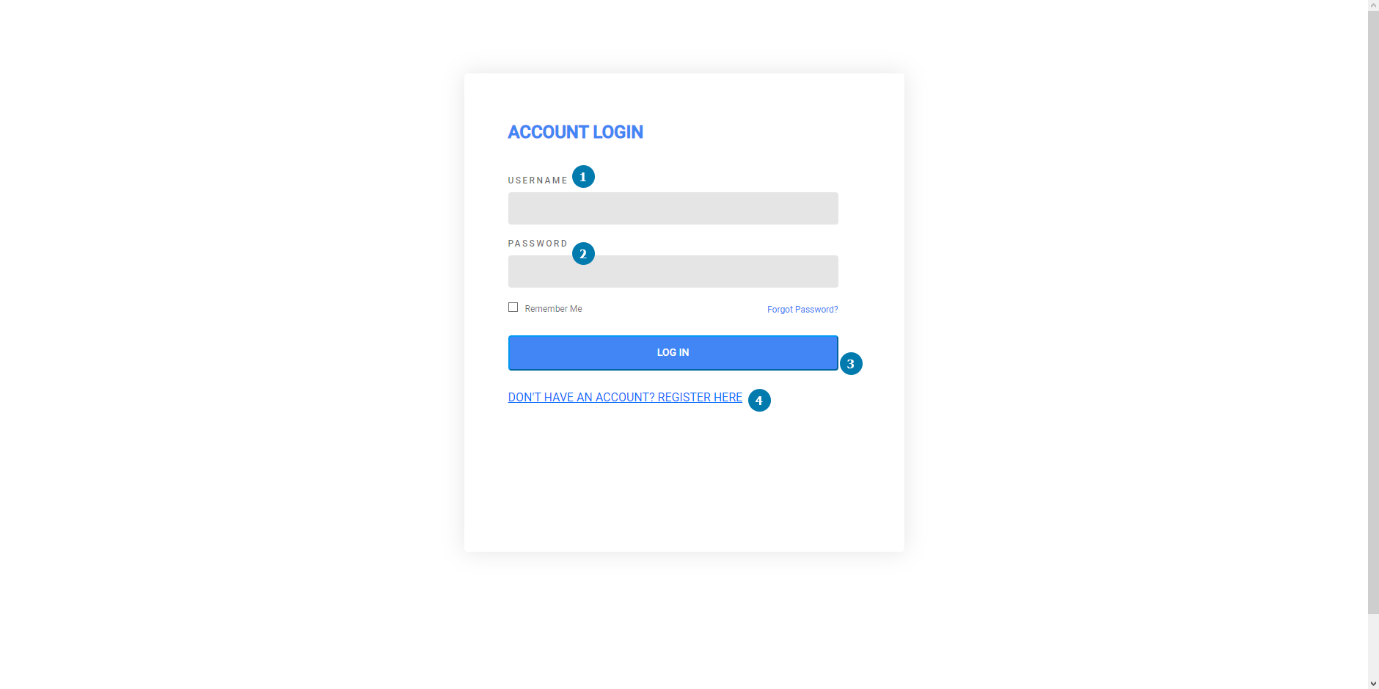
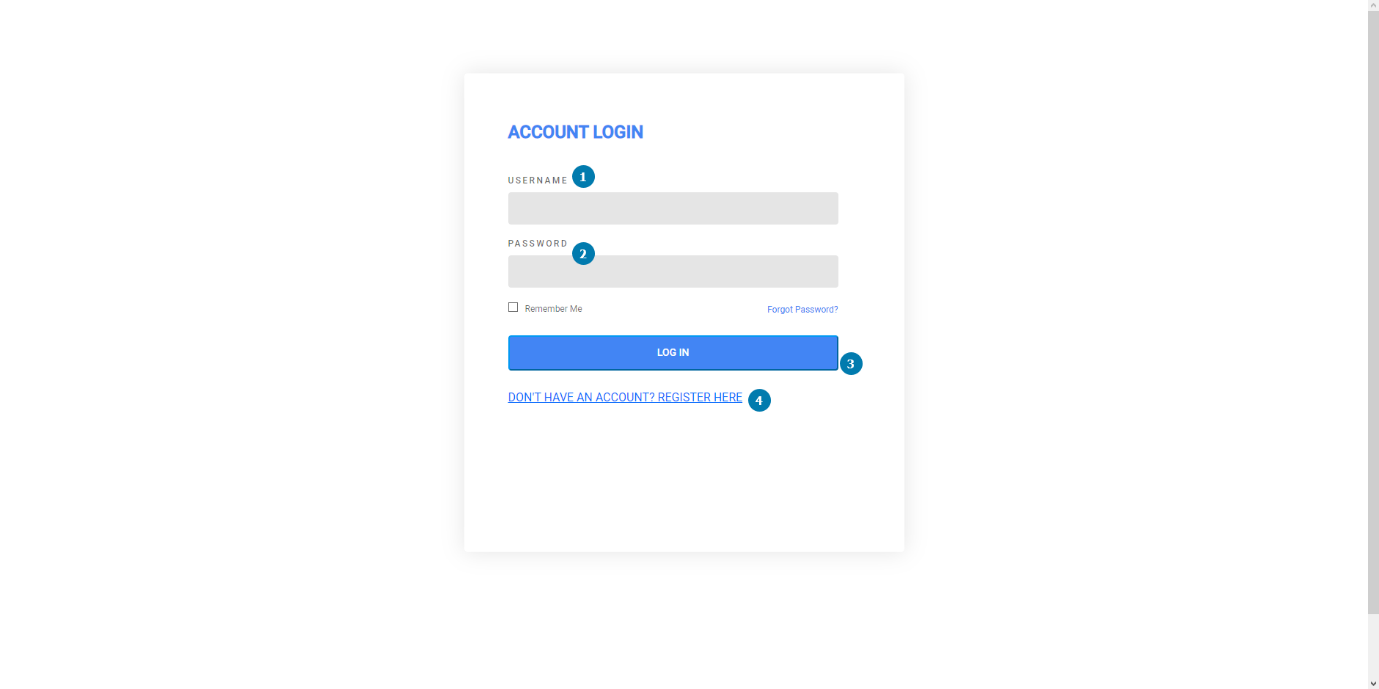
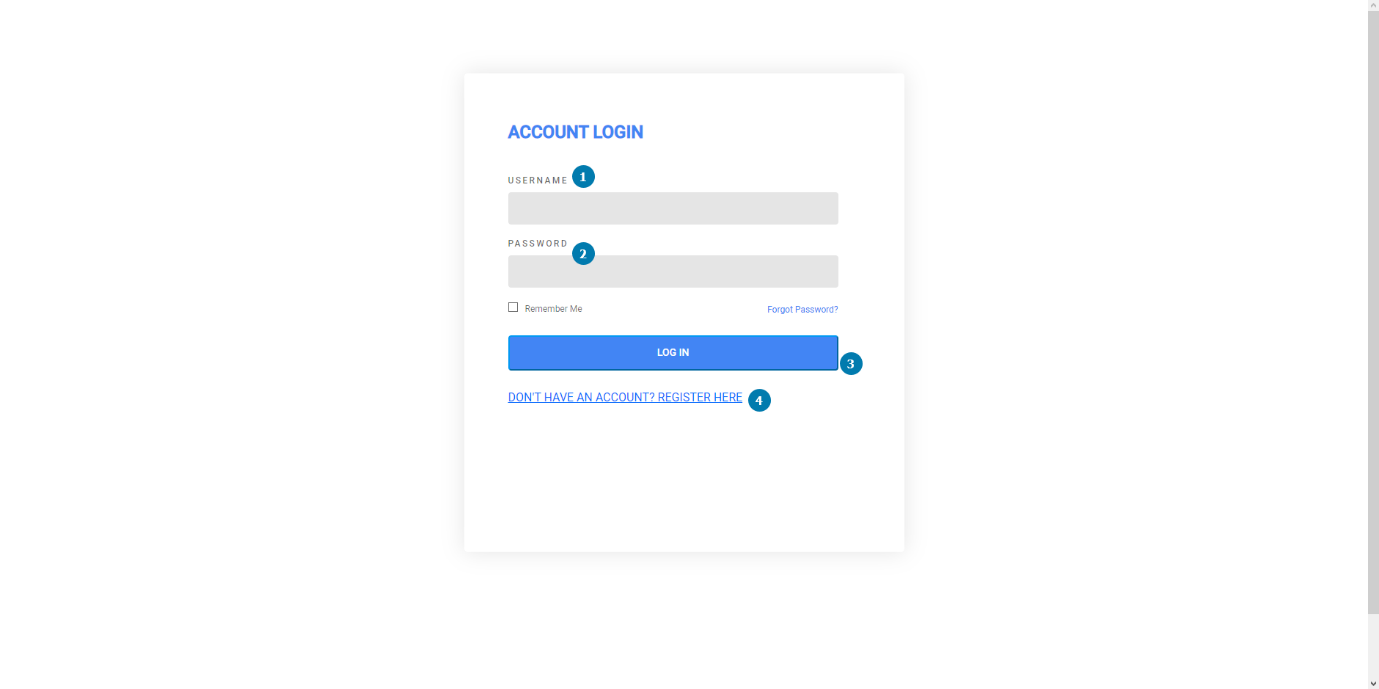
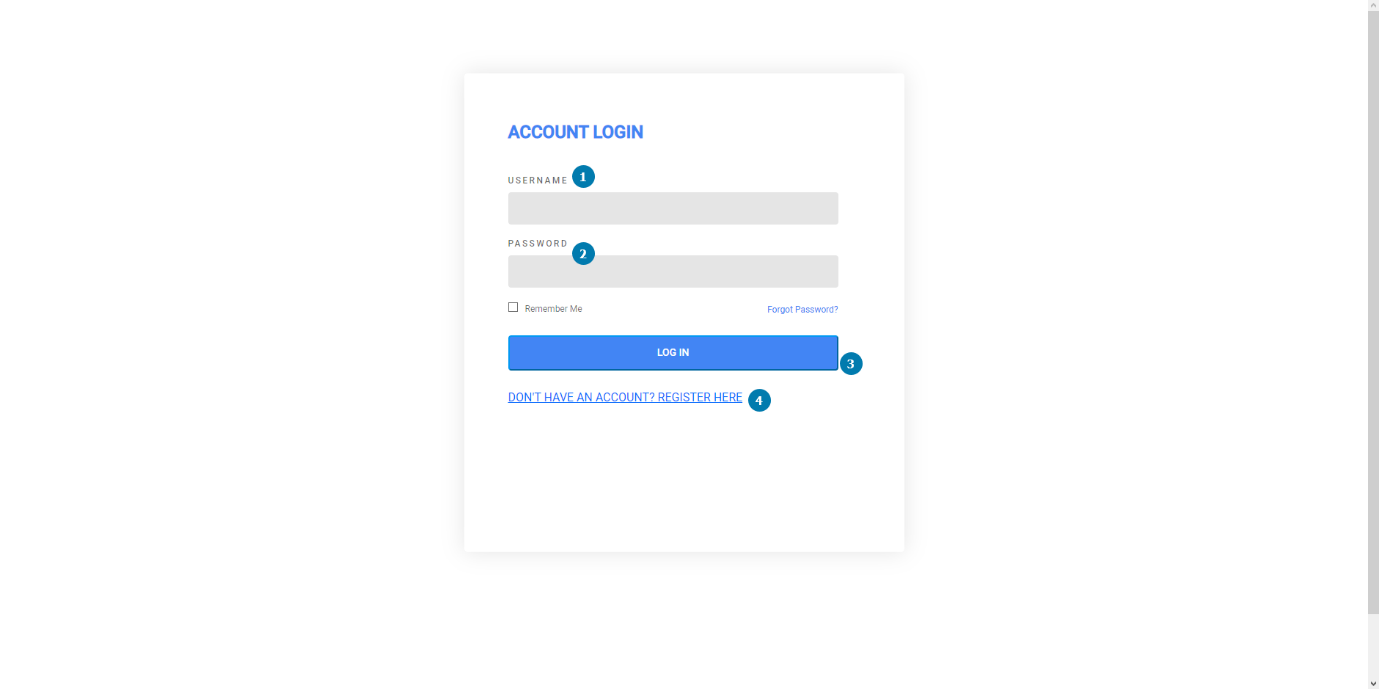
- Description: This page describes the instance when a user requests to login by entering their details into a login form and submitting their request. If the login credentials are correct the user will be given access to the system.
- Navigation Process: The user will have to click on the log-in button. Once they have clicked this button, they will be navigated to the home page of the user profile to which they registered under.
- Screen Layout:
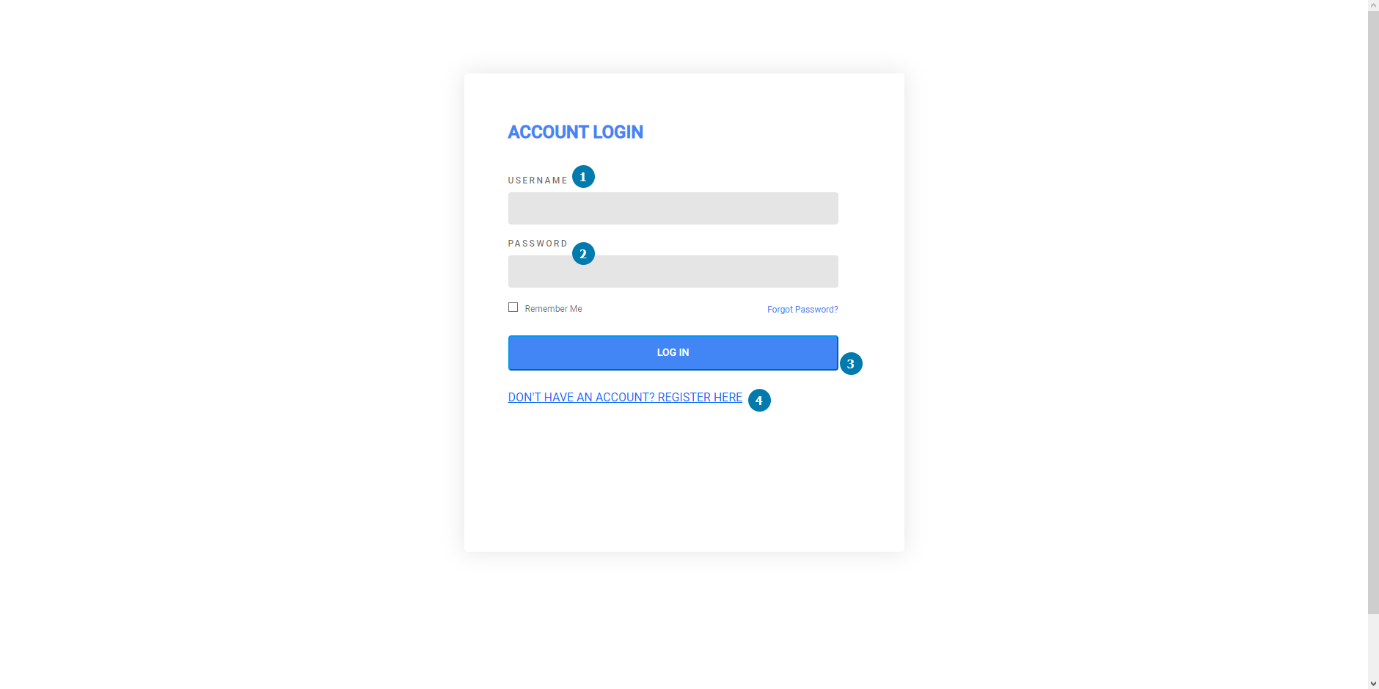
- Detailed description of controls:
|
Reference |
Control |
Functionality Description |
|
1 |
Username Textbox |
This textbox allows the user to enter their username into the registration form.
|
|
2 |
Password Textbox |
This allows the user to select a password which will be used to log into the system after they’ve registered.
|
|
3 |
Login Button |
This button will allow the user to Login. The fields will validate and will save to the database, and the user will become registered.
|
|
4 |
“Don’t have an account register here” link |
This link takes the user to the landing page where they can then choose to register a new profile.
|
- Possible Error Messages:
- Invalid Username, please enter a valid Username.
- Invalid Password, please enter a valid Password.
- Not all required fields were filled out, please fill out all required fields.
Logout
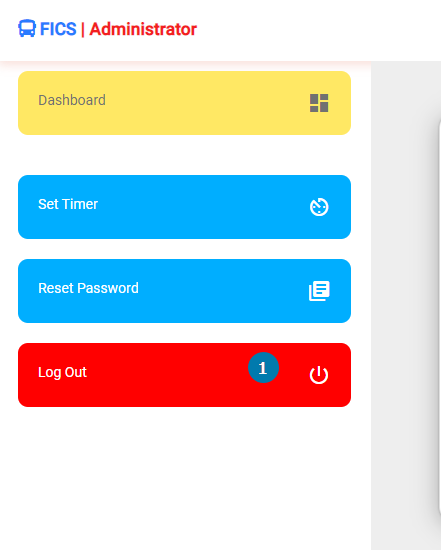
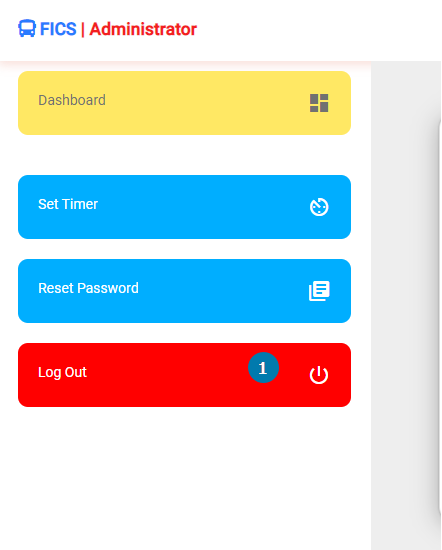
- Description: This page describes the instance where a User desires to Logout of the system. This entails clicking on the logout button. This would then return the User to the landing page and would successfully log the user out of the system.
- Navigation Process: The user would need to navigate to the side nav bar on their screen to logout of the system. On the Side nav bar, the user will find the Log out button, to which the user needs to click to successfully logout of the system.
- Screen Layout:
- Detailed description of controls:
|
Reference |
Control |
Functionality Description |
|
1 |
Logout button |
Allows the User to Logout from the system
|
- Possible Error Messages:
Reset Password
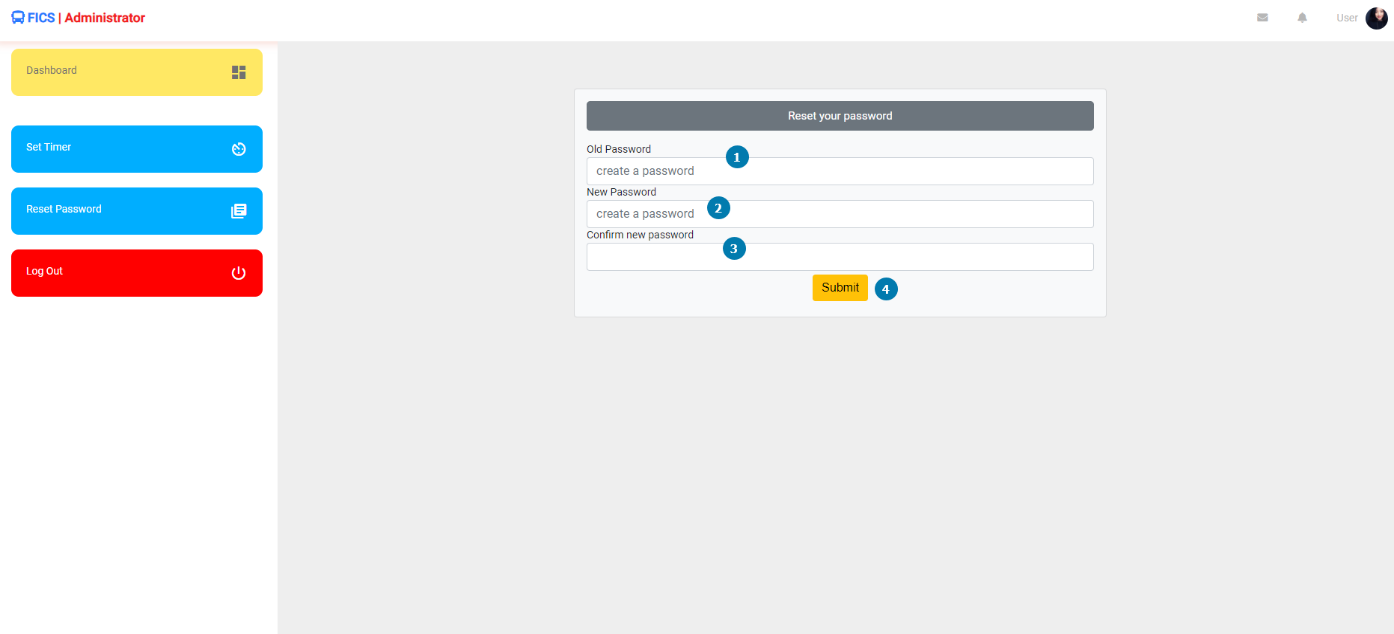
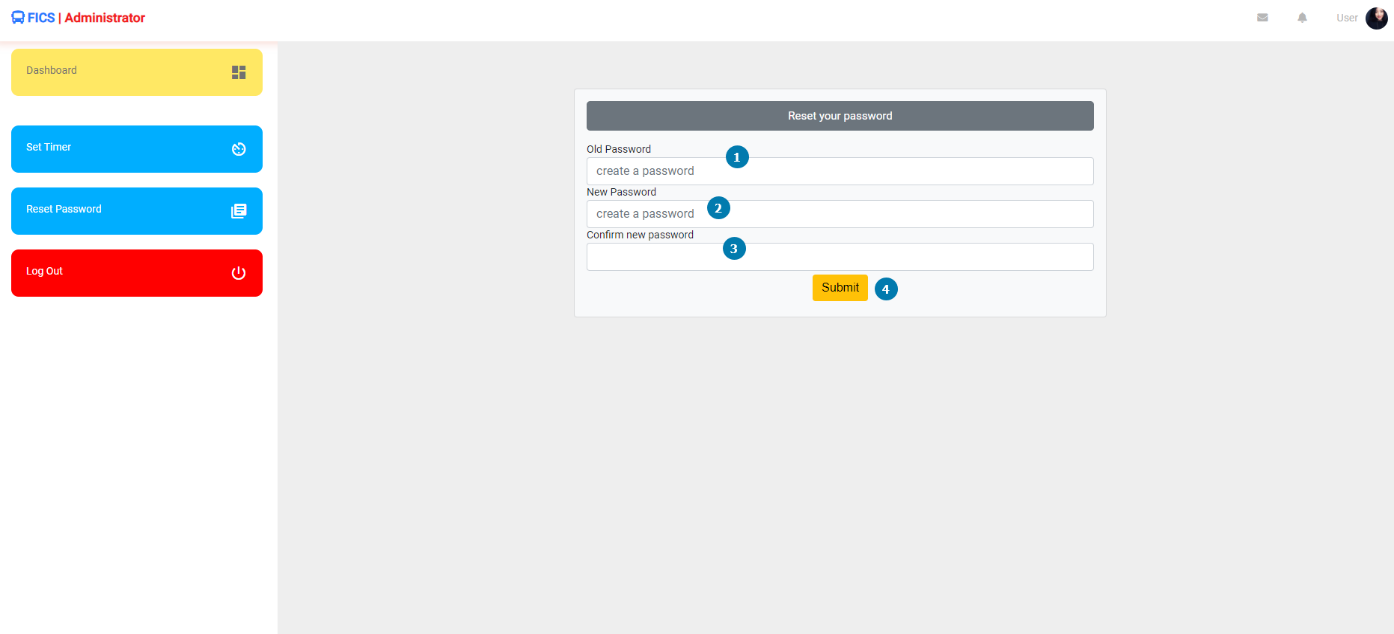
- Description: This page describes the instance where a user wishes to reset their password on the system. The User would need to first enter their old password. The user would then proceed to enter the new password they desire to change. Upon confirming the new password, the user can click on the submit button, which would then successfully reset the password of the user.
- Navigation Process: The user will view this screen by clicking on the “Reset Password” on the “Side Nav”.
- Screen Layout:
- Detailed description of controls:
|
Reference |
Control |
Functionality Description |
|
1 |
Old Password Field. |
Contains the Old password of the user they wish to reset. |
|
2 |
New Password Field. |
Contains the New password of the user.
|
|
3 |
Confirm Password Field. |
Contains the New Password of the user to confirm the password.
|
|
4 |
Submit Button. |
Submits the form and captures the new details.
|
- Possible Error Messages:
- The new password does not match the confirm new password.
- Please enter the correct old password.
Forgot Password
- Description: This page describes the instance where a user wishes to reset their password on the system. The User would need to first enter their email/username. The user would then be sent an email with an OTP. The user will then use the OTP to access their profile. The user can then navigate to the reset password screen where they can reset their forgotten password.
- Navigation Process: The user would navigate to the forgot password link on the landing page, clicking on the link would open the forgot password screen.
- Screen Layout:
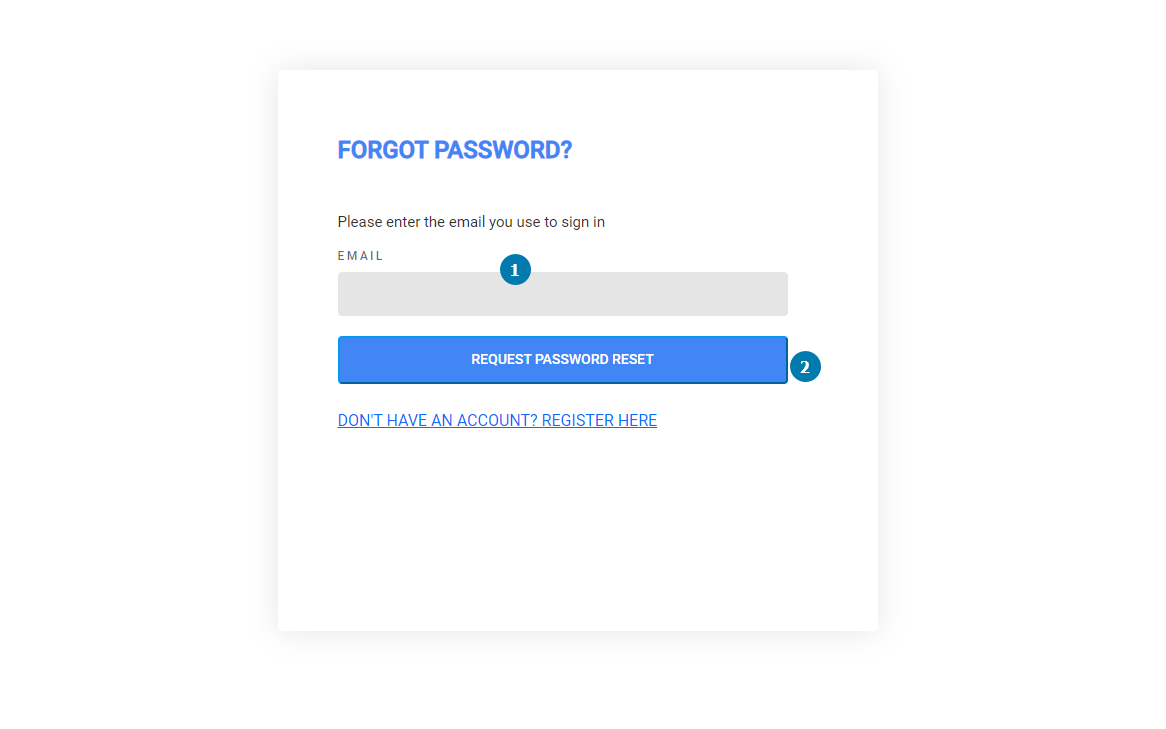
- Detailed description of controls:
|
Reference |
Control |
Functionality Description |
|
1 |
Email Address Filed |
Contains the Email Address of the User who wishes to change their forgotten password.
|
|
2 |
Request Password Reset Button |
This button sends an email to the User which contains the OTP of the User.
|
- Possible Error Messages:
- Please enter the correct OTP.
- Please enter a valid email address.
Created with the Personal Edition of HelpNDoc: Generate EPub eBooks with ease