Search Client

  • Description: This page describes the instance when the admin person searches for a desired client, from the list of clients registered on the system, by entering a valid search criterion. If the search criteria match a registered client, that client will be displayed.
  • Navigation Process: The admin will click on the “Client Management” card on the admin dashboard. The search bar will be displayed above the list of registered clients.
  • Screen Layout: *screen*


  • Detailed description of controls:

Reference

Control

Functionality Description

1


  • Possible Error Messages:

The client you are looking for does not exist on the system.


View Client Session

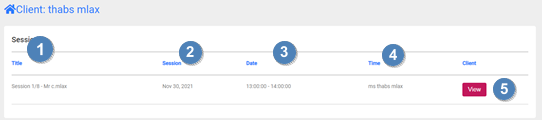
  • Description: This page describes the instance when the admin person requests to view a specific client’s sessions on the system. If the client has sessions booked with their practitioner, that client’s sessions will be displayed.
  • Navigation Process: The admin will click on the “Client Management” card on the admin dashboard. The search bar will be displayed above the list of registered clients.
  • Screen Layout:

Graphical user interface, application????Description automatically generated 


  • Detailed description of controls:

Reference

Control

Functionality Description

1

Title Heading

This heading describes the session being viewed.

Graphical user interface, application, email????Description automatically generated 


2

Heading

.

3

Date Heading

Graphical user interface, application, email????Description automatically generatedThis heading describes the session date.


4

Time Heading

Graphical user interface, application, email????Description automatically generatedThis heading describes the session time.


5

Client Heading

This heading describes the client.

Graphical user interface, application, email????Description automatically generated 


6

View Button

This button will allow you to view the client session details.

Graphical user interface, application, email????Description automatically generated 


  • Possible Error Messages:

This client has no previous sessions.


Assign Client Questionnaires

  • Description: This page describes the instance when the admin person assigns a specific client a various number of questions, from the questionnaire bank (the questions on the system). The admin person will select the desired client as well as selects the desired questions that need to be assigned.
  • Navigation Process: The admin will click on the “Assign Questionnaire” card on the admin dashboard. Proceed to select a client as well as the desired questions and then assign the questions to the client.
  • Screen Layout:

Graphical user interface, application????Description automatically generated 


Graphical user interface, application????Description automatically generated 


  • Detailed description of controls:

Reference

Control

Functionality Description

1

Client Control

This control needs to be selected in order for the system to know that this action is for “Client” assignment.

Graphical user interface, application????Description automatically generated 


2

Client Dropdown

This control populates with all the clients that are on the system, for selection

Graphical user interface, application????Description automatically generated 


3

Questionnaire Dropdown

This control populates with all the questions that are on the system, for selection


Graphical user interface, application????Description automatically generated 


4

Assign Questionnaires Button

This button is clicked to confirm the assignment of questions to the client

Graphical user interface, application????Description automatically generated 


  • Possible Error Messages:

Error with assignment, try again.


Subsystem Name: Admin Subsystem

Use Case: 2.4 Disable Client Profile

  • Description: This page describes the instance when the admin person requests to disable a specific client’s profile from the system. This will then remove the client’s access to the system.
  • Navigation Process: The admin will click on the “Access Management” card on the admin dashboard. The admin person will view all the clients registered on the system and proceed to disable the desired client.
  • Screen Layout:

Graphical user interface????Description automatically generated 


  • Detailed description of controls:

Reference

Control

Functionality Description

1

Title Heading

Graphical user interface????Description automatically generatedThis heading describes the client’s title


2

Name Heading

Graphical user interface????Description automatically generatedThis heading describes the client’s name


3

Surname Heading

Graphical user interface????Description automatically generatedThis heading describes the client’s surname


4

Email Address Heading

This heading describes the client’s email address


Graphical user interface????Description automatically generated 


5

Disable Button

This button is clicked to disable a specific client.


  • Possible Error Messages:

Error: The client was not disable, try again


Subsystem Name: Admin Subsystem

Use Case: 2.5 View Request for Practitioner Registration

  • Description: This page describes the instance when the admin person requests to view the practitioners who have requested to have access to the system. The admin will the proceed to accept or decline the specific practitioner, after viewing their details (shown later in document).
  • Navigation Process: The admin will click on the “Application Requests” card on the admin dashboard. The admin person will view all the practitioner who have registered on the system and proceed to accept or decline them (shown later in document).
  • Screen Layout:


  • Detailed description of controls:

Reference

Control

Functionality Description

1

Practitioner Tab

This tab is clicked to view only the practitioners’ request for registration.


2

Title Heading

This heading describes the practitioner’s title

Graphical user interface????Description automatically generated 


3

Name Heading

This heading describes the practitioner’s name

Graphical user interface????Description automatically generated 


4

Surname Heading

This heading describes the practitioner’s surname

Graphical user interface????Description automatically generated 


5

Email Address Heading

This heading describes the practitioner’s email address


Graphical user interface????Description automatically generated 


6

Accept Button

This button is clicked to accept a practitioner to the system.

Graphical user interface, application, Teams????Description automatically generated 


7

Reject Button

This button is clicked to reject a practitioner from the system.

Graphical user interface, application, Teams????Description automatically generated 


  • Possible Error Messages:

No Practitioners available at this time.

Error: Practitioner acceptance failed.


Subsystem Name: Admin Subsystem

Use Case: 2.6 Accept/Decline Practitioner Request for Registration

  • Description: This page describes the instance when the admin person requests to view the practitioners who have requested to have access to the system. The admin will the proceed to accept or decline the specific practitioner, after viewing their details.
  • Navigation Process: The admin will click on the “Application Requests” card on the admin dashboard. The admin person will view all the practitioner who have registered on the system and proceed to accept or decline them, by clicking either button.
  • Screen Layout:


  • Detailed description of controls:

Reference

Control

Functionality Description

1

Practitioner Tab

This tab is clicked to view only the practitioners’ request for registration.

Graphical user interface, application, Teams????Description automatically generated 


2

Title Heading

This heading describes the practitioner’s title

Graphical user interface????Description automatically generated 


3

Name Heading

This heading describes the practitioner’s name

Graphical user interface????Description automatically generated 


4

Surname Heading

This heading describes the practitioner’s surname

Graphical user interface????Description automatically generated 


5

Email Address Heading

This heading describes the practitioner’s email address


Graphical user interface????Description automatically generated 


6

Accept Button

This button is clicked to accept a practitioner to the system.

Graphical user interface, application, Teams????Description automatically generated 


7

Reject Button

This button is clicked to reject a practitioner from the system.

Graphical user interface, application, Teams????Description automatically generated 


  • Possible Error Messages:

No Practitioners available at this time.

Error: Practitioner acceptance failed.


Subsystem Name: Admin Subsystem

Use Case: 2.7 Disable Practitioner Profile

  • Description: This page describes the instance when the admin person requests to disable a specific practitioner’s profile from the system. This will then remove the practitioner’s access to the system.
  • Navigation Process: The admin will click on the “Access Management” card on the admin dashboard. The admin person will view all the practitioners registered on the system and proceed to disable the desired practitioner.
  • Screen Layout:

Graphical user interface, application????Description automatically generated 


  • Detailed description of controls:

Reference

Control

Functionality Description

1

Practitioner Tab

This tab is clicked to view the Practitioner’s access to the system.

Graphical user interface, application????Description automatically generated 


2

Title Heading

This heading describes the practitioner’s title

Graphical user interface????Description automatically generated 


3

Name Heading

This heading describes the practitioner’s name

Graphical user interface????Description automatically generated 


4

Surname Heading

This heading describes the practitioner’s surname


Graphical user interface????Description automatically generated 


5

Email Address Heading

This heading describes the practitioner’s email address


Graphical user interface????Description automatically generated 


6

Disable Button

This button is clicked to disable a specific practitioner.

Graphical user interface????Description automatically generated 


  • Possible Error Messages:

Error: The practitioner was not disabled, try again


Subsystem Name: Admin Subsystem

Use Case: 2.8 View Request for Trainee Registration

  • Description: This page describes the instance when the admin person requests to view the trainees who have requested to have access to the system. The admin will the proceed to accept or decline the specific trainee, after viewing their details (shown later in document).
  • Navigation Process: The admin will click on the “Application Requests” card on the admin dashboard. The admin person will view all the trainees who have registered on the system and proceed to accept or decline them (shown later in document).
  • Screen Layout:

Graphical user interface, application????Description automatically generated 


  • Detailed description of controls:

Reference

Control

Functionality Description

1

Trainee Tab

This tab is clicked to view only the trainees’ request for registration.


2

Title Heading

This heading describes the trainee’s title

Graphical user interface????Description automatically generated 


3

Name Heading

This heading describes the trainee’s name

Graphical user interface????Description automatically generated 


4

Surname Heading

This heading describes the trainee’s surname

Graphical user interface????Description automatically generated 


5

Email Address Heading

This heading describes the trainee’s email address


Graphical user interface????Description automatically generated 


6

Accept Button

This button is clicked to accept a trainee to the system.

Graphical user interface, application, Teams????Description automatically generated 


7

Reject Button

This button is clicked to reject a trainee from the system.

Graphical user interface, application, Teams????Description automatically generated 


  • Possible Error Messages:

No Trainees available at this time.

Error: Trainee acceptance failed.


Subsystem Name: Admin Subsystem

Use Case: 2.9 Accept/Decline Trainee Request for Registration

  • Description: This page describes the instance when the admin person requests to view the trainees who have requested to have access to the system. The admin will the proceed to accept or decline the specific trainee, after viewing their details.
  • Navigation Process: The admin will click on the “Application Requests” card on the admin dashboard. The admin person will view all the trainees who have registered on the system and proceed to accept or decline them.
  • Screen Layout:

Graphical user interface, application????Description automatically generated 


  • Detailed description of controls:

Reference

Control

Functionality Description

1

Trainee Tab

This tab is clicked to view only the trainees’ request for registration.


Graphical user interface, application, Teams????Description automatically generated 


2

Title Heading

This heading describes the trainee’s title

Graphical user interface????Description automatically generated 


3

Name Heading

This heading describes the trainee’s name

Graphical user interface????Description automatically generated 


4

Surname Heading

This heading describes the trainee’s surname

Graphical user interface????Description automatically generated 


5

Email Address Heading

This heading describes the trainee’s email address


Graphical user interface????Description automatically generated 


6

Accept Button

This button is clicked to accept a trainee to the system.

Graphical user interface, application, Teams????Description automatically generated 


7

Reject Button

This button is clicked to reject a trainee from the system.

Graphical user interface, application, Teams????Description automatically generated 


  • Possible Error Messages:

No Trainees available at this time.

Error: Trainee acceptance failed.


Subsystem Name: Admin Subsystem

Use Case: 2.10 View Request for Trainer Registration

  • Description: This page describes the instance when the admin person requests to view the trainers who have requested to have access to the system. The admin will the proceed to accept or decline the specific trainer, after viewing their details (shown later in document).
  • Navigation Process: The admin will click on the “Application Requests” card on the admin dashboard. The admin person will view all the trainers who have registered on the system and proceed to accept or decline them (shown later in document).
  • Screen Layout:


  • Detailed description of controls:

Reference

Control

Functionality Description

1

Trainer Tab

This tab is clicked to view only the trainer’s request for registration.


2

Title Heading

This heading describes the trainer’s title

Graphical user interface????Description automatically generated 


3

Name Heading

This heading describes the trainer’s name

Graphical user interface????Description automatically generated 


4

Surname Heading

This heading describes the trainer’s surname

Graphical user interface????Description automatically generated 


5

Email Address Heading

This heading describes the trainer’s email address


Graphical user interface????Description automatically generated 


6

Accept Button

This button is clicked to accept a trainee to the system.

Graphical user interface, application, Teams????Description automatically generated 


7

Reject Button

This button is clicked to reject a trainee from the system.

Graphical user interface, application, Teams????Description automatically generated 


  • Possible Error Messages:

No Trainers available at this time.

Error: Trainer acceptance failed.


Subsystem Name: Admin Subsystem

Use Case: 2.11 Accept/Decline Trainer Requests for Registration

  • Description: This page describes the instance when the admin person requests to view the trainers who have requested to have access to the system. The admin will the proceed to accept or decline the specific trainer, after viewing their details (shown later in document).
  • Navigation Process: The admin will click on the “Application Requests” card on the admin dashboard. The admin person will view all the trainers who have registered on the system and proceed to accept or decline them (shown later in document).
  • Screen Layout:


  • Detailed description of controls:

Reference

Control

Functionality Description

1

Trainer Tab

This tab is clicked to view only the trainer’s request for registration.


2

Title Heading

This heading describes the trainer’s title

Graphical user interface????Description automatically generated 


3

Name Heading

This heading describes the trainer’s name

Graphical user interface????Description automatically generated 


4

Surname Heading

This heading describes the trainer’s surname

Graphical user interface????Description automatically generated 


5

Email Address Heading

This heading describes the trainer’s email address


Graphical user interface????Description automatically generated 


6

Accept Button

This button is clicked to accept a trainee to the system.

Graphical user interface, application, Teams????Description automatically generated 


7

Reject Button

This button is clicked to reject a trainee from the system.

Graphical user interface, application, Teams????Description automatically generated 


  • Possible Error Messages:

No Trainers available at this time.

Error: Trainer acceptance failed.


Subsystem Name: Admin Subsystem

Use Case: 2.12 Search Trainee

  • Description: This page describes the instance when the admin person searches for a desired trainee, from the list of trainees registered on the system, by entering a valid search criterion. If the search criteria match a registered trainee, that trainee will be displayed.
  • Navigation Process: The admin will click on the “” card on the admin dashboard. The search bar will be displayed above the list of registered trainees.
  • Screen Layout: *screen*
  • Detailed description of controls:

Reference

Control

Functionality Description

1


  • Possible Error Messages:

The trainee you are looking for does not exist on the system.


Subsystem Name: Admin Subsystem

Use Case: 2.3 Assign Trainee Questionnaires

  • Description: This page describes the instance when the admin person assigns a specific trainee a various number of questions, from the questionnaire bank (the questions on the system). The admin person will select the desired trainee as well as selects the desired questions that need to be assigned.
  • Navigation Process: The admin will click on the “Assign Questionnaire” card on the admin dashboard. Proceed to select a trainee as well as the desired questions and then assign the questions to the client.
  • Screen Layout:


Graphical user interface, text, application????Description automatically generated 


Graphical user interface, application????Description automatically generated 


  • Detailed description of controls:

Reference

Control

Functionality Description

1

Trainee Control

This control needs to be selected in order for the system to know that this action is for “Trainee” assignment.

Graphical user interface, text, application????Description automatically generated 


2

Trainee Dropdown

This control populates with all the trainees that are on the system, for selection

Graphical user interface, text, application????Description automatically generated 


3

Questionnaire Dropdown

This control populates with all the questions that are on the system, for selection


Graphical user interface, application????Description automatically generated 


4

Assign Questionnaires Button

This button is clicked to confirm the assignment of questions to the client

Graphical user interface, application????Description automatically generated 


  • Possible Error Messages:

Error with assignment, try again.


Subsystem Name: Admin Subsystem

Use Case: 2.14 Disable Trainee Profile

  • Description: This page describes the instance when the admin person requests to disable a specific trainee’s profile from the system. This will then remove the trainee’s access to the system.
  • Navigation Process: The admin will click on the “Access Management” card on the admin dashboard. The admin person will view all the trainees registered on the system and proceed to disable the desired trainee.
  • Screen Layout:


Graphical user interface, application, website????Description automatically generated 


  • Detailed description of controls:

Reference

Control

Functionality Description

1

Trainees Tab

This tab is clicked to view the Trainee’s access to the system.

Graphical user interface, application, website????Description automatically generated 


2

Title Heading

Graphical user interface????Description automatically generatedThis heading describes the trainee’s title


3

Name Heading

Graphical user interface????Description automatically generatedThis heading describes the trainee’s name


4

Surname Heading

Graphical user interface????Description automatically generatedThis heading describes the trainee’s surname


5

Email Address Heading

This heading describes the trainee’s email address


Graphical user interface????Description automatically generated 


6

Disable Button

This button is clicked to disable a specific trainee.

Graphical user interface????Description automatically generated 


  • Possible Error Messages:

Error: The trainee was not disabled, try again


Subsystem Name: Admin Subsystem

Use Case: 2.15 Add Questionnaire

  • Description: This page describes the instance when the admin person requests add a new questionnaire to the system. This questionnaire will be saved on the system and can be viewed in the questionnaire bank.
  • Navigation Process: The admin will click on the “Add Questionnaire” card on the admin dashboard. The admin person will enter all the questionnaire details necessary to add a new a questionnaire.
  • Screen Layout:


  • Detailed description of controls:

Reference

Control

Functionality Description

1


  • Possible Error Messages:

Error: The questionnaire could not be added


Subsystem Name: Admin Subsystem

Use Case: 2.16 Maintain Questionnaire

  • Description: This page describes the instance when the admin person requests update or delete a questionnaire on the system. This questionnaire will be updated on the system and can be viewed in the questionnaire bank, or the questionnaire will be deleted.
  • Navigation Process: The admin will click on the “Maintain Questionnaire” card on the admin dashboard. The admin person will enter all the updated questionnaire details necessary or delete the questionnaire from the system.
  • Screen Layout:


  • Detailed description of controls:

Reference

Control

Functionality Description

1


  • Possible Error Messages:

Error: The questionnaire could not be updated

Error: The questionnaire could not be deleted.


Subsystem Name: Admin Subsystem

Use Case: 2.17 Search Questionnaire

  • Description: This page describes the instance when the admin person requests search for a questionnaire on the system. This admin person will enter a search criterion and if that search criterion match any questionnaire on the system, the questionnaire will be displayed for the admin person to view in the questionnaire bank.
  • Navigation Process: The admin will click on the “Search Questionnaire” card on the admin dashboard. The admin person will enter the search criterion necessary and view the questionnaire details on the system.
  • Screen Layout:


  • Detailed description of controls:

Reference

Control

Functionality Description

1


  • Possible Error Messages:

Error: The questionnaire could not be found.


Subsystem Name: Admin Subsystem

Use Case: 2.18 View Questionnaire Bank

  • Description: This page describes the instance when the admin person requests to view the questionnaire bank, which contains all the questionnaires that are on the system.
  • Navigation Process: The admin will click on the “Questionnaire bank” card on the admin dashboard. Every questionnaire that is on the system will be displayed.
  • Screen Layout:


  • Detailed description of controls:

Reference

Control

Functionality Description

1


  • Possible Error Messages:

Error: The questionnaire could not be displayed.


Subsystem Name: Admin Subsystem

Use Case: 2.19 Search Practitioner

  • Description: This page describes the instance when the admin person searches for a desired practitioner, from the list of practitioners registered on the system, by entering a valid search criterion. If the search criteria match a registered practitioner, that practitioner will be displayed.
  • Navigation Process: The admin will click on the “Practitioner Management” card on the admin dashboard. The search bar will be displayed above the list of registered practitioners.
  • Screen Layout: *screen*


  • Detailed description of controls:

Reference

Control

Functionality Description

1


  • Possible Error Messages:

The practitioner you are looking for does not exist on the system.


Subsystem Name: Admin Subsystem

Use Case: 2.20 Assign Practitioner to Client

  • Description: This page describes the instance when the admin person assigns a specific practitioner that is registered on the system to a specific client that is registered on the system. The admin person will select the desired practitioner as well as select the desired client that need to be assigned.
  • Navigation Process: The admin will click on the “Assign Users” card on the admin dashboard. Proceed to select a practitioner as well as the desired client and then assign the practitioner to the client.
  • Screen Layout:


Graphical user interface, application????Description automatically generated 


  • Detailed description of controls:

Reference

Control

Functionality Description

1

Practitioner Tab

This tab needs to be selected in order for the system to know that this action is for “Practitioner” assignment.


2

Practitioner Dropdown

This control populates with all the practitioners that are on the system, for selection


3

Client Dropdown

This control populates with all the clients that are on the system, for selection


4

Assign Button

This button is clicked to confirm the assignment of the practitioner to the client.


  • Possible Error Messages:

Error with assignment, try again.


Subsystem Name: Admin Subsystem

Use Case: 2.21 Reassign Practitioner to Client

  • Description: This page describes the instance when the admin person reassigns a specific practitioner that is registered on the system to a specific client that is registered on the system. The admin person will select the desired practitioner as well as select the desired client that need to be assigned.
  • Navigation Process: The admin will click on the “Assign Users” card on the admin dashboard. Proceed to select a practitioner as well as the desired client and then assign the practitioner to the client.
  • Screen Layout:


  • Detailed description of controls:

Reference

Control

Functionality Description

1

Practitioner Tab

This tab needs to be selected in order for the system to know that this action is for “Practitioner” assignment.

Graphical user interface????Description automatically generated 


2

Practitioner Dropdown

This control populates with all the practitioners that are on the system, for selection

Graphical user interface????Description automatically generated 


3

Client Dropdown

This control populates with all the clients that are on the system, for selection


Graphical user interface????Description automatically generated 


4

Assign Button

This button is clicked to confirm the assignment of the practitioner to the client.


Graphical user interface????Description automatically generated 


  • Possible Error Messages:

Error with assignment, try again.


Subsystem Name: Admin Subsystem

Use Case: 2.22 Assign Trainer to Trainee

  • Description: This page describes the instance when the admin person assigns a specific trainer that is registered on the system to a specific trainee that is registered on the system. The admin person will select the desired trainer as well as select the desired trainee that need to be assigned.
  • Navigation Process: The admin will click on the “Assign Users” card on the admin dashboard. Proceed to select a trainer as well as the desired trainee and then assign the trainer to the trainee.
  • Screen Layout:

Graphical user interface, website????Description automatically generated 


  • Detailed description of controls:

Reference

Control

Functionality Description

1

Trainer Tab

This tab needs to be selected in order for the system to know that this action is for “Trainer” assignment.


2

Trainer Dropdown

This control populates with all the trainers that are on the system, for selection


3

Trainee Dropdown

This control populates with all the trainees that are on the system, for selection


4

Assign Button

This button is clicked to confirm the assignment of the practitioner to the client.


Graphical user interface????Description automatically generated 


  • Possible Error Messages:

Error with assignment, try again.


Subsystem Name: Admin Subsystem

Use Case: 2.23 Reassign Trainer to Trainee

  • Description: This page describes the instance when the admin person reassigns a specific trainer that is registered on the system to a specific trainee that is registered on the system. The admin person will select the desired trainer as well as select the desired trainee that need to be reassigned.
  • Navigation Process: The admin will click on the “Assign Users” card on the admin dashboard. Proceed to select a trainer as well as the desired trainee and then assign the trainer to the trainee.
  • Screen Layout:


  • Detailed description of controls:

Reference

Control

Functionality Description

1

Trainer Tab

This tab needs to be selected in order for the system to know that this action is for “Trainer” assignment.

Graphical user interface????Description automatically generated 


2

Trainer Dropdown

This control populates with all the trainers that are on the system, for selection

Graphical user interface????Description automatically generated 


3

Trainee Dropdown

This control populates with all the trainees that are on the system, for selection


Graphical user interface????Description automatically generated 


4

Assign Button

This button is clicked to confirm the assignment of the practitioner to the client.


Graphical user interface????Description automatically generated 


  • Possible Error Messages:

Error with assignment, try again.


Subsystem Name: Admin Subsystem

Use Case: 2.24 Disable Trainer Profile

  • Description: This page describes the instance when the admin person requests to disable a specific trainer’s profile from the system. This will then remove the trainer’s access to the system.
  • Navigation Process: The admin will click on the “Access Management” card on the admin dashboard. The admin person will view all the trainers registered on the system and proceed to disable the desired trainer.
  • Screen Layout:


Graphical user interface, application????Description automatically generated 

F


  • Detailed description of controls:

Reference

Control

Functionality Description

1

Trainers Tab

This tab is clicked to view the Trainer’s access to the system.


2

Title Heading

This heading describes the trainer’s title

Graphical user interface????Description automatically generated 


3

Name Heading

This heading describes the trainer’s name

Graphical user interface????Description automatically generated 


4

Surname Heading

This heading describes the trainer’s surname


Graphical user interface????Description automatically generated 


5

Email Address Heading

This heading describes the trainer’s email address


Graphical user interface????Description automatically generated 


6

Disable Button

This button is clicked to disable a specific trainer.

Graphical user interface????Description automatically generated 


  • Possible Error Messages:

Error: The Trainer was not disabled, try again


Subsystem Name: Admin Subsystem

Use Case: 2.25 Search Client

  • Description: This page describes the instance when the admin person searches for a desired trainer, from the list of trainers registered on the system, by entering a valid search criterion. If the search criteria match a registered trainer, that trainer will be displayed.
  • Navigation Process: The admin will click on the “Trainer Management” card on the admin dashboard. The search bar will be displayed above the list of registered trainers.
  • Screen Layout: *screen*


  • Detailed description of controls:

Reference

Control

Functionality Description

1


  • Possible Error Messages:

The trainer you are looking for does not exist on the system.


Created with the Personal Edition of HelpNDoc: Free HTML Help documentation generator