5.3. Mobile Application User Functionalities
Mobile Screen
Use Case: Login
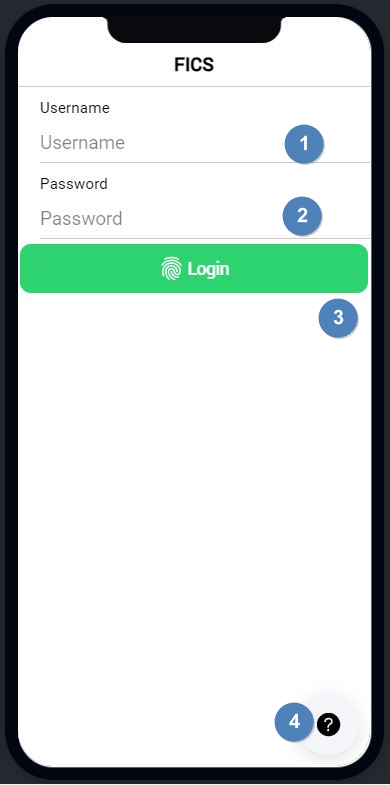
- Description: This describes the process in which the user will log into the system using the mobile app. The user will enter the username, which is the email address, as well as the password. The user will then click the Login button and the user will be logged in to the system. The user can also reset their password through the mobile app by clicking the button at the bottom of the screen.
- Navigation Process: This is the first screen the user will see when they open the mobile app.
- Screen Layout:
- Detailed description of controls:
|
Reference |
Control |
Functionality Description |
|
1 |
Username Textbox |
This textbox will allow the user to enter their username, which is also their email address. This will be validated in conjunction with the password. |
|
2 |
Password Textbox |
This textbox will allow the user to enter their password. This is validated to see if it is the correct password for the given email address. |
|
3 |
Login Button |
This button will allow the user to log into the mobile app. This will validate the abovementioned textboxes and will log the user into the system if the entered details are valid. |
|
4 |
Reset Password Button |
This will open the reset password page. |
- Possible Error Messages:
- No username provided, please provide a username.
- No password entered, please enter a password.
- Invalid password, please try again.
Mobile Screen
Use Case: Reset Password
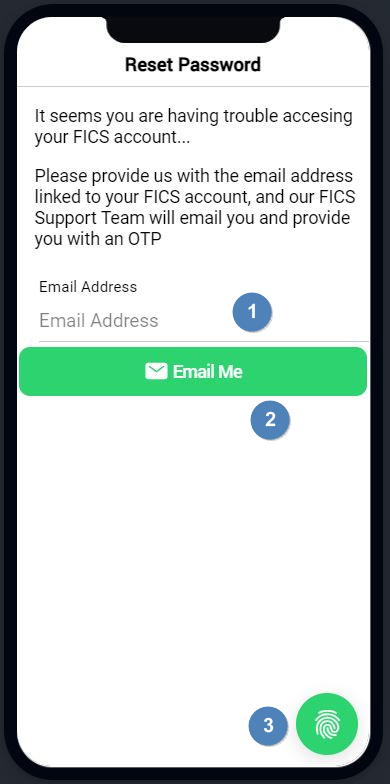
- Description: This describes the process the user will follow to reset their password through the mobile app. The user will enter their email address. The user will then click on the email me button. The mobile app will then send an email to the user and the user will be prompted to change their password. The user can also go back to the login screen by clicking the button on the bottom.
- Navigation Process: The user will find this screen by clicking on the reset password button on the login page.
- Screen Layout:
- Detailed description of controls:
|
Reference |
Control |
Functionality Description |
|
1 |
Email Address Textbox |
This textbox will allow the user to enter their email address. An email can get sent if it is valid and exists on the system. |
|
2 |
Email Me Button |
Clicking this button will validate the email address and will initiate the process for the user to reset their password. |
|
3 |
Login Button |
This button will take the user back to the login screen. |
- Possible Error Messages:
- Invalid email address, please enter an emailed address that is registered on the FICS Corp.
Mobile Screen
Use Case: View Tasks
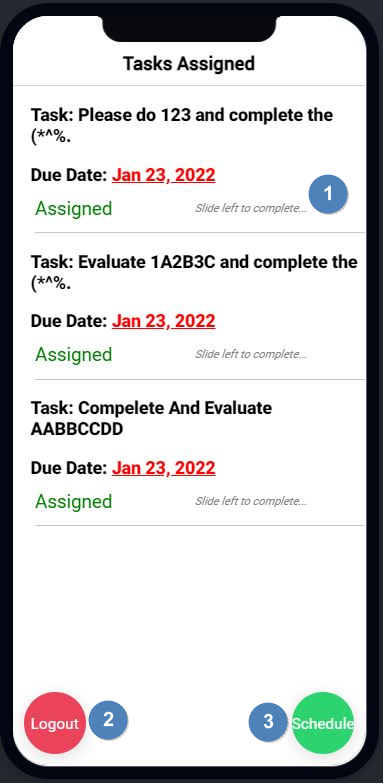
- Description: This screen will display tasks assigned to the user in a list format. From this screen the user can logout by clicking the red button at the bottom. The user can also view their schedule by clicking on the green button on the bottom.
- Navigation Process: This screen is found by logging into the system. As soon as the user logs in, this is the first page displayed. This can also be done by clicking the “Tasks” button on the complete my task page, as well as on the schedule page.
- Screen Layout:
- Detailed description of controls:
|
Reference |
Control |
Functionality Description |
|
1 |
Task Details |
This displays a task in a list format, containing a due date, description, status, and an instruction on how to complete the task on the mobile app. |
|
2 |
Logout Button |
This will log the user out of the app and will take the user back into the login page. |
|
3 |
Schedule Button |
This button will take the user to the “my schedule” mobile screen. |
- Possible Error Messages:
- No tasks assigned yet.
Mobile Screen
Use Case: Complete Task
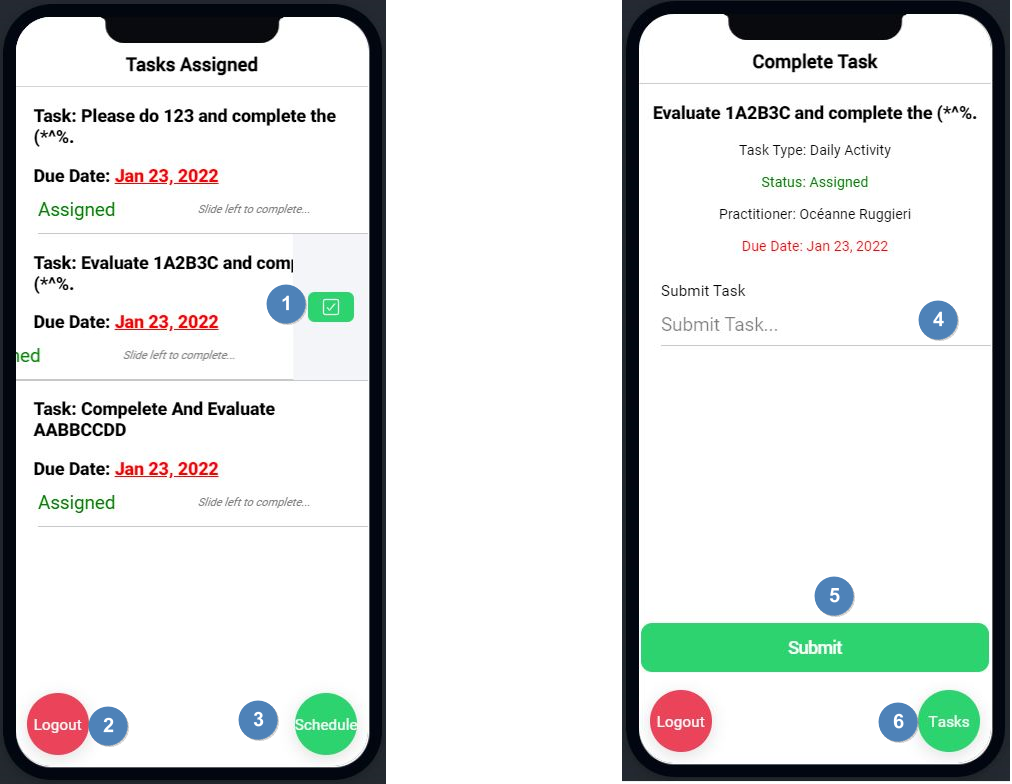
- Description: This describes the process a user will follow to complete a task. The user will swipe left on their desired task. They will then click on the complete task button. Once they have done that, they will input their task into the task textbox. They will then submit the task and it will await feedback.
- Navigation Process: The user will get onto the task page by logging in. The user will swipe left on a task to complete it. Once the user has clicked on the complete task button, they will be taken to the complete task page.
- Screen Layout:
- Detailed description of controls:
|
Reference |
Control |
Functionality Description |
|
1 |
Choose Task Button |
This button will select the task and open the “complete task” page for the user to complete the task. |
|
2 |
Logout Button |
This will log the user out of the system, and they will be taken back to the login screen. |
|
3 |
Schedule Button |
This button will allow the user to view their schedule on the “view schedule” page. |
|
4 |
Task Textbox |
This textbox will allow the user to enter text to complete their task. |
|
5 |
Submit Button |
This button will validate the textbox and will send it to the person that assigned the task to the user. |
|
6 |
Tasks Button |
This button will return the user to the “view tasks” page. |
- Possible Error Messages:
- No task assigned to you.
- No task has been submitted, please enter a valid task.
Mobile Screen
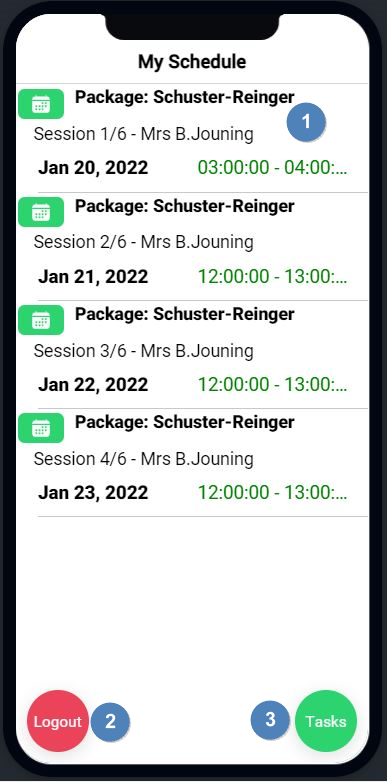
Use Case: My Schedule
- Description: This describes how the user would view their schedule using the mobile app. The user will be able to view their schedule in a list format.
- Navigation Process: The user will be able to view this page by clicking on the “Schedule” button on the “view task” page.
- Screen Layout:
- Detailed description of controls:
|
Reference |
Control |
Functionality Description |
|
1 |
Schedule Details |
This will contain all booking information, such as date, time, package name, and session number. This is displayed in a list format. |
|
2 |
Logout Button |
This button will log the user out and return them to the login page. |
|
3 |
Tasks Button |
This button will allow the user to return to the “view tasks” page. |
- Possible Error Messages:
- No schedule to view. Please make a booking.
Created with the Personal Edition of HelpNDoc: Qt Help documentation made easy