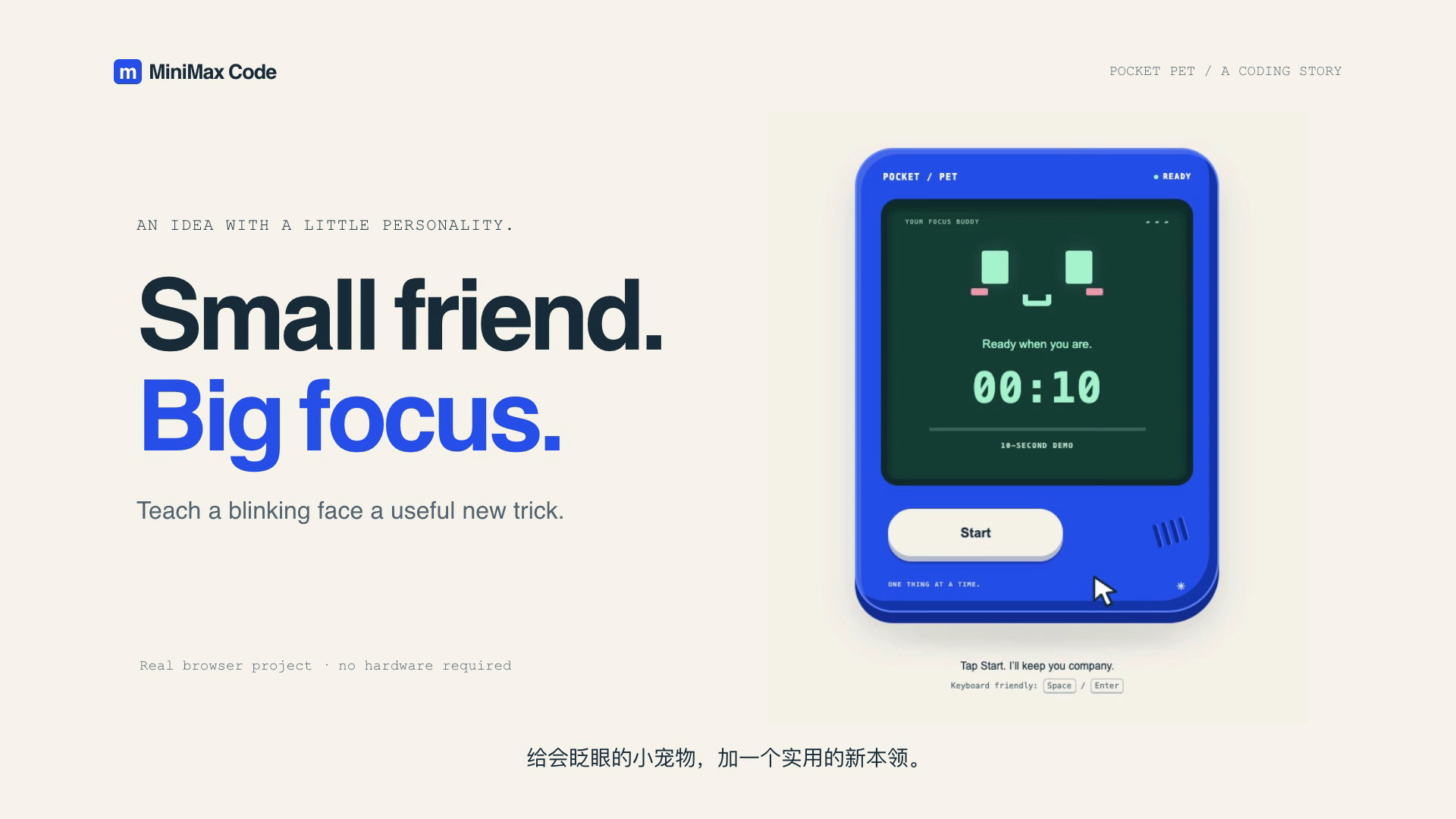
Give a blinking pocket pet a focus timer. Then ask: “Make pause a long press, and celebrate when the timer ends.” Watch a request become something you can actually use.
[](docs/demo.md)
**No hardware required.** The example runs locally in your browser, with no frontend dependencies. Asking the CLI to edit code requires a MiniMax account with available credits or your own compatible model API; model calls may incur charges. The finished example runs without a model account.
## Quick start
### 1. Install MCode
Use the official installer for your platform. It installs the latest CLI, prepares a compatible Node.js runtime when needed, and does not require `sudo` or administrator privileges. Alpine / musl Linux is not supported by the one-command installer.
**macOS / Linux / WSL**
```bash
curl -fsSL https://filecdn.minimax.chat/public/install.sh | bash
```
**Windows (PowerShell)**
```powershell
irm https://filecdn.minimax.chat/public/install.ps1 | iex
```
The scripts install into `~/.minimax-code` on macOS / Linux / WSL and `%USERPROFILE%\.minimax-code` on Windows. The launchers are `bin/mcode` and `bin/mcode-tools` on POSIX, or `mcode.cmd` / `mcode.ps1` and `mcode-tools.cmd` / `mcode-tools.ps1` on Windows. Set `MCODE_INSTALL_DIR` before installation to choose a different location. See [Uninstall](#uninstall) to remove the CLI.
**npm** — if you already have **Node.js 22.19+ (22.x), 24.2+ (24.x), 25, or 26**:
```bash
npm install -g @minimax-ai/code@latest --registry=https://registry.npmjs.org/ --ignore-scripts=false --include=optional --allow-scripts=@minimax-ai/code,better-sqlite3
```
The npm command uses the public registry, includes the optional SQLite dependency, and permits the package and SQLite installation scripts. See the [installation guide](docs/installation.md) for version pinning and Node.js compatibility.
Reopen your terminal and check the installation:
```bash
mcode --version
mcode --help
```
See the official [quick start](https://agent.minimax.io/docs/cli/quick-start), [features](https://agent.minimax.io/docs/cli/features), and [troubleshooting](https://agent.minimax.io/docs/cli/faq).
### 2. Sign in or bring your own API key
For a mainland China account:
```bash
mcode login
```
For a Global account:
```bash
mcode login --region global
```
Complete sign-in in your browser, then open `mcode` and use `/status` to check your account and `/provider` to choose a model. Run `mcode logout` to sign out.
Token Plan requires an account with available credits. Builds from this repository and the published npm CLI `@minimax-ai/code@0.4.12` default to `~/.minimax` for user data (or `~/.minimax-` when a profile is selected). `MINIMAX_DATA_DIR` or `MAVIS_DATA_DIR` can override the data directory. The installer's `~/.minimax-code` installation directory is separate from this choice. See [Accounts and data](docs/installation.md#accounts-and-data) before locating or removing configuration and sessions.
Use your own API key (BYOK)
BYOK does not require a MiniMax login. Set `MCODE_PROVIDER_API_KEY` in your current shell, then add a provider. Replace the example URL and model name with your provider's values:
```bash
mcode provider add --name my-provider --base-url https://example.com/v1 \
--api-format openai-completions --model my-model \
--api-key-env MCODE_PROVIDER_API_KEY --use
mcode
```
`--use` tests the first listed model before saving and selecting it. A failed connection test saves nothing. Omit `--use` to save without testing or changing the default model. For custom/local models, add `--context-limit 32768 --output-limit 4096` (use your server's actual limits). Each value must be a positive safe integer and applies to every repeated `--model`. Inspect configured limits with `mcode provider list --json`. Omitting these flags preserves the existing model-limit defaults.
Supported API formats: `openai-completions`, `openai-responses`, and `anthropic-messages`. See the [model examples](docs/examples.md#2-choose-your-own-model) for environment variable setup, connection checks, and model overrides for a single run.
Providers added this way are stored under `custom_provider` in the active profile's `config.yaml`; this is the supported path for third-party or self-hosted endpoints, while `minimax_api` stays reserved for the official MiniMax API. Relays that require `Authorization: Bearer` on an Anthropic-compatible endpoint can set custom headers in `config.yaml`; see [Third-party relays and custom auth headers](docs/examples.md#third-party-relays-and-custom-auth-headers).
### 3. Build the pocket pet
Clone this repository and copy the starter into a separate directory:
```bash
git clone https://github.com/MiniMax-AI/minimax-code.git
cd minimax-code
node examples/pocket-pet/setup.mjs ../my-pocket-pet
cd ../my-pocket-pet
node serve.mjs
```
Open `http://127.0.0.1:4173`. In a second terminal, open `mcode` in `my-pocket-pet` and paste [the first prompt](examples/pocket-pet/README.md#first-request), then [the follow-up](examples/pocket-pet/README.md#change-the-requirement). Refresh the browser after each change.
Prefer to try the result first? From the repository root, run `node examples/pocket-pet/serve.mjs finished` and open the same URL. Add `?demo=1` for the visibly labeled 10-second mode.
[Full walkthrough and requirements](examples/pocket-pet) · [Small code-repair example](examples/clamp) · [Models, search, and tools](docs/examples.md)
### Work in your own project
Open the project you want to work on:
```bash
cd /path/to/your/project
mcode
```
Describe your task in the TUI, or submit it directly when you launch MCode:
```bash
mcode "Find a failing test, fix the implementation, and run the relevant tests."
```
Use `mcode init .` to generate or update project guidance in `AGENTS.md`. Describe the expected result, allowed changes, and how to verify the task.
| Entry point | Command | Use it for |
| --- | --- | --- |
| Interactive TUI | `mcode [prompt]` | Explore code, continue a conversation, and review changes or permissions. |
| Headless | `mcode exec [prompt]` | Shell scripts, CI, batch work, and evaluations. |
| ACP | `mcode acp` | Editors and clients supporting Agent Client Protocol. |
### Continue your work
```bash
# Resume the latest session in the current workspace
mcode --continue
# Open the session picker
mcode --session
```
Inside the TUI, use `/sessions` to find previous sessions and `/help` to see all commands and shortcuts.
| Action | Shortcut |
| --- | --- |
| Send a message or steer the running task | `Enter` |
| Queue a follow-up while a task is running | `Alt+Enter` |
| Insert a newline | `Shift+Enter` |
| Reference a workspace file or directory | `@` |
| Toggle Plan Mode | `Shift+Tab` |
| Switch permission modes | `Alt+M` |
| Close a panel or interrupt a running task; interrupting before the model replies returns the message to the composer | `Esc` |
## Uninstall
Close running MCode sessions, including editor integrations, before uninstalling. First locate the command with `command -v mcode` (macOS / Linux / WSL) or `Get-Command mcode -All` (PowerShell), then follow the matching installation method below. The current official install scripts do **not** provide an uninstall flag.
### Installed with the script
The commands below remove the default installation directory, including both launchers, downloaded releases, and any installer-managed Node.js runtime. If you used `MCODE_INSTALL_DIR`, substitute the actual installation directory. Inspect it first: earlier source builds used `~/.minimax-code` for user data, and a custom data directory can overlap the installation. Back up any configuration or sessions you want to keep before deleting it.
**macOS / Linux / WSL**
```bash
rm -rf -- "$HOME/.minimax-code"
```
Remove the `# MiniMax Code CLI` comment and its following PATH line from the shell file the installer updated: `~/.zshrc` for zsh; the first existing file among `~/.bashrc`, `~/.bash_profile`, and `~/.profile` for bash (or a newly created `~/.bashrc`); `~/.config/fish/config.fish` for fish; or `~/.profile` for other shells. The line is `export PATH="/absolute/install/path/bin:$PATH"`, or `fish_add_path -g "/absolute/install/path/bin"` for fish. Remove only the MCode entry, preserving other PATH settings. The installer skips this edit when `MCODE_NO_MODIFY_PATH` is set or the path is already present.
**Windows (PowerShell)**
```powershell
Remove-Item -LiteralPath "$env:USERPROFILE\.minimax-code" -Recurse -Force
```
Open **Edit environment variables for your account**, edit the user **Path**, and remove only the installation directory entry (by default `%USERPROFILE%\.minimax-code`, which may appear as an expanded absolute path). The Windows installer updates the user Path, not the PowerShell profile; `MCODE_NO_MODIFY_PATH` skips that persistent update.
### Installed with npm or from source
For a global npm installation, use the same npm installation/prefix you used to install MCode:
```bash
npm uninstall -g @minimax-ai/code
```
For a source build, save any work and remove only the checkout you created; see [Update or remove](docs/installation.md#update-or-remove).
After uninstalling, reopen your terminal (fully restart the editor for integrated terminals) and run `command -v mcode` or `Get-Command mcode -All` again. No result means the command is no longer on PATH. If another copy appears, identify its installation method before removing it.
### Optional: delete user data
Removing the program leaves separately stored user data in place. To also delete local login state, provider configuration, caches, and sessions, first confirm the selected directory using [Accounts and data](docs/installation.md#accounts-and-data) and back up anything you need. Other MCode installations can share this directory. For the default `~/.minimax` directory only:
```bash
# macOS / Linux / WSL — permanently deletes the default user data
rm -rf -- "$HOME/.minimax"
```
```powershell
# Windows — permanently deletes the default user data
Remove-Item -LiteralPath "$env:USERPROFILE\.minimax" -Recurse -Force
```
A profile uses `~/.minimax-`; `MINIMAX_DATA_DIR` or `MAVIS_DATA_DIR` can select a different location. Remove only the specific directories you intend to discard, without wildcard deletion. Remove any MCode-specific environment variable assignments you added to shell profiles or user environment settings if you no longer need them.
## What you can do
| Task | Capabilities |
| --- | --- |
| **Edit and verify code** | Read files, inspect diffs, run shell commands and tests, and control tool execution with permissions and sandboxing. |
| **Choose your model** | Use a MiniMax account / Token Plan, or custom providers with OpenAI- or Anthropic-compatible API formats. |
| **Search and work with media** | Use built-in search, `mcode-tools` media tools, MCP, and managed connectors, subject to account access and service credits. |
| **Keep work moving** | Resume sessions, plan tasks, use subagents, and extend the agent with official, local, or GitHub plugins and built-in skills. |
| **Connect your workflow** | Run scripted tasks with the headless CLI, or connect compatible editors and clients through ACP. |
Account features, updates, feedback, and diagnostics are also included. Managed tools require network access and the relevant authorization. See [capabilities and service boundaries](docs/tui-capabilities.md) for details.
## Build from source
To develop MCode or run this source checkout, you need Git, **Node.js 22.19+ (22.x), 24.2+ (24.x), 25, or 26**, and **pnpm 9.12.0**. On Windows, keep the checkout on a local NTFS volume and outside cloud-synced folders; the preflight command below checks the volume before pnpm creates workspace links.
```bash
git clone https://github.com/MiniMax-AI/minimax-code.git
cd minimax-code
node scripts/check-windows-source-location.mjs
pnpm install --frozen-lockfile
pnpm build
pnpm mcode
```
The first build requires an internet connection. Dependencies and the integrity-checked `mcode-tools` bundle come from public npm. See the [source installation guide](docs/installation.md) for pnpm setup, system dependencies, and updates.
From the source directory, use `pnpm mcode` in place of `mcode` in the examples above. To work on your own project, open its directory and launch the built CLI:
```bash
node /absolute/path/to/minimax-code/dist/cli.js
```
This repository targets the **0.4.12 source preview**. Installing the published package and building this checkout are separate paths. Matching versions do not prove identical build provenance; see the [version and evidence baseline](docs/open-source-status.md#version-and-evidence-baseline).
## Documentation and contributing
- [Installation and updates](docs/installation.md) · [Examples](docs/examples.md) · [TUI status line](packages/tui/docs/status-line-config.md)
- [Contributor guide](CONTRIBUTING.md) · [Report a bug or propose an idea](https://github.com/MiniMax-AI/minimax-code/issues/new/choose) · [Report a security issue](SECURITY.md)
- [All documentation](docs/README.md): architecture, capability coverage, verification records, source synchronization, and release preparation.
English is the primary documentation language. The [Chinese README](README_ZH.md) mirrors this page.
For now, code and documentation pull requests are accepted only from repository collaborators. If you are not a collaborator but have an idea or proposal, please [open an issue](https://github.com/MiniMax-AI/minimax-code/issues/new/choose) so we can discuss it. Remove secrets, account details, and private project content from reports.
## Desktop app and support
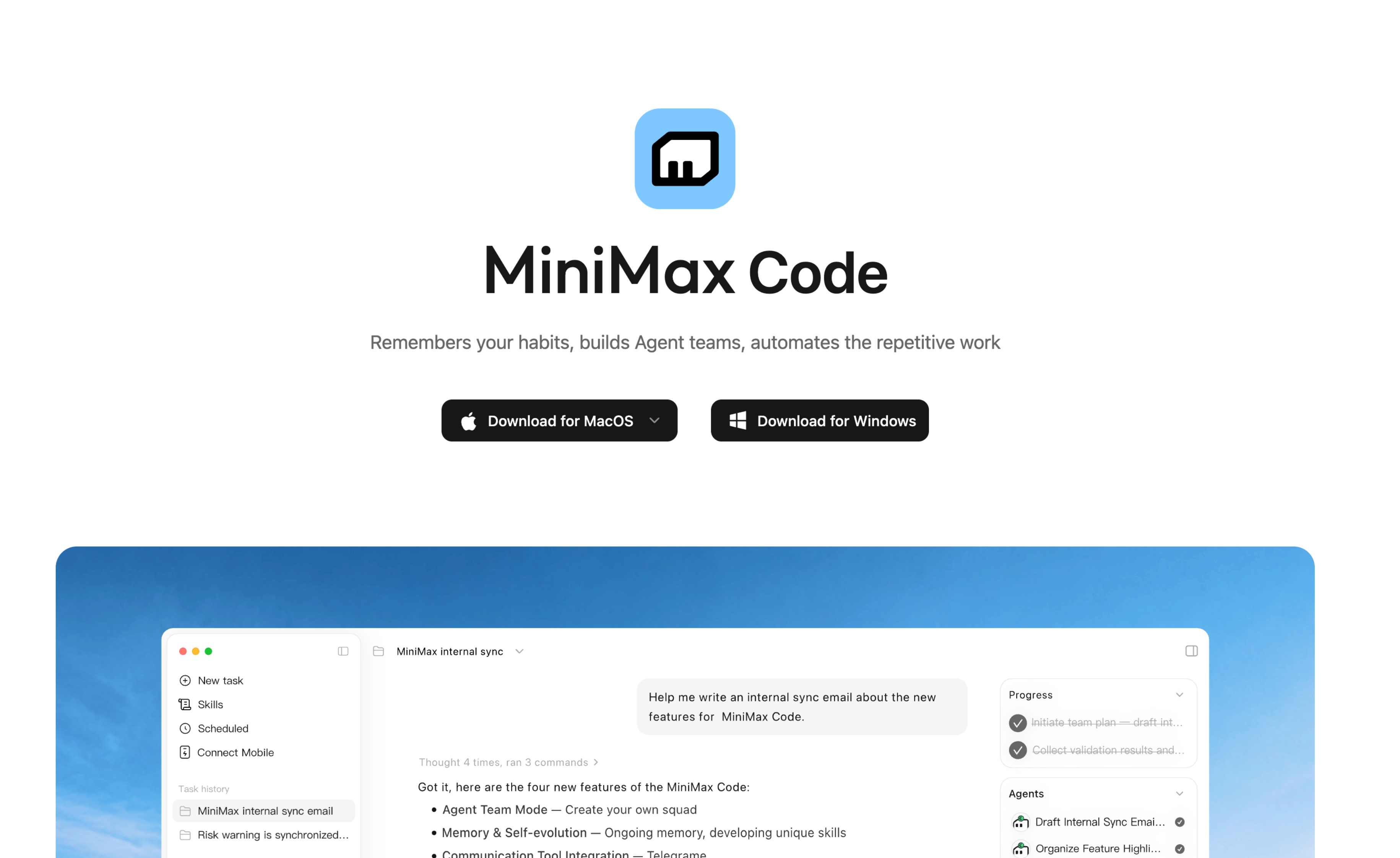
[Download for macOS or Windows](https://agent.minimax.io/download) · [Report a problem or ask a question](https://github.com/MiniMax-AI/minimax-code/issues/new/choose)
This repository also hosts issue reporting for the MiniMax Code desktop app. The published source covers the terminal TUI, headless CLI, and ACP; it does not include the desktop application's source. Select the affected product when filing an issue. For a desktop bug, include the app version, operating system, and a log upload ID if available from **Settings → General → Upload logs**. For a CLI bug, include `mcode --version`, your interface, and a minimal reproduction. Remove credentials and private project content from reports.
## Feedback and contact
| Channel | Use it for |
| --- | --- |
| [GitHub Issues](https://github.com/MiniMax-AI/minimax-code/issues/new/choose) | Public bug reports, feature requests, and questions about the CLI or desktop app. |
| [MiniMaxCode@minimax.io](mailto:MiniMaxCode@minimax.io) | General feedback and support inquiries. |
| [security.mcode@minimax.io](mailto:security.mcode@minimax.io) | Private vulnerability reports. Send reproduction details and redacted evidence here; see [Security](SECURITY.md). |
| [Discord](https://minimax.io/discord) | Community discussion and feedback. |
| [Feishu feedback group QR code](https://cdn.hailuoai.com/hailuo-video-web/public_assets/minimax_code_feishu_group_url.png) | Chinese-language community feedback. Scan with Feishu, or find the QR code in the Chinese desktop app under the user menu → **Contact us → Feishu**. |
Follow [MiniMax on X](https://x.com/MiniMaxAgent) for updates. Keep vulnerability details, credentials, and private project content out of public issues and community chats.
## License
First-party code defaults to [MIT](LICENSE). Existing file-level and package-level licenses remain in place. See [third-party notices](THIRD_PARTY_NOTICES.md) and [license status](LICENSE-STATUS.md) for dependencies, assets, and `mcode-tools`.




 [Download for macOS or Windows](https://agent.minimax.io/download) · [Report a problem or ask a question](https://github.com/MiniMax-AI/minimax-code/issues/new/choose)
This repository also hosts issue reporting for the MiniMax Code desktop app. The published source covers the terminal TUI, headless CLI, and ACP; it does not include the desktop application's source. Select the affected product when filing an issue. For a desktop bug, include the app version, operating system, and a log upload ID if available from **Settings → General → Upload logs**. For a CLI bug, include `mcode --version`, your interface, and a minimal reproduction. Remove credentials and private project content from reports.
## Feedback and contact
| Channel | Use it for |
| --- | --- |
| [GitHub Issues](https://github.com/MiniMax-AI/minimax-code/issues/new/choose) | Public bug reports, feature requests, and questions about the CLI or desktop app. |
| [MiniMaxCode@minimax.io](mailto:MiniMaxCode@minimax.io) | General feedback and support inquiries. |
| [security.mcode@minimax.io](mailto:security.mcode@minimax.io) | Private vulnerability reports. Send reproduction details and redacted evidence here; see [Security](SECURITY.md). |
| [Discord](https://minimax.io/discord) | Community discussion and feedback. |
| [Feishu feedback group QR code](https://cdn.hailuoai.com/hailuo-video-web/public_assets/minimax_code_feishu_group_url.png) | Chinese-language community feedback. Scan with Feishu, or find the QR code in the Chinese desktop app under the user menu → **Contact us → Feishu**. |
Follow [MiniMax on X](https://x.com/MiniMaxAgent) for updates. Keep vulnerability details, credentials, and private project content out of public issues and community chats.
## License
First-party code defaults to [MIT](LICENSE). Existing file-level and package-level licenses remain in place. See [third-party notices](THIRD_PARTY_NOTICES.md) and [license status](LICENSE-STATUS.md) for dependencies, assets, and `mcode-tools`.
[Download for macOS or Windows](https://agent.minimax.io/download) · [Report a problem or ask a question](https://github.com/MiniMax-AI/minimax-code/issues/new/choose)
This repository also hosts issue reporting for the MiniMax Code desktop app. The published source covers the terminal TUI, headless CLI, and ACP; it does not include the desktop application's source. Select the affected product when filing an issue. For a desktop bug, include the app version, operating system, and a log upload ID if available from **Settings → General → Upload logs**. For a CLI bug, include `mcode --version`, your interface, and a minimal reproduction. Remove credentials and private project content from reports.
## Feedback and contact
| Channel | Use it for |
| --- | --- |
| [GitHub Issues](https://github.com/MiniMax-AI/minimax-code/issues/new/choose) | Public bug reports, feature requests, and questions about the CLI or desktop app. |
| [MiniMaxCode@minimax.io](mailto:MiniMaxCode@minimax.io) | General feedback and support inquiries. |
| [security.mcode@minimax.io](mailto:security.mcode@minimax.io) | Private vulnerability reports. Send reproduction details and redacted evidence here; see [Security](SECURITY.md). |
| [Discord](https://minimax.io/discord) | Community discussion and feedback. |
| [Feishu feedback group QR code](https://cdn.hailuoai.com/hailuo-video-web/public_assets/minimax_code_feishu_group_url.png) | Chinese-language community feedback. Scan with Feishu, or find the QR code in the Chinese desktop app under the user menu → **Contact us → Feishu**. |
Follow [MiniMax on X](https://x.com/MiniMaxAgent) for updates. Keep vulnerability details, credentials, and private project content out of public issues and community chats.
## License
First-party code defaults to [MIT](LICENSE). Existing file-level and package-level licenses remain in place. See [third-party notices](THIRD_PARTY_NOTICES.md) and [license status](LICENSE-STATUS.md) for dependencies, assets, and `mcode-tools`.