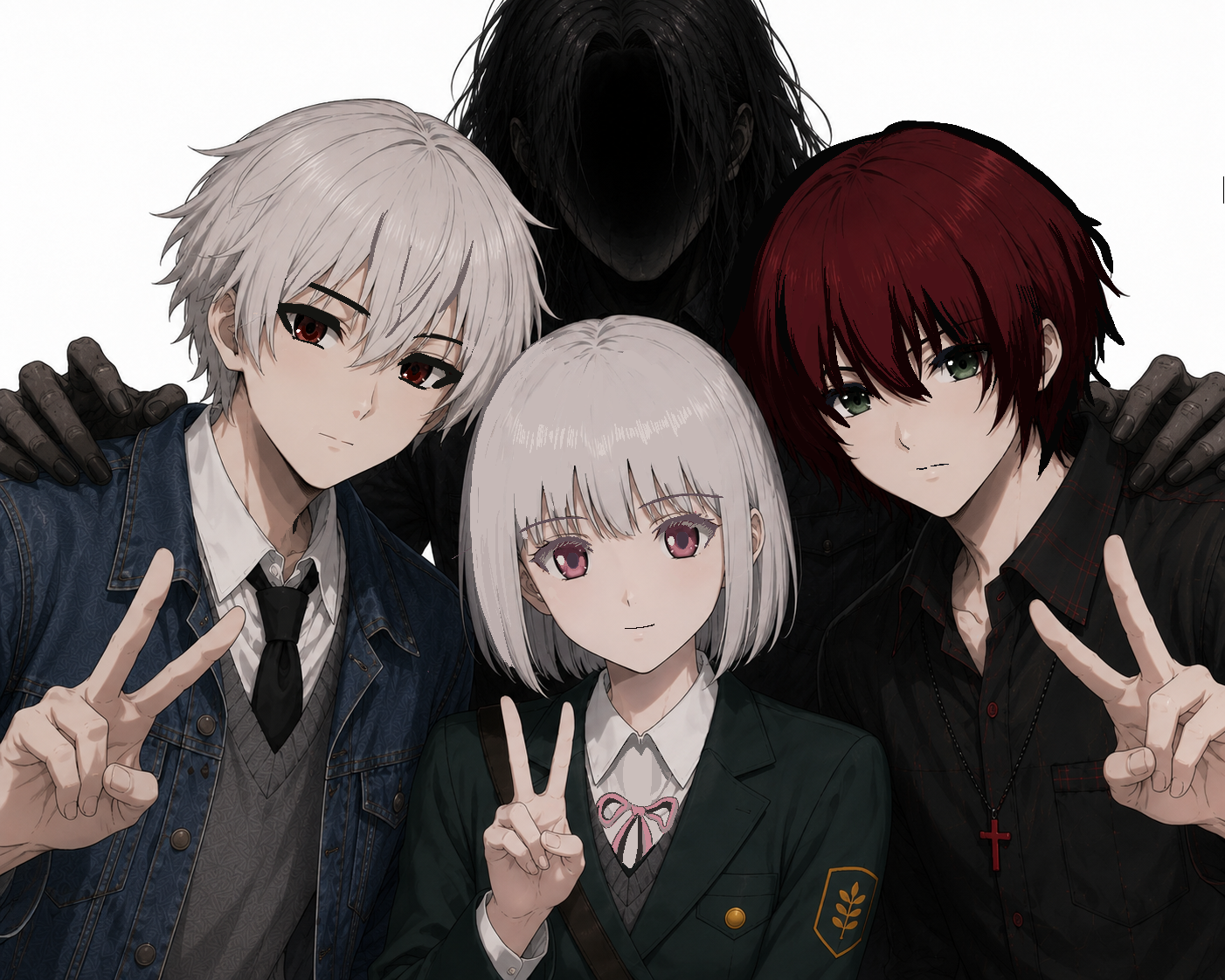
# Gorest 2D Animation Spritesheet Generator An open-source, no-UI 2D game and animation generative platform for turning concepts, references, and spritesheets into animation-ready scenes, previews, and reusable game assets. We open-sourced this 2D platform to make game creation simpler, and we will keep improving it in public. We welcome your support, feedback, and contributions. > [!TIP] > **Don't want to set up a local environment?** Use the hosted version at **[sprite.gorest.ai](https://sprite.gorest.ai/)** — sign in and generate game-ready, transparent spritesheets directly in your browser. No installation, no API keys, no configuration. > **Tip for Codex users:** You do not need to connect an extra API to customize this tool. Open this repo in Codex and point it at this document or the codebase, then describe what you want to change. Codex can update the software directly. > > This is a combination of dynamic software and a no-UI workflow: instead of operating fixed controls inside an interface, you describe the tool or workflow you need, and the agent changes the tool to match. > > For durable agent instructions and prompt templates, see [`AGENTS.md`](./AGENTS.md) and [`docs/AGENT_WORKFLOW.md`](./docs/AGENT_WORKFLOW.md). > > **Recommended model:** use GPT-5.5 (`gpt-5.5`) for this workflow. It is a strong fit for coding-heavy, tool-heavy, long-context agent work like generating assets, editing scene metadata, and modifying the app itself.

Gorest logo

Try It Online  |  Official Website  |  Join the Gorest Discord
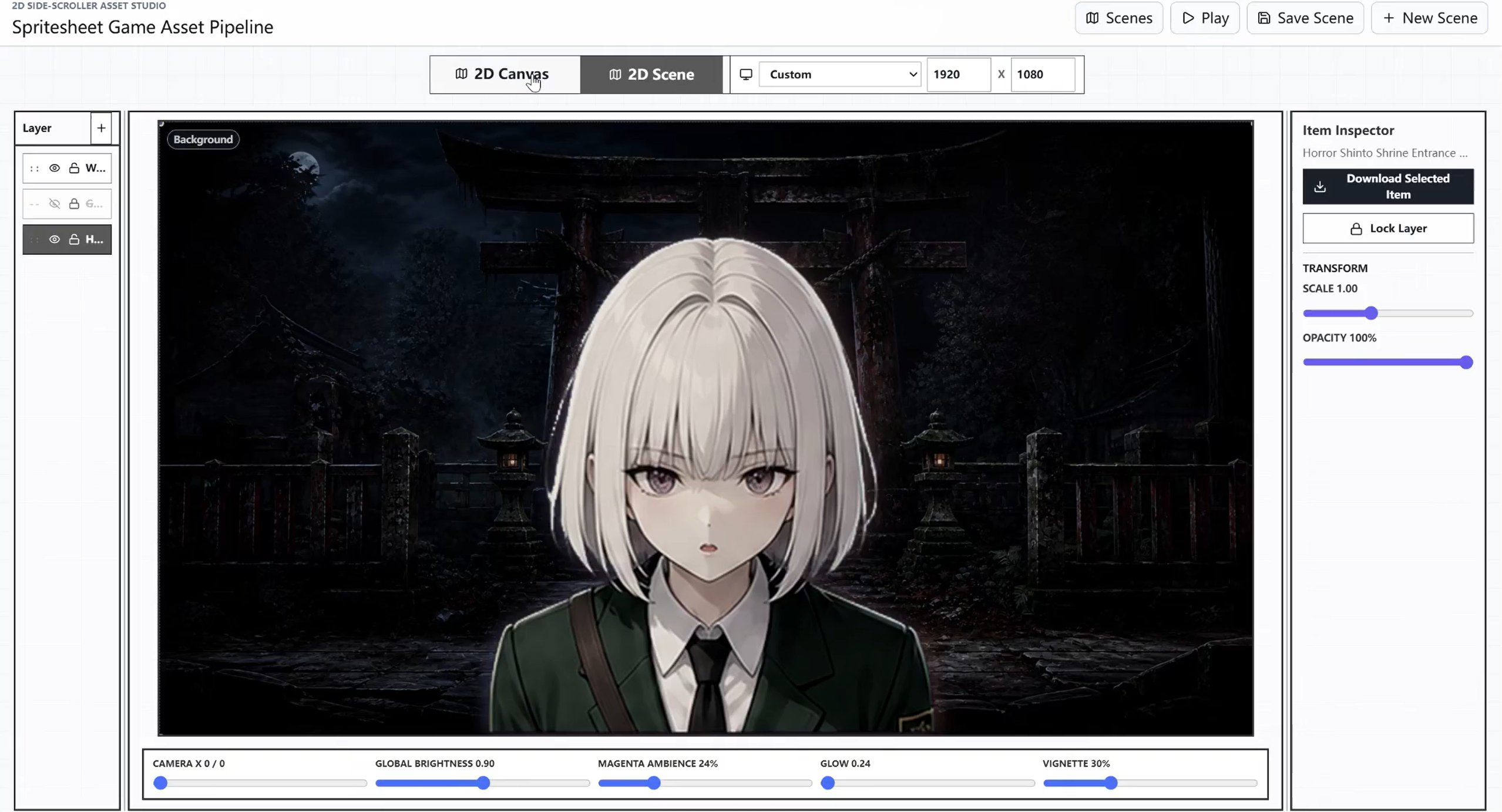
## Star History If this project helps you, please consider giving it a ⭐ — it really helps the project grow. Star History Chart --- ## Preview Gallery ### Scene Composer

Scene composer with character and shrine entrance background

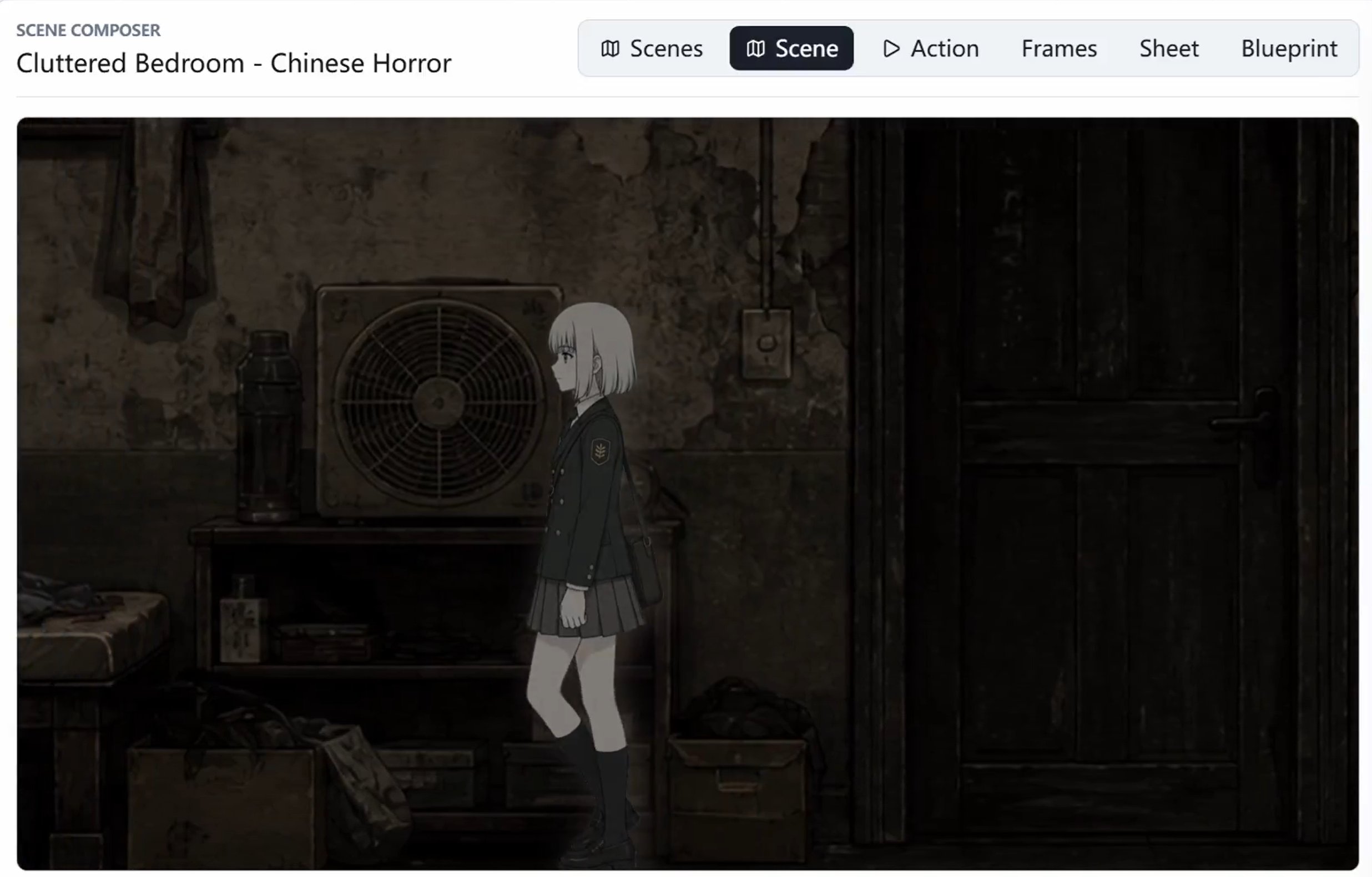
### Side-Scroller Preview

Side-scroller scene preview with a walking character in a dark bedroom

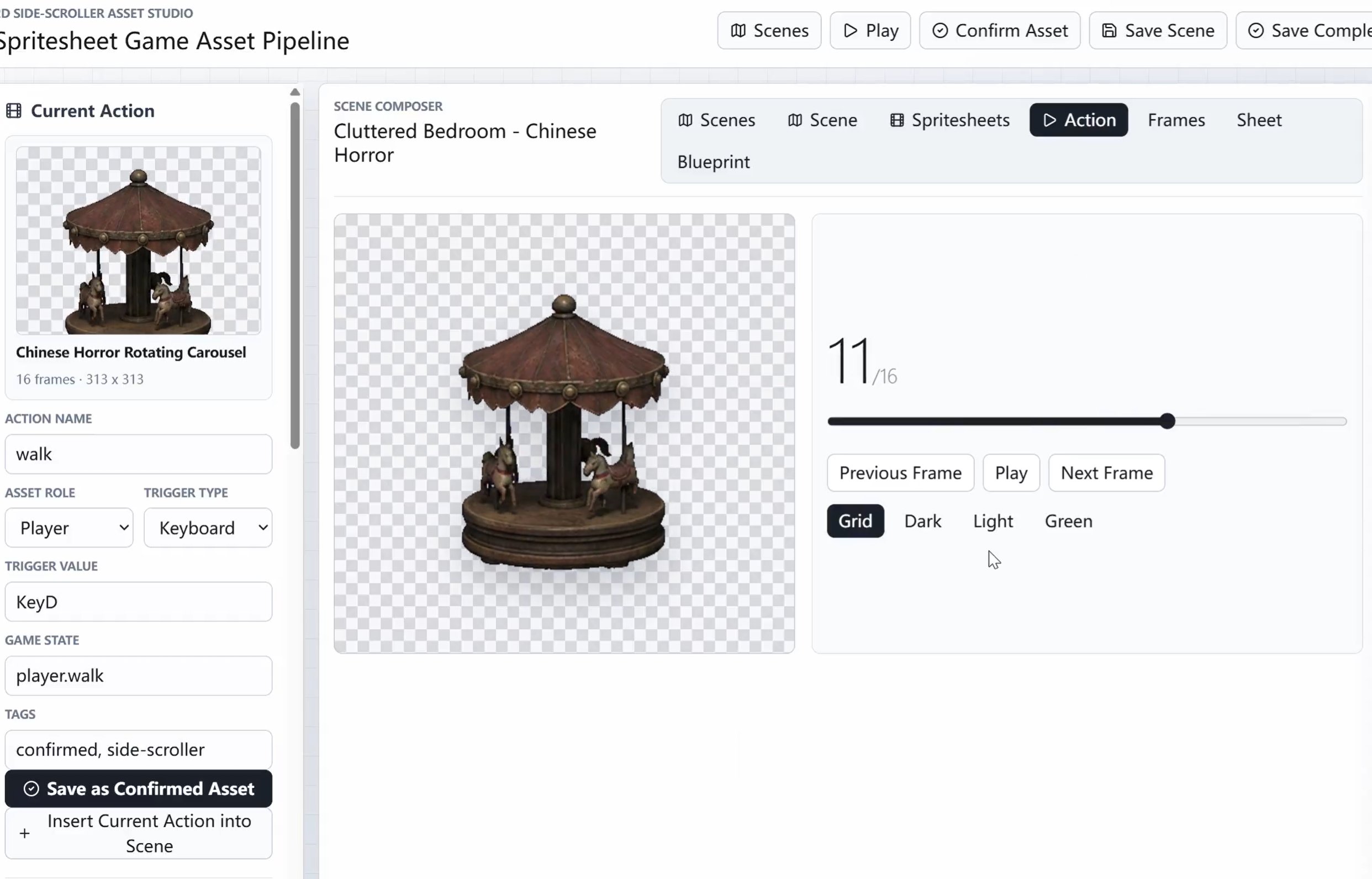
### Action Asset Setup

Action asset setup panel showing a carousel spritesheet and trigger metadata

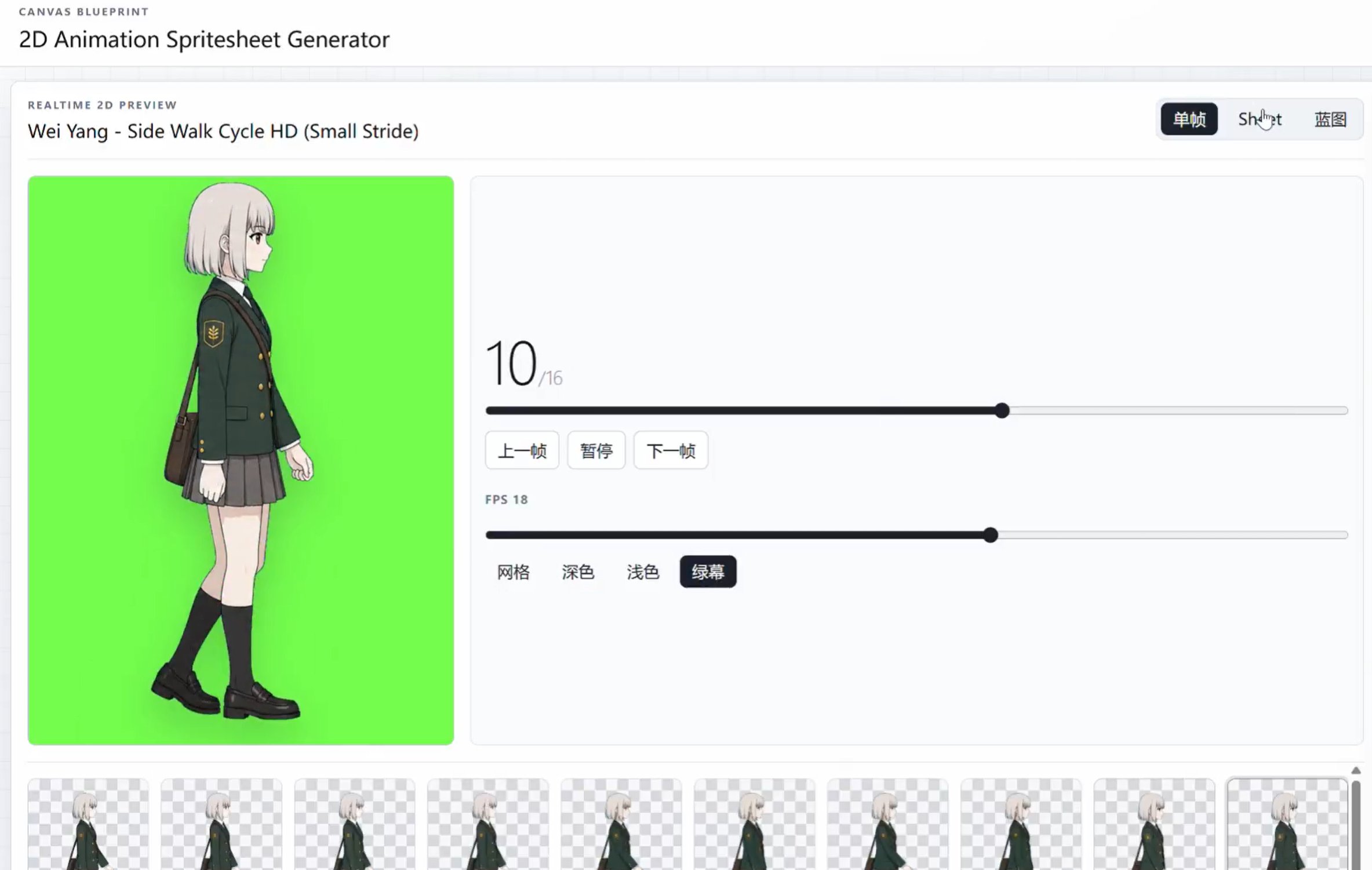
### Spritesheet Playback

Spritesheet playback preview for a side-walk cycle

The app is designed for fast visual iteration: open a scene, place the character and props, inspect every spritesheet used in that scene, tune metadata, preview movement, and save the finished setup. ## Codex-Assisted Animation Agent The core idea is to vibe-code a no-manual-pipeline 2D animation agent without relying on a video generation model. Instead of manually operating a traditional animation stack, you can prompt Codex, upload a reference image, and let Codex call the local agent to produce a game-ready 2D spritesheet. The app then plays the animation directly from that spritesheet in a live preview, so the result can be checked immediately and used in a game engine. The workflow is broader than character animation: - Codex can generate or import spritesheets. - Codex can place animated sprites onto a background like a scene-compositing tool. - Codex can configure layers, metadata, trigger settings, scene state, and preview behavior. - Codex can revise the product framework itself while the tool evolves. - The browser becomes the visual result surface, while Codex handles setup, editing, and iteration. This is meant to reduce or skip the manual Spine-style workflow for early game prototyping: prompt, generate, composite, preview, adjust, and save. ## What You Can Do - Create and save multiple scenes. - Arrange scene cards on the `2D Canvas` as a scrollable freeform flow board. - Use scene-card shortcuts on the `2D Canvas`: `Ctrl+C`, `Ctrl+V`, `Ctrl+D`, `Ctrl+X`, `Delete`, `Backspace`, `Ctrl+Z`, and `Ctrl+Y`. - Right-click scene cards for copy, cut, paste, duplicate, and delete actions. - Place backgrounds, characters, props, UI elements, and animated sprites as editable layers. - Drag, resize, scale, reorder, hide, and show scene layers. - Preview a playable side-scroller scene with character movement. - Import or generate 12-frame and 16-frame spritesheets. - Composite animated sprites directly onto scene backgrounds. - Open the `Spritesheets` page to see every animation clip used by the current scene. - Edit spritesheet metadata such as asset role, clip name, trigger type, game state, direction, loop mode, and tags. - Let Codex configure scenes, layers, assets, and animation metadata from prompts. - Let Codex modify the tool's product framework as the workflow changes. - Save reusable assets and scenes into the local game asset library. ## Quick Start ### 1. Install Node.js Install Node.js 20 or newer from [nodejs.org](https://nodejs.org/). ### 2. Clone the Repository ```bash git clone https://github.com/NO6KIKO/gorest-2d-animation-spritesheet-generator.git cd gorest-2d-animation-spritesheet-generator ``` ### 3. Install Dependencies ```bash npm install ``` ### 4. Optional Environment File The current local workflow does not require an API key. If you later enable cloud image generation, copy the example env file and add your own key: ```bash cp .env.example .env.local ``` On Windows PowerShell: ```powershell Copy-Item .env.example .env.local ``` Never commit `.env.local`. It is ignored by Git. ### 5. Run the App ```bash npm run dev ``` Open: ```text http://localhost:3000 ``` If port `3000` is already in use, run it on another port: ```bash PORT=3001 npm run dev ``` On Windows PowerShell: ```powershell $env:PORT=3001 npm run dev ``` Then open `http://localhost:3001`. ## Creator Workflow This project is organized around a game-scene authoring workflow rather than a single character animation tool. A typical production pass looks like this: 1. Start from the `Scenes` tab. Create a new scene, duplicate an existing one, delete test scenes, or open a saved scene from the scene library. The `2D Canvas` view works as a freeform scene-flow board, so cards can be moved, resized, copied, pasted, duplicated, cut, deleted, and undone independently from layer edits inside an individual scene. 2. Build the scene base in the `Scene` tab. Add a background first, then place the player character, props, UI objects, foreground objects, animated props, and effects as separate editable layers. 3. Arrange layers like a 2D composition. Drag objects on the canvas, resize them with handles, adjust scale, and use the layer list to decide what appears above or below other objects. 4. Keep animation assets reusable. Save finished characters, props, UI elements, and effects into the local asset library so the same asset can be inserted into future scenes. 5. Inspect all animation clips in `Spritesheets`. The `Spritesheets` page lists every spritesheet used in the current scene, not just the main character. Use it to preview, locate, download, and edit each animation clip. 6. Tune each clip as game data. Each spritesheet can carry metadata such as action name, direction, loop mode, trigger type, trigger value, game state, and tags. This makes the visual asset reusable as gameplay data later. 7. Preview the scene in `Action`. Use the playable preview to check character movement, animation timing, layer order, lighting, scale, and scene composition. 8. Save the completed scene. Save the scene once the background, character, props, spritesheets, and metadata feel correct. ## Prompt Examples for Codex These prompts are written for Codex. They describe the scene, the spritesheet, the visual mood, and the exact editor changes Codex should make. ```text Create a new side-scroller scene in the asset library. The scene should be a refined Chinese-horror Shinto-style wooden hut interior with a long wooden table in the foreground. Add a separate animated prop layer on the table: a round glass fishbowl spritesheet with a realistic fantail goldfish swimming inside. Use a dark, polished, painterly horror mood, not a simple cartoon style. Save the background PNG, the spritesheet PNG, and wire the new scene into public/generated/game_asset_library.json. ``` ```text Generate a 16-frame transparent PNG spritesheet for a tabletop prop. The prop is a round glass fishbowl with murky water, glass highlights, plants, dark sediment, and a realistic fancy goldfish. The fish should have an egg-shaped body, high dorsal fin, orange-white scales, and split flowing tail fins. Keep every frame 512 x 512, arrange it as a 4 x 4 sheet, and make the swim loop subtle and game-ready. ``` ```text Revise the current fishbowl spritesheet so it looks less like a simple icon. Research real goldfish references first, then redraw it toward a realistic fantail goldfish direction. Keep the bowl round, preserve transparent background, update frame metadata, and adjust the scene layer position so the fishbowl sits naturally on the wooden table. ``` ```text Create a new scene card in the 2D Canvas for a horizontal horror shrine entrance. The background should show a Shinto-style gate entrance with a foreground incense burner. Add a talking character close-up spritesheet as a separate layer, configure the active animation, and make sure the scene appears in the scene flow board with editable metadata. ``` ## Spritesheet Authoring Rules For stable 2D game animation, spritesheets should be treated as one complete animation sheet first, then split into frames. This avoids the common problem where individually generated frames change size, drift, or lose visual consistency. Recommended rules: - Generate or import a full spritesheet whenever possible, then split it into frames. - Keep every frame the same pixel size. - Keep the character or prop centered in a consistent frame box. - Preserve the original character proportions from the reference image. - Keep the feet or base anchor stable so the object does not slide around during playback. - Use small, close frame-to-frame changes for idle and breathing animations. - Use one clean walk cycle per sheet, then loop it in playback instead of repeating the same step too many times inside the sheet. - For side-scrollers, create separate clips for `idle`, `walk_right`, `walk_left`, and any special action. - Store direction, loop, trigger, and game-state metadata on the clip so it can be reused by scene logic. ## Interaction Design Model Interactive scenes are easiest to manage when interaction behavior is separated from visual layers. The recommended structure is: - Interaction zone: a draggable and resizable area that decides where the player can interact. - Trigger condition: proximity, mouse click, keyboard input, inventory requirement, or scene-state requirement. - Action: show text, play an animation, hide or show a layer, give an item, switch scenes, or update game state. - State: a small key-value table such as `has_key`, `radio_on`, `door_open`, or `visited_bedroom`. Useful presets for future scene building: - `Inspect`: show an eye prompt near an object, then display text when clicked. - `Pickup`: collect an item and hide the scene object. - `Toggle`: switch a layer, animation, or state on and off. - `Door / Scene Link`: move from one scene to another. - `Animated Prop`: play or loop a prop animation. - `Conditional`: choose different results based on scene state or inventory. ## Scene Framing The editor supports a scene-size mindset instead of only a single image-size mindset. Use this when designing for different targets: - Set the full scene width and height for long side-scrolling spaces. - Set the viewport frame separately for desktop, tablet, or phone-style previews. - Position the background inside the viewport to test what the player sees first. - Keep gameplay objects in world coordinates so the player can move through a larger scene. - Use foreground and background layers to create depth while keeping the game readable. ## Included Scene Flow Example The current sample library includes a horror Shinto shrine entrance scene for a side-scroller prototype. It uses a wide shrine-gate background with a foreground incense burner, a talking Wei Yang close-up spritesheet, and editable layer metadata so the scene can be adjusted directly in the browser. It also includes a Shinto-style wooden hut interior scene with a refined horror tabletop fishbowl spritesheet. The fishbowl is stored as a reusable animated prop, so it can be inspected from the `Spritesheets` page and reused in other scenes. ## Spritesheet Page The `Spritesheets` page is a scene-level animation library. It lists each spritesheet clip currently attached to scene layers, including character animations, animated props, UI animations, and imported assets. Each card supports: - `Preview`: play that clip in the frame preview. - `Locate Layer`: jump back to the scene editor with the matching layer selected. - `PNG`: download the underlying spritesheet image when available. - `Edit`: change metadata for reusable confirmed assets. Built-in scene kit assets can be previewed and layered. Persistent metadata editing is available for confirmed user assets. ## Game Asset Library Saved assets and scenes are stored locally under: ```text public/generated/game_asset_library.json ``` Generated or imported PNG files are also stored in: ```text public/generated/ ``` This makes the project easy to keep as a self-contained prototype. If you add large generated assets, review them before committing. ## Available Scripts ```bash npm run dev ``` Starts the local Express and Vite development server. ```bash npm run build ``` Builds the frontend and bundles the server into `dist/`. ```bash npm run start ``` Runs the production build from `dist/`. ```bash npm run lint ``` Runs TypeScript checks without emitting files. ## Project Structure ```text src/ App.tsx Main editor UI and scene/spritesheet workflow types.ts Shared scene, asset, animation, and interaction types index.css App styling server.ts Express API, Vite middleware, local spritesheet endpoints public/generated/ Generated PNG assets and local game library data ``` ## License Notice The source code in this repository is released under the [MIT License](LICENSE).

Media assets, brand assets, generated images, character artwork, scene backgrounds, spritesheets, screenshots, and example files under public/ and docs/ are provided for demonstration and project preview purposes only. These assets are not CC0 and are not released under the MIT License unless explicitly stated otherwise.

The Horror Notes (《惊魂笔记》) is an original side-scrolling horror narrative game by Heroza. The Horror Notes (《惊魂笔记》) and related characters, scenes, logos, demo images, and spritesheets are copyrighted works by Heroza.

You may run this project locally and view these assets as part of the demo. You may also share official images or videos released by Heroza for The Horror Notes (《惊魂笔记》), as long as the work is credited as The Horror Notes (《惊魂笔记》) by Heroza and the sharing does not imply a separate asset license.

You may not extract, reuse, redistribute, sell, train models on, or publish repository media assets separately without written permission from the rights holder. See public/ASSET_LICENSE.md for the asset-specific notice.

The Horror Notes official preview by Heroza
Official image from The Horror Notes (《惊魂笔记》) by Heroza. Demo/IP material, not CC0.
## Notes - The app is local-first. Most editing and preview work happens without a cloud API. - `.env.local` is ignored so private keys are not pushed to GitHub. - The scene editor is built for side-scrolling 2D game prototyping, with reusable layers, spritesheets, and scene states as the core model. ## Contributing We welcome contributions to the Gorest 2D Animation Spritesheet Generator! If you would like to help improve the project, please follow these steps: 1. **Fork the repository**: Click the 'Fork' button at the top right of the page. 2. **Clone your fork**: Use `git clone https://github.com/YOUR_USERNAME/gorest-2d-animation-spritesheet-generator.git` to clone your fork locally. 3. **Create a branch**: Create a new branch for your changes with `git checkout -b my-feature-branch`. 4. **Make your changes**: Implement your feature or bug fix. 5. **Commit your changes**: Use `git commit -m 'Add some feature'` to commit your changes. 6. **Push to your fork**: Push your changes back to your fork with `git push origin my-feature-branch`. 7. **Open a pull request**: Go to the original repository and click on 'New Pull Request'. Thank you for your contributions! ## FAQ **Q: How do I install the project?** A: Follow the 'Quick Start' section in the README to install Node.js, clone the repository, and install dependencies. **Q: Can I use this project for commercial purposes?** A: The source code is available under the MIT License. The included media assets are demo/project preview materials and are not licensed for separate commercial reuse unless explicitly stated otherwise. **Q: I'm not comfortable setting up a local dev environment. Is there an easier way?** A: Yes. The hosted version at [sprite.gorest.ai](https://sprite.gorest.ai/) runs entirely in the browser — sign in and start generating spritesheets without installing anything. **Q: How can I report a bug?** A: Please open an issue in the GitHub repository with a detailed description of the bug and steps to reproduce it.