## News
- **[2026-10-19]** 📄 The [MOSS-Image Technical Report](https://arxiv.org/abs/2610.23374) is now available on arXiv.
- **[2026-10-16]** 🚀 MOSS-Image has day-0 support in [SGLang](https://docs.sglang.io/cookbook/diffusion/OpenMOSS/MOSS-Image), [vLLM-Omni](https://recipes.vllm.ai/OpenMOSS-Team/MOSS-Image-Base), and [ComfyUI](https://huggingface.co/Comfy-Org/MOSS-Image).
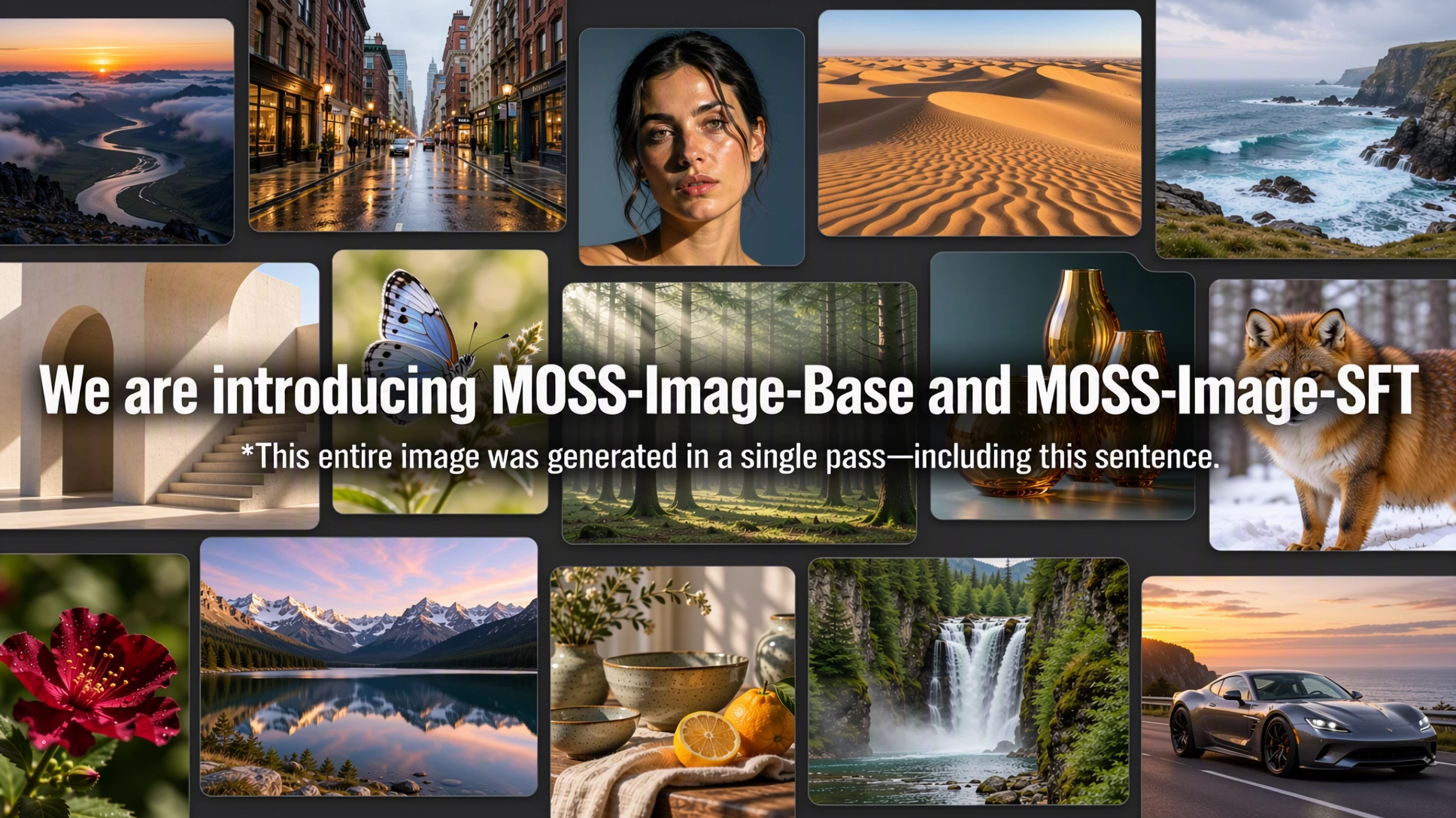
- **[2026-10-16]** 🎉 We are introducing **MOSS-Image-Base** and **MOSS-Image-SFT**! Code and model weights are publicly available.
**Our key highlights:**
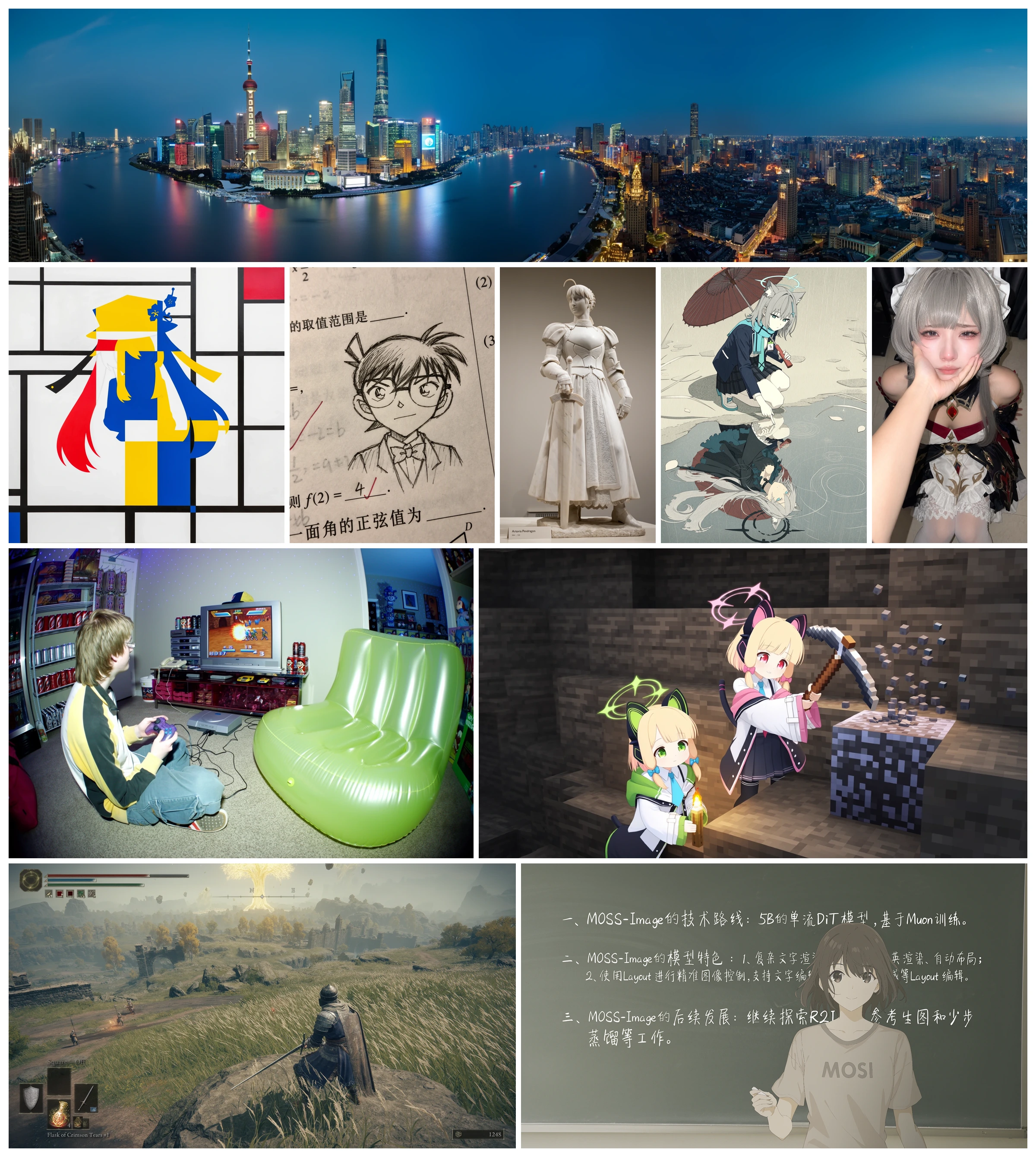
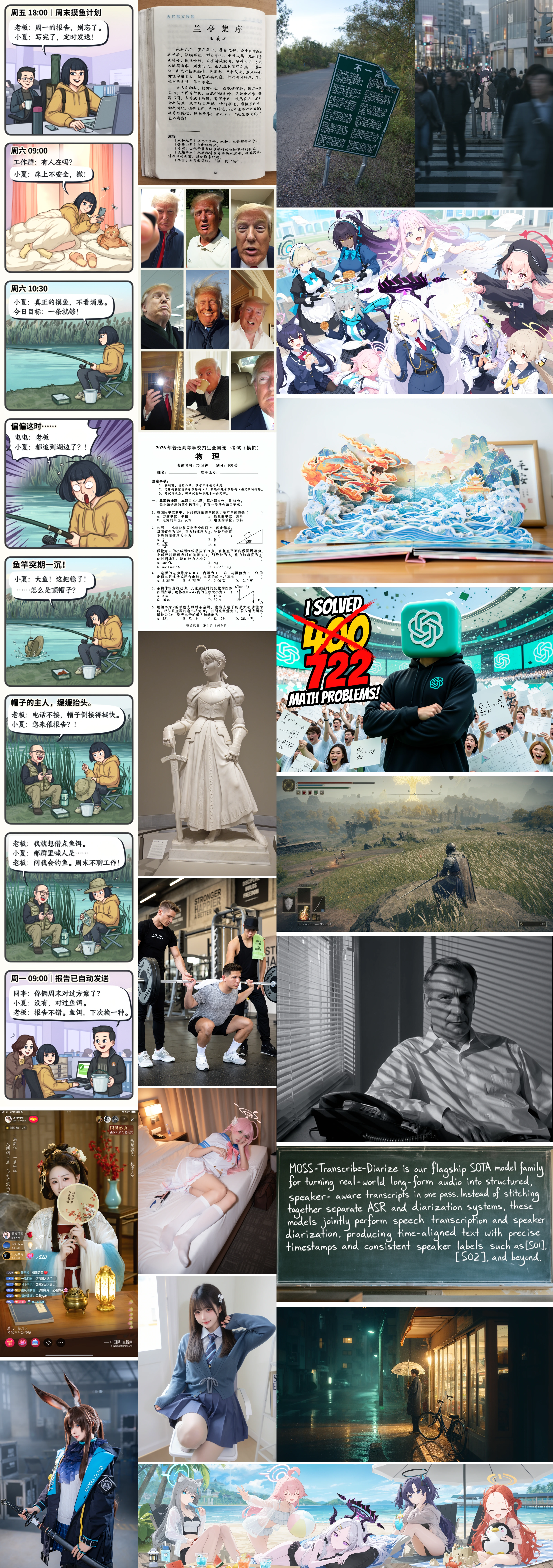
- 📐 **Layout control:** Control the placement of text and visual elements.
- ✍️ **Strong text rendering:** Generate clear, accurate text within images.
- 📜 **Long-prompt support:** Accept text prompts of up to 4K tokens.
- 🎨 **Versatile visual styles:** Create high-quality anime and photorealistic images.
- 🛠️ **Easy to fine-tune:** Adapt the base model to custom tasks and domains.
- ⚡ **Compact and efficient:** Efficient image generation with a 5B backbone.
- 🖥️ **Heterogeneous GPU training**: Trained on alternative GPU platforms.
## User guide
Start with the **[English user guide](USERGUIDE.md)** or **[中文用户指南](USERGUIDE_ZH.md)**
for recommended inference settings, prompt examples, layout input formats, and
LoRA training guidance.
## ComfyUI
This repository provides a native MOSS-Image plugin for ComfyUI.
Search for **MOSS-Image** in **ComfyUI Manager** to install the plugin.
We are actively working toward integration into the official ComfyUI repository.
[Installation and usage](comfyui/README.md) · [Example workflow](comfyui/moss-image/example_workflows/moss-image.json)
## Prompt enhancer skill
The [MOSS-Image Prompt Enhancer](skills/moss-image-prompt-enhancer/SKILL.md) turns
image ideas into detailed captions or spatial Layout prompts. It is designed for
GPT-6-family agents with local file and Python tools. The bundled script converts
pixel-coordinate drafts into compact JSON with integer centered coordinates;
it does not call an image-generation service.
Install the [skill folder](skills/moss-image-prompt-enhancer) in your agent's skills
directory, then invoke `$moss-image-prompt-enhancer` with your image idea, desired
caption or Layout output, and any canvas dimensions. Paste the compiled result
into MOSS-Image's positive prompt; for Layout, use the same generation dimensions.
## Contents
- [News](#news)
- [User guide](#user-guide)
- [ComfyUI](#comfyui)
- [Prompt enhancer skill](#prompt-enhancer)
- [Models](#models)
- [Quick start](#quick-start)
- [Installation](#installation)
- [Python](#python)
- [Gradio](#gradio)
- [Sampling settings](#sampling-settings)
- [Memory and performance](#memory-and-performance)
- [Layout-to-image generation](#layout-generation)
- [Showcase](#showcase)
- [Citation](#citation)
- [License and acknowledgements](#license)
- [Star History](#star-history)
## 🤗 Models
| Model | Description |
| --- | --- |
| [MOSS-Image-Base](https://huggingface.co/OpenMOSS-Team/MOSS-Image-Base) · [ModelScope](https://modelscope.cn/models/openmoss/MOSS-Image-Base) | Base text-to-image model |
| [MOSS-Image-SFT](https://huggingface.co/OpenMOSS-Team/MOSS-Image-SFT) · [ModelScope](https://modelscope.cn/models/openmoss/MOSS-Image-SFT) | Fine-tuned from MOSS-Image-Base on curated data |
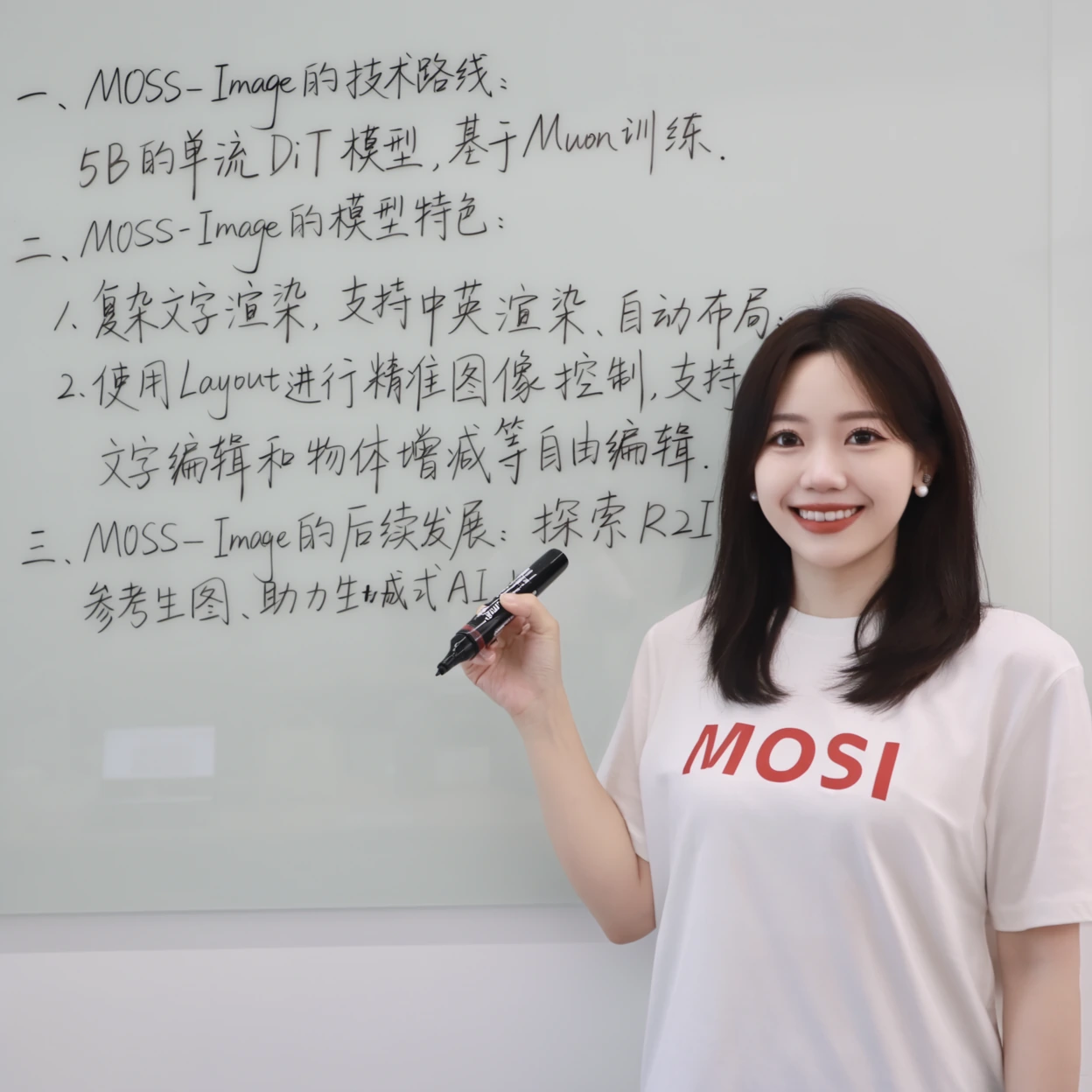
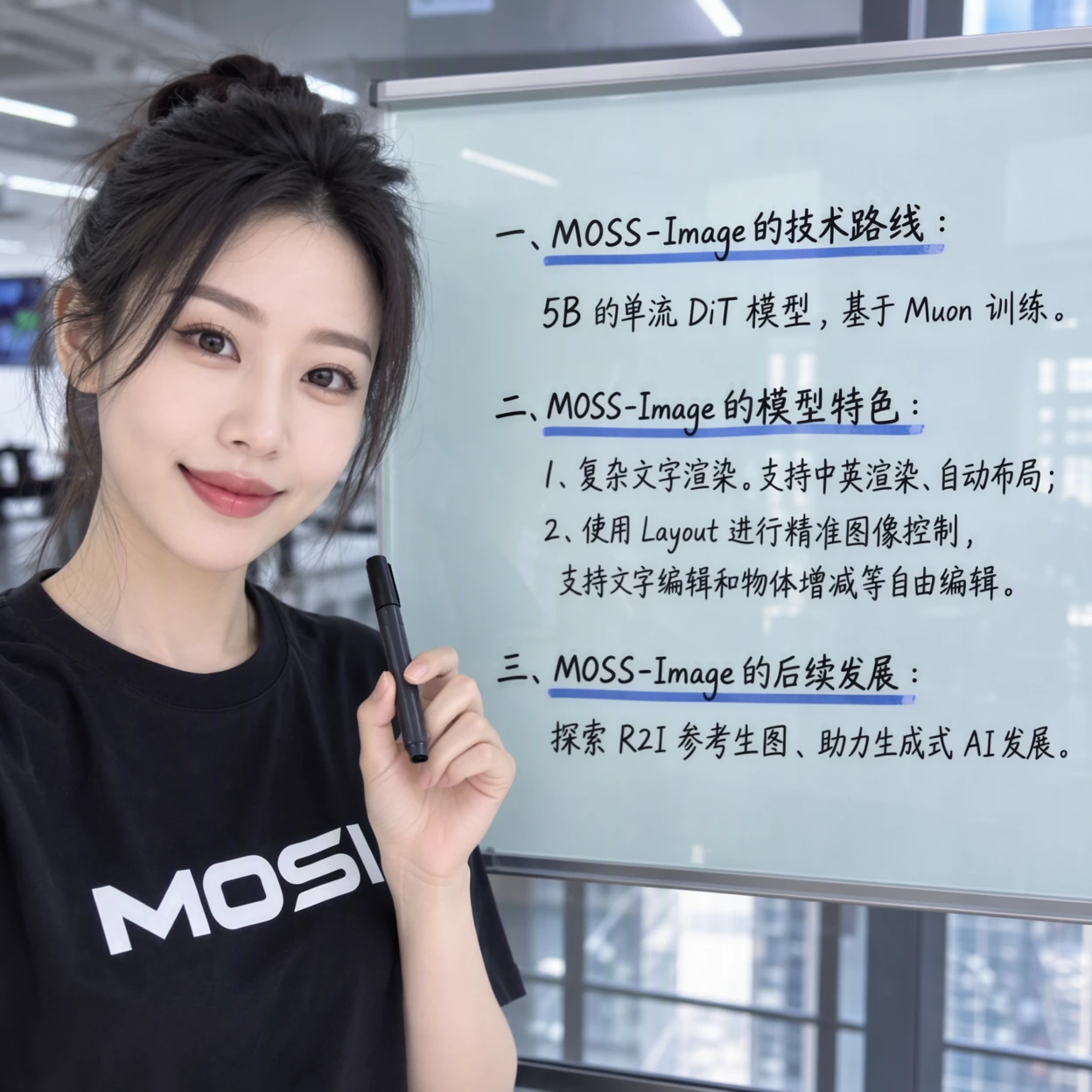
### Base vs. SFT
In this example, SFT produces clearer text grouping and a more organized whiteboard layout.
| MOSS-Image-Base | MOSS-Image-SFT |
| --- | --- |
|  |  |
## 🚀 Quick start
### 🛠️ Installation
```bash
git clone https://github.com/OpenMOSS/MOSS-Image.git
cd MOSS-Image
python -m venv .venv
source .venv/bin/activate
pip install -r requirements.txt
```
### 🐍 Python
```python
import torch
from diffusers import DiffusionPipeline
pipe = DiffusionPipeline.from_pretrained(
"OpenMOSS-Team/MOSS-Image-Base",
custom_pipeline="pipeline_moss_image",
trust_remote_code=True,
torch_dtype={"default": torch.bfloat16, "vae": torch.float32},
)
pipe.scheduler = type(pipe.scheduler).from_config(pipe.scheduler.config)
pipe.to("cuda")
image = pipe(
"A wide view of a refrigerator beside a kitchen counter with a fruit bowl. A small sticky note on the refrigerator door is handwritten in Chinese:“\n记得买牛奶和鸡蛋!\n牛奶两盒,鸡蛋一打。\n顺便带一袋面包。”",
height=1456,
width=1456,
num_inference_steps=50,
guidance_scale=3.0,
uncond_skip_layers=[22],
generator=torch.Generator("cpu").manual_seed(42),
).images[0]
image.save("refrigerator_note.png")
```
### 🎨 Gradio
```bash
pip install -e '.[ui]'
python gradio_app.py --model OpenMOSS-Team/MOSS-Image-Base
```
### 🎛️ Sampling settings
| Setting | Default |
| --- | --- |
| Sampler | Flow-matching Euler |
| Steps | 50 |
| CFG | 3 |
| Shift | 5 |
| Layer skipping | Negative-branch skipping at layer 22 |
| Negative prompt (Python API) | Empty |
See the [user guide](USERGUIDE.md) for sampling and prompt recommendations.
### ⚡ Memory and performance
Select Memory mode in Gradio's Advanced settings:
| Mode | Behavior |
| --- | --- |
| GPU resident | Keep the entire model on GPU |
| Component | Move model components between CPU and GPU as needed |
| Sequential · fallback | Lower memory use with slower inference |
If GPU memory is insufficient, select Sequential or reduce image size.
Compile DiT is disabled by default and unavailable in Sequential mode.
## 📐 Layout-to-image generation
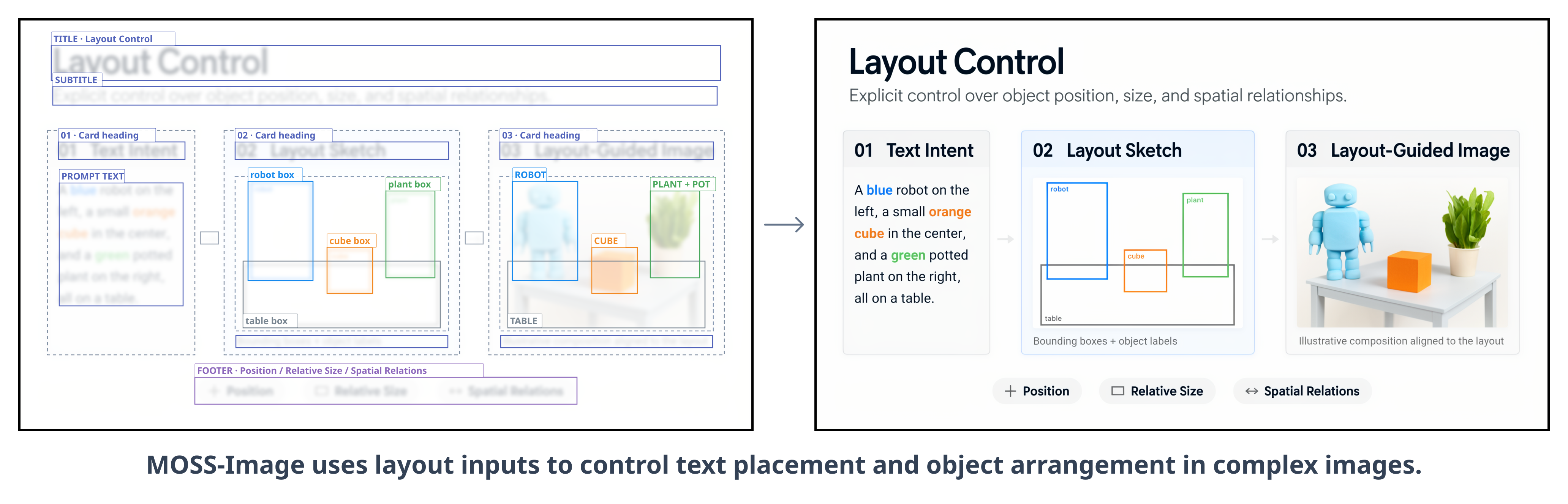
MOSS-Image uses JSON layout inputs to control text placement and object arrangement
in complex text-to-image compositions. The image below was generated by MOSS-Image
using layout control.
Layouts can also support controlled editing and user-friendly layout tools.
By editing text, element descriptions, and bounding boxes, users can adjust
image content and composition in a structured way.
[](assets/showcase/layout-bboxes.svg)
Paste the layout JSON into Gradio’s Prompt field to specify the scene, text,
objects, and their positions. The following example uses a `summary`/`items` layout for a **1024×1024**
canvas. Save it as `layout.json`:
```json
{
"summary": {
"meta": ["poster"],
"canvas": "single",
"caption": "A minimalist travel poster with a cream background, a blue mountain illustration, and the title EXPLORE at the top."
},
"items": [
{
"label": "text",
"caption": "Large dark-blue uppercase title centered at the top.",
"text": "EXPLORE",
"bbox": [-416, -384, -288, 384]
},
{
"label": "object",
"caption": "A flat blue mountain illustration in the lower center.",
"bbox": [-192, -288, 384, 288]
}
],
"bbox_coord_space": "abs_centralized",
"bbox_format": "yxyx"
}
```
- `summary.caption` describes the overall scene and style.
- `items` describes individual elements: `label`, `caption`, and `bbox`, with
`text` for the words to render.
- `bbox_format: "yxyx"` specifies `[y_min, x_min, y_max, x_max]`.
- `bbox_coord_space: "abs_centralized"` uses pixel coordinates relative to the
canvas center. On a 1024×1024 canvas, each axis runs from −512 to +512;
x increases to the right and y increases downward. For a canvas of width W
and height H, subtract W/2 from ordinary x coordinates and H/2 from y coordinates.
Keep the coordinates consistent with the requested output dimensions. In Gradio,
paste the JSON into the prompt field and set the matching width and height. With
the Python API, pass `json.dumps(layout, ensure_ascii=False)` as the prompt string.
## 🖼️ Showcases
## 📝 Citation
If you use MOSS-Image in your research, please cite our technical report:
```bibtex
@misc{ai2026mossimagetechnicalreport,
title={MOSS-Image Technical Report},
author={MOSI. AI},
year={2026},
eprint={2610.23374},
archivePrefix={arXiv},
primaryClass={cs.CV},
url={https://arxiv.org/abs/2610.23374},
}
```
## 📄 License and acknowledgements
The standalone pipeline code is provided under the [Apache License 2.0](LICENSE).
We thank the Diffusers, Qwen and FLUX teams.
## ⭐ Star History