## 动态
- **[2026-10-19]** 📄 [MOSS-Image 技术报告](https://arxiv.org/abs/2610.23374)已在 arXiv 公开。
- **[2026-10-16]** 🚀 [SGLang](https://docs.sglang.io/cookbook/diffusion/OpenMOSS/MOSS-Image)、[vLLM-Omni](https://recipes.vllm.ai/OpenMOSS-Team/MOSS-Image-Base) 和 [ComfyUI](https://huggingface.co/Comfy-Org/MOSS-Image) 均已提供 MOSS-Image 的发布首日(Day-0)支持。
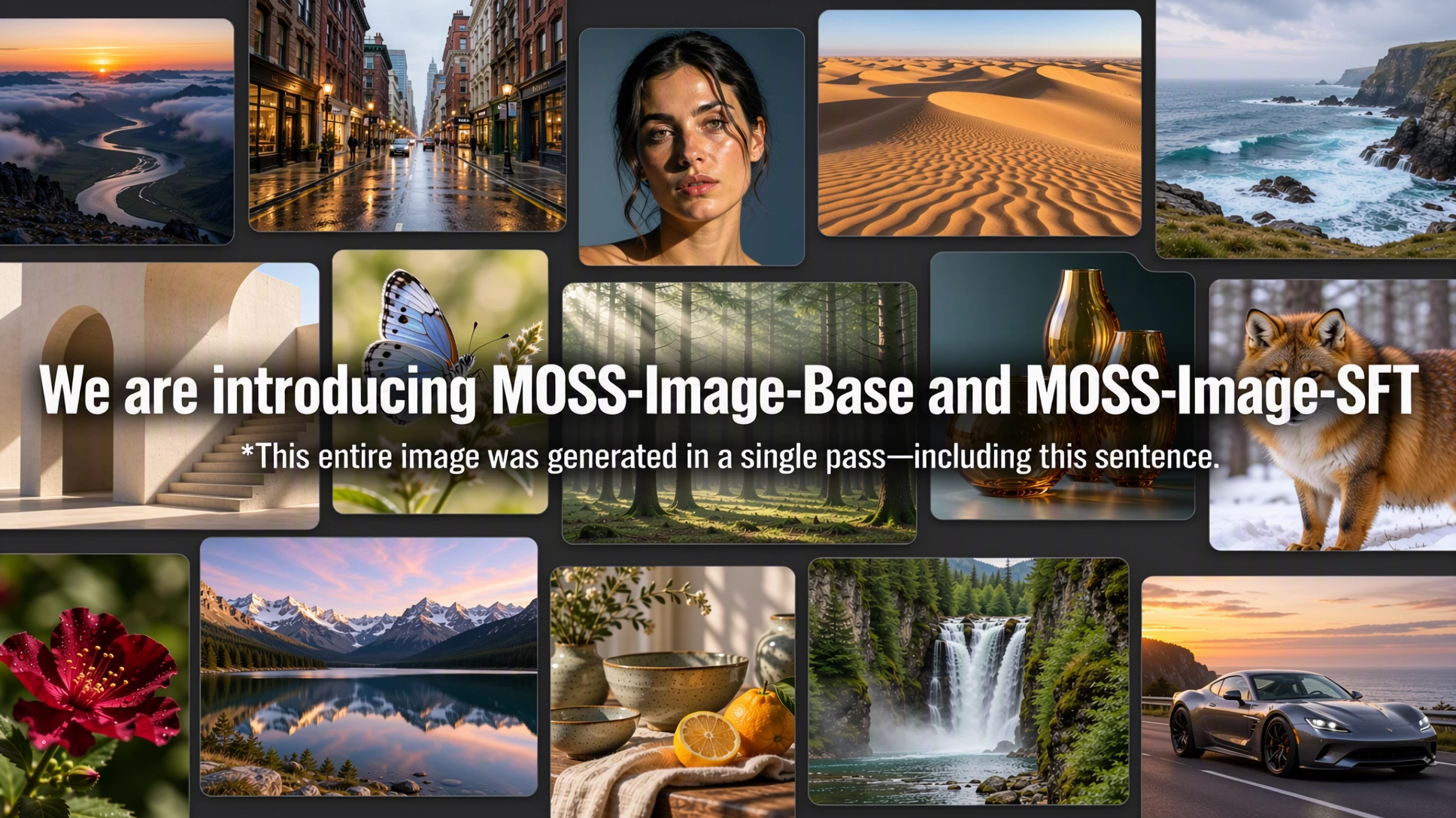
- **[2026-10-16]** 🎉 **MOSS-Image-Base** 和 **MOSS-Image-SFT** 正式发布!代码和模型权重已开放。
**核心特点:**
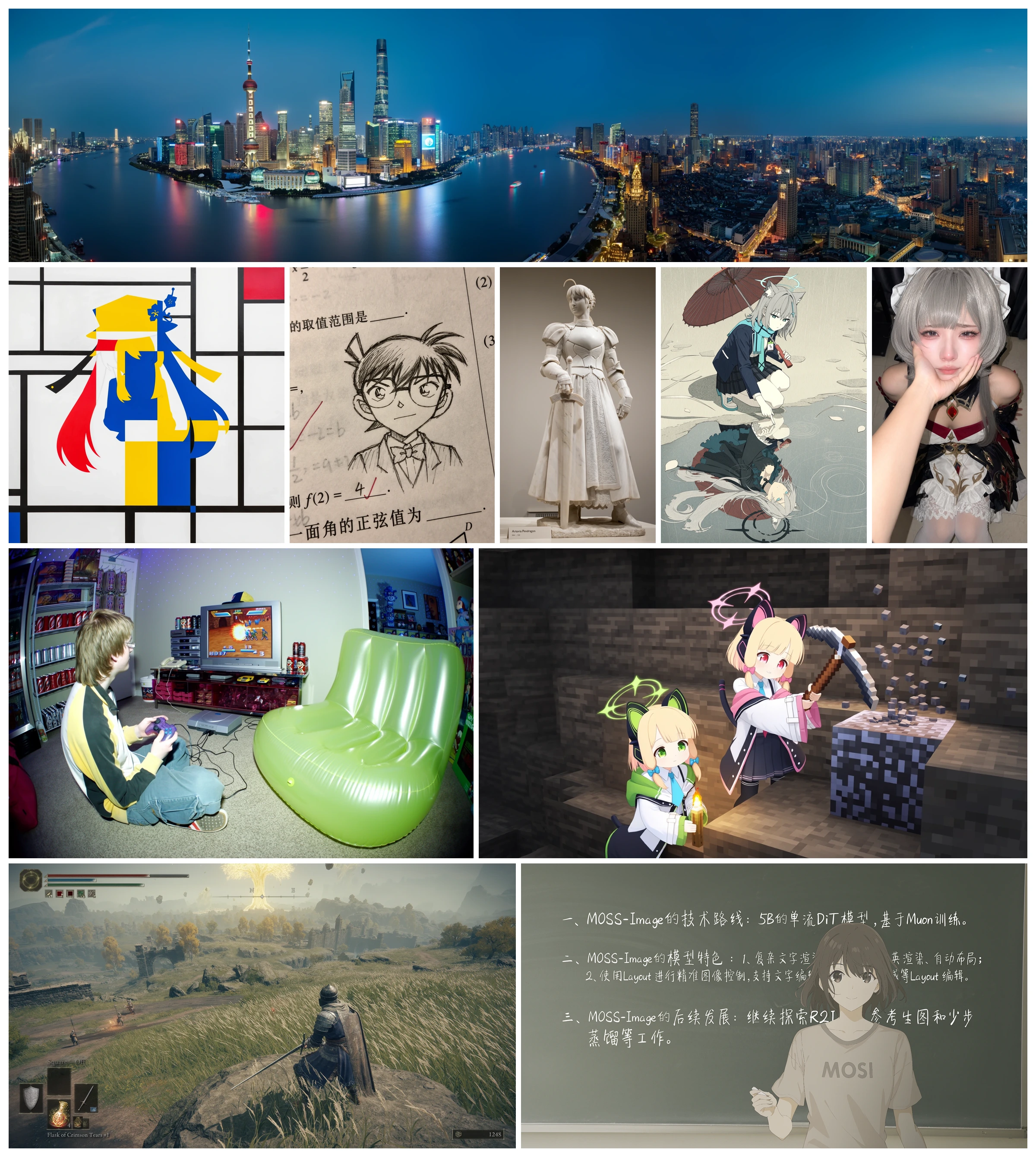
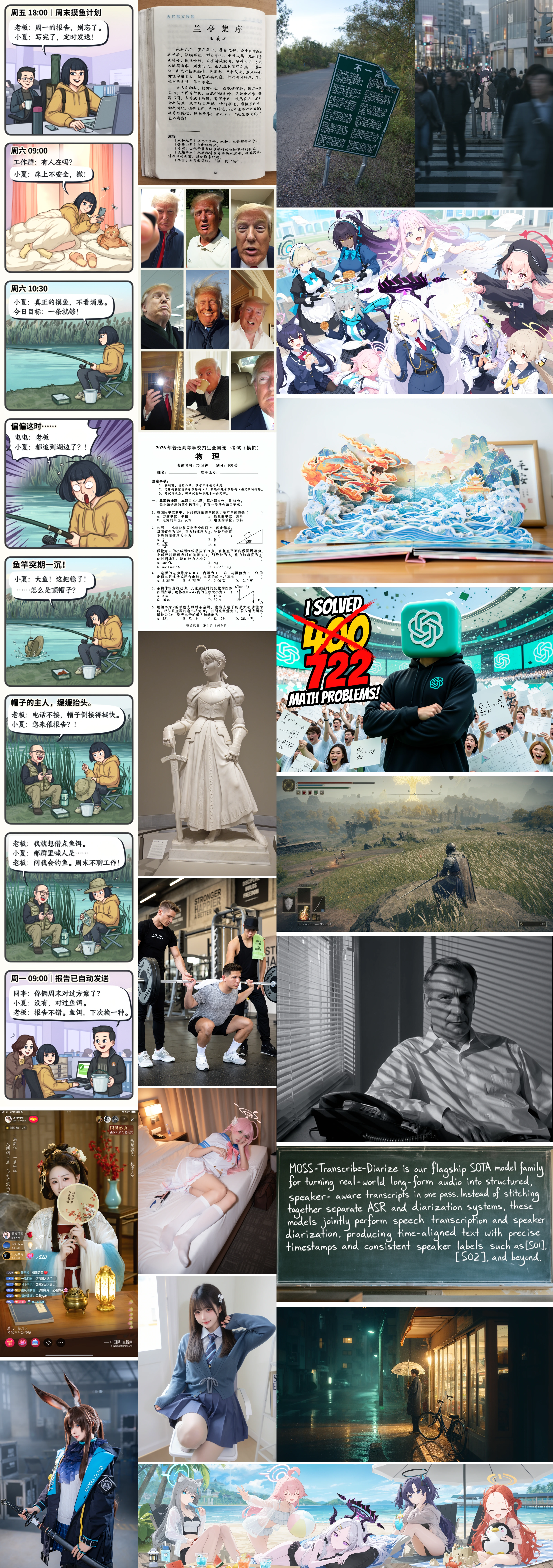
- 📐 **布局控制:** 控制文字与视觉元素的位置。
- ✍️ **文字渲染:** 在图像中生成清晰、准确的文字。
- 📜 **长提示词支持:** 支持最长 4K tokens 的文本提示词。
- 🎨 **多样视觉风格:** 生成高质量的动漫风格与照片级写实图像。
- 🛠️ **易于微调:** 将基础模型适配到自定义任务和领域。
- ⚡ **紧凑高效:** 基于 5B 主干网络,实现高效图像生成。
- 🖥️ **异构 GPU 训练:** 采用替代 GPU 平台训练。
## 用户指南
推荐推理参数、提示词示例、布局输入格式和 LoRA 训练建议,见
**[中文用户指南](USERGUIDE_ZH.md)** 或 **[English user guide](USERGUIDE.md)**。
## ComfyUI
本仓库实现了 MOSS-Image 的 ComfyUI 原生插件。
在 **ComfyUI Manager** 中搜索 **MOSS-Image** 即可安装插件。
我们正在积极推进合入 ComfyUI 官方仓库。
[安装与使用](comfyui/README_ZH.md) · [示例工作流](comfyui/moss-image/example_workflows/moss-image.json)
## 提示词增强 Skill
[MOSS-Image Prompt Enhancer](skills/moss-image-prompt-enhancer/SKILL.md) 可将图像想法
扩写为详细 caption 或空间 Layout 提示词,面向具备本地文件和 Python 工具的 GPT-6
系列代理设计。随附脚本将像素坐标草稿转换为紧凑 JSON 和整数中心坐标,不调用图像生成服务。
将 [skill 目录](skills/moss-image-prompt-enhancer) 安装到代理的技能目录后,使用
`$moss-image-prompt-enhancer`,提供图像需求、caption 或 Layout 输出要求,以及画布尺寸。
将编译结果粘贴到 MOSS-Image 的正向提示词中;使用 Layout 时,生成尺寸应与草稿一致。
## 目录
- [动态](#news)
- [用户指南](#user-guide)
- [ComfyUI](#comfyui)
- [提示词增强 Skill](#prompt-enhancer)
- [模型](#models)
- [快速开始](#quick-start)
- [安装](#installation)
- [Python](#python)
- [Gradio](#gradio)
- [采样参数](#sampling-settings)
- [显存与性能](#memory-and-performance)
- [Layout 布局生成](#layout-generation)
- [Showcase](#showcase)
- [引用](#citation)
- [许可与致谢](#license)
- [Star History](#star-history)
## 🤗 模型
| 模型 | 说明 |
| --- | --- |
| [MOSS-Image-Base](https://huggingface.co/OpenMOSS-Team/MOSS-Image-Base) · [ModelScope](https://modelscope.cn/models/openmoss/MOSS-Image-Base) | 基础文生图模型 |
| [MOSS-Image-SFT](https://huggingface.co/OpenMOSS-Team/MOSS-Image-SFT) · [ModelScope](https://modelscope.cn/models/openmoss/MOSS-Image-SFT) | 在精选数据上对 MOSS-Image-Base 微调得到的模型 |
### Base 与 SFT 对比
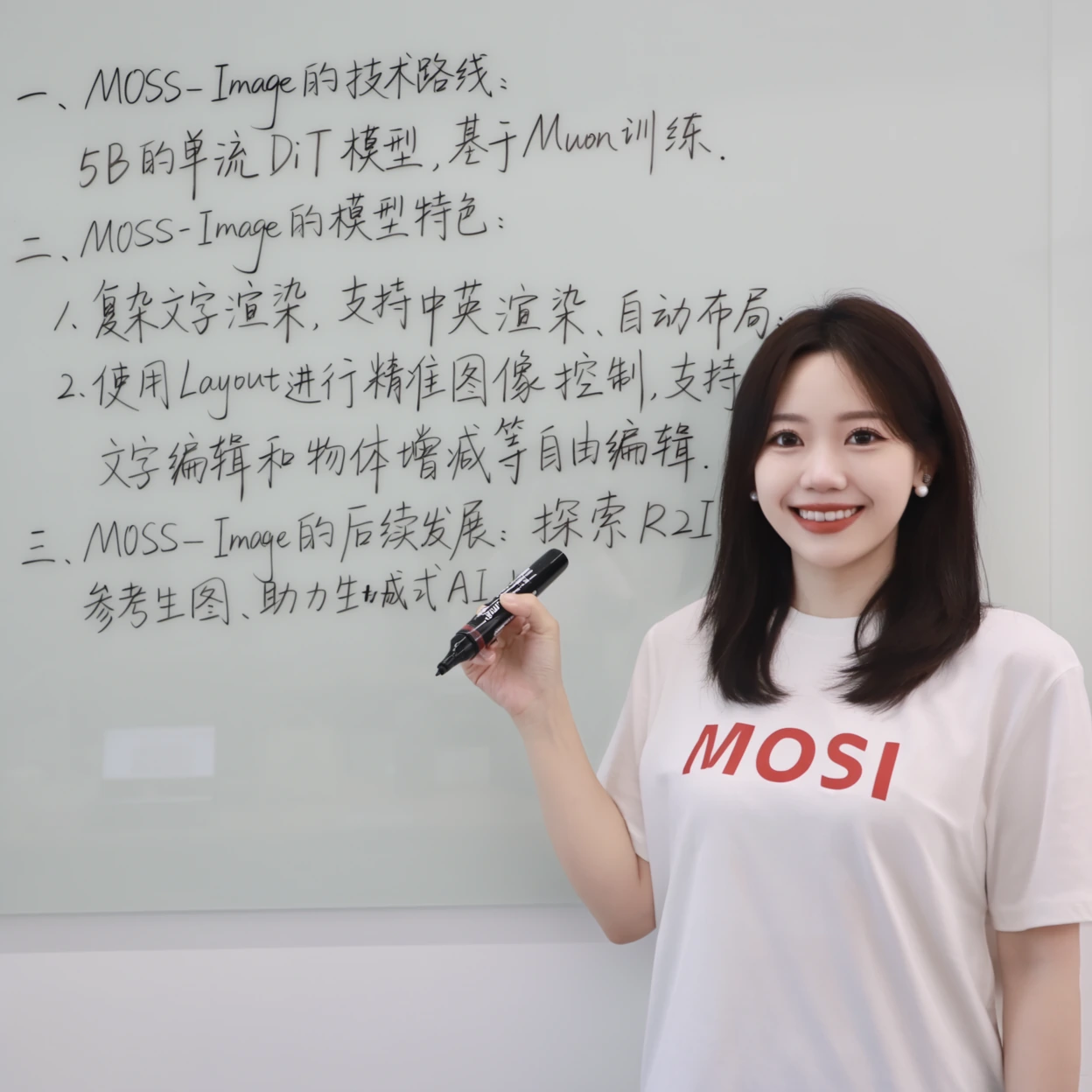
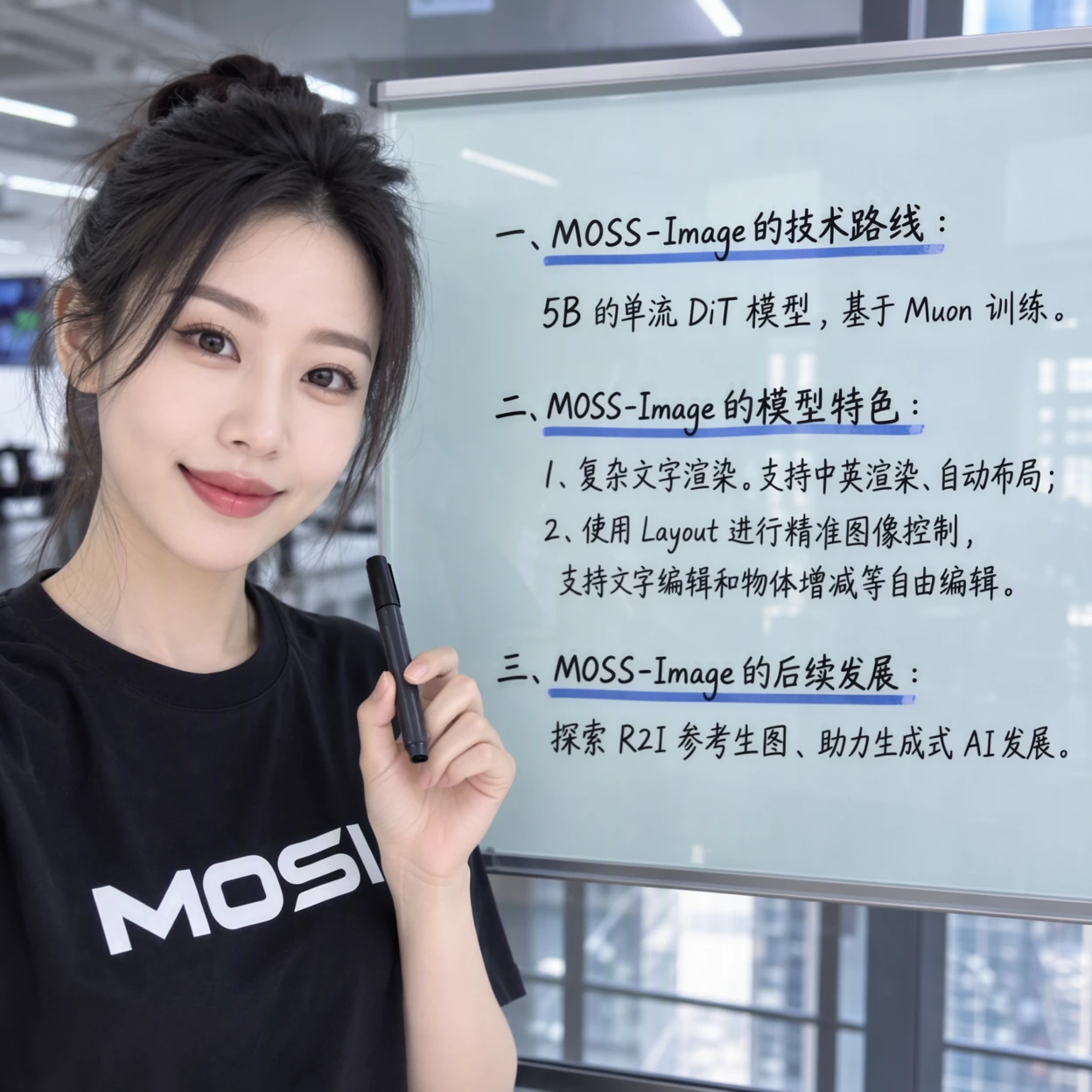
在这个例子中,SFT 的文字分组更清晰,白板内容的排版更有条理。
| MOSS-Image-Base | MOSS-Image-SFT |
| --- | --- |
|  |  |
## 🚀 快速开始
### 🛠️ 安装
```bash
git clone https://github.com/OpenMOSS/MOSS-Image.git
cd MOSS-Image
python -m venv .venv
source .venv/bin/activate
pip install -r requirements.txt
```
### 🐍 Python
```python
import torch
from diffusers import DiffusionPipeline
pipe = DiffusionPipeline.from_pretrained(
"OpenMOSS-Team/MOSS-Image-Base",
custom_pipeline="pipeline_moss_image",
trust_remote_code=True,
torch_dtype={"default": torch.bfloat16, "vae": torch.float32},
)
pipe.scheduler = type(pipe.scheduler).from_config(pipe.scheduler.config)
pipe.to("cuda")
image = pipe(
"A wide view of a refrigerator beside a kitchen counter with a fruit bowl. A small sticky note on the refrigerator door is handwritten in Chinese:“\n记得买牛奶和鸡蛋!\n牛奶两盒,鸡蛋一打。\n顺便带一袋面包。”",
height=1456,
width=1456,
num_inference_steps=50,
guidance_scale=3.0,
uncond_skip_layers=[22],
generator=torch.Generator("cpu").manual_seed(42),
).images[0]
image.save("refrigerator_note.png")
```
### 🎨 Gradio
```bash
pip install -e '.[ui]'
python gradio_app.py --model OpenMOSS-Team/MOSS-Image-Base
```
### 🎛️ 采样参数
| 参数 | 默认值 |
| --- | --- |
| 采样器 | Flow-matching Euler |
| 步数 | 50 |
| CFG | 3 |
| Shift | 5 |
| 跳层 | 负向分支跳过第 22 层 |
| 负面提示词(Python API) | 空 |
采样与提示词建议见[用户指南](USERGUIDE_ZH.md)。
### ⚡ 显存与性能
在 Gradio 的高级设置中选择 Memory mode:
| 模式 | 行为 |
| --- | --- |
| GPU resident | 全模型驻留 GPU |
| Component | 按需在 CPU 与 GPU 之间移动模型组件 |
| Sequential · fallback | 更低显存占用,推理速度较慢 |
显存不足时,选择 Sequential 或减小图像尺寸。
Compile DiT 默认关闭,Sequential 模式下不可用。
## 📐 Layout 布局生成
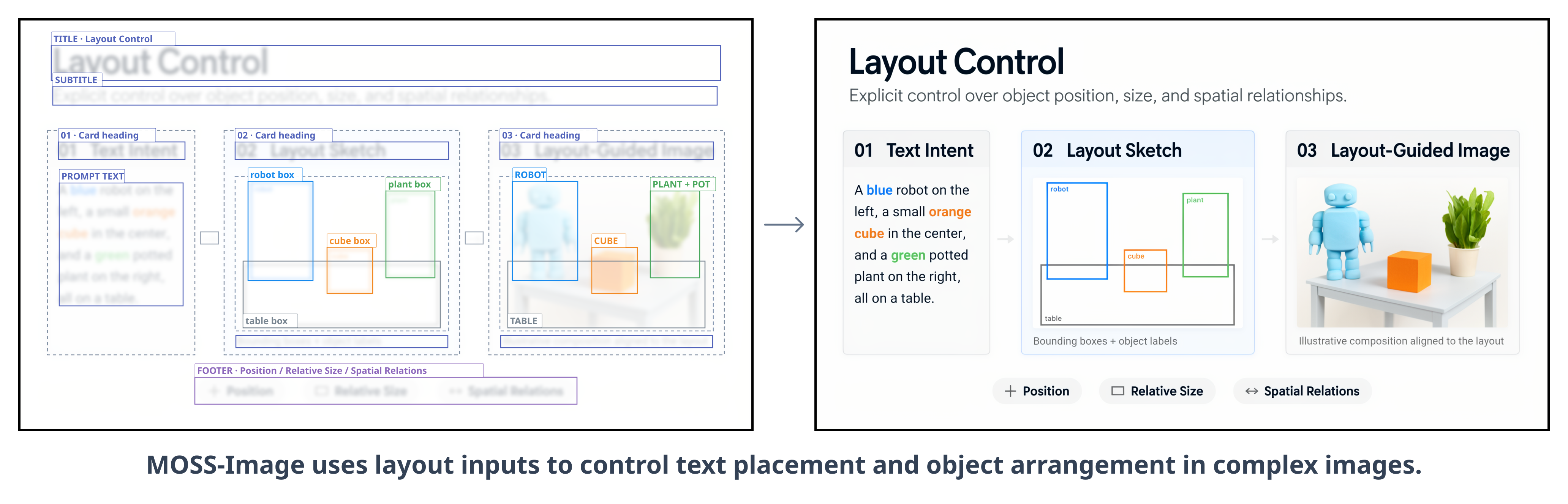
MOSS-Image 通过 JSON layout 输入控制复杂画面中的文字排版与物体布局,下图即为
MOSS-Image 使用布局控制生成的结果。
基于 layout,我们还可以实现受控编辑、用户友好的排版工具等应用。
通过修改文字、元素描述和边界框,用户可以结构化地调整画面内容与布局。
[](assets/showcase/layout-bboxes.svg)
将布局 JSON 粘贴到 Gradio 的 Prompt 输入框,即可指定场景、文字、物体及其位置。
下面使用 `summary`/`items` 格式,以 **1024×1024** 画布为例,将内容保存为 `layout.json`:
```json
{
"summary": {
"meta": ["poster"],
"canvas": "single",
"caption": "A minimalist travel poster with a cream background, a blue mountain illustration, and the title EXPLORE at the top."
},
"items": [
{
"label": "text",
"caption": "Large dark-blue uppercase title centered at the top.",
"text": "EXPLORE",
"bbox": [-416, -384, -288, 384]
},
{
"label": "object",
"caption": "A flat blue mountain illustration in the lower center.",
"bbox": [-192, -288, 384, 288]
}
],
"bbox_coord_space": "abs_centralized",
"bbox_format": "yxyx"
}
```
- `summary.caption`:整体场景与风格描述。
- `items`:各元素的 `label`、`caption` 和 `bbox`;需要生成文字时使用 `text` 指定内容。
- `bbox_format: "yxyx"`:框坐标顺序为 `[y_min, x_min, y_max, x_max]`。
- `bbox_coord_space: "abs_centralized"`:以画布中心为原点的像素坐标。
对于 1024×1024 画布,两轴范围均为 −512 到 +512,x 向右、y 向下递增。
对于宽 W、高 H 的画布,将常规左上角原点的 x 坐标减去 W/2、y 坐标减去 H/2 即可转换。
框坐标应与指定的输出尺寸一致。在 Gradio 中,将 JSON 粘贴到提示词输入框,
并设置对应的宽高;使用 Python API 时,将 `json.dumps(layout, ensure_ascii=False)`
作为提示词字符串传入。
## 🖼️ Showcase
## 📝 引用
如果你在研究中使用 MOSS-Image,请引用我们的技术报告:
```bibtex
@misc{ai2026mossimagetechnicalreport,
title={MOSS-Image Technical Report},
author={MOSI. AI},
year={2026},
eprint={2610.23374},
archivePrefix={arXiv},
primaryClass={cs.CV},
url={https://arxiv.org/abs/2610.23374},
}
```
## 📄 许可与致谢
推理代码采用 [Apache License 2.0](LICENSE)。
感谢 Diffusers、Qwen 和 FLUX 团队。
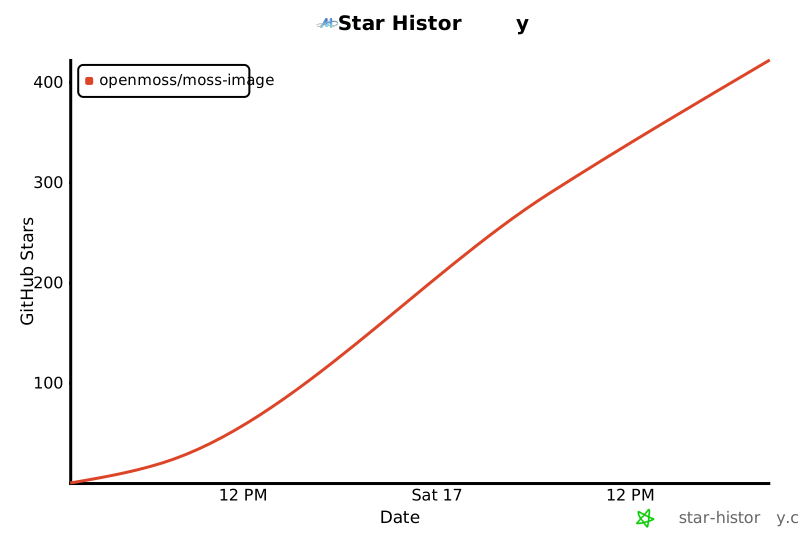
## ⭐ Star History