



中文 · English
Real sticky notes for DeepSeek Harness
Draggable · Checkable todos · 9 skins · Image notes · AI read & write
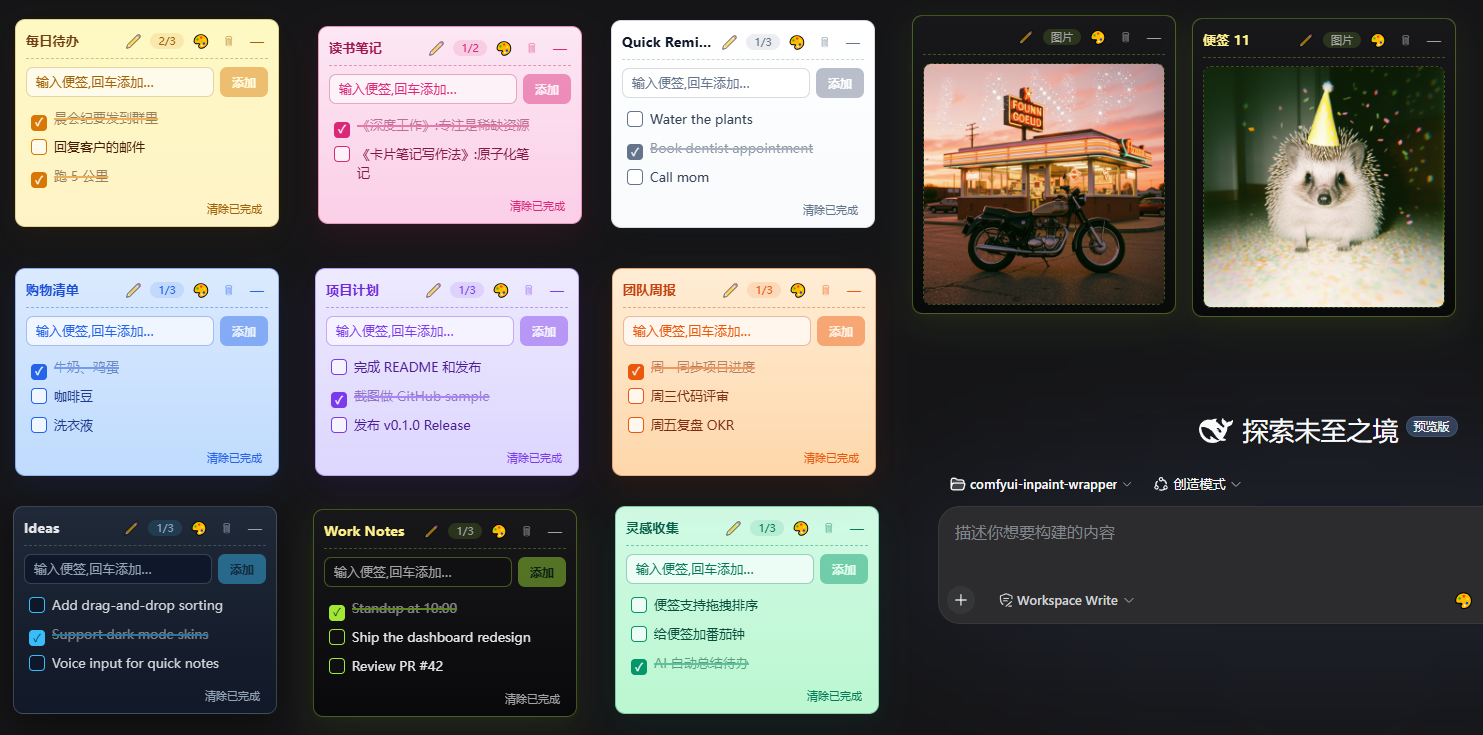
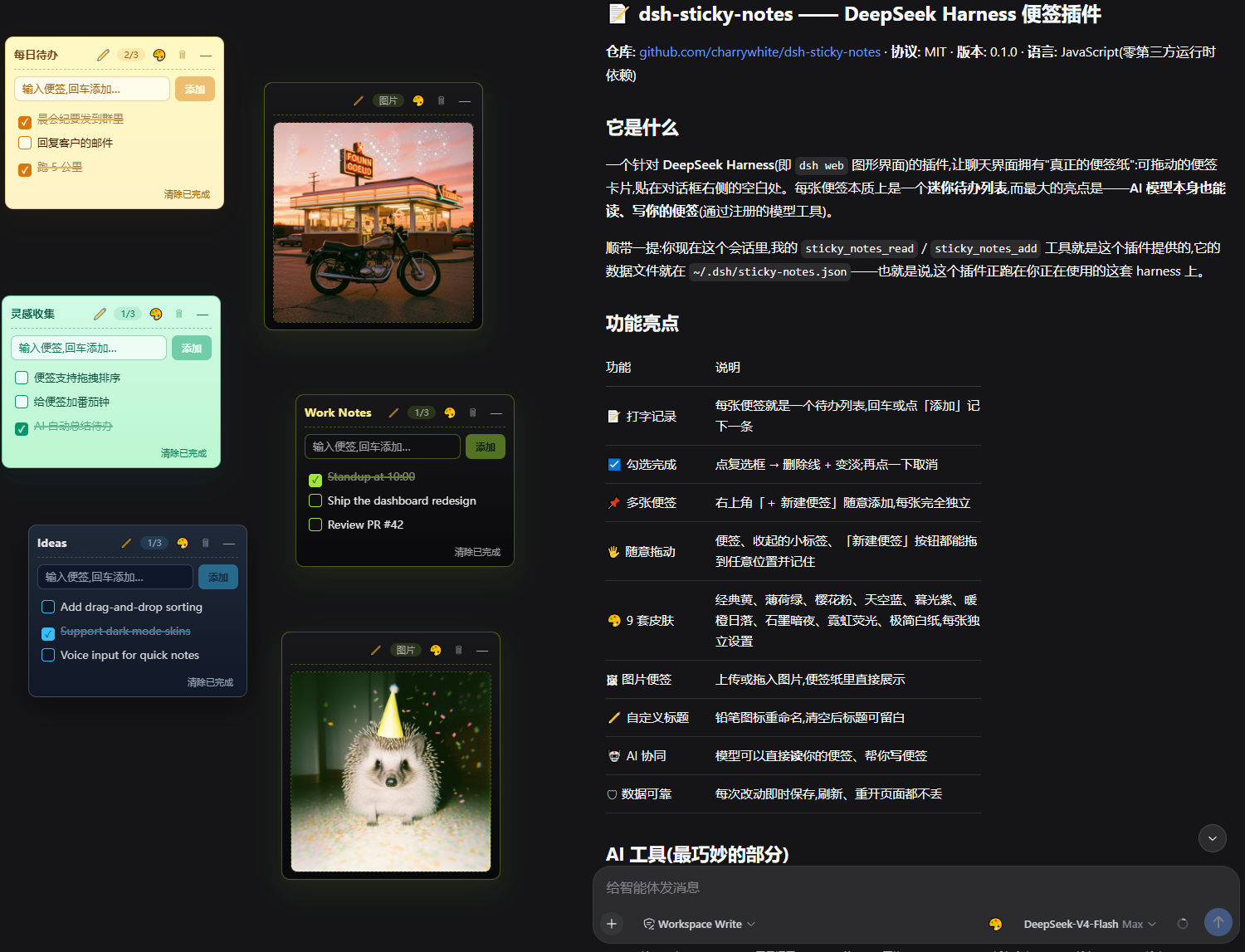
| ### 📝 Type to record Each note is a todo list — press Enter or click Add to jot something down. | ### 🤖 AI integration The DeepSeek model can directly **read** your notes and **write** for you (see [§3](#3-ai-model-read--write)). |
| ### ☑️ Check off Tick the checkbox to strike through and dim an item; click again to undo. | ### 📌 Multiple notes Hit the "+ New Note" button in the top-right corner to add as many as you like — each one fully independent. |
| ### 🖐 Draggable Notes, collapsed chips, and the New Note button can be dragged anywhere; positions are remembered. | ### 🎨 9 skins Classic Yellow, Mint Green, Sakura Pink, Sky Blue, Twilight Violet, Sunset Orange, Graphite Dark, Neon Glow, Minimal Paper — set per note. |
| ### 🖼 Image notes Upload or drop an image into a note; click it to replace it. | ### ✏️ Custom titles Rename with the ✏️ pencil icon; clear it for a blank title. |
| ### 🛡 Reliable storage Every change is saved instantly — notes survive refresh and page reloads. | |
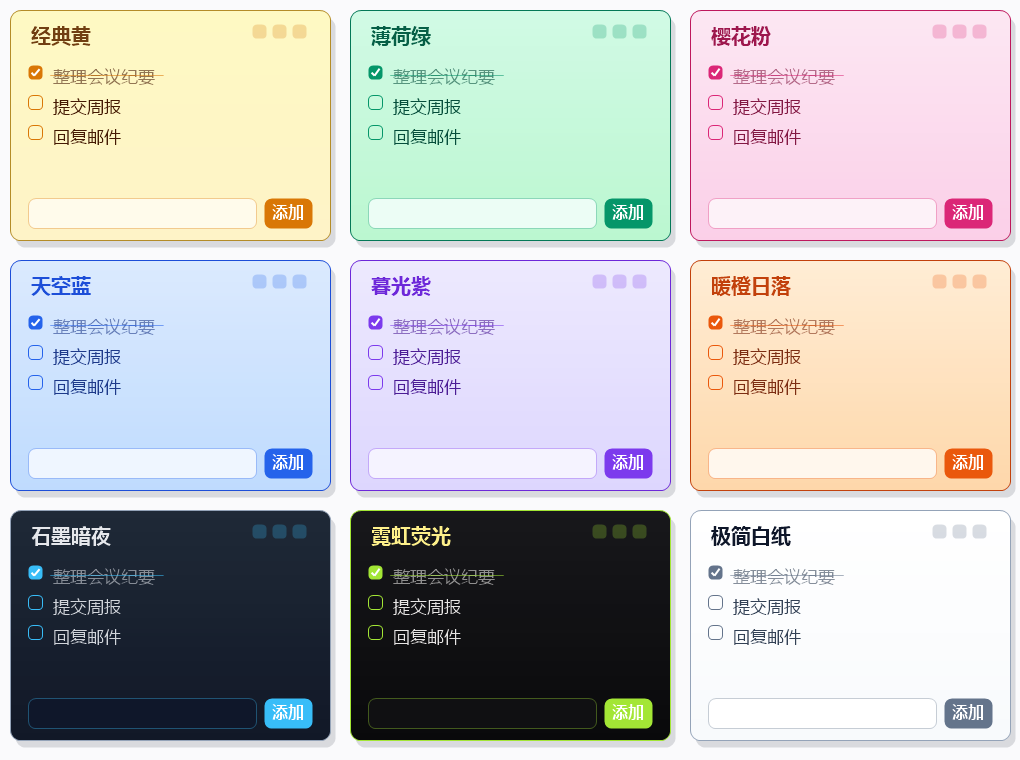
Classic Yellow · Mint Green · Sakura Pink · Sky Blue · Twilight Violet · Sunset Orange · Graphite Dark · Neon Glow · Minimal Paper
--- ## Changelog - 8/28 Added double-click to edit existing note items - 8/18 Added the 👀 eye button to hide/show all notes - 8/17 Added the 📝 notes button: click to create a note, drag to reposition it - 8/17 Added: click a note title to collapse/expand it - 8/16 Released v0.1.0: multiple notes, 9 skins, image notes, AI read & write --- ## 1. Installation > Prerequisite: `dsh` (DeepSeek Harness CLI) available on your machine. If `pnpm` is not on PATH, run `npm i -g pnpm` (or `corepack enable pnpm`) first. ### Option A: One-command install (recommended) ```powershell # Install from GitHub dsh plugin --profile web add github:charrywhite/dsh-sticky-notes # Or install from a local directory during development (link resolves automatically) dsh plugin --profile web add link:C:/path/to/dsh-plugin-sticky-notes ``` After installing: 1. **Restart dsh web** (Ctrl+C in the terminal that runs it, then run `dsh web` again) 2. **Hard-refresh the browser page** (Ctrl+F5) — the notes will appear on the right To uninstall: `dsh plugin --profile web remove dsh-sticky-notes` ### Option B: Manual install (alternative) Put the plugin folder anywhere (example below uses `C:\path\to\dsh-plugin-sticky-notes`), then edit your web profile config: **① Register the dependency and bundle** Edit `%USERPROFILE%\.dsh\profiles\web\package.json`: ```json { "dependencies": { "dsh-sticky-notes": "link:C:/path/to/dsh-plugin-sticky-notes" }, "dsh": { "profile": { "bundles": [ "@deepseek-ai/dsh-base", "@deepseek-ai/dsh-web-app", "dsh-sticky-notes" ] } } } ``` > `link:` points to the absolute path of the plugin folder; both `/` and `\` work (use `/` in JSON). **② Run pnpm install in the profile directory** ```powershell cd "$env:USERPROFILE\.dsh\profiles\web" pnpm install ``` **③ Restart dsh web and hard-refresh the browser page** (Ctrl+F5). ### Option C: Manual install from GitHub Write the dependency as a GitHub reference in `package.json`, then run `pnpm install` + restart + refresh: ```json { "dependencies": { "dsh-sticky-notes": "github:charrywhite/dsh-sticky-notes#commit-hash-or-branch" }, "dsh": { "profile": { "bundles": ["dsh-sticky-notes"] } } } ``` --- ## 2. Usage ### Two function buttons - **📝 Notes button**: click it to open the menu and create a text or image note; drag it to move it around - **👀 Eye button**: click it to hide all notes at once (the icon turns into 🙈); click again to bring them all back ### Creating notes Click the 📝 **notes button** in the top-right corner and pick: | Option | Description | |--------|-------------| | 📝 Text note | type in the input box; press Enter or click "Add" to turn it into a todo item | | 🖼 Image note | click the upload area to pick an image, or drop one into the note | New notes stack from the top-right corner by default; each has a title bar, a count badge, and action buttons. ### Note operations | Action | How | |--------|-----| | Drag | hold the **title bar** (or the collapsed chip / 📝 button) and drag; the position is remembered | | Hide/show all | tap the 👀 button below the 📝 button: all notes hide at once (icon becomes 🙈); tap again to restore (state is remembered) | | Check off | click the checkbox left of an item → strikethrough + dim; click again to undo | | Delete an item | hover the item, click the `×` on the right | | Clear done | "Clear done" button at the bottom of the note clears all checked items at once | | Change skin | click 🎨 in the title bar, pick from 9 color swatches (per note) | | Rename | click ✏️ in the title bar, type a new name, Enter/blur to save; clear it for no title | | Collapse/expand | click `—` in the title bar or simply click the title to collapse into a chip; click the chip to expand | | Delete the note | click 🗑 in the title bar (with a confirmation dialog) | ### Image notes - The uploaded image is shown inside the note; click it to replace it - Image notes support dragging, skins, renaming, collapsing and deletion too --- ## 3. AI model read & write The plugin registers two model tools that the DeepSeek model can call directly in the conversation: ### Read: `sticky_notes_read` Lists all notes: title, each item's text, completion status (☐/☑), skin, and whether collapsed. Image notes show metadata only (title / whether an image exists). **Usage**: tell the model "take a look at my notes", "help me organize my notes", or "work from my notes". ### Write: `sticky_notes_add` - **Create a note**: omit `noteId`, pass `text` (required) + optional `title` - **Append an item**: pass `noteId` (get it via `sticky_notes_read` first) + `text` **Design constraint**: append/create only — existing content can never be modified or deleted, so the model can't clobber what you wrote by hand; image notes reject text items. **Usage**: tell the model "add a note: meeting at 3 pm tomorrow" or "put this requirement on my work note". --- ## 4. Uninstall 1. Installed via Option A: `dsh plugin --profile web remove dsh-sticky-notes` 2. Installed via Option B/C: remove the dependency and the bundles entry from `package.json`, then run `pnpm install` 3. (Optional) delete the data file: `Remove-Item "$env:USERPROFILE\.dsh\sticky-notes.json"` 4. Restart dsh web --- ## Requirements - DeepSeek Harness **web mode** (`dsh web`) - Browser: modern Chromium / Firefox / Safari - No third-party runtime dependencies ## Credits Thanks to [@scraed](https://github.com/scraed) for the interaction designs proposed in [PR #1](https://github.com/charrywhite/dsh-sticky-notes/pull/1): the home key (tap to hide/show all notes, long-press to create) and tap-the-title-to-collapse. --- ## FAQ **Q: What is dsh-sticky-notes?** A: A sticky-notes plugin for DeepSeek Harness (DSH) that adds draggable note cards to the `dsh web` UI: text to-dos, image notes, 9 skins, and AI agents can read and write your notes directly. **Q: How do I install it?** A: One command, then restart dsh web and hard-refresh the page (Ctrl+F5): ```powershell dsh plugin --profile web add github:charrywhite/dsh-sticky-notes ``` **Q: Does it support image notes?** A: Yes. Choose "Image note" when creating a note, then click or drag in an image; images are auto-compressed to save storage. **Q: Can the AI model read and write my notes?** A: Yes. The plugin registers two model tools — `sticky_notes_read` (list all notes) and `sticky_notes_add` (create a note / append an item). Tell the model "take a look at my notes" or "add a note for me". The AI can only append/create — it cannot modify or delete what you wrote by hand. **Q: Where is my note data stored? Will it survive a refresh?** A: Yes. The authoritative copy lives at `~/.dsh/sticky-notes.json` on the harness host; the browser uploads after every change, and refreshes, restarts, and agent writes all stay in sync. **Q: How do I edit an existing item?** A: Double-click the item text to enter edit mode; press Enter or click elsewhere to save, Esc to cancel. **Q: What makes it different from other sticky-note plugins?** A: It is a floating board of draggable notes rendered in the dsh web UI, with AI agents able to read and write notes (agent tools), plus 9 skins, image notes, and double-click editing. Data is stored authoritatively on the harness host, and agent writes sync back to the browser within seconds. ## License MIT