DSH Desktop
A compact, self-contained DeepSeek Harness desktop host with native iPhone and Android Remote companions.
Download · Highlights · iPhone Remote · Android Remote · Development · Contributing
English · 简体中文


A compact, self-contained DeepSeek Harness desktop host with native iPhone and Android Remote companions.
Download · Highlights · iPhone Remote · Android Remote · Development · Contributing
English · 简体中文
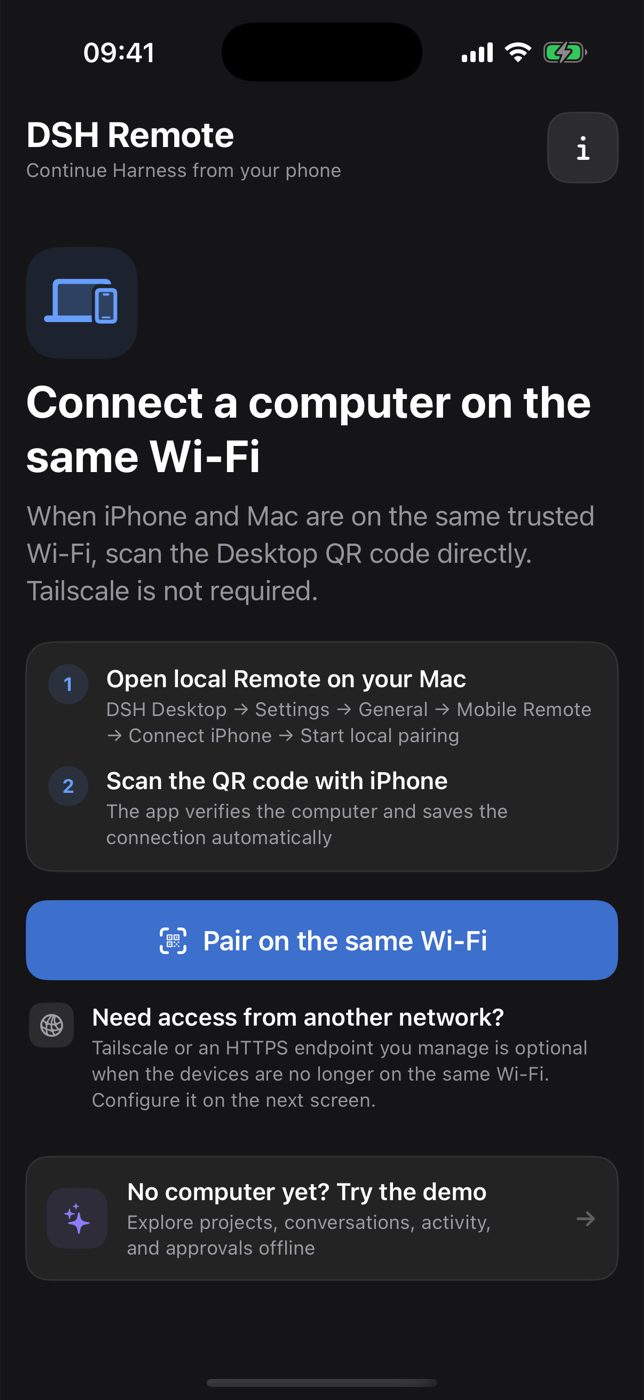
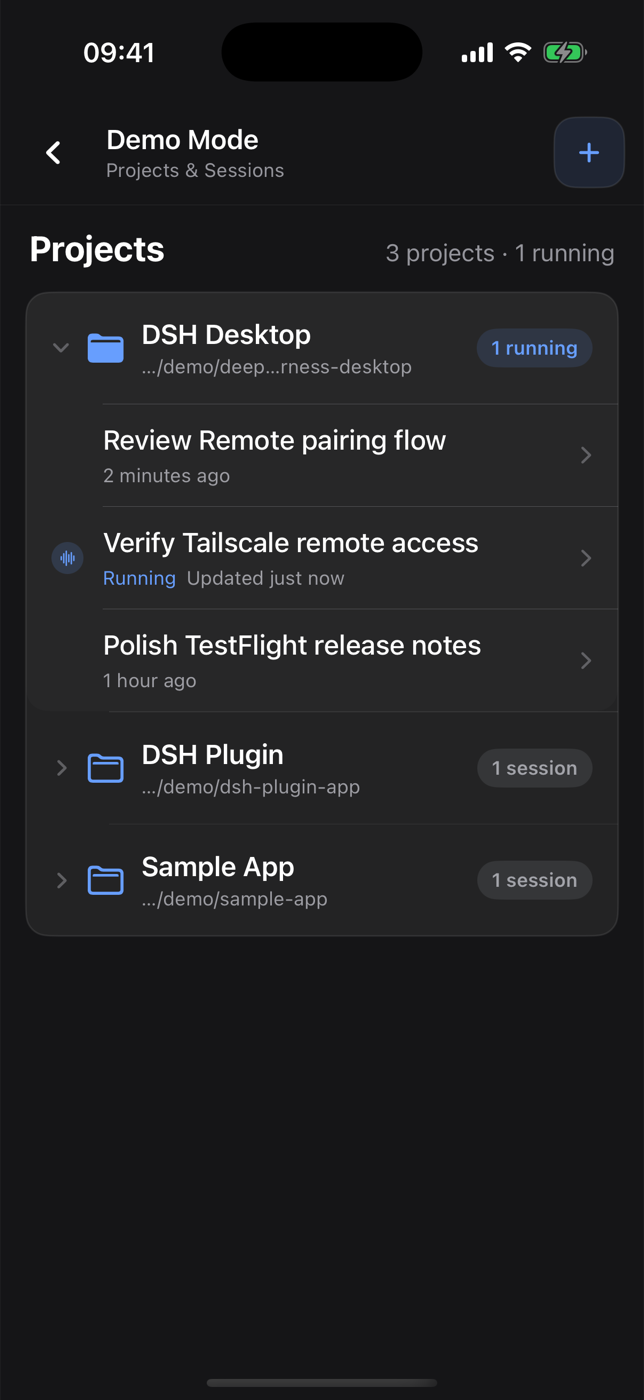
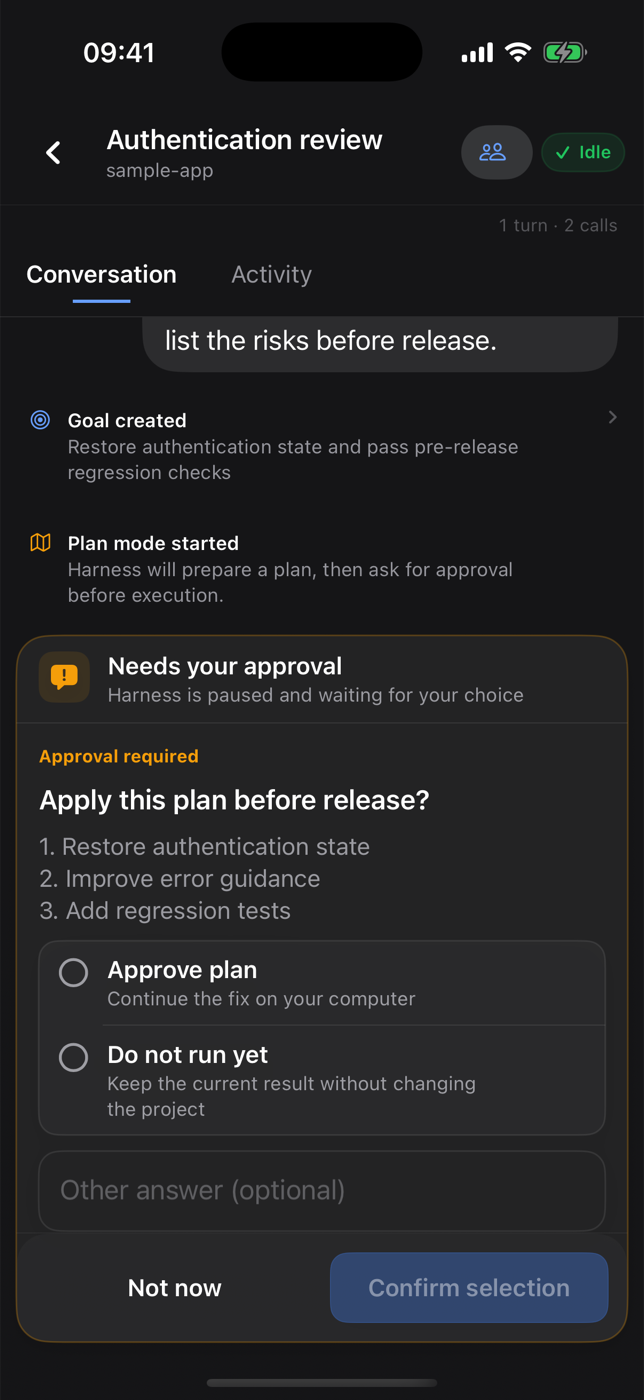
Same-Wi-Fi pairing · Projects and running sessions · Approval handling
DSH Remote is a native SwiftUI companion for a DSH Desktop computer you own or manage. It does not run an agent, repository, terminal, or model provider on the phone. Work continues on the computer; the iPhone is a narrow control surface. The iOS TestFlight beta follows the device's app-language setting and includes complete English and Simplified Chinese product copy, including setup, errors, notifications, approvals, models, Activity, and subagent flows. - **Same Wi-Fi (recommended):** Desktop exposes an opt-in, authenticated LAN endpoint on a trusted private network. No Tailscale account is required. - **Away from the local network:** both devices join the user's own tailnet, and Desktop configures a private Tailscale Serve HTTPS entry. Do not use Funnel. - **No project-operated relay:** code, prompts, model credentials, tool execution, and session history remain on the user's computer. ### Install with TestFlight 1. Install Apple's [TestFlight app](https://apps.apple.com/app/testflight/id899247664) on an iPhone running iOS 17 or later. 2. Open the [DSH Remote public invitation](https://testflight.apple.com/join/7Ew6Yk9V), choose **View in TestFlight**, then accept and install the beta. 3. Install the current DSH Desktop release on the computer before pairing. ### Build from source with Xcode Developers can also install the source on their own iPhone with Xcode: 1. Install Xcode 16 or later on a Mac and sign in under **Xcode → Settings → Accounts**. 2. Clone this repository and open `ios/DSHRemote/DSHRemote.xcodeproj`. 3. Select the `DSHRemote` target, choose your Team under **Signing & Capabilities**, and use a unique bundle identifier if automatic signing requests one. 4. Connect an iPhone running iOS 17 or later, select it as the run destination, and choose **Product → Run**. A free Apple Account can use an Xcode Personal Team for personal on-device testing, but the app must be re-provisioned periodically. Downloading an unsigned or unrelated IPA from GitHub will not work. ### Pair and use Remote 1. Install and open the latest DSH Desktop build. 2. In Desktop, open **Settings → General → Mobile Remote → Connect phone**. 3. On the same trusted Wi-Fi, start local pairing and scan the QR code in DSH Remote. 4. For cellular or other remote networks, open the built-in Tailscale setup guide on Desktop or iPhone, enable anywhere access, and scan the HTTPS QR code. 5. Open a project, create or continue a session, and keep all execution on the computer. See the [iOS TestFlight and source guide](ios/DSHRemote/README.md), [Chinese Tailscale setup guide](docs/TAILSCALE_REMOTE_SETUP.zh-CN.md), [privacy policy](docs/PRIVACY.md), [support notes](docs/SUPPORT.md), and [App Review notes](docs/APP_REVIEW_NOTES.md). ## Android Remote (GitHub release) > [!IMPORTANT] > [`v0.4.0`](https://github.com/chokwinlee/deepseek-harness-desktop/releases/tag/v0.4.0) is the first stable GitHub release with a signed Android APK. It requires Android 8.0 or later and the matching DSH Desktop build from that release. It is not yet available on Google Play.
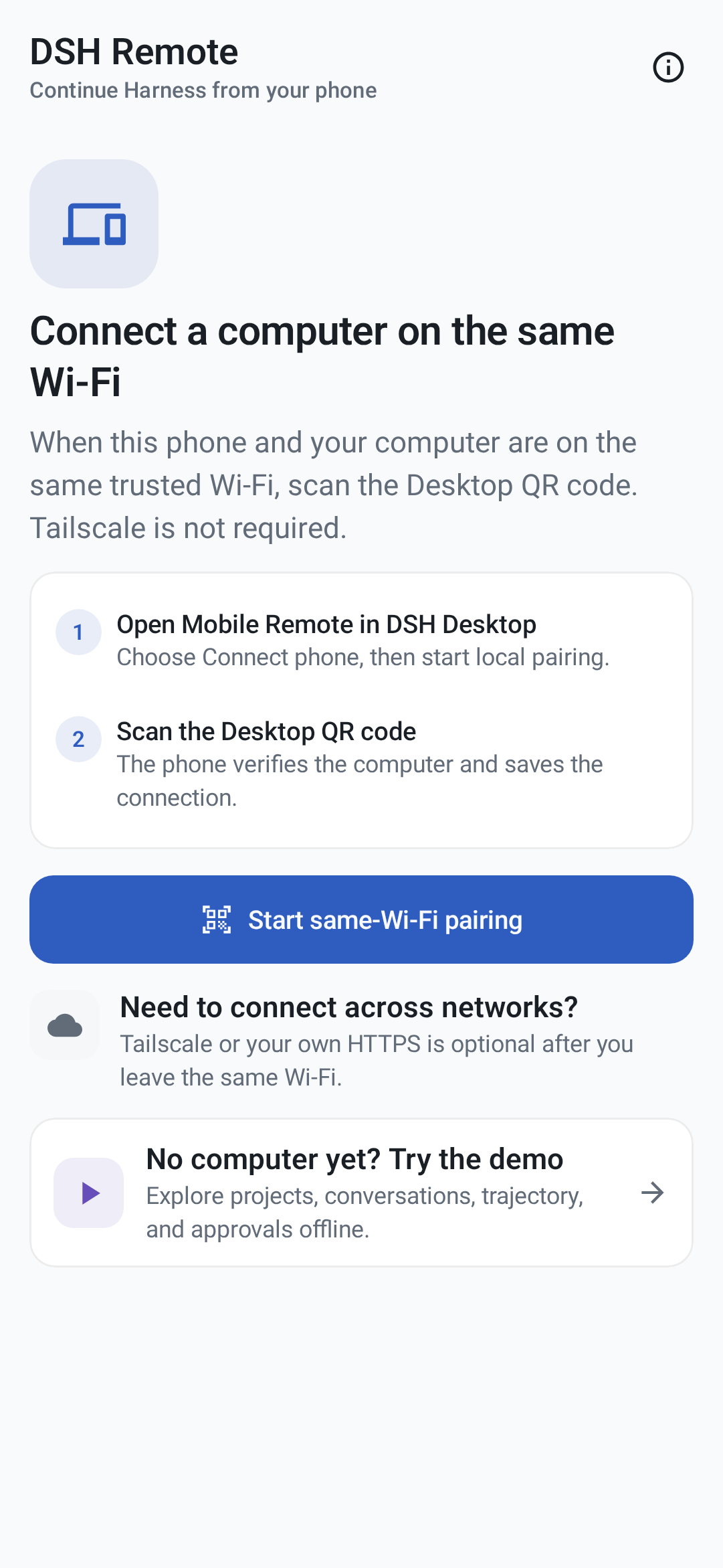
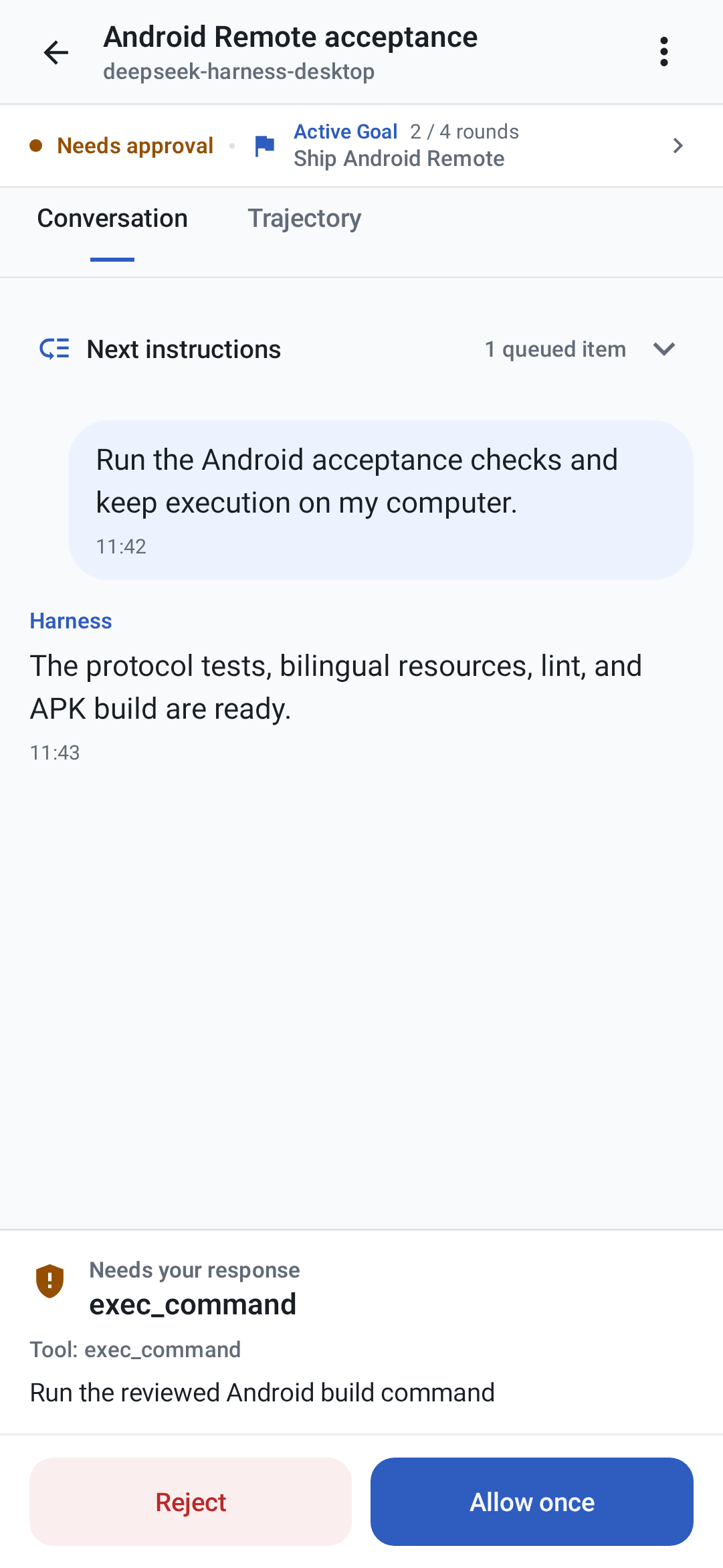
Local-first pairing and offline Demo · Conversation, queue, and approval control
Android uses the same local-first Remote v1 contract, QR format, Desktop LAN proxy, and Tailscale HTTPS flow as iOS. It includes encrypted multi-computer storage, projects and sessions, full conversation and Activity views, queue and steer controls, approvals and structured questions, images and references, models, Goal/Plan, nested subagents, local notifications, offline Demo, English, Simplified Chinese, dark appearance, and TalkBack semantics. To install it: 1. Open the [`v0.4.1` release](https://github.com/chokwinlee/deepseek-harness-desktop/releases/tag/v0.4.1) and install its Desktop package on the computer. 2. Download `DSH-Remote-Android-v0.4.1.apk` on an Android 8.0+ device. If asked, temporarily allow **Install unknown apps** for the browser or file manager that opened it. 3. Compare the APK's SHA-256 with its entry in `SHA256SUMS.txt` from the same release. 4. Open the offline Demo, or in Desktop choose **Settings → General → Mobile Remote → Connect phone** and scan its QR code. Use direct same-Wi-Fi mode only on a trusted private network: it is authenticated but not encrypted. Use private Tailscale Serve HTTPS for cellular, remote, or untrusted networks, and never use Funnel. Camera and notification permissions are optional. QR images stay on-device, while the bundled Google ML Kit scanner sends Google the diagnostic and usage metrics described in the [privacy policy](docs/PRIVACY.md#android-qr-scanner-and-google-ml-kit). The computer must remain online with Desktop and Harness running. Local notifications are best effort, and device-specific behavior remains documented in the Android guide. See the complete [Android install and support guide](android/README.md), [Simplified Chinese guide](android/README.zh-CN.md), [support guide](docs/SUPPORT.md), and [platform-neutral Remote contract](docs/REMOTE_PROTOCOL_V1.md). ## Download Download Desktop installers and the Android APK from the [latest stable GitHub Release](https://github.com/chokwinlee/deepseek-harness-desktop/releases/latest). Installable iOS builds are distributed through the [public TestFlight beta](https://testflight.apple.com/join/7Ew6Yk9V). | Current stable release | Architecture | File | | --- | --- | --- | | macOS | Apple Silicon | `DSH-Desktop-0.4.1-mac-arm64.dmg` | | macOS | Intel | `DSH-Desktop-0.4.1-mac-x64.dmg` | | Windows 10/11 | x64 installer | `DSH-Desktop-0.4.1-win-x64.exe` | | Windows 10/11 | x64 portable | `DSH-Desktop-0.4.1-win-x64.zip` | | Android 8.0+ | universal APK | `DSH-Remote-Android-v0.4.1.apk` | | iPhone, iOS 17+ | public beta | [TestFlight invitation](https://testflight.apple.com/join/7Ew6Yk9V) | The release also includes macOS ZIP archives and `SHA256SUMS.txt` for integrity verification. GitHub does not publish a generic iOS IPA. ## Desktop quick start 1. Install and open DSH Desktop. 2. Open **Settings → Models** and configure a provider and API key. 3. Add or select a workspace. 4. Start a Harness session. 5. Paste or attach an image when the selected model supports image input. Configuration, workspaces, and sessions live in the same `DSH_HOME` used by the official CLI (`~/.dsh` by default). ## Plugins and recovery On macOS, open **Settings → Plugins → Install & manage**. The installer accepts an npm package, `github:owner/repo`, a public GitHub HTTPS URL, or a full command such as: ```bash dsh plugin --profile web add github:owner/repo ``` Desktop parses supported install commands without running pasted text through a shell, then checks that Harness restarts successfully. If startup fails, it restores the previous plugin configuration. Third-party plugins run code on the local machine, so review their source and publisher before installation. ## Architecture ```text iPhone Remote ── authenticated same-Wi-Fi / Tailnet HTTPS ──┐ Android Remote ── authenticated same-Wi-Fi / Tailnet HTTPS ──┤ ↓ Desktop shell ─────────────→ loopback-only dsh web → official Harness UI/runtime └─────────────────── shared DSH_HOME for settings, sessions, and plugins ``` The project does not fork or reimplement the Harness agent runtime. The shell owns desktop packaging, process lifecycle, navigation boundaries, recovery, native integration, and release verification. ## Development Node.js 22.19 or newer is required. ```bash git clone https://github.com/chokwinlee/deepseek-harness-desktop.git cd deepseek-harness-desktop npm ci npm test npm start ``` Build the macOS Tauri release with `npm run build:mac`; build the Windows Electron release with `npm run dist`. Packaging changes should also pass the real packaged-runtime checks in [the release workflow](.github/workflows/release.yml). Open `ios/DSHRemote/DSHRemote.xcodeproj` in Xcode to build the iOS client. The iOS app has no third-party package dependency and requires iOS 17 or later. Build the Android client with JDK 17 and Android SDK 37: ```bash cd android ./gradlew testDebugUnitTest compileDebugAndroidTestKotlin lintDebug validateDebugScreenshotTest assembleDebug assembleRelease bundleRelease ``` ## Project - Read [CONTRIBUTING.md](CONTRIBUTING.md) before opening a pull request. - Report vulnerabilities through the process in [SECURITY.md](SECURITY.md). - Product and UI decisions follow [PRODUCT.md](PRODUCT.md). - The desktop host is MIT licensed. Harness and bundled dependencies retain their own licenses; see [THIRD_PARTY_NOTICES.md](THIRD_PARTY_NOTICES.md).