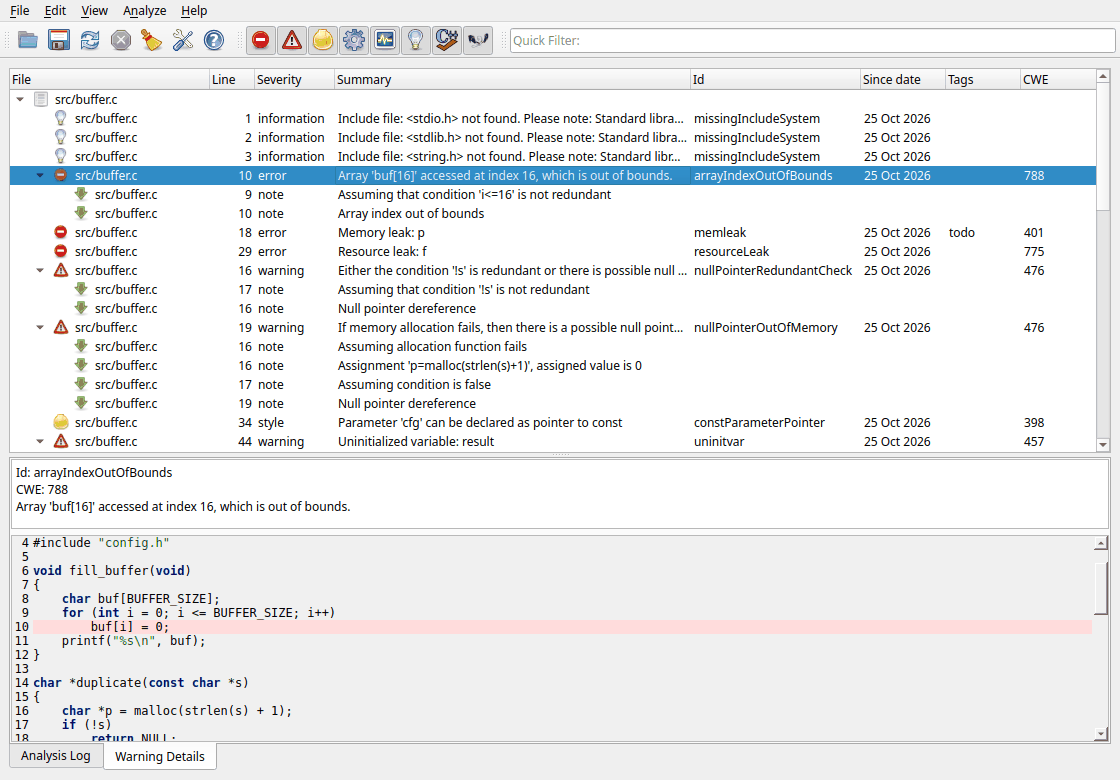
When the analysis is done (or while it is still running) it is time to look at the results. This page explains how to read a warning, how to decide if it is a real bug, and what you can do with it.
Click a warning in the results list. The lower part of the window then shows:
arrayIndexOutOfBounds.
The id identifies the kind of problem. Search for it in the Cppcheck
documentation or on the internet to learn more about it,In the example above Cppcheck says that buf[16] is accessed at
index 16. The array has 16 elements, so the valid indexes are 0 to 15. The loop
condition i <= BUFFER_SIZE should be
i < BUFFER_SIZE.
Many warnings have notes. Click the arrow in front of the warning to see them. Notes show the steps that lead to the problem, in order, for example:
Assuming that condition 'i<=16' is not redundant   (line 9)
Array index out of bounds                         (line 10)
Click a note to show its line in the code view. For a bug that depends on values, the notes usually tell you where the value comes from, which conditions Cppcheck assumes, and where the bad value is used. Follow the notes to understand the warning.
A note like Assuming that condition 'x' is not redundant means that
Cppcheck uses the condition in your code as a hint about possible values. For
example, if the code checks if (p == NULL) after it has already
used p, then either the check is not needed or the code can use a
null pointer. Cppcheck warns because one of them must be wrong.
Cppcheck tries to avoid false warnings, but no static analysis tool is perfect. To decide if a warning is right:
Even if a warning is not a bug today, it can point to code that is hard to understand or easy to break. Many developers prefer to change the code so that the warning goes away, instead of suppressing it.
If you are sure Cppcheck is wrong, suppress the warning (see Hiding and suppressing warnings). It is also very helpful if you report the false warning, with a small code example, at https://trac.cppcheck.net/ or in the Cppcheck forum.
Sometimes Cppcheck finds something suspicious but can not be sure that it is a bug. These inconclusive warnings are not shown by default. Enable Check for inconclusive errors also in the preferences to see them. An extra Inconclusive column then marks them. Expect more false warnings among them.
The first analysis of a large project can give many warnings. Some tips:
Double-click a warning, or select it and press Enter, to open the file in your default editor at the line of the warning. You can also right-click a warning and choose an editor at the top of the context menu.
Editors are configured in the preferences on the Applications tab. On some systems the GUI finds installed editors automatically.
If the file is not found, for example because the results were loaded from an XML file created on another computer, the GUI asks you to select the folder where the file is.
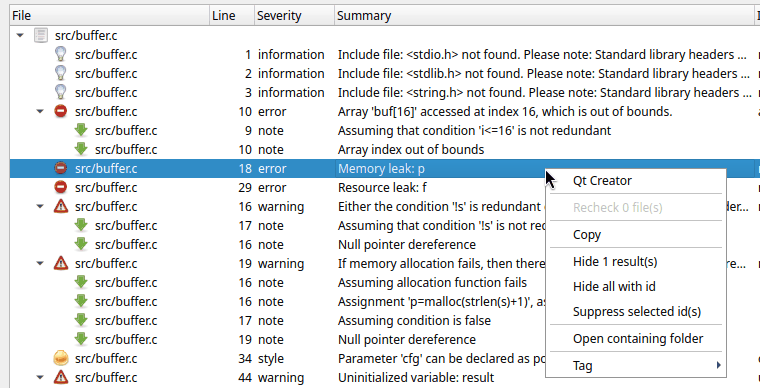
Right-click one or more selected warnings to get the context menu. Select several warnings with Ctrl+click or Shift+click.
| Command | Description |
|---|---|
| (editors) | Open the file of the warning in this editor. |
| Recheck N file(s) | Analyze the selected files again. Select file items (the top level items in the list) to enable this. Useful after you have fixed something in a file. Not available while an analysis is running or for results loaded from an XML file. |
| Copy | Copy the selected warnings, notes or file names to the
clipboard as text, in the format
file:line:column:severity: summary [id], followed by one line
for each note. Paste it in a bug report or a chat. |
| Hide N result(s) | Hide the selected warnings until the next analysis. See Hiding warnings. |
| Hide all with id | Hide all warnings with the same id as the selected warning, until the next analysis. |
| Suppress selected id(s) | Suppress all warnings with the ids of the selected warnings, in all files. The suppression is saved in the project file, so the warnings are not reported again. See Hiding and suppressing warnings. |
| Open containing folder | Open the folder of the file in your file manager. |
| Tag | Give the selected warnings a tag. Only shown if the project has tags. See Tagging warnings. |
After you have changed the code: