# Docker-Controller-Bot
[](https://github.com/dgongut/docker-controller-bot)
[](https://hub.docker.com/r/dgongut/docker-controller-bot)
[](https://t.me/dockercontrollerbotnews)
[](https://hub.docker.com/r/dgongut/docker-controller-bot/)
[](https://hub.docker.com/r/dgongut/docker-controller-bot/)
[](https://hub.docker.com/r/dgongut/docker-controller-bot/)





Have controll of your docker containers from one single place.
- ✅ List containers
- ✅ Start, stop and remove containers
- ✅ Docker Compose project support with hierarchical navigation (project → containers)
- ✅ Get logs directly on the chat or on a file
- ✅ Extract the container's docker-compose
- ✅ Notifications when a container starts or stops
- ✅ Notifications when a container has a new image update
- ✅ Updating of containers
- ✅ Change tags (rollback or update)
- ✅ Prune of containers, images, networks and other unused objects
- ✅ Execute commands inside of the container
- ✅ List ports used by containers, check whether a specific port is free and generate random available ports
- ✅ Show detailed information for a container or a whole Compose project
- ✅ Schedule tasks with cron expressions: run, stop, restart, exec, prune and mute
- ✅ Mute notifications temporarily
- ✅ Multi-architecture image (amd64, arm64, armv7…) compatible with Raspberry Pi, NAS and standard servers
- ✅ Multilanguage support (Spanish, English, Dutch, German, Russian, Galician, Italian, Catalan)
Are you searching for [](https://hub.docker.com/r/dgongut/docker-controller-bot)?
**NEW** News and updates channel (in Spanish) [](https://t.me/dockercontrollerbotnews)
## Create your Telegram bot
Before bringing the container up you need your own Telegram bot and your user ID.
1. Open [@BotFather](https://t.me/BotFather) on Telegram and send `/newbot`. Follow the instructions (a name and a username ending in `bot`).
2. BotFather will reply with the bot token. Save it: it goes into the `TELEGRAM_TOKEN` variable.
3. To know your own chat ID (needed for `TELEGRAM_ADMIN`), talk to [@MissRose_bot](https://t.me/MissRose_bot) and send `/id`. It will reply with a number — that's your ID.
4. *(Optional)* If you plan to use the bot inside a group, add it, make it admin and obtain the group chat ID the same way; that value goes into `TELEGRAM_GROUP`.
5. *(Optional)* If you want to set the official bot icon, download the high-resolution image [here](https://raw.githubusercontent.com/dgongut/pictures/main/Docker-Controller-Bot/Docker-Controller-Bot.png) and send it to [@BotFather](https://t.me/BotFather) using the `/setuserpic` option.
## Available commands
Most commands can be used in two ways: typing the command alone (`/run`) to let the bot show an interactive button menu, or passing the container name directly (`/run nginx`) to act without menus.
| Command | Description |
|---|---|
| `/start` | Main menu with the command list |
| `/list` | Full list of containers |
| `/run` `/stop` `/restart` | Start / stop / restart a container or a whole Compose project |
| `/delete` | Remove a container or a whole Compose project |
| `/exec` | Run a command inside a container |
| `/logs` `/logfile` | Logs in the chat or as a file |
| `/checkupdate` | Check whether a container has an update available |
| `/updateall` | Update every container |
| `/changetag` | Change the image tag (rollback or jump to another version) |
| `/compose` | Extract the `docker-compose` of a container or a project |
| `/info` | Show detailed information of a container or a project |
| `/ports` | List used ports, check a specific one or generate a free one |
| `/prune` | Clean up unused containers, images, networks or volumes |
| `/mute ` | Mute notifications for a number of minutes |
| `/schedule` | Menu to create, edit and delete scheduled tasks |
| `/version` `/donate` `/donors` | Current version / donate / list of donors |
## Docker Compose support
If your containers were created with `docker compose`, the bot recognizes them automatically as a **project** and shows them grouped.
Commands like `/run`, `/stop`, `/restart`, `/delete`, `/info` or `/compose` will show the project list first, and the containers when you pick a project. Start, stop, restart and delete actions can be applied to the **whole project** or to an individual container.
## Scheduled tasks (`/schedule`)
From `/schedule` you can create tasks that run on a cron schedule.
- Supported actions: `run`, `stop`, `restart`, `exec`, `prune` and `mute`.
- Accepts standard cron expressions (`0 */4 * * *`) and shortcuts: `@yearly`, `@monthly`, `@weekly`, `@daily`, `@hourly` and `@reboot`.
- Schedules are persisted under `/app/schedule` (don't forget to map that volume).
## Docker Compose variables
| ENV | REQUIRED | VALUE |
|:------------- |:---------------:| :-------------|
|TELEGRAM_TOKEN |✅| Bot token |
|TELEGRAM_ADMIN |✅| Admin ChatId (You can obtain it by talking to [Rose](https://t.me/MissRose_bot) bot with /id). You can have multiple admins by writting the id separated with commas. Example: 12345,54431,55944 |
|TELEGRAM_GROUP |❌| Group ChatId. If this bot is going to be in a group, you need to specify the chatId of that group. The bot needs to be admin of that group |
|TELEGRAM_THREAD |❌| Thread id inside of a supergroup; it's a numeric value (2,3,4..). Default is 1. To be used with TELEGRAM_GROUP |
|TELEGRAM_NOTIFICATION_CHANNEL |❌| Channel for exclusively publish status changes of containers |
|CONTAINER_NAME |✅| The container's name, same as container_name on your docker-compose |
|TZ |✅| Timezone (Example: Europe/Madrid) |
|CHECK_UPDATES |❌| The bot will check for image updates. 0 no - 1 yes. Default is 1|
|CHECK_UPDATE_EVERY_HOURS |❌| How long would it wait before check for image updates, in hours. Default is 4 |
|CHECK_UPDATE_STOPPED_CONTAINERS |❌| Check for image updates on stopped containers. 0 no - 1 yes. Default is 1 |
|BUTTON_COLUMNS |❌| Number of column buttons on the list of containers. Default is 2 |
|LANGUAGE |❌| Bot's language, it can be ES / EN / NL / DE / RU / GL / IT / CAT. Default is ES (Spanish) |
|EXTENDED_MESSAGES |❌| The bot will show more information messages. 0 no - 1 yes. Default is 0 |
## Anotations
> [!WARNING]
> You need to map a volume to /app/schedule for persistent storage of your bot's data
> [!NOTE]
> If you require login on a registry like DockerHub, GitHub Registry or a private registry (docker login), you can map that login file into the container `~/.docker/config.json` to `/root/.docker/config.json`
## Docker-compose example
```yaml
services:
docker-controller-bot:
environment:
- TELEGRAM_TOKEN=
- TELEGRAM_ADMIN=
- CONTAINER_NAME=docker-controller-bot
- TZ=Europe/Madrid
#- TELEGRAM_GROUP=
#- TELEGRAM_THREAD=1
#- TELEGRAM_NOTIFICATION_CHANNEL=
#- CHECK_UPDATES=1
#- CHECK_UPDATE_EVERY_HOURS=4
#- CHECK_UPDATE_STOPPED_CONTAINERS=1
#- BUTTON_COLUMNS=2
#- LANGUAGE=ES
#- EXTENDED_MESSAGES=0
volumes:
- /var/run/docker.sock:/var/run/docker.sock # DON'T CHANGE
- /path/to/save/the/schedule:/app/schedule # CHANGE THE LEFT PATH
#- ~/.docker/config.json:/root/.docker/config.json # ONLY IF YOU NEED LOGIN
image: dgongut/docker-controller-bot:latest
container_name: docker-controller-bot
restart: always
network_mode: host
tty: true
```
## Extra functions through labels in other containers
- Adding the label `DCB-Ignore-Check-Updates` to a container, the bot won't check for image updates on this container.
- Adding the label `DCB-Auto-Update` to a container, it will update automatically without asking.
## Special Thanks
- Dutch translation: [ManCaveMedia](https://github.com/ManCaveMedia)
- German translation: [shedowe19](https://github.com/shedowe19)
- Russian translation: [leyalton](https://github.com/leyalton)
- Galician translation: [monfero](https://github.com/monfero)
- Italian translation: [zichichi](https://github.com/zichichi)
- Catalan translation: [flancky](https://t.me/flancky)
- Docker Login testing: [garanda](https://github.com/garanda21)
- English Readme: [phampyk](https://github.com/phampyk)
## ❓ Frequently Asked Questions (FAQ)
🧭 Can the bot tell me from which version to which version an image was updated?
**Short answer:** No, that's not possible automatically.
**Detailed explanation:**
The bot doesn't rely on "versions", but rather checks whether a Docker image has changed.
This is done by comparing the **hash (unique identifier)** of the local image with the remote hash.
- In Docker, the **tag** (like latest, v1.2, etc.) is just a label.
- That label **doesn't always represent a real version** of the software inside the image.
- Some developers use tags that match the version (like v1.2.3), but that's neither required nor automatic.
- For example, the tag `latest` can point to a completely different image at any time.
🔍 That's why, even if we know an image has changed, **we can't automatically say "you went from version X to version Y."**
**Why isn’t the changelog or list of changes shown?**
Showing a changelog would require:
- Knowing which version you had and which one you updated to (which isn't possible automatically).
- The container's developer to publish that information somewhere accessible (like GitHub or Docker Hub).
- A standardized way to retrieve it — which doesn't always exist.
📦 Each container is different, and not all of them publish clear or accessible change logs.
**So, how can I find out what changed?**
You can do it manually:
1. The bot can show you the **previous hash** and the **new hash** of the image.
2. With that information, you can visit the container's repository (GitHub, Docker Hub, etc.).
3. Look for version history, changelogs, or release notes if they're available there.
🛠️ I've seen that you can add labels to control how the bot interacts with certain containers, how do I do that?
That's right, there are currently two labels you can add to containers to control how the bot interacts with them:
- `DCB-Ignore-Check-Updates`
- `DCB-Auto-Update`
To add them to a container, simply edit your `docker-compose.yml` file and include them under the `labels` key.
Here's an example using **Home Assistant**:
```yaml
services:
homeassistant:
image: lscr.io/linuxserver/homeassistant:latest
container_name: homeassistant
network_mode: host
environment:
- PUID=1026
- PGID=100
- TZ=Etc/Madrid
volumes:
- /volume2/docker/homeassistant/config:/config
- /volume2/temp/ha:/tmp
labels:
- "DCB-Auto-Update"
restart: unless-stopped
```
🧩 My containers were created with docker-compose and appear grouped, can I still manage just one?
Yes. When you enter a project you'll see each container separately with its status, and you can act on it individually, just like with standalone containers.
The global actions (start, stop, restart or delete the whole project) are available as an extra button inside the project menu.
📢 If I set TELEGRAM_NOTIFICATION_CHANNEL, will notifications be duplicated?
No. When that channel is set, container status notifications (start, stop, crash, update available…) are sent **only** to that channel and stop appearing in the main chat.
Every other message (command results, interactive menus, etc.) keeps arriving in the regular chat where you talk to the bot.
🔄 How do I update the bot itself?
The same as any other container: from `/checkupdate docker-controller-bot` or from `/updateall`.
Under the hood the bot spawns an auxiliary container (`UPDATER-Docker-Controler-Bot`) that pulls the new image, replaces it and brings the bot back up, so the bot is never left without a running process during the update.
If you add the `DCB-Auto-Update` label to its `docker-compose.yml`, it will update itself as soon as a new version is detected.
---
## Only for developers
### Execute with local code
For local execution and testing new code changes, you need to rename the `.env-example` file to `.env` and fill in the required values for it to run.
You must set working and different `TELEGRAM_TOKEN` and `TELEGRAM_ADMIN` values from those used in normal execution.
The folder structure should be:
```
docker-controller-bot/
├── .env
├── .gitignore
├── LICENSE
├── requirements.txt
├── README.md
├── config.py
├── docker-controller-bot.py
├── Dockerfile_local
├── docker-compose.yaml
└── locale
├── en.json
├── es.json
├── de.json
├── ru.json
├── gl.json
├── nl.json
├── cat.json
└── it.json
```
To start it up, run the following command in the directory: `docker compose -f docker-compose.debug.yaml up -d --build --force-recreate`
To stop and remove it: `docker compose down --rmi`
To test new changes, simply save your modifications — the changes will hot reload automatically.
### Debugging with VS Code
Open the repository folder in [Visual Studio Code](https://code.visualstudio.com/) you'll need the following extensions installed in VS Code:
- [Docker](https://marketplace.visualstudio.com/items?itemName=ms-azuretools.vscode-docker)
- [Python](https://marketplace.visualstudio.com/items?itemName=ms-python.python)
#### Installing the extensions
1. Open VS Code.
2. Go to Extensions on the sidebar and search for “Docker” and “Python”.
3. Install both extensions from the Marketplace.
#### Setting Breakpoints
1. Open the code file you want to debug.
2. Click in the left margin next to the line of code where you want to set a breakpoint. A red dot will appear indicating the `breakpoint`.
#### Starting the Debugger
1. Go to the `Run` menu and select `Start Debugging` or press `F5`.
2. VS Code will start using `docker-compose.debug.yaml` and launch the debugging session.
3. The debug panel will open at the bottom, showing variables, the call stack, and the debug console.
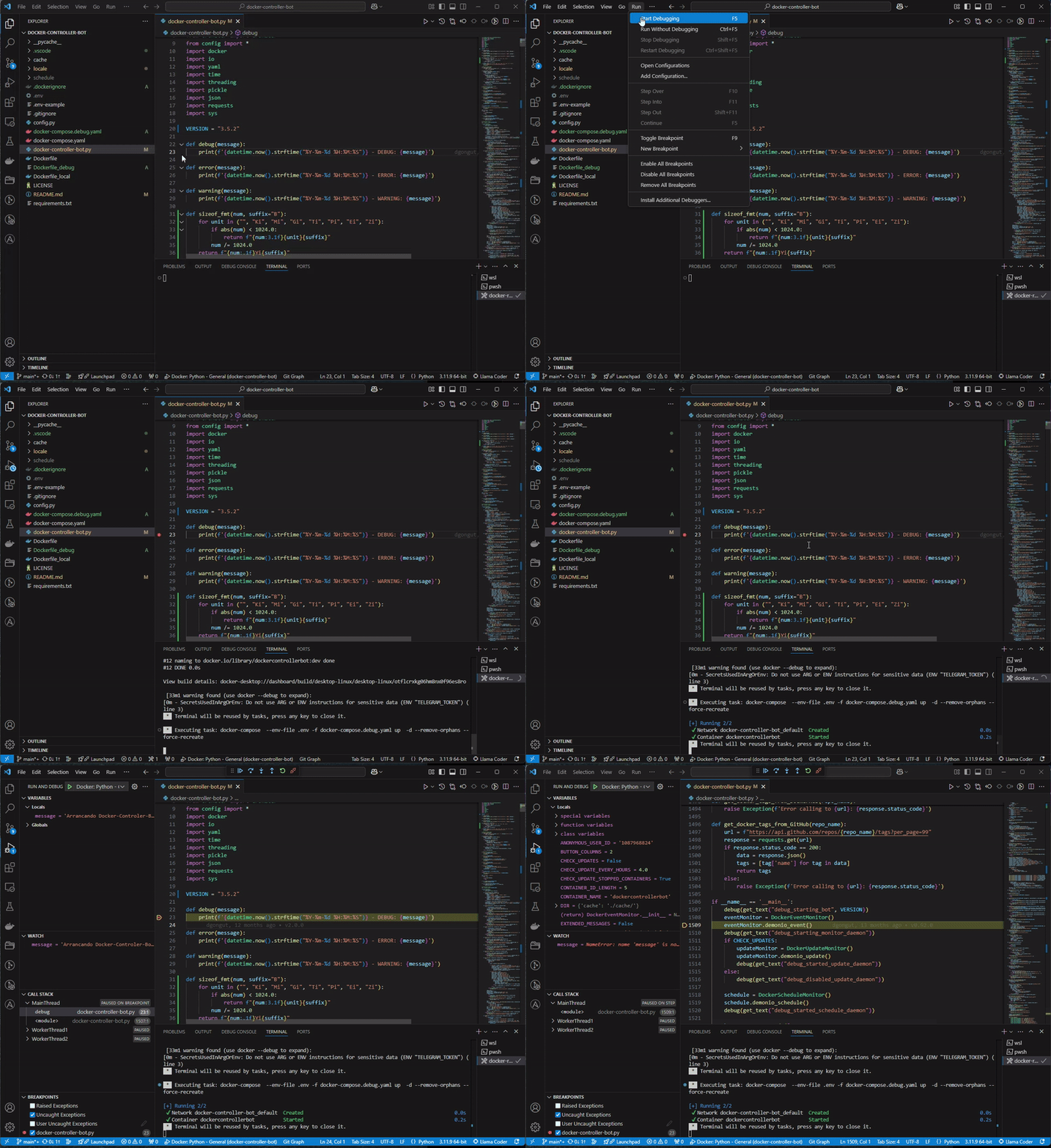
#### Debugging Conclusion
- To stop the debugging session, go to `Run > Stop Debugging` or press `Shift+F5`