
Back | Next | Contents
System Setup
# DIGITS System Setup
During this tutorial, we'll use a host PC (or cloud instance) for training DNNs, alongside a Jetson for inference.
Due to the number of dependencies required for training, it's recommended for beginners to setup their host training PC with **[NVIDIA GPU Cloud (NGC)](https://www.nvidia.com/en-us/gpu-cloud/)** or [nvidia-docker](https://github.com/NVIDIA/nvidia-docker). These methods automate the install of the drivers and machine learning frameworks on the host. NGC can be used to deploy Docker images locally, or remotely to cloud providers like AWS or Azure N-series.
A host PC will also serve to flash the Jetson with the latest JetPack. First, we'll setup and configure the host training PC with the required OS and tools.
### Installing Ubuntu on the Host
If you don't already have Ubuntu installed on your host PC, download and install Ubuntu 16.04 x86_64 from one of the following locations:
```
http://releases.ubuntu.com/16.04/ubuntu-16.04.2-desktop-amd64.iso
http://releases.ubuntu.com/16.04/ubuntu-16.04.2-desktop-amd64.iso.torrent
```
Ubuntu 14.04 x86_64 or Ubuntu 18.04 x86_64 may also be acceptable with minor modifications later while installing some packages with apt-get.
### Setting up host training PC with NGC container
> **note**: to setup DIGITS natively on your host PC, you should go to [`Natively setting up DIGITS on the Host`](digits-native.md) (advanced)
NVIDIA hosts NVIDIA® GPU Cloud (NGC) container registry for AI developers worldwide.
You can download a containerized software stack for a wide range of deep learning frameworks, optimized and verified with NVIDIA libraries and CUDA runtime version.
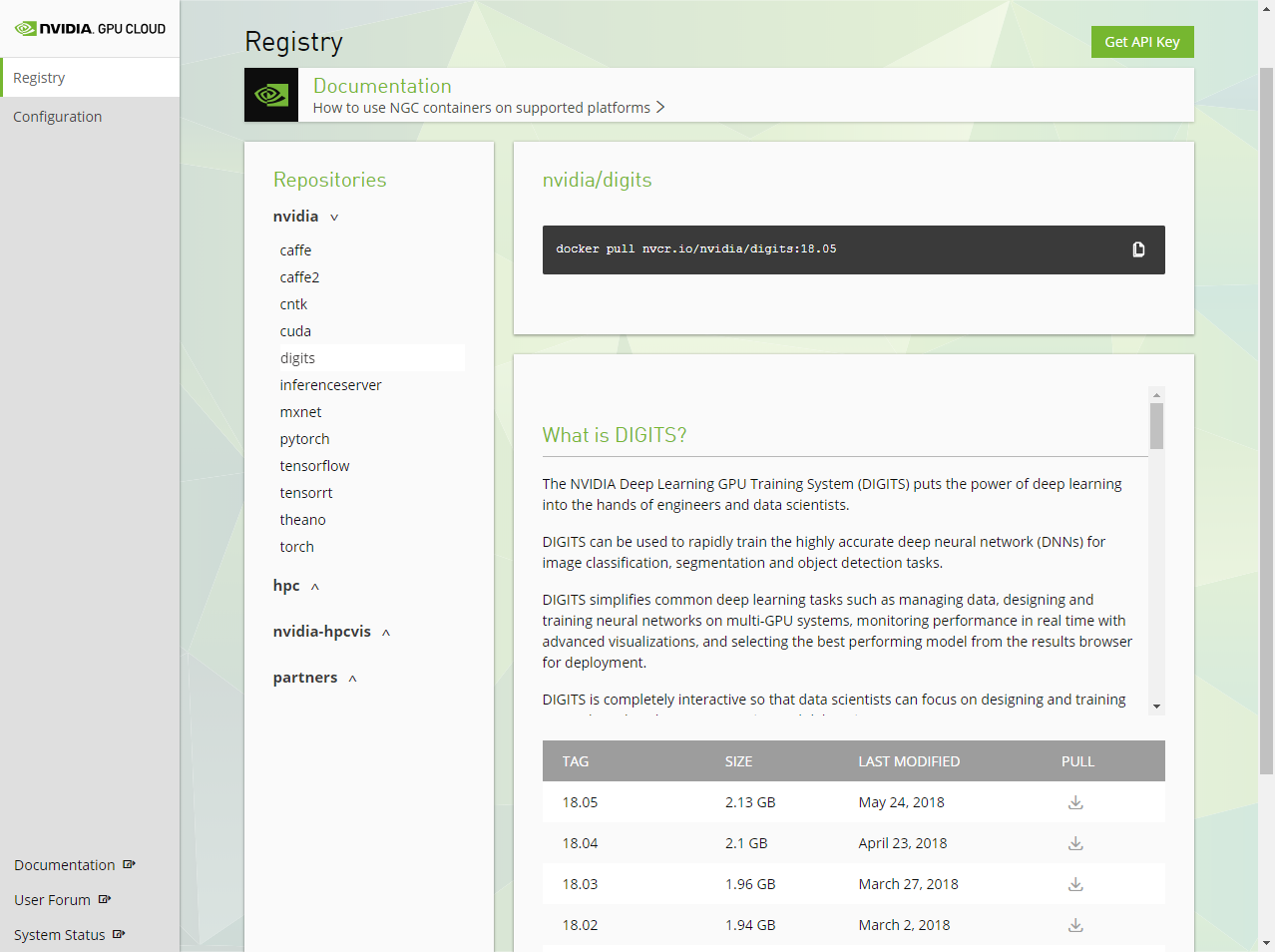 If you have a recent generation GPU (Pascal or newer) on your PC, the use of NGC registry container is probably the easiest way to setup DIGITS.
To use a NGC registry container on your local host machine (as opposed to cloud), you can follow this detailed [setup guide](https://docs.nvidia.com/ngc/ngc-titan-setup-guide/index.html).
#### Installing the NVIDIA driver
Add the NVIDIA Developer repository and install the NVIDIA driver.
``` bash
$ sudo apt-get install -y apt-transport-https curl
$ cat < /dev/null
deb https://developer.download.nvidia.com/compute/cuda/repos/ubuntu1604/x86_64 /
EOF
$ curl -s \
https://developer.download.nvidia.com/compute/cuda/repos/ubuntu1604/x86_64/7fa2af80.pub \
| sudo apt-key add -
$ cat < /dev/null
Package: *
Pin: origin developer.download.nvidia.com
Pin-Priority: 600
EOF
$ sudo apt-get update && sudo apt-get install -y --no-install-recommends cuda-drivers
$ sudo reboot
```
After reboot, check if you can run `nvidia-smi` and see if your GPU shows up.
``` bash
$ nvidia-smi
Thu May 31 11:56:44 2018
+-----------------------------------------------------------------------------+
| NVIDIA-SMI 390.30 Driver Version: 390.30 |
|-------------------------------+----------------------+----------------------+
| GPU Name Persistence-M| Bus-Id Disp.A | Volatile Uncorr. ECC |
| Fan Temp Perf Pwr:Usage/Cap| Memory-Usage | GPU-Util Compute M. |
|===============================+======================+======================|
| 0 Quadro GV100 Off | 00000000:01:00.0 On | Off |
| 29% 41C P2 27W / 250W | 1968MiB / 32506MiB | 22% Default |
+-------------------------------+----------------------+----------------------+
```
#### Installing Docker
Install prerequisites, install the GPG key, and add the Docker repository.
``` bash
$ sudo apt-get install -y ca-certificates curl software-properties-common
$ curl -fsSL https://download.docker.com/linux/ubuntu/gpg | sudo apt-key add -
$ sudo add-apt-repository \
"deb [arch=amd64] https://download.docker.com/linux/ubuntu $(lsb_release -cs) stable"
```
Add the Docker Engine Utility (nvidia-docker2) repository, install nvidia-docker2, set up permissions to use Docker without sudo each time, and then reboot the system.
``` bash
$ curl -s -L https://nvidia.github.io/nvidia-docker/gpgkey | \
sudo apt-key add -
$ ccurl -s -L https://nvidia.github.io/nvidia-docker/ubuntu16.04/amd64/nvidia-docker.list | \
sudo tee /etc/apt/sources.list.d/nvidia-docker.list
$ csudo apt-get update
$ csudo apt-get install -y nvidia-docker2
$ csudo usermod -aG docker $USER
$ sudo reboot
```
#### NGC Sign-up
Sign up to NGC if you have not.
https://ngc.nvidia.com/signup/register
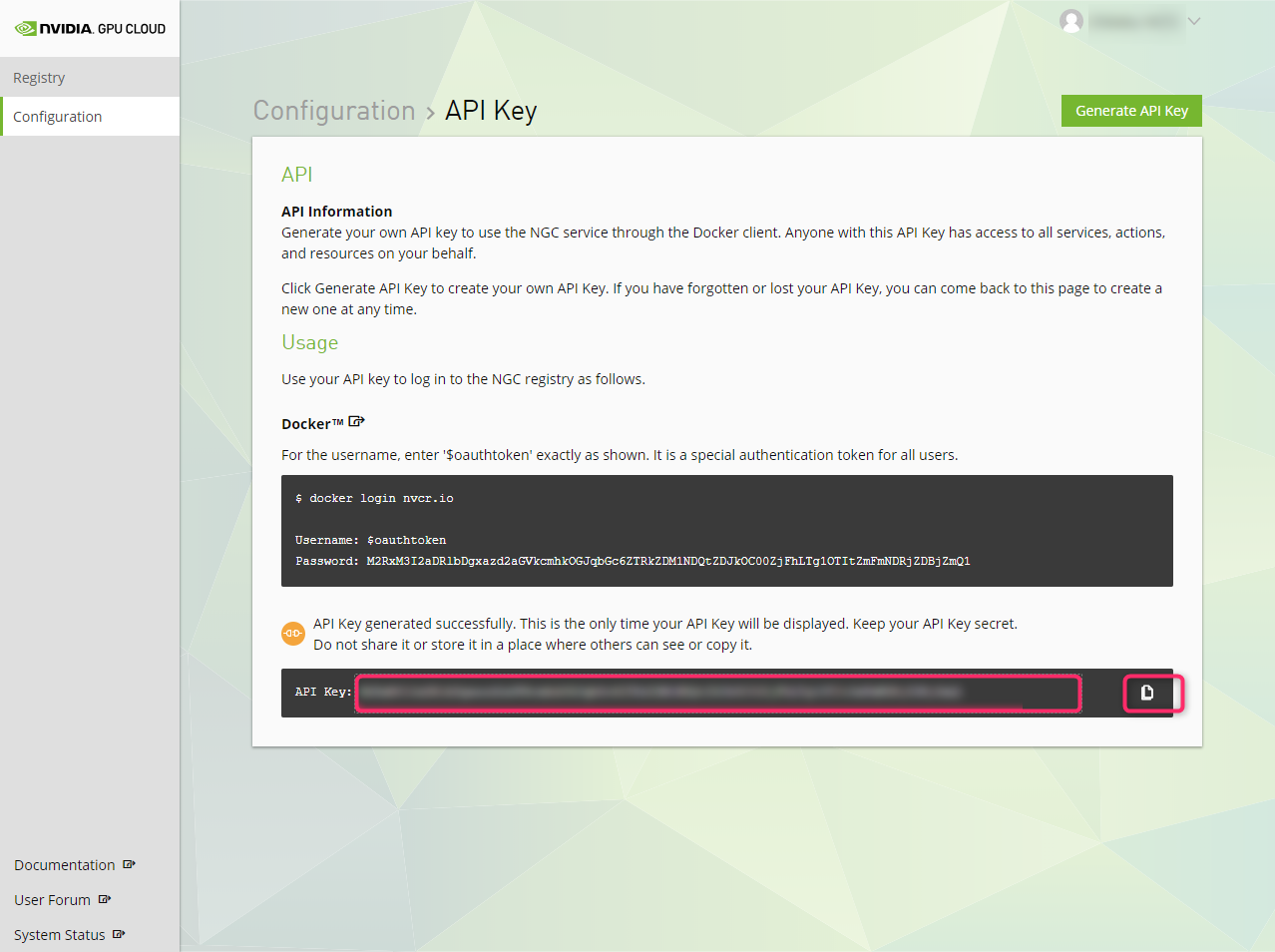
Generate your API key, and save it somewhere safe. You will use this soon later.
If you have a recent generation GPU (Pascal or newer) on your PC, the use of NGC registry container is probably the easiest way to setup DIGITS.
To use a NGC registry container on your local host machine (as opposed to cloud), you can follow this detailed [setup guide](https://docs.nvidia.com/ngc/ngc-titan-setup-guide/index.html).
#### Installing the NVIDIA driver
Add the NVIDIA Developer repository and install the NVIDIA driver.
``` bash
$ sudo apt-get install -y apt-transport-https curl
$ cat < /dev/null
deb https://developer.download.nvidia.com/compute/cuda/repos/ubuntu1604/x86_64 /
EOF
$ curl -s \
https://developer.download.nvidia.com/compute/cuda/repos/ubuntu1604/x86_64/7fa2af80.pub \
| sudo apt-key add -
$ cat < /dev/null
Package: *
Pin: origin developer.download.nvidia.com
Pin-Priority: 600
EOF
$ sudo apt-get update && sudo apt-get install -y --no-install-recommends cuda-drivers
$ sudo reboot
```
After reboot, check if you can run `nvidia-smi` and see if your GPU shows up.
``` bash
$ nvidia-smi
Thu May 31 11:56:44 2018
+-----------------------------------------------------------------------------+
| NVIDIA-SMI 390.30 Driver Version: 390.30 |
|-------------------------------+----------------------+----------------------+
| GPU Name Persistence-M| Bus-Id Disp.A | Volatile Uncorr. ECC |
| Fan Temp Perf Pwr:Usage/Cap| Memory-Usage | GPU-Util Compute M. |
|===============================+======================+======================|
| 0 Quadro GV100 Off | 00000000:01:00.0 On | Off |
| 29% 41C P2 27W / 250W | 1968MiB / 32506MiB | 22% Default |
+-------------------------------+----------------------+----------------------+
```
#### Installing Docker
Install prerequisites, install the GPG key, and add the Docker repository.
``` bash
$ sudo apt-get install -y ca-certificates curl software-properties-common
$ curl -fsSL https://download.docker.com/linux/ubuntu/gpg | sudo apt-key add -
$ sudo add-apt-repository \
"deb [arch=amd64] https://download.docker.com/linux/ubuntu $(lsb_release -cs) stable"
```
Add the Docker Engine Utility (nvidia-docker2) repository, install nvidia-docker2, set up permissions to use Docker without sudo each time, and then reboot the system.
``` bash
$ curl -s -L https://nvidia.github.io/nvidia-docker/gpgkey | \
sudo apt-key add -
$ ccurl -s -L https://nvidia.github.io/nvidia-docker/ubuntu16.04/amd64/nvidia-docker.list | \
sudo tee /etc/apt/sources.list.d/nvidia-docker.list
$ csudo apt-get update
$ csudo apt-get install -y nvidia-docker2
$ csudo usermod -aG docker $USER
$ sudo reboot
```
#### NGC Sign-up
Sign up to NGC if you have not.
https://ngc.nvidia.com/signup/register
Generate your API key, and save it somewhere safe. You will use this soon later.
 #### Setting up data and job directory for DIGITS
Back on you PC (after reboot), log in to the NGC container registry
``` bash
$ docker login nvcr.io
```
You will be prompted to enter Username and Password
``` bash
Username: $oauthtoken
Password:
```
For a test, use CUDA container to see if the nvidia-smi shows your GPU.
``` bash
docker run --runtime=nvidia --rm nvcr.io/nvidia/cuda:9.0-cudnn7-devel-ubuntu16.04 nvidia-smi
```
#### Setting up data and job directories
Create data and job directories on your host PC, to be mounted by DIGITS container.
``` bash
$ mkdir /home/username/data
$ mkdir /home/username/digits-jobs
```
#### Starting DIGITS container
``` bash
$ nvidia-docker run --name digits -d -p 8888:5000 \
-v /home/username/data:/data:ro
-v /home/username/digits-jobs:/workspace/jobs nvcr.io/nvidia/digits:18.05
```
Open up a web browser and access http://localhost:8888
##
#### Setting up data and job directory for DIGITS
Back on you PC (after reboot), log in to the NGC container registry
``` bash
$ docker login nvcr.io
```
You will be prompted to enter Username and Password
``` bash
Username: $oauthtoken
Password:
```
For a test, use CUDA container to see if the nvidia-smi shows your GPU.
``` bash
docker run --runtime=nvidia --rm nvcr.io/nvidia/cuda:9.0-cudnn7-devel-ubuntu16.04 nvidia-smi
```
#### Setting up data and job directories
Create data and job directories on your host PC, to be mounted by DIGITS container.
``` bash
$ mkdir /home/username/data
$ mkdir /home/username/digits-jobs
```
#### Starting DIGITS container
``` bash
$ nvidia-docker run --name digits -d -p 8888:5000 \
-v /home/username/data:/data:ro
-v /home/username/digits-jobs:/workspace/jobs nvcr.io/nvidia/digits:18.05
```
Open up a web browser and access http://localhost:8888
##
Next | Setting up Jetson with JetPack
Back | DIGITS Workflow
© 2016-2019 NVIDIA | Table of Contents