dsh-task-reminder
The task is done — stop watching that light in the sidebar
Conversation task reminders for DeepSeek Harness (Web and Desktop): one Windows toast + one chime
[](LICENSE)
[](https://github.com/deepseek-ai)
[](https://github.com/hawkongz/dsh-task-reminder/stargazers)
[](https://www.npmjs.com/package/@hawkongz/dsh-task-reminder)
[](https://www.npmjs.com/package/@hawkongz/dsh-task-reminder)
[](https://awesome-dsh-plugin.com/p/hawkongz/dsh-task-reminder/)
[](https://github.com/deepseek-ai/deepseek-harness)
Language: 简体中文 | English
---
## Table of contents
- [What this is](#what-this-is)
- [Quick start in 30 seconds](#quick-start-in-30-seconds)
- [What you will see](#what-you-will-see)
- [Settings at a glance](#settings-at-a-glance)
- [Desktop (DSH Desktop)](#desktop-dsh-desktop)
- [FAQ](#faq)
- [Advanced](#advanced)
- [Installation details](#installation-details)
- [Development and documentation](#development-and-documentation)
- [License](#license)
---
## What this is
An agent turn in DeepSeek Harness often runs for several minutes. While it does, you switch to another window to get things done — and the only signal that the task stopped is the running light in the sidebar going out. That light does not tell you whether the task finished cleanly or stopped with an error, and it certainly does not tell you that **the agent is stuck on a question waiting for your answer**; if you do not switch back, it just keeps waiting.
This plugin turns that moment into a real reminder: the moment a task stops it sends a **Windows system toast** (the native notification in the bottom-right corner of your OS — visible even with the browser in the background) and plays a synthesized chime. One click on the toast takes you back to that session, **landed at your last question** — you just keep reading.
All three stop reasons are covered, and **one stop is reported once, with the error taking precedence**: a completion alert never fights an error alert, and a Stop you pressed yourself is never misreported as a completion. Everything is configured on its own settings page; changes save automatically and survive restarts.
Zero runtime dependencies: the reminder logic runs entirely on the browser side, and the host half only does the two things a page cannot (raising the app window when you click a toast in the desktop app, and the update check on the settings page). Why it is built that way and how the edge cases are handled is written up in [docs/how-it-works.md](docs/how-it-works.md).
## Quick start in 30 seconds
> **What you need:** DeepSeek Harness running with the `web` profile (`dsh web`), pnpm on your `PATH` (the `dsh plugin` command forwards to it), and a browser you can hard-refresh. The desktop app takes neither a terminal nor pnpm — see **Desktop** below.
**Step 1 — Install**
```powershell
# Windows (PowerShell), run it from any directory
dsh plugin --profile web add @hawkongz/dsh-task-reminder
```
```bash
# macOS / Linux
dsh plugin --profile web add @hawkongz/dsh-task-reminder
```
**Step 2 — Restart the host, then hard-refresh the browser**
```bash
dsh web
```
Neither step is optional after changing a plugin: the host reads plugins only at process start, and the browser caches the old files.
**Step 3 — Allow notifications**
Open **Settings → Task reminder** — if the page is there, the plugin is live. On the first load the browser asks once for notification permission: choose **Allow**. Missed it at the time? The **Request notification permission** button under the **System toast** row asks again.
Then run a task in any session and wait for the reminder: the default **Always** mode toasts even while you are watching the conversation.
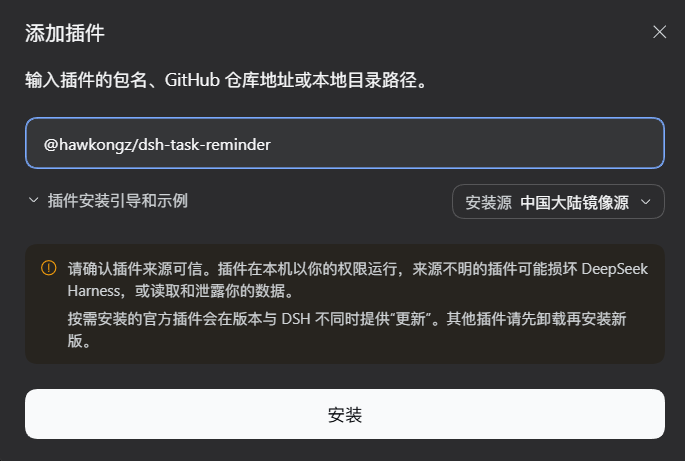
**Desktop** (DSH Desktop): sidebar **Plugins** → **Add plugin**, put `@hawkongz/dsh-task-reminder` in the package field, click **Install**, then quit the app completely and open it again.