ChatGPT Web for Codex
Use ChatGPT Web (including Pro) as native Codex models.
Change the model tier, save your workflow.
English · 简体中文






Pick **ChatGPT Web — Instant**, **Medium**, **High**, **Extra High**, or **Pro** in Codex's native
model picker. The bridge sends the complete Codex task context to a fresh ChatGPT Temporary Chat,
attaches images, and streams visible reasoning, tool activity, and Markdown back into the same
Codex task.
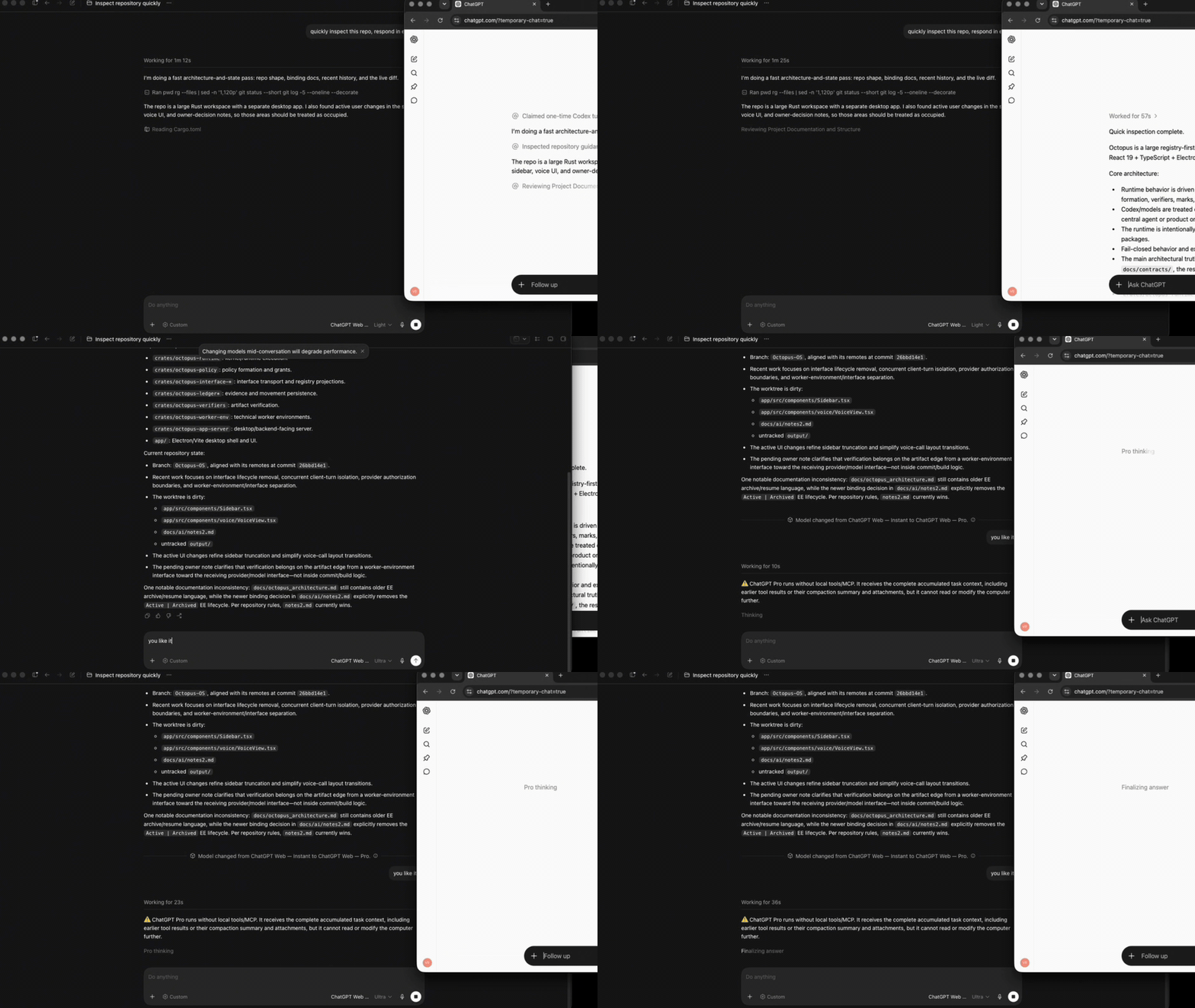
```text
Codex task ──Responses + SSE──▶ codex-chatgpt-web ──embedded browser──▶ ChatGPT
▲ │ │
└──────── native UI, context, images, tracing, and tool lifecycle ──────┘
```
Codex keeps the native task, context lifecycle, UI, and tool harness. The local Responses bridge
routes only the selected model turn through a fresh ChatGPT Temporary Chat; in full mode, MCP
connects ChatGPT back to the tools of that same Codex task.
## Highlights
- **A polished cross-platform launcher.** One command installs the native macOS, Windows, or Linux
app. It keeps sign-in, setup, smoke testing, MCP guidance, runtime health, and local logs in one
place, while the embedded browser lets you watch every ChatGPT turn as it happens. Up to five
task-bound browser tabs can run in parallel; the cap avoids excessive parallel account traffic.
- **ChatGPT is the selected model.** It runs as a native Codex model, not as a tool called by
another host model. The original model picker, task lifecycle, streaming, tracing, and tool UI
remain intact.
- **Local-first task sessions.** Codex remains the source of truth for task history on your
computer. Every browser turn starts in a fresh ChatGPT Temporary Chat and receives the complete
accumulated Codex context, so browser chats are not reused across tasks or added to normal
ChatGPT history.
- **The full Codex harness over MCP.** In full mode, Instant through Extra High can use the active
Codex task's filesystem, shell, images, approvals, and configured tools/apps through MCP. Calls
and real results stay inside the same browser response—nothing is simulated as text.
- **Pro stays useful.** Pro is the one exception: ChatGPT's current Pro mode does not expose the
custom MCP connector this bridge needs. Its native capabilities, including web search and
research, remain available. Gather local workspace context with Instant through Extra High,
switch to Pro, and Pro receives the complete accumulated Codex task for deeper analysis.
- **Fail-closed and manually tested.** Model selection, long inline context, images, streaming,
visible trace, compaction, native tool rounds, cancellation, and Pro were exercised end-to-end on
macOS and Windows 11. UI drift and missing capabilities produce explicit errors rather than
silent fallbacks.
Temporary Chat is a ChatGPT privacy mode, not anonymity or local-only inference: prompts are still
processed by OpenAI and are subject to the account's settings and OpenAI's
[Temporary Chat policy](https://help.openai.com/en/articles/8914046-temporary-chat-faq). This project
is unofficial; users remain responsible for complying with applicable OpenAI terms and workspace
policies.
## Quick start
Install the desktop launcher:
**macOS or Linux**
```bash
curl -fsSL https://github.com/miuuyy/codex-chatgpt-web/releases/latest/download/install-launcher.sh | sh
```
**Windows PowerShell**
```powershell
irm https://github.com/miuuyy/codex-chatgpt-web/releases/latest/download/install-launcher.ps1 | iex
```
Then complete the three checks in the app:
1. Sign in to ChatGPT in the embedded browser.
2. Run the browser smoke test.
3. Press **Install models**, restart Codex once, and select a **ChatGPT Web — …** model.
Pro appears only when the signed-in account exposes it. The separate **MCP** page is optional and
guides the full-harness setup without terminal commands.
A packaged browser-only install needs no Google Chrome, model API key, system Node/Bun, or separate
browser download.
**Run from source**
```bash
git clone https://github.com/miuuyy/codex-chatgpt-web.git && \
cd codex-chatgpt-web && \
bun run app
```
This source path requires Bun 1.3.14. The command installs locked dependencies and opens the app.
## Modes
| Mode | Models | Local Codex tools | Extra setup |
| --- | --- | --- | --- |
| **Browser-only** | Plus: Instant–High; Pro: adds Extra High and Pro | No; Codex shows a warning | None |
| **Full harness** | Plus: Instant–High; Pro: adds Extra High and Pro | Instant–Extra High: yes; Pro: read-only | OpenAI tunnel + ChatGPT connector |
Every picker entry has one fixed ChatGPT mode. Codex still displays its built-in Effort and Speed
rows, but changing them cannot silently change the selected browser model. Pro receives the full
context already collected by Codex, but ChatGPT Pro cannot initiate local MCP/tool calls.
## Full harness
Full mode connects ChatGPT's tool calls back to the current Codex task through the official
[OpenAI tunnel-client](https://github.com/openai/tunnel-client). The tunnel is outbound: it does
not expose a public IP, open an inbound port, or require router forwarding.
1. Finish the required launcher setup.
2. Open **MCP** in the launcher. Create the Tunnel and a regular API key on the same OpenAI account
that will use the ChatGPT connector; creating the key is free and does not consume model API
credits.
3. Paste the Tunnel ID and API key, then press **Connect harness**.
4. Enable **Developer Mode** in ChatGPT settings. Create a connector using **Tunnel**, select that
exact Tunnel, set **Authentication** to **None**, and name it exactly `Codex Native`.
5. Scan its tools, choose the intended action permissions, and run **Verify runtime**. Verification
types and accepts the full `@Codex Native` mention, then confirms the connector pill.
Write/modify actions require a ChatGPT workspace and admin policy that permit them. OpenAI
currently documents those actions for Business and Enterprise/Edu workspaces; personal Pro is
limited to read/fetch MCP permissions. See
[developer mode and MCP apps](https://help.openai.com/en/articles/12584461-developer-mode-and-mcp-apps-in-chatgpt).
Unexpected approval prompts fail closed unless `--auto-approve-tool-calls` is explicitly enabled;
that option clicks **Allow once**, never a permanent grant.
## Operations
Use **Activity** for structured local logs and **Settings → Run doctor** for end-to-end health
checks. Use **Settings → Cancel retained browser turn** if a stopped task leaves ChatGPT working,
and **Settings → Remove Codex integration** before deleting the launcher so the previous Codex
route is restored.
## Limitations and security
- This is unofficial browser automation, not an OpenAI API. ChatGPT UI changes can break selectors;
drift fails explicitly instead of silently switching model or transport.
- Browser state is a sensitive login artifact, and the loopback listener is reachable by processes
running as the same local user. Never share the launcher profile; use a trusted workstation.
- Release packages currently target macOS 13+ (arm64/x64), Windows x64, and Linux x64. The browser
flow is manually exercised end-to-end on macOS and Windows 11; runtime, tests, and native
packaging are gated on all three operating systems in CI.
- Until platform signing credentials are configured for a release, macOS Gatekeeper or Windows
SmartScreen may show an unknown-publisher warning. The one-command installers verify the
published SHA-256 manifest before installation.
Read the complete [architecture](docs/architecture.md) and
[security model](docs/security-model.md) before enabling full mode. Report vulnerabilities through
[SECURITY.md](SECURITY.md).
## Development
```bash
bun run app
bun run verify
bun run app:package
```
- [Architecture](docs/architecture.md)
- [Security model](docs/security-model.md)
- [Contributing](CONTRIBUTING.md)
## Disclaimer
This is independent software and is not affiliated with or endorsed by OpenAI. Use it only with
your own account and in accordance with applicable [Terms of Use](https://openai.com/policies/terms-of-use/)
and workspace policies; it does not bypass authentication or access controls.