DSH Pocket
English | 中文





> Put **DeepSeek Harness in your pocket**: one package, one settings tab — scan a QR code and your phone shows exactly what's on your computer screen, live, from anywhere.
⭐ A Star would make the author's day · Here, take one
## What is this
**You want to use DeepSeek Harness on your computer, even when you're not at the computer.**
- On your way home, the agent is running a task on your computer — pull out your phone and see where it is, what it produced.
- Out and about, you want the agent on your computer to look something up or write a snippet — no remote desktop, no SSH.
- The computer is at home or in the office, you're elsewhere, and you want to **drive your DeepSeek Harness from your phone** — send tasks, watch the output, tap approvals.
That's what DSH Pocket does: **install it, scan a QR code, and your phone shows and controls the DeepSeek Harness UI in real time — from anywhere.**
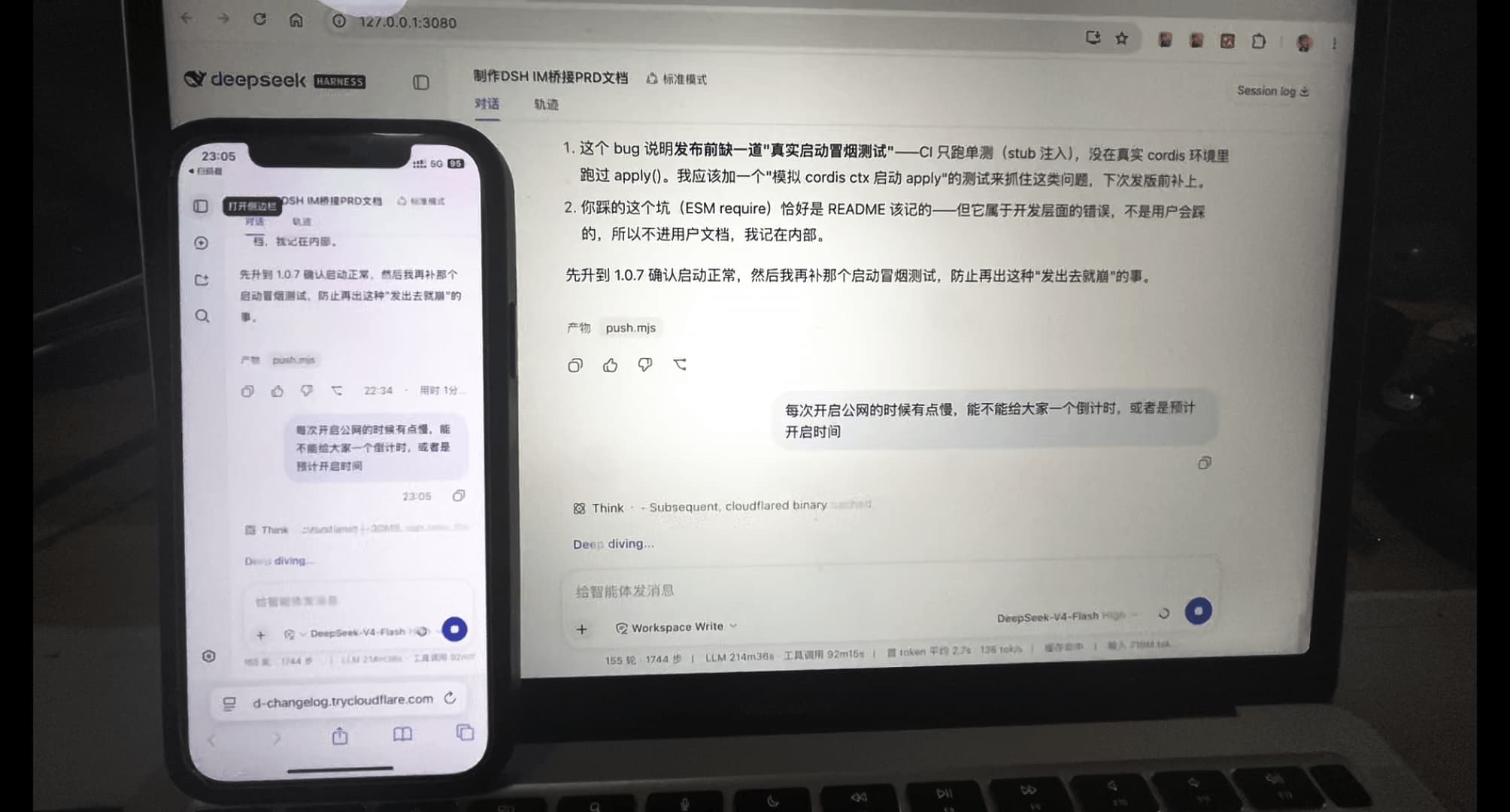
What it looks like — the phone shows the exact same UI as your computer, live:
## ✨ Features
| Feature | Description |
| ---------------------------- | --------------------------------------------------------------------------------------------------------------------------------------------------------------------------------------------------------------------------------------------------------------------------------- |
| 📶 LAN QR access | Works out of the box: Settings → Phone access — scan the LAN QR on the same Wi-Fi (auto-detects the LAN IP; **under WSL it picks the Windows host's physical NIC IP**) |
| 🚪 LAN switch | **Turn LAN access off/on with one click** in Settings (a confirmation dialog shows each time): off kills the LAN QR code and link instantly; public access is unaffected |
| 🌐 Public QR (from anywhere) | Click "Enable anywhere" → cloudflared tunnel → scan the public QR over 4G / any network |
| 🏷️ Fixed public hostname | Optional "**Named tunnel**" mode: paste a Cloudflare Tunnel Token + your own domain — the public address stays **fixed across restarts** (see below) |
| 🔐 Access PIN | Public links require an **8-character PIN** (rotated on every tunnel start by default; **customizable to a fixed PIN** — custom PINs are not rotated); LAN has its own separate **8-character PIN** (on by default; switchable off in Settings — then LAN scans connect directly) |
| 🔑 Custom PINs | Both the public and LAN PINs can be **set to your own fixed 8-character PIN (letters and digits) in Settings** (custom PINs are never auto-rotated) |
| 🧘 Session persistence | Enter the PIN once and you're set for a long time (login is tied to the computer's dsh web process: as long as it stays up, the phone won't ask again; **after a dsh web restart/update, enter it once more**) |
| ⚡ Real-time sync | Streaming output passes through WebSocket untouched — what the computer renders, the phone renders live; fully interactive both ways; built-in WS heartbeat keep-alive (defeats silent NAT/battery link drops with auto-reconnect) |
| 📱 Mobile-adaptive layout | Narrow screens get a drawer layout automatically (ported from dsh-web-mobile, MIT): sidebar drawer, full-width conversation, safe-area insets, touch optimizations |
| 📁 File browser | The mobile "Files" entries need a host-side explorer panel (a dsh-web-ui component); on stock DSH without it the entries are auto-hidden instead of doing nothing |
| 🗜️ Transfer compression | Large JSON responses are gzip/brotli'd on the fly (17MB session history → ~1MB; brotli quality 6: fast and bandwidth-friendly) — faster loads, less mobile data |
| 🔁 Tunnel auto-restore | After a DSH restart the previously-running public tunnel comes back automatically |
| 🧩 Zero-dependency install | One npm package, one settings tab — no core/adapter split, no account, no server |
## 🚀 Usage
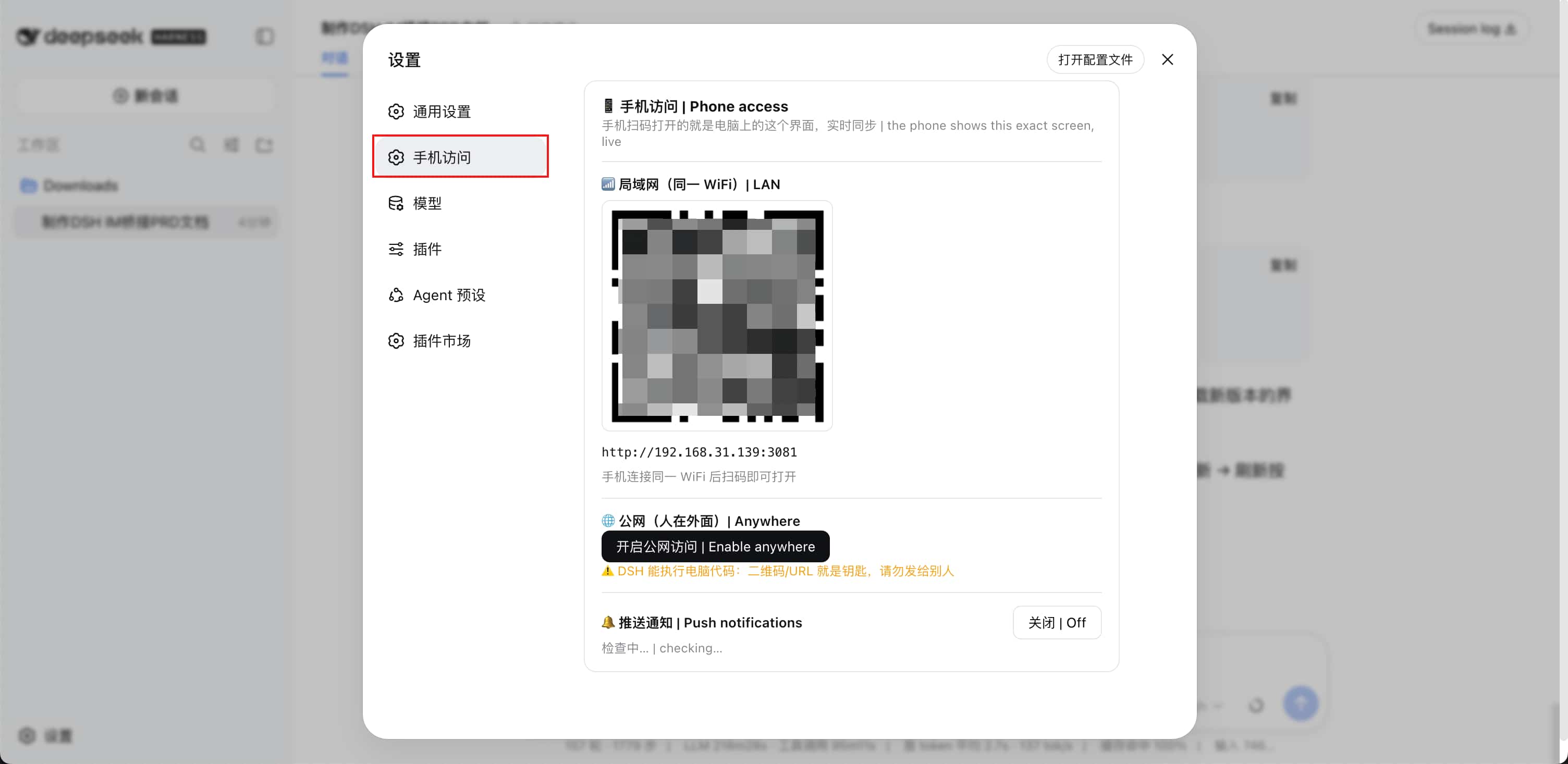
**Where the entry is**: after installing and restarting `dsh web`, open **Settings** — the left sidebar shows **"Phone access"** at the top level (same level as General / Models):
**Prerequisite**: [DeepSeek Harness](https://github.com/deepseek-ai/deepseek-harness) installed. If your terminal says `dsh: command not found`, install it first:
```sh
npm install -g @deepseek-ai/dsh # global install; verify: dsh --version
# No global install? Prefix every command with: npx @deepseek-ai/dsh
```
```sh
# 1. Install the plugin (everything in one package)
dsh plugin --profile web add dsh-pocket -w
# 2. Restart dsh web
npx @deepseek-ai/dsh web
```
### LAN (same Wi-Fi)
Settings → **Phone access** → scan the "📶 LAN" QR code → enter the **LAN PIN** (shown in the LAN block; hit **Refresh** to roll a new one, or **Customize** to set your own fixed 8 digits) → the phone opens the exact same DSH, in real time.
> The "**LAN access**" switch is **on by default** and can be **turned off/on with one click** (a confirmation dialog shows each time). Off kills the LAN QR code and link instantly (phones can't open them); **public access is unaffected**. Tap "On" to restore it.
>
> The LAN PIN is **on by default** (security-first). If you're the only user and find typing it every time annoying, flip "LAN access PIN" to **Off** in the LAN block — LAN scans then connect directly with no PIN (LAN-only devices; the **public tunnel always requires a PIN**, unaffected).
>
> After logging in once, the phone **won't ask again**: as long as the computer's dsh web keeps running, reopening the phone needs no PIN (**a dsh web restart/update asks for it once more**).
>
> Advanced option: auto-detection may not pick a reachable address for Tailscale/VPN setups. You can select a detected IP from the "LAN address" dropdown; normally no change is needed.
### Public (from anywhere)
On the same page click "**Enable anywhere**" → **a security disclaimer pops up every time — check "I understand and agree" to proceed** (on a corporate/classified network, confirm compliance first) → wait for the tunnel (first run downloads cloudflared; macOS/Linux use the Tsinghua mirror, seconds) → scan the "🌐 Public" QR code → the phone opens the link and **enters the 8-character PIN** (shown in the settings page's public section; **rotated on every tunnel start by default**, or **Customize** it to a fixed PIN — letters and digits — that is never rotated) → works from outside (4G / office network).
> Upgrading: `dsh plugin --profile web update dsh-pocket --latest -w` (`--latest` is required across major versions — a `^0.x` range won't auto-jump to 1.x).
### Fixed public hostname (named tunnel, optional)
The default "quick tunnel" gets a new random URL on every restart. For a **fixed public address**, use a Cloudflare **named tunnel** (requires a Cloudflare account + your own domain):
1. In [Cloudflare Zero Trust](https://one.dash.cloudflare.com/) → **Networks → Tunnels**, create a Tunnel and copy the **Tunnel Token**
2. In that Tunnel's **Public Hostname**, point your domain (e.g. `pocket.example.com`) to `http://127.0.0.1:3081`
3. Back in the settings page's public section: switch the mode to "**Named tunnel**", paste the Tunnel Token, enter the fixed hostname, and save
4. Click "Enable anywhere" → the public address is now your own hostname and **survives restarts**
Note: in named-tunnel mode the public PIN is **not auto-rotated** (the address is fixed, so the PIN stays the same across restarts) — manage it proactively with a custom PIN. The Tunnel Token is stored locally only (`$DSH_HOME/dsh-pocket/settings.json`, readable by your user only) and is never echoed back in the UI.
## ⚠️ Security (read first)
- **DSH can execute code on your computer.** **LAN** QR/URL plus its own **8-character PIN** is the key (PIN **on by default**, switchable off — then LAN scans connect directly, same-network devices only) — **never share the LAN QR, URL or PIN**.
- **Read and accept the security disclaimer before enabling public access** (the dialog shows on every enable; the server enforces it, so it can't be bypassed): public = exposing a code-executing DSH to the internet — use a strong PIN, turn it off when done, never on classified networks.
- **Public** access is protected by an **8-character PIN**: the link is random, the PIN rotates on every tunnel start by default, and old links die instantly — even a leaked link can't get in. **A custom PIN is never auto-rotated** (your value stays stable; custom PINs may use letters and digits).
- Phone login state is tied to the computer's dsh web process: **no re-entry while dsh web stays up; one re-entry after a restart/update**.
- **Login rate limiting** (anti brute-force): **5** consecutive wrong PINs from the same IP lock it for **60s**; a global failure threshold briefly locks everyone (blocks distributed IP-rotation scans); a successful login resets the counter.
- The public URL is randomly assigned by cloudflared and **changes on every restart** (old links die automatically — a natural key rotation); in **named-tunnel fixed-hostname** mode the address stays and the PIN is not auto-rotated — manage it with a custom PIN.
- **Public detection is fail-closed** (issue #66): everything except loopback and private LAN addresses is treated as **public and PIN-gated** — including any self-hosted tunnel / reverse proxy pointing at the local port with its own hostname. There is no "change the domain to bypass the PIN" hole.
- LAN mode exposes nothing publicly; only devices on the same network can reach it.
- Built for personal use; the public PIN lives in `$DSH_HOME/dsh-pocket/token` (re-rolled per tunnel start unless customized), the LAN PIN in `$DSH_HOME/dsh-pocket/token-lan` (refreshed manually in Settings), and switches/custom flags in `$DSH_HOME/dsh-pocket/settings.json`.
## 💻 DSH Desktop
- In the desktop app, **QR screen-mirroring works**; **update/restart are managed by the desktop app** (auto-disabled here).
- ⚠️ The desktop **advanced mode** doesn't support phone access yet (it disables the web layout; the phone gets no layout service → blank screen). Switch back to **compatibility** mode and restart; phones opening an advanced-mode page will see a clear notice overlay.
## 🩹 Troubleshooting (traps users step on)
| Symptom | Cause & fix |
| ------------------------------------------------------------------------------- | -------------------------------------------------------------------------------------------------------------------------------------------------------------------------------------------------------------------------------------------------------------------------------------------------------------------------------------------------------------------------------------------------------------------------------- |
| `dsh: command not found` / "DSH is not defined" | dsh CLI missing: `npm install -g @deepseek-ai/dsh`, or prefix commands with `npx @deepseek-ai/dsh` |
| `ERR_PNPM_ADDING_TO_ROOT` | pnpm 9 workspace-root restriction: append `-w` (`--workspace-root`) to install/update commands |
| Nothing changed after install/update | **You must restart `dsh web`**; the running process still loads the old code |
| `listen EADDRINUSE ... :3081` | A stale dsh-pocket process holds the port: macOS/Linux `lsof -ti :3081 \| xargs kill -9`; Windows `netstat -ano \| findstr :3081` (find the LISTENING PID) → `taskkill /PID /F`, then retry |
| Want a different port (issue #70) | Plugin mode: write `"proxyPort": 3082` into `$DSH_HOME/dsh-pocket/settings.json` and restart `dsh web`. CLI mode: `dsh-pocket --port 3082`. If the port is taken you'll get `EADDRINUSE` — kill the old process or pick another one |
| Issue a temporary PIN to a guest | Not available: the temporary access PIN feature (issue #69) was removed in 2.6.x (it crashed on revoke). To share access, send the main PIN or a `?token=` link, then hit "Refresh" in Settings once the guest is done |
| cloudflared install fails on a remote Linux server (issue #45) | If all CDN sources (GitHub / ghproxy / gh.ddlc / gh-proxy) are unreachable on a remote Linux host, install `cloudflared` yourself (e.g. `apt install cloudflared`, `dnf install cloudflared`, or download the tgz and unpack it), then add `"cloudflaredPath": "/path/to/cloudflared"` into `$DSH_HOME/dsh-pocket/settings.json` and restart `dsh web`. The plugin will then use that binary directly and skip the auto-download |
| Version stuck below 1.x | `^0.x` ranges never jump to 1.x: update with `--latest` (`dsh plugin --profile web update dsh-pocket --latest -w`) |
| Public `error 1033` | See "Public tunnel troubleshooting" below — usually a local proxy/VPN (Clash etc. TUN mode) killing the tunnel |
| After "Restart dsh web", the page says the process is running in the background | The new process from in-page self-restart is a detached background process (not attached to your terminal) — that's the standard way to apply updates in-page; stop it: macOS/Linux `lsof -ti :3080 \| xargs kill -9`; Windows `netstat -ano \| findstr :3080` → `taskkill /PID /F` (logs under `$DSH_HOME` as `dsh-pocket-restart-*.log`) |
## ⚠️ Public tunnel troubleshooting (read first)
**Symptom**: after clicking "Enable anywhere", the public URL shows `error 1033` (Tunnel error) on the phone.
**Most common cause: a local proxy/VPN (Clash, Surge, v2ray, sing-box, etc., especially in TUN mode).**
Such tools take over all traffic and often cut cloudflared's tunnel-edge connections
(`*.argotunnel.com`, Cloudflare edge IPs), so the tunnel registers but the data plane never connects.
**Fix (try in order, lightest first)**:
1. First **just turn off the proxy's TUN mode** — no need to quit the proxy; this is enough in most cases:
- Clash: turn off the "**TUN mode**" toggle in Settings (or right-click the menu-bar icon → uncheck TUN mode)
- Surge: turn off "**Enhanced mode**"; v2ray/sing-box: turn off "**virtual NIC / route takeover**"
- Then go back to the settings page and click "Enable anywhere" again
2. If that's not enough, temporarily **fully quit the proxy** (not just close the window: quit Clash from the menu-bar icon; if a
background service is installed, stop it in the service manager and confirm with `ps aux | grep clash`), then retry.
3. Add **DIRECT rules** to the proxy for the tunnel domains and Cloudflare edge (Clash example):
```yaml
- DOMAIN-SUFFIX,argotunnel.com,DIRECT
- DOMAIN-SUFFIX,trycloudflare.com,DIRECT
- IP-CIDR,198.41.192.0/24,DIRECT,no-resolve
```
4. If the network really can't reach the tunnel, use **LAN mode**: turn on the phone hotspot → connect the computer to it → scan the LAN QR. Same experience, from anywhere.
**Other causes**: corporate firewalls / campus networks blocking outbound — ask IT to allow it, or use a hotspot.
**First run: "Downloading cloudflared" fails or hangs**:
- **macOS/Linux**: the plugin first downloads from the **Tsinghua mirror** (measured ~3MB/s, done in seconds); falls back to official GitHub + acceleration mirrors if it fails.
- **Windows**: no Tsinghua mirror (Homebrew doesn't support Windows) — downloads the ~50MB exe from GitHub directly; **single-threaded, so it's slower — that's expected**, wait a few minutes, or use a proxy.
- If all sources fail, the settings page shows a hint. Alternatives (any one):
1. Install the `cloudflared` command and retry (the plugin then uses the PATH binary, no download):
- macOS: `brew install cloudflared`; Linux: `sudo apt install cloudflared` or from the official site
- Windows: `winget install cloudflared` or from the official site
- Any platform: `npm i -g cloudflared`
2. Enable a proxy (system proxy / Clash etc.) and click "Enable anywhere" again
3. Manually download the binary into `$DSH_HOME/dsh-pocket/bin/` (`$DSH_HOME` is usually `~/.dsh`, on Windows `%USERPROFILE%\.dsh`; name it `cloudflared` (add `.exe` on Windows) **or** the release asset name — both are recognized)
## 🗂 Architecture (single package)
| File | Purpose |
| -------------------- | ---------------------------------------------------------------------------------------------------------------------------------------------------------------------------------------------------------------------------- |
| `lib/index.js` | Plugin entry: auto-start proxy + register RPC + access-PIN management (public: 8 digits rotated per tunnel start; LAN: separate 8 digits, manually refreshable / switchable) + LAN access switch + DSH Desktop detection |
| `lib/settings.mjs` | Settings persistence: LAN access switch (on by default) + LAN-PIN switch (on by default) stored in `$DSH_HOME/dsh-pocket/settings.json` |
| `lib/service.mjs` | Service: proxy lifecycle (port auto-fallback), public tunnel (auto-restore), status snapshot (with QR data URLs) |
| `lib/proxy.mjs` | Header-rewriting reverse proxy: Host/Origin → loopback, HTTP + WebSocket passthrough + polyfill injection + gzip/brotli compression + per-host token auth (public always; LAN per switch) + blocks LAN Hosts when LAN is off |
| `lib/tunnel.mjs` | cloudflared: multi-mirror download (Tsinghua first) / adaptive parallel / start / parse public URL (HTTP/2) |
| `lib/web-rpc.js` | Loopback RPC: `status` / `tunnel.start` / `tunnel.stop` / `lan.setEnabled` / `version` / `update` / `restart` |
| `client/` | "Phone access" settings tab + mobile adaptation (dsh-web-mobile port) |
| `bin/dsh-pocket.mjs` | CLI: LAN/public modes, prints URL + QR |
## 🛠 Development
```sh
npm install
node client/build.mjs # rebuild after editing client/
npm test # proxy / auth / compression / tunnel / service / RPC / settings (109 tests)
```
**Want to try your changes locally without publishing?** Point the installed plugin at your local checkout with a symlink and restart dsh web. Full steps (including switching back to the npm release) are in [LOCAL-DEV.md](./LOCAL-DEV.md).
## 🤝 Credits
- Mobile adaptation ported from [mexiaosqwq/dsh-web-mobile](https://github.com/mexiaosqwq/dsh-web-mobile) (MIT)
- Public tunnel powered by [cloudflared](https://github.com/cloudflare/cloudflared)
## 📄 License
[GPL-2.0](LICENSE) — copyleft: free to use, modify, and redistribute, but **derivatives must stay GPL** and keep the copyright notice; commercial use included.
> Note: the mobile-adaptation portion is ported from [dsh-web-mobile](https://github.com/mexiaosqwq/dsh-web-mobile) (MIT, GPL-compatible); its copyright notice stays in `client/mobile/LICENSE.dsh-web-mobile`.
---
**Questions? Feedback welcome**: bugs, ideas, or feature requests — open an issue at [GitHub Issues](https://github.com/shaobeichen/dsh-pocket/issues) 🙏