VeraCrypt

Documentation >> Technical Details >> Building VeraCrypt From Source >> Windows Build Guide

This guide describes how to set up a Windows system that can compile VeraCrypt. Further it is described how VeraCrypt is going to be compiled.
The procedure for a Windows 10/11 system is described here as an example, but the procedure for other Windows systems is analogous.
The following components are required for compiling the current VeraCrypt Windows binaries and drivers; optional alternatives or release-only tools are marked accordingly:
  1. Microsoft Visual Studio 2022, or Build Tools for Visual Studio 2022 as a command-line alternative
  2. MSVC v143 C++ toolset with x86/x64 and ARM64 components
  3. Windows 10/11 SDK (10.0.19041.0 or newer), including signtool.exe for signing scripts. If the SDK and WDK are installed separately, use matching build numbers.
  4. Windows Driver Kit for Windows 10/11 with the Visual Studio 2022 extension
  5. NASM
  6. YASM
  7. WiX Toolset v3.x (required for MSI packages)
  8. Legacy BIOS bootloader tools (optional; required only when rebuilding the Boot project): Microsoft Visual C++ 1.52, gzip, UPX, and dd.exe
Below are the procedure steps. Clicking on any of the link takes directly to the related step:
Installation of NASM

  1. Download the installer of a recent NASM version (for example “nasm-2.16.03-installer-x64.exe”) at:
    https://www.nasm.us/pub/nasm/releasebuilds/
    Recent NASM versions work; NASM 2.16.03 was used for the Windows application builds tested for this guide.
  2. Run the file as administrator
  3. Install NASM with the default settings
  4. Add NASM to the path Variable. This will make the command globally available on the command line.
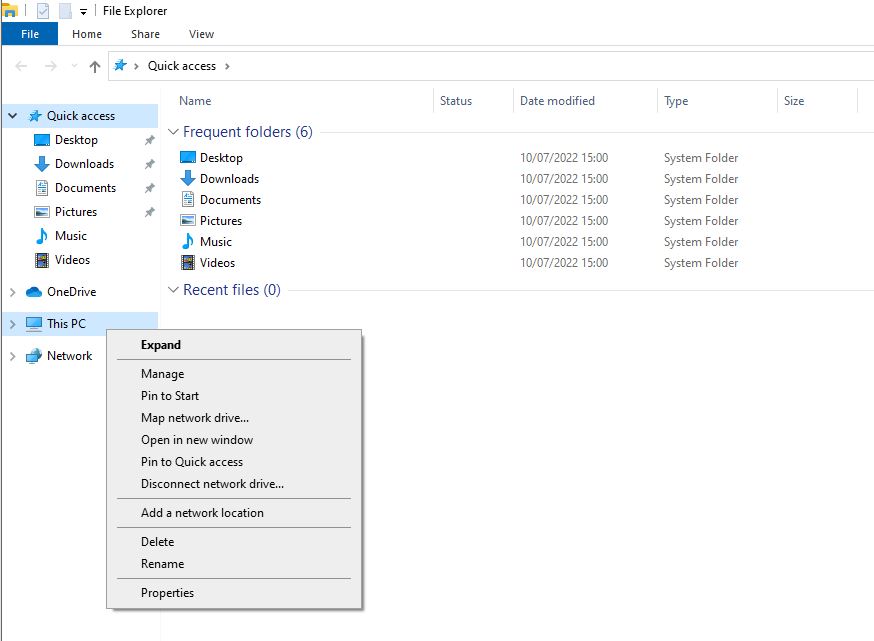
    1. Open a file explorer
    2. Within the left file tree, please make a right click on "This PC" and select "Properties"
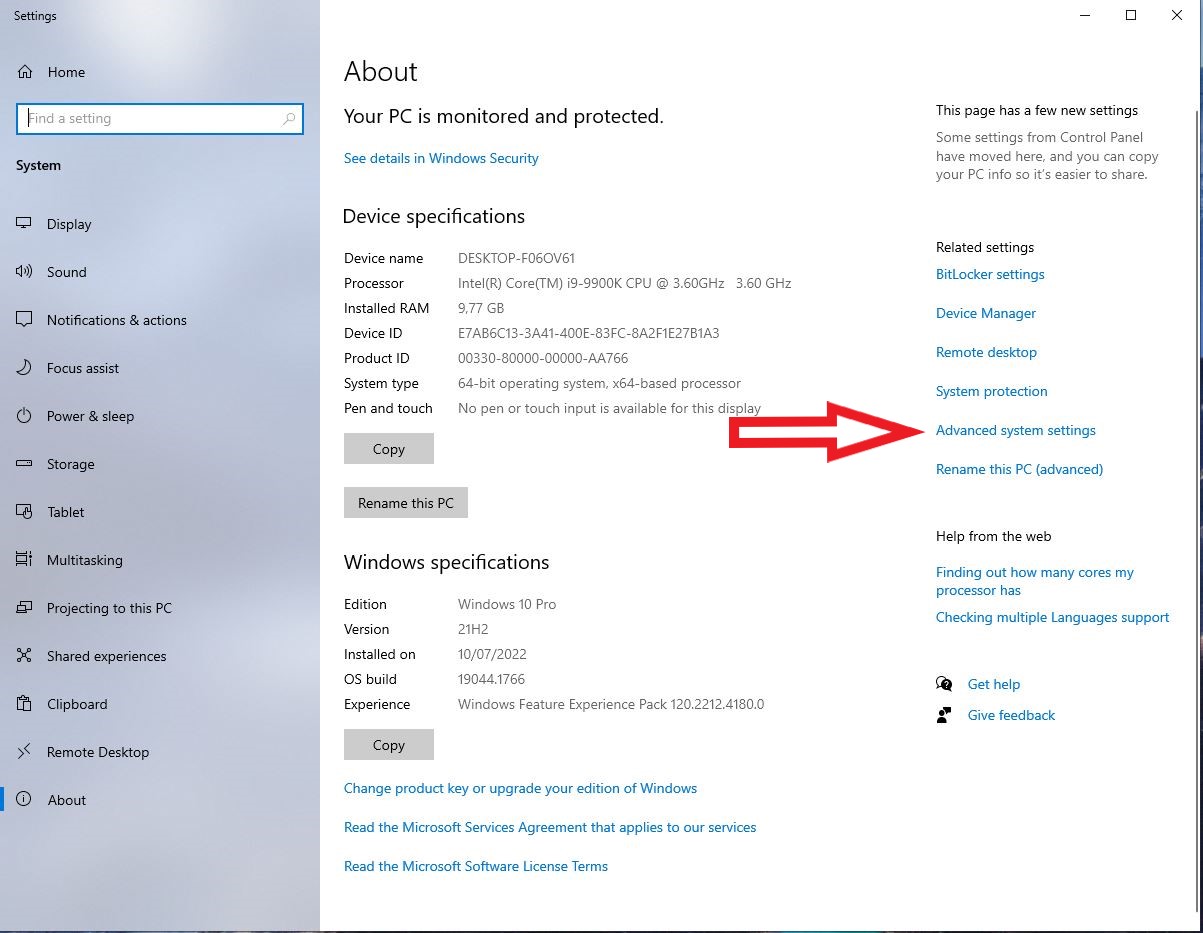
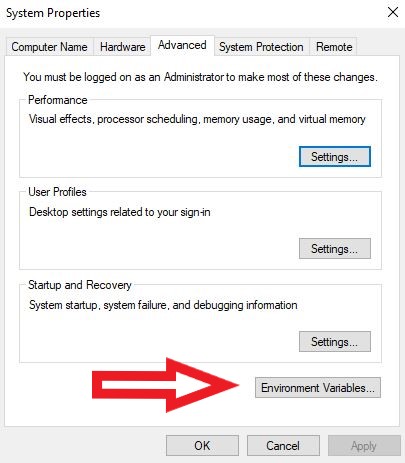
    3. Within the right menu, please click on "Advanced system settings"
    4. Please click on "Environment Variables"
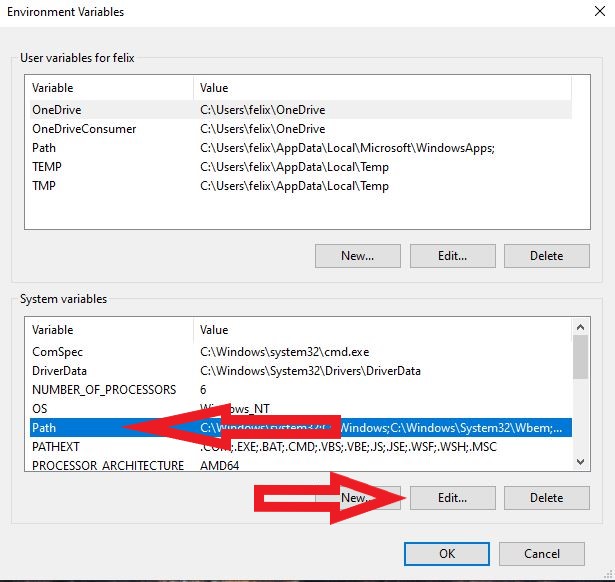
    5. Within the area of the system variables, please select the "Path" variable and click on "Edit..."
    6. Click on "New" and add the folder NASM was installed to, for example:

      C:\Program Files\NASM

      (the 32-bit NASM installer uses "C:\Program Files (x86)\nasm" instead)
    7. Close the windows by clicking on "OK"
  5. To verify the installation, open a new command prompt and run:

    where.exe nasm
    nasm -v

    The first command lists the NASM executables found on the Path; the second displays the version that will be used. Check that they identify the installation you intended to use.

Installation of YASM

  1. Please create the following folder:
    C:\Program Files\YASM
  2. Download "yasm-1.3.0-win64.exe" from the Assets section of the official release page:
    https://github.com/yasm/yasm/releases/tag/v1.3.0
  3. Rename the file to “yasm.exe” and copy it to “C:\Program Files\YASM”
  4. Add YASM to the path Variable. This will make the command globally available on the command line.
    1. Open a file explorer
    2. Within the left file tree, please make a right click on "This PC" and select "Properties"
    3. Within the right menu, please click on "Advanced system settings"
    4. Please click on "Environment Variables"
    5. Within the area of the system variables, please select the "Path" variable and click on "Edit..."
    6. Click on "New" and add the following value:

      C:\Program Files\YASM

    7. Close the windows by clicking on "OK"
  5. To verify the installation, open a new command prompt and run:

    where.exe yasm
    yasm --version

    The first command lists the YASM executables found on the Path; the second should report YASM version 1.3.0. Check that they identify the installation you intended to use.

Installation of Legacy BIOS Bootloader Tools (optional)

These tools are not required to compile the standard VeraCrypt application binaries or the Windows driver with Visual Studio 2022 and the current WDK. Install them only when you need to rebuild the legacy BIOS bootloader in "src\Boot\Windows" or build solution configurations that include the Boot project, such as "ReleaseCustomEFI".

  1. Install Microsoft Visual C++ 1.52. It is available via the paid Microsoft MSDN subscription. If you do not have a subscription, the ISO image is also archived at:
    https://archive.org/details/ms-vc152
  2. Create the folder "C:\MSVC15". Mount the ISO file and copy the content of the folder "MSVC" to "C:\MSVC15".
  3. Create a system variable named "MSVC16_ROOT" with the value "C:\MSVC15".
  4. Install gzip and add the folder containing "gzip.exe" to the Path variable.
  5. Install UPX and add the folder containing "upx.exe" to the Path variable.
  6. Install a Windows port of dd and add the folder containing "dd.exe" to the Path variable.
  7. Open a new command prompt and verify that the following commands are found:

    nasm
    gzip
    upx
    dd --help

Installation of WiX Toolset v3.x

  1. Please download WiX Toolset v3.x at:
    https://github.com/wixtoolset/wix3/releases
  2. Run the downloaded file as administrator and install WiX Toolset with default settings

Installation of Microsoft Visual Studio 2022

  1. Download Visual Studio 2022 at:
    https://visualstudio.microsoft.com/vs/
  2. Run the downloaded installer as administrator.
  3. Select the "Desktop development with C++" workload.
  4. Select the following individual components:
    1. MSVC v143 - VS 2022 C++ x64/x86 build tools (Latest)
    2. MSVC v143 - VS 2022 C++ x64/x86 Spectre-mitigated libs (Latest)
    3. MSVC v143 - VS 2022 C++ ARM64 build tools (Latest)
    4. MSVC v143 - VS 2022 C++ ARM64 Spectre-mitigated libs (Latest)
    5. C++ ATL for latest v143 build tools (x86 & x64)
    6. C++ ATL for latest v143 build tools (ARM64)
    7. C++ ATL for latest v143 build tools with Spectre Mitigations (x86 & x64)
    8. C++ ATL for latest v143 build tools with Spectre Mitigations (ARM64)
    9. Windows 10/11 SDK (10.0.19041.0 or newer)

Installation of the Windows Driver Kit

  1. Please download a Windows Driver Kit (WDK) version compatible with Visual Studio 2022 at:
    https://learn.microsoft.com/en-us/windows-hardware/drivers/download-the-wdk
  2. Run the downloaded file as administrator and install the WDK with default settings.
  3. If you install the Windows SDK and WDK separately, make sure their build numbers match.
  4. Make sure the WDK Visual Studio extension is installed. If the WDK installer asks whether to "install Windows Driver Kit Visual Studio extension", select this option before closing the dialog. On current Visual Studio 2022 installers, this can also be installed from Individual Components by selecting "Windows Driver Kit".
  5. If a separate VSIX setup starts automatically, it will detect Visual Studio 2022 as a possible target for the extension. Please select it and proceed with the installation.

Installation of the Build Tools for Visual Studio 2022

If you installed Visual Studio 2022 with the components listed above, this step can be skipped. Install the Build Tools only if you need a command-line build environment without the full Visual Studio IDE.

  1. Download the Build Tools for Visual Studio 2022 at:
    https://visualstudio.microsoft.com/downloads/
  2. Run the downloaded installer as administrator and select the "C++ build tools" workload.
  3. Select the following individual components:
    1. MSVC v143 - VS 2022 C++ x64/x86 build tools (Latest)
    2. MSVC v143 - VS 2022 C++ x64/x86 Spectre-mitigated libs (Latest)
    3. MSVC v143 - VS 2022 C++ ARM64 build tools (Latest)
    4. MSVC v143 - VS 2022 C++ ARM64 Spectre-mitigated libs (Latest)
    5. C++ ATL for latest v143 build tools (x86 & x64)
    6. C++ ATL for latest v143 build tools (ARM64)
    7. C++ ATL for latest v143 build tools with Spectre Mitigations (x86 & x64)
    8. C++ ATL for latest v143 build tools with Spectre Mitigations (ARM64)
    9. Windows 10/11 SDK (10.0.19041.0 or newer)

Download VeraCrypt Source Files

  1. Visit the VeraCrypt Github repository at:
    https://github.com/veracrypt/VeraCrypt
  2. Please click on the green button with the label "Code" and download the code.
    You can download the repository as zip file, but you may consider to use the git protocol in order to track changes.

Compile the x64, ARM64 and Driver Builds of VeraCrypt

  1. Please open the file "src/VeraCrypt.sln" in Visual Studio 2022
  2. Please select "Release|x64" as active configuration.
  3. Please click on "Build -> Build Solution".
  4. The compiling process should end with warnings, but without errors. Some projects should be skipped.
  5. Please select "Release|ARM64" as active configuration.
  6. Please click on "Build -> Build Solution".
  7. The compiling process should end with warnings, but without errors. Some projects should be skipped.
  8. Select "Release|Win32" as the active configuration and build the solution to compile the Setup, Portable, COMReg and SetupDLL projects used by the release packaging scripts. Standard "Release|x64" and "Release|ARM64" solution builds skip these Win32 projects, so this additional build is required when preparing release packages.
  9. To build VeraCrypt drivers, select the "Driver" project and build it for "Release|x64" and "Release|ARM64".
  10. Build "ReleaseCustomEFI|x64" or "ReleaseCustomEFI|ARM64" only if you need the custom EFI/bootloader release configurations. These configurations include the Boot project and require the optional legacy BIOS bootloader tools listed above. They also build the Setup, Portable, COMReg and SetupDLL projects using their Win32 configurations.
  11. If you are using Build Tools for Visual Studio 2022 instead of the Visual Studio IDE, open "Developer Command Prompt for VS 2022" or "Developer PowerShell for VS 2022", change to the VeraCrypt source root, and run the equivalent MSBuild commands (administrator rights are not required for compiling):
    msbuild src\VeraCrypt.sln /m /p:Configuration=Release /p:Platform=x64
    msbuild src\VeraCrypt.sln /m /p:Configuration=Release /p:Platform=ARM64
    msbuild src\VeraCrypt.sln /m /p:Configuration=Release /p:Platform=Win32
    msbuild src\Driver\Driver.vcxproj /m /p:Configuration=Release /p:Platform=x64
    msbuild src\Driver\Driver.vcxproj /m /p:Configuration=Release /p:Platform=ARM64

    To build the optional custom EFI/bootloader release configurations, also run:
    msbuild src\VeraCrypt.sln /m /p:Configuration=ReleaseCustomEFI /p:Platform=x64
    msbuild src\VeraCrypt.sln /m /p:Configuration=ReleaseCustomEFI /p:Platform=ARM64
  12. If you built from the IDE, please close Visual Studio 2022 after the compiling process finished.

Build the VeraCrypt Executables

  1. Open a Visual Studio 2022 developer command prompt as administrator for the signing and packaging workflow below. Make sure the Windows SDK signing tools, including "signtool.exe", are available on the Path.
  2. Go into the folder "src/Signing/"
  3. Run the script "sign_test.bat"
  4. You will find the generated executables within the folder "src/Release/Setup Files"

Import the Certificates

With the sign_test.bat script you just signed the VeraCrypt executables. This is necessary, since Windows only accepts drivers, which are trusted by a signed Certificate Authority.
Since you did not use the official VeraCrypt signing certificate to sign your code, but a public development version, you have to import and therefore trust the certificates used.

  1. Open the folder "src/Signing"
  2. Import the following certificates to your Local Machine Certificate storage, by double clicking them:
    • GlobalSign_R3Cross.cer
    • GlobalSign_SHA256_EV_CodeSigning_CA.cer
    • TestCertificate/idrix_codeSign.pfx
    • TestCertificate/idrix_Sha256CodeSign.pfx
    • TestCertificate/idrix_SHA256TestRootCA.crt
    • TestCertificate/idrix_TestRootCA.crt
    Note: If prompted, the password for .pfx certificates is idrix.

Known Issues

  • Common build errors and their causes
    Missing build components can cause the following errors. Check the corresponding items in the component lists above:
    • error MSB8040: Spectre-mitigated libraries are required for this project

      In the Visual Studio Installer, under "Individual components", install the MSVC v143 Spectre-mitigated libraries matching your toolset version and each target architecture (x64/x86 or ARM64), along with the corresponding ATL components "with Spectre Mitigations".
    • error C1083: Cannot open include file: 'atlbase.h' (or 'atlcomcli.h')

      The ATL components are not installed. In the Visual Studio Installer, under "Individual components", install "C++ ATL for latest v143 build tools" (and its Spectre variant) for every architecture you build.
    • error MSB8066: Custom build for 'Aes_hw_cpu.asm;...' exited with code 9009

      The assemblers cannot be found: "nasm.exe" and "yasm.exe" must both be available on the Path (exit code 9009 means "command not found"). Note that a command prompt or Visual Studio instance that was already open when you changed the Path variable does not see the new value - open a new one and build again.
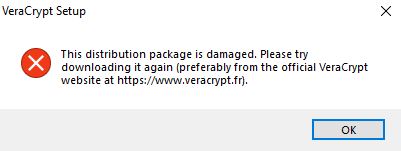
  • This distribution package is damaged

    On Windows 10 or higher you might get the error message above. In order to avoid this, you will need to:
    • Double-check the installation of the root certificate that issued the test code signing certificate in the "Local Machine Trusted Root Certification Authorities" store.
    • Compute SHA512 fingerprint of the test code signing certificate and update the gpbSha512CodeSignCertFingerprint array in the file "src/Common/Dlgcode.c" accordingly.
    Please see https://sourceforge.net/p/veracrypt/discussion/technical/thread/83d5a2d6e8/#db12 for further details.

    Another approach is to disable the signature verification in the VeraCrypt code. This should be done only for testing purposes and not for production use:
    1. Open the file "src/Common/Dlgcode.c"
    2. Look for the function "VerifyModuleSignature"
    3. Replace the following lines:
      Find:

      if (!IsOSAtLeast (WIN_10))
      return TRUE;


      Replace:

      return TRUE;

    4. Compile the VeraCrypt code again
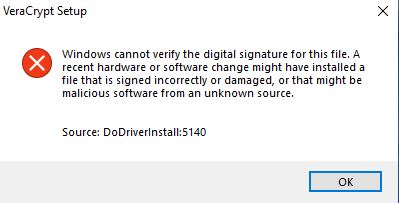
  • Driver Installation Failure during VeraCrypt Setup from Custom Builds

    Windows validates the signature for every driver which is going to be installed.
    For security reasons, Windows allows only drivers signed by Microsoft to load.
    So, when using a custom build:
    • If you have not modified the VeraCrypt driver source code, you can use the Microsoft-signed drivers included in the VeraCrypt source code (under "src\Release\Setup Files").
    • If you have made modifications, you will need to boot Windows into "Test Mode". This mode allows Windows to load drivers that aren't signed by Microsoft. However, even in "Test Mode", there are certain requirements for signatures, and failures can still occur due to reasons discussed below.
    Potential Causes for Installation Failure under "Test Mode":
    1. The certificate used for signing is not trusted by Windows
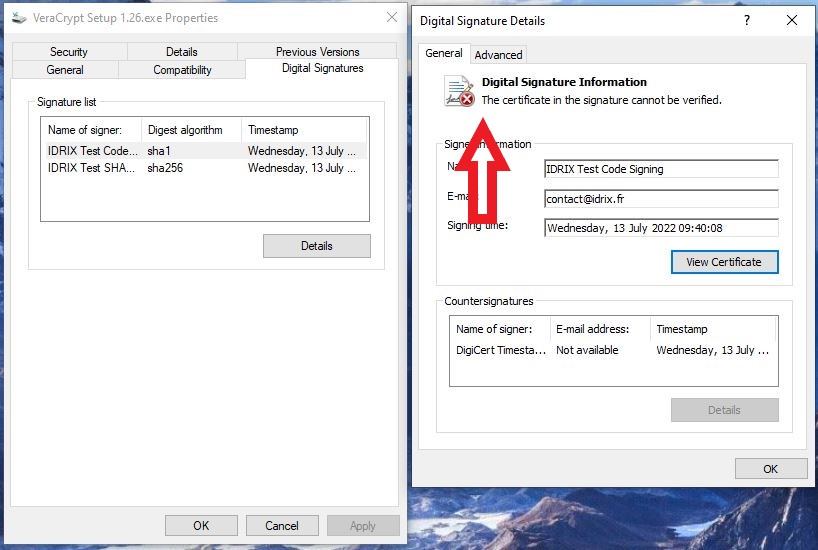
      You can verify if you are affected by checking the properties of the executable:
      1. Make a right click on the VeraCrypt Setup executable: "src/Release/Setup Files/VeraCrypt Setup 1.XX.exe"
      2. Click on properties
      3. Go to the top menu "Digital Signatures". Her you will find two signatures in the Signature list
      4. Check both by double clicking on it. If the headline says "The certificate in the signature cannot be verified", the corresponding signing certificate was not imported correctly.
        Click on "View Certificate" and then on "Install Certificate..." to import the certificate to Local Machine certificate storage. For the Root certificates, you may need to choose "Place all certificates in the following store", and select the "Trusted Root Certification Authorities" store.

    2. The driver was modified after the signing process.
      In this case, please use the script "src/Signing/sign_test.bat" to sign your code again with the test certificates