
WeChat-style screenshot & annotation plugin for the DSH Web UI
Capture, annotate and copy screenshots without leaving DeepSeek Harness.





简体中文 | English
--- Press a shortcut → freeze the desktop → drag a region inside the DSH window → annotate → copy to the clipboard (or save as PNG). The whole interaction renders inside DSH, so you can paste the result into the composer with `Ctrl + V` right away. > Community plugin; not affiliated with Tencent / WeChat. "WeChat-style" only describes the UX. ## Screenshots | Region select & annotations | Window snapping | |---|---| | 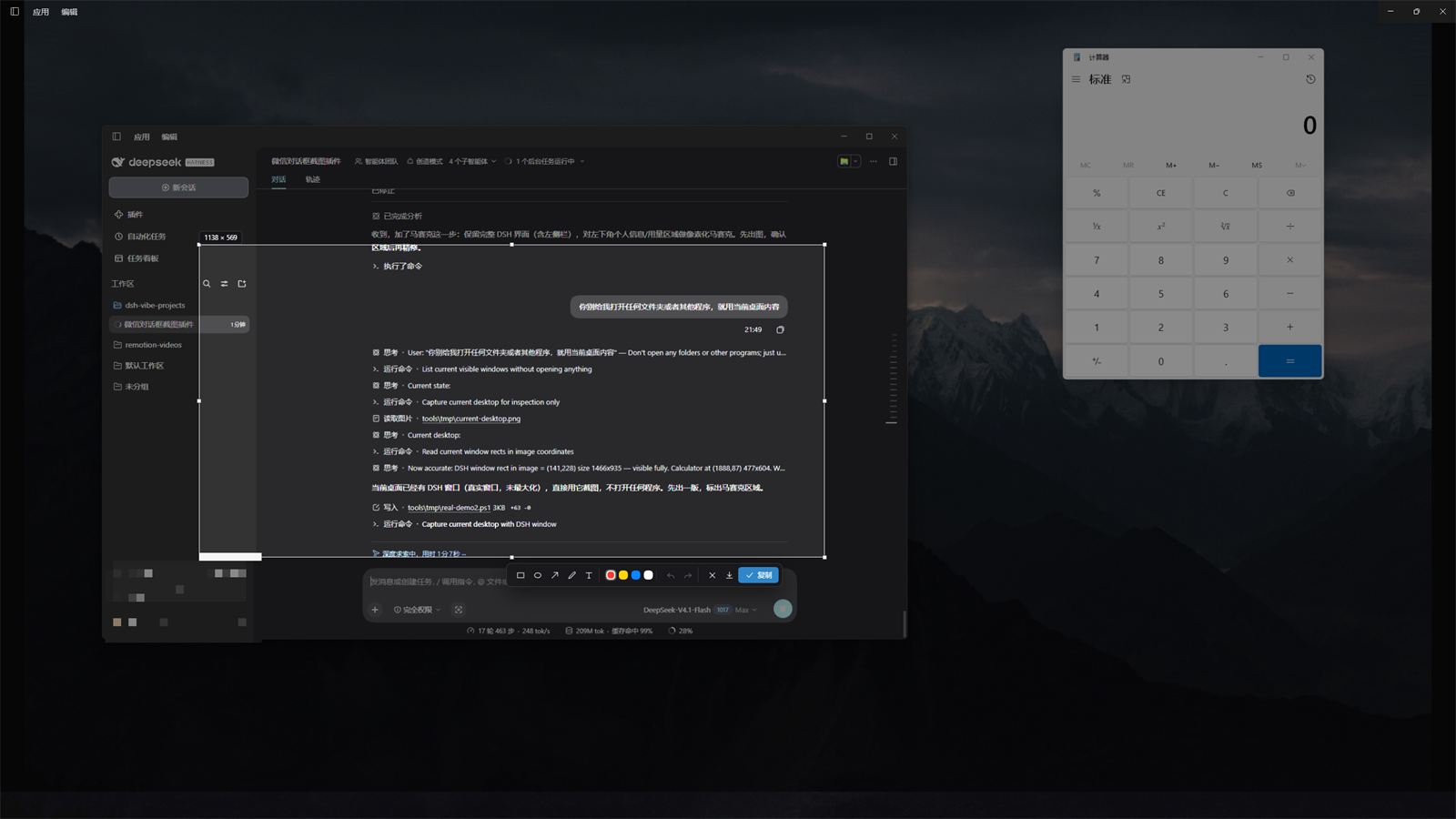 | 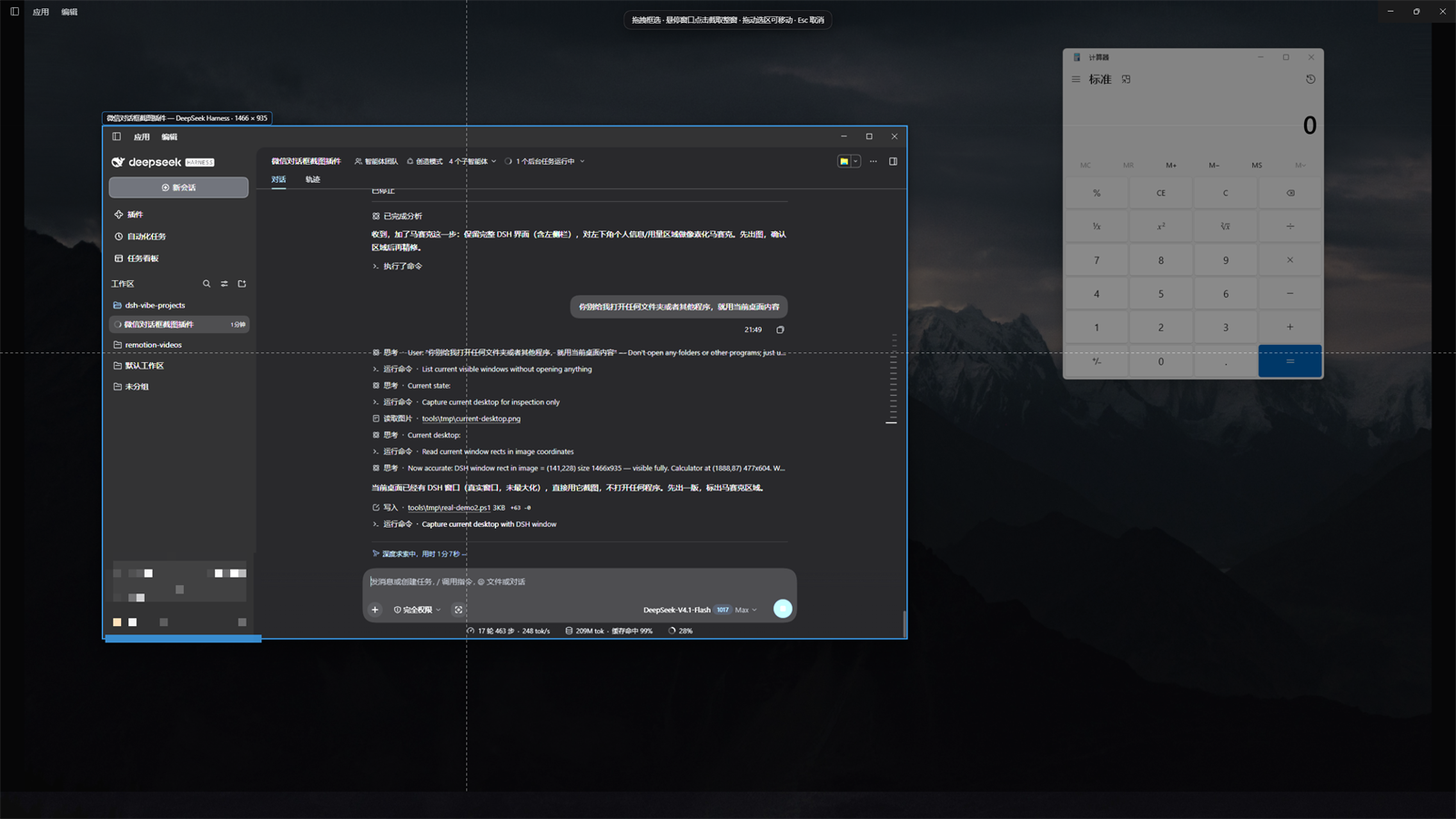 | ## Features - **Shortcut trigger** — `Ctrl + Shift + S` by default; re-record it in *Settings → Screenshot*. A chord must contain `Ctrl` / `Alt` / `Meta` and use a key the host can register. - **Global shortcut** — enabled by default. Registers a Windows-wide hotkey, captures even while another app is focused, and brings the DSH window to the front with the overlay ready. If the chord is already taken, the settings page shows the registration failure. - **Composer button** — a camera button is added to the left of the composer toolbar. - **Window-aware capture** — temporarily maximizes DSH while capturing (position and size are remembered) and restores it on copy / cancel, so a small DSH window can still select the whole screen comfortably. - **Selection editing** — drag to select, 8 resize handles, live pixel-size badge, and drag inside the selection to move it. - **Window snapping** — with no selection, hovering any window highlights it with a blue frame and a `title · size` badge; click to capture the whole window, click empty desktop to capture the full screen, or keep dragging for free selection. - **Annotation tools** — rectangle, ellipse, arrow, pen and text, four colors (red / yellow / blue / white), undo / redo. - **Copy & save** — `Enter`, double-click or ✓ copies the cropped + annotated image to the clipboard; `Ctrl + S` or the download button saves a PNG (default `Pictures\DSH Screenshots`, customizable). - **Optional auto-save** — when enabled, every copy is also written to disk, with an "open folder" action in the toast. - **Native capture** — the host half runs a warm PowerShell helper for native Windows capture (physical pixels, multi-monitor virtual desktop) and STA clipboard writes, so the renderer needs no screen-capture permission. ## Platform support | Platform | Status | |---|---| | Windows 10 / 11 (DSH Desktop, Electron) | ✅ Fully supported (tested with DSH Desktop 0.2.1-rc.2) | | Windows, other DSH runtimes | ✅ Host half works (PowerShell 5.1 ships with Windows) | | macOS / Linux | ⚠️ Plugin shell loads, but capture / clipboard / global-hotkey routes return `unsupported-platform` | The native implementation relies on Windows `System.Drawing`, `System.Windows.Forms`, `RegisterHotKey` and DWM window bounds. Other platforms would need a separate native adapter — PRs welcome. ## Installation Requires **Windows 10/11** and the DeepSeek Harness desktop app (or an environment that can run the host plugin and Web UI). ### From GitHub (recommended) In DSH, open *Settings → Plugins → Install bundle* and use the pnpm spec: ``` github:windsor8890/dsh-screencapture ``` Then enable the plugin named **Screenshot** (default shortcut `Ctrl + Shift + S`). ### From source ```powershell git clone https://github.com/windsor8890/dsh-screencapture.git ``` Point DSH's plugin manager at the local directory as a bundle. After editing the client half: ```powershell # rebuilds lib/client.js; the already-open DSH page hot-swaps the plugin in ~0.5s node build.mjs ``` For the host half (`host/`), disable and re-enable the plugin in *Settings → Plugins*, or restart DSH. > The exact wording of the plugin-manager UI may vary between DSH versions; installation follows > DSH's standard bundle mechanism. ## Usage | Action | Description | |---|---| | `Ctrl + Shift + S` | Start a capture (configurable; works even when DSH is unfocused if the global shortcut is on) | | Drag | Select a screen region | | Hover a window + click | Snap the whole window (highlight frame shows title / size) | | Drag inside the selection (no tool active) | Move the selection | | Click empty desktop | Select the full screen | | Drag inside the selection with a tool active | Draw an annotation; drag the 8 handles to resize | | `Enter` / double-click / ✓ | Copy the selection (with annotations) to the clipboard and close | | `Ctrl + S` / download button | Save a PNG (overlay stays open for further edits) | | `Ctrl + Z` / `Ctrl + Shift + Z` | Undo / redo annotations | | `Esc` / ✕ | Cancel with no output | | Settings → Screenshot | Shortcut, global hotkey, auto-save, save directory, capture self-test | ## Configuration - **Screenshot shortcut** — click *Change* and press a chord. It must contain `Ctrl` / `Alt` / `Meta`; `Esc` cancels recording; *Restore default* returns to `Ctrl + Shift + S`. - **Global shortcut** — capture while another app is focused. The host registers a Windows-wide hotkey (same chord as above) and reports the result live; if it is taken, a failure hint is shown. While the global hotkey is active, the in-window listener steps aside so one key press cannot trigger two captures. - **Also save on copy** — off by default; only the clipboard is written. - **Save location** — empty means `%USERPROFILE%\Pictures\DSH Screenshots`; any absolute directory is accepted. - **Capture self-test** — opens the overlay immediately and shows the capture engine state. ## How it works ``` ┌──────────────── Browser half (lib/client.js, client plugin) ────────────────┐ │ settings.section conversation.input.left button shell.overlay │ │ canvas selection + annotations (image pixel coordinates) → crop → PNG data │ └───────────────────────────────────┬─────────────────────────────────────────┘ │ fetch /api/dsh-screencapture/* ┌───────────────────────────────────▼─────────────────────────────────────────┐ │ Host half (host/index.js, Cordis plugin, ESM, Node built-ins only) │ │ /status /capture /clipboard /save /reveal /events(SSE) /last-capture │ │ /config /overlay-window │ │ capture.js ── warm powershell.exe -STA helper ── GDI capture / clipboard │ └─────────────────────────────────────────────────────────────────────────────┘ ``` - The Electron shell denies `getDisplayMedia` in the renderer, so capture and clipboard writes run in the host half. That process runs in `ELECTRON_RUN_AS_NODE=1` Node mode without Electron APIs, so `host/capture-helper.ps1` is used as a warm helper around `System.Drawing` / `System.Windows.Forms`. - Warm capture is ~110ms; the first capture starts the helper and finishes within ~1s. - Every HTTP route is loopback-only (socket address + `Host` header fence); nothing is exposed to the LAN. ## Security & privacy - All routes accept loopback requests only, with a `Host` header fence; no remote upload at all. - Screenshot data only lives in local memory, the clipboard and the save directory you choose. - The host half uses only Node built-ins and the built-in Windows PowerShell — no third-party runtime dependencies. - No telemetry, no external network requests; the plugin only runs inside the DSH process. ## Known limitations - The default shortcut is `Ctrl + Shift + S`; if it is taken by DSH itself or another app (for example DSH's *Archive session* uses `Ctrl + Shift + A`, WeChat uses `Alt + A`), pick another chord or rely on the global hotkey. - The capture covers the whole virtual desktop (all monitors) and is displayed scaled inside DSH; there is no mosaic / blur tool yet. - Window snapping captures the visible part of that window in the frozen frame; fully occluded regions are not reconstructed. - The overlay lives inside the DSH application window (the renderer cannot paint over other desktop windows), hence the temporary maximize during capture. - Capturing and clipboard writes fail while the workstation is locked, with an explicit error. - Windows only for now; macOS / Linux need a separate native adapter. ## Development ```powershell # Build the browser half (concatenates src/client/*.js into lib/client.js) node build.mjs # Cross-platform client tests (also run by CI): geometry/chords + locale parity node tests/client-math-test.mjs node tests/client-locale-test.mjs # Host tests (Windows, interactive desktop): real desktop capture, clipboard readback, save, routes (17) node tests/host-test.mjs # Global hotkey / SSE / config / overlay-window tests (20; briefly registers F12 probes) node tests/hotkey-test.mjs ``` The tests use the real screen and clipboard and briefly create test windows; run them in an interactive Windows desktop session. ### Project layout ``` dsh-screencapture/ ├─ package.json # bundle manifest (dsh.bundle.patch + dsh.client) ├─ cordis.patch.yml # inserts the plugin row ├─ icon.svg # original plugin icon ├─ locale/{en,zh}.json # plugin title / description ├─ host/ │ ├─ index.js # Cordis plugin: routes, lifecycle, global-hotkey wiring │ ├─ routes.js # 9 routes (incl. SSE / config / overlay-window) │ ├─ capture.js # warm PowerShell capture-helper manager │ ├─ hotkey.js # global hotkey manager (RegisterHotKey, persistence) │ ├─ global-flow.js # global capture flow + SSE hub │ ├─ fence.js # loopback request fence │ ├─ capture-helper.ps1 # capture / clipboard / window activation │ └─ hotkey-helper.ps1 # global hotkey registration (hidden WinForms window) ├─ src/client/*.js # browser-half sources (shared / overlay / settings / entry) ├─ build.mjs # concatenates src/client into lib/client.js ├─ lib/client.js # generated browser bundle (do not edit) └─ tests/ ├─ host-test.mjs # 17 real-environment host checks └─ hotkey-test.mjs # 20 global-hotkey / SSE / config checks ``` ## Contributing Issues and PRs are welcome: 1. Fork the repo and create a branch; 2. Run `node build.mjs` and the relevant tests (client tests are cross-platform; the two host suites need an interactive Windows desktop); 3. Open a PR with the motivation, the change and the verification you ran. See [CONTRIBUTING.md](CONTRIBUTING.md) for the full workflow. For security issues, follow [SECURITY.md](SECURITY.md) and report privately — please do not open a public issue. ## License [MIT](LICENSE) © 2026 joe