

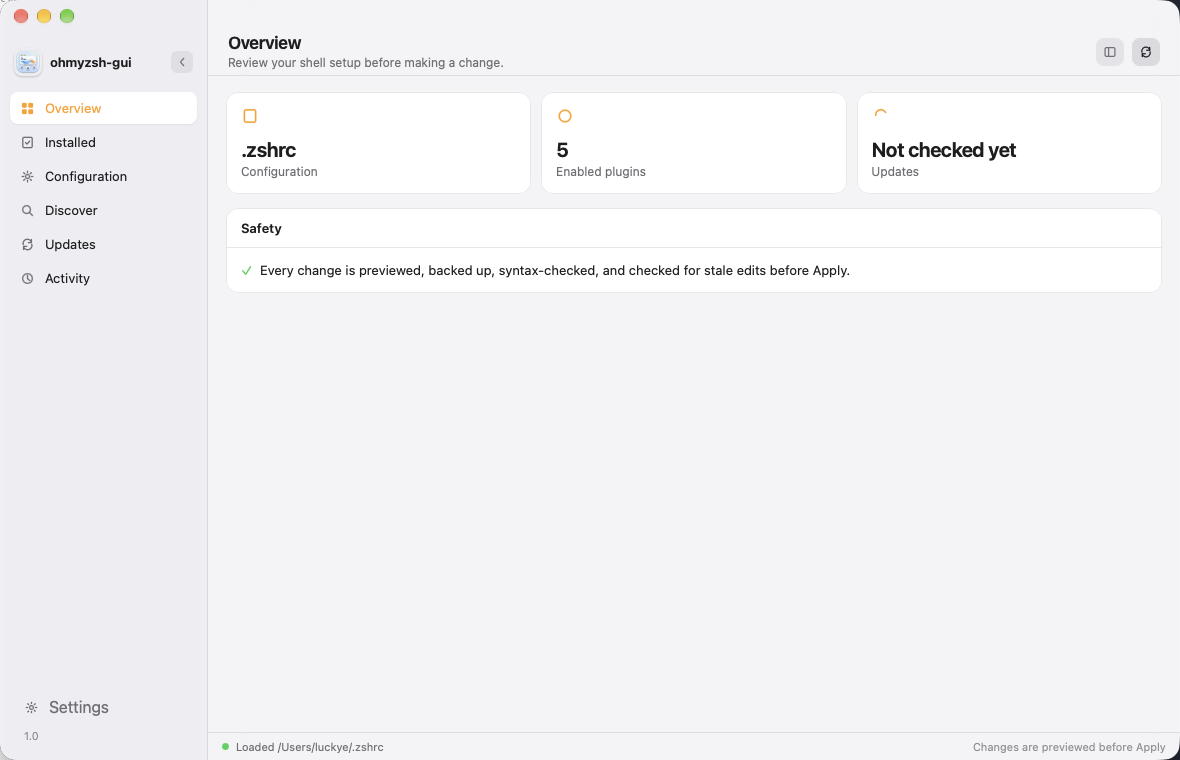
 已安装插件
已安装插件
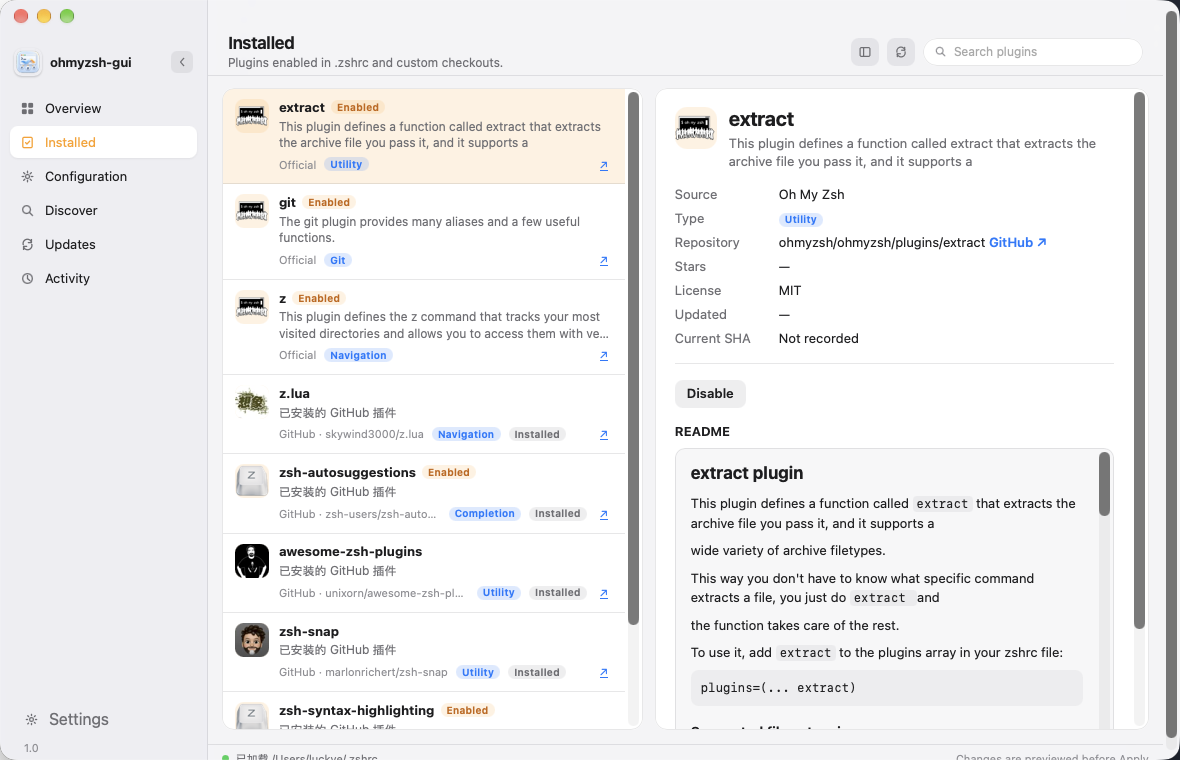 在 GitHub 上发现
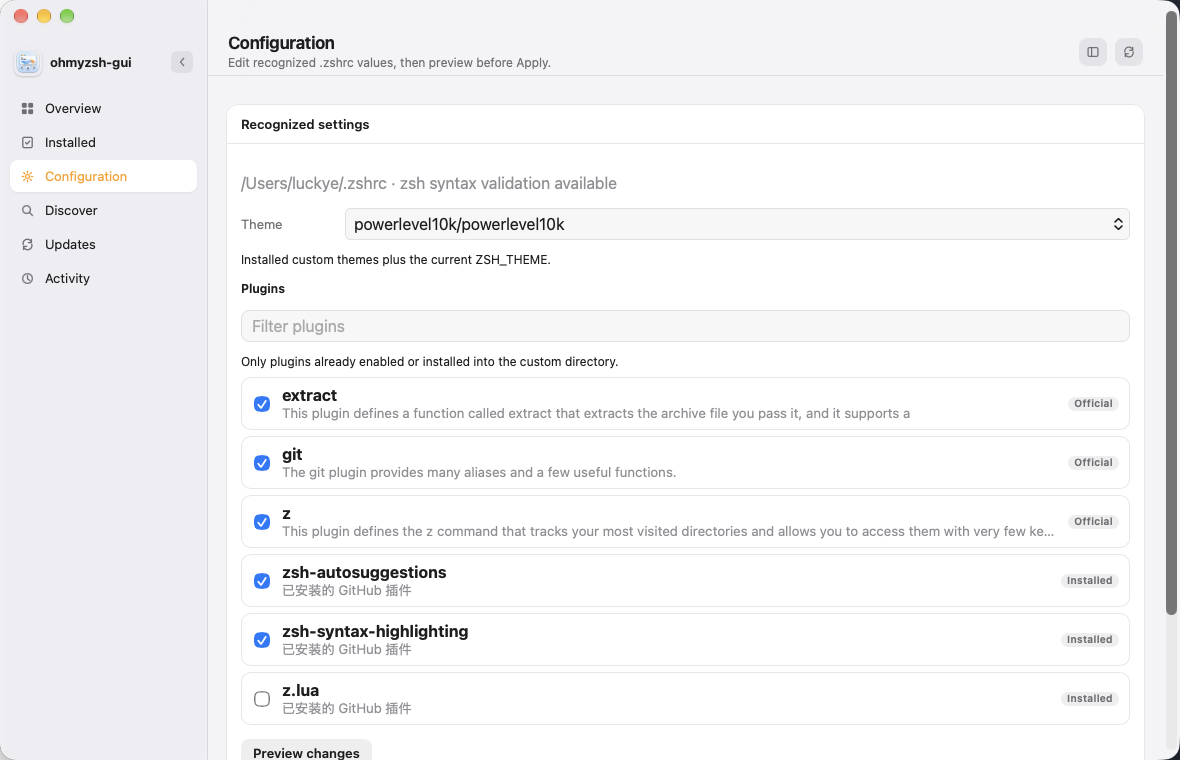
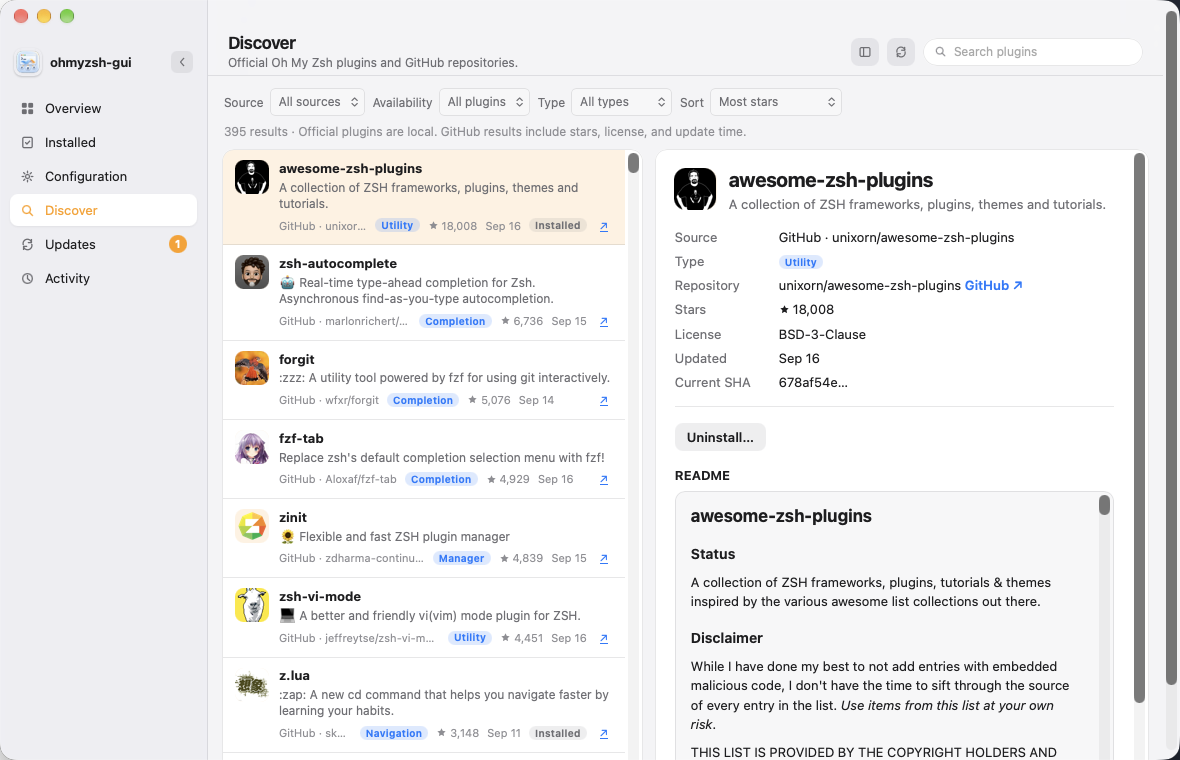 配置
配置
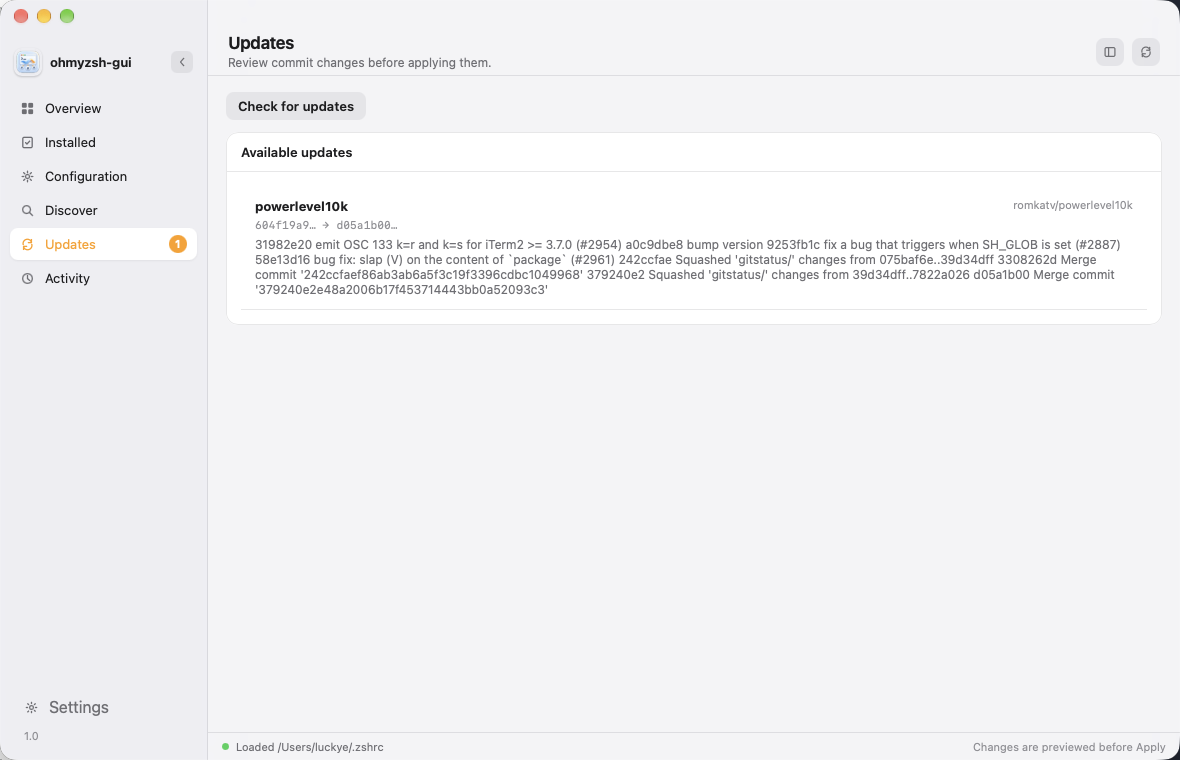
 更新
更新
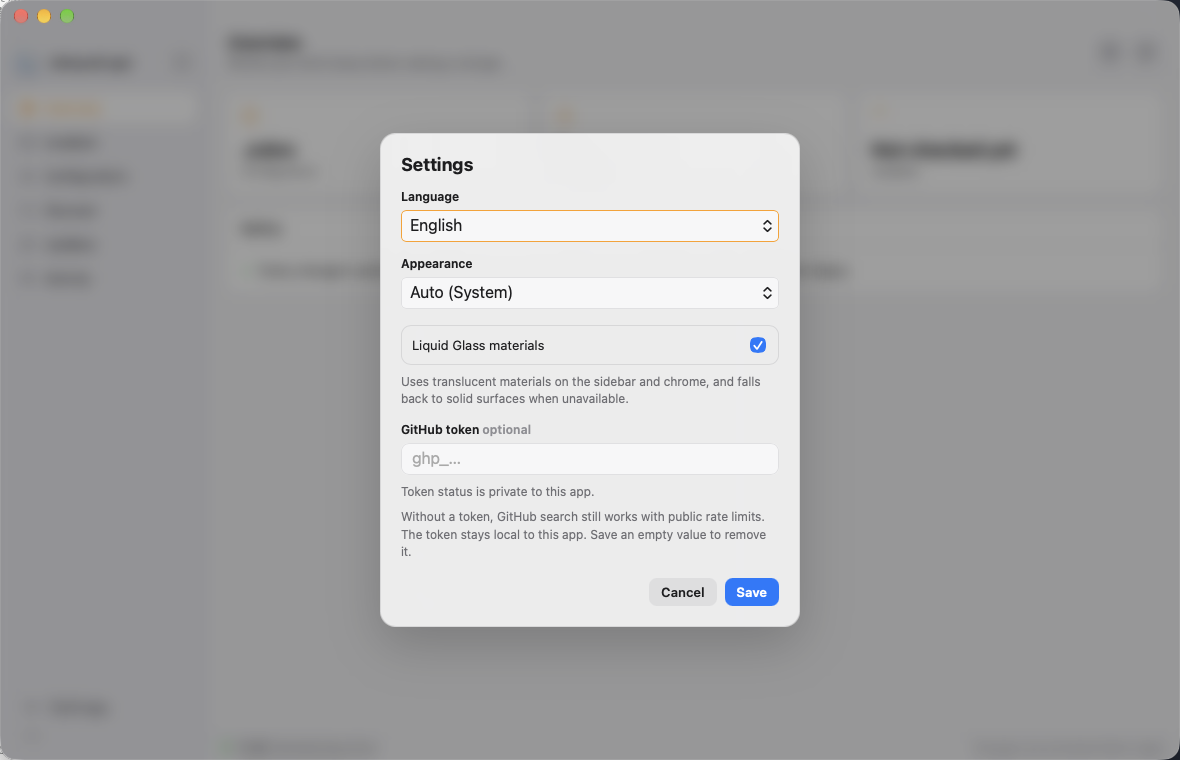
 设置
设置
 ## 能做什么
- 读取真实的 `~/.zshrc`,只改已识别的 `ZSH_THEME` 和 `plugins=()`,其余内容原样保留
- 启用 / 停用官方 Oh My Zsh 插件
- 在发现页搜索并安装 GitHub 插件和主题(主题进入 `custom/themes`,不会误写入 `plugins=()`)
- 应用前先看 diff,确认后备份并做 zsh 语法检查
- 应用成功后打开一个**新终端**加载配置(已打开的窗口不会自动刷新)
- 在活动页查看备份并撤销
- 可选 GitHub Token,保存在系统钥匙串;不填也能匿名搜索
- 界面语言可跟随系统,或固定为英文 / 简体中文
## 安全
没有明确的「应用」操作时,应用不会写入 `.zshrc`。它会先备份,写入临时文件,运行 `zsh -n`,校验通过后才替换原文件。GitHub 来源仅接受 `owner/repository`。管理器本身不会执行插件代码。
## 安装
从 [Releases](https://github.com/a1024053774/ohmyzsh-gui/releases/tag/v1.0.0) 下载 **1.0.0**,按系统和芯片选文件:
| 平台 | 架构 | 文件 |
| --- | --- | --- |
| macOS | Apple Silicon | [ohmyzsh-gui_1.0.0_aarch64.dmg](https://github.com/a1024053774/ohmyzsh-gui/releases/download/v1.0.0/ohmyzsh-gui_1.0.0_aarch64.dmg) |
| macOS | Intel | [ohmyzsh-gui_1.0.0_x64.dmg](https://github.com/a1024053774/ohmyzsh-gui/releases/download/v1.0.0/ohmyzsh-gui_1.0.0_x64.dmg) |
| Linux | x86_64 | [AppImage](https://github.com/a1024053774/ohmyzsh-gui/releases/download/v1.0.0/ohmyzsh-gui_1.0.0_amd64.AppImage) · [deb](https://github.com/a1024053774/ohmyzsh-gui/releases/download/v1.0.0/ohmyzsh-gui_1.0.0_amd64.deb) · [rpm](https://github.com/a1024053774/ohmyzsh-gui/releases/download/v1.0.0/ohmyzsh-gui-1.0.0-1.x86_64.rpm) |
| Linux | ARM64 | [AppImage](https://github.com/a1024053774/ohmyzsh-gui/releases/download/v1.0.0/ohmyzsh-gui_1.0.0_aarch64.AppImage) · [deb](https://github.com/a1024053774/ohmyzsh-gui/releases/download/v1.0.0/ohmyzsh-gui_1.0.0_arm64.deb) · [rpm](https://github.com/a1024053774/ohmyzsh-gui/releases/download/v1.0.0/ohmyzsh-gui-1.0.0-1.aarch64.rpm) |
| Windows | x86_64 | [MSI](https://github.com/a1024053774/ohmyzsh-gui/releases/download/v1.0.0/ohmyzsh-gui_1.0.0_x64_en-US.msi) · [setup.exe](https://github.com/a1024053774/ohmyzsh-gui/releases/download/v1.0.0/ohmyzsh-gui_1.0.0_x64-setup.exe) |
| Windows | ARM64 | [MSI](https://github.com/a1024053774/ohmyzsh-gui/releases/download/v1.0.0/ohmyzsh-gui_1.0.0_arm64_en-US.msi) · [setup.exe](https://github.com/a1024053774/ohmyzsh-gui/releases/download/v1.0.0/ohmyzsh-gui_1.0.0_arm64-setup.exe) |
SHA-256 校验文件:[SHA256SUMS.txt](https://github.com/a1024053774/ohmyzsh-gui/releases/download/v1.0.0/SHA256SUMS.txt)。
这些包**没有** Apple / Microsoft 签名和公证。macOS 会触发「无法验证开发者」,Windows 会触发 SmartScreen,这是正常的。
### macOS(隐私与安全性)
1. 打开 `.dmg`,把 `ohmyzsh-gui.app` 拖进 **应用程序**。
2. 第一次不要双击。在 Finder 里 **按住 Control 点按**(右键)应用 → **打开** → 再点 **打开**。
3. 若仍被拦截:打开 **系统设置 → 隐私与安全性**,滚到 **安全性**,点 **仍要打开**(有的系统文案是 **仍要安装** / **Open Anyway**)。按提示输入开机密码。
4. 浏览器下载的包常带隔离属性(quarantine)。这 **不是** 重签名,只是去掉「来自网络」的标记:
```bash
xattr -dr com.apple.quarantine /Applications/ohmyzsh-gui.app
```
若提示没有权限,再加 `sudo`:
```bash
sudo xattr -rd com.apple.quarantine /Applications/ohmyzsh-gui.app
```
然后再次右键 → 打开。只有在系统仍提示「已损坏、无法打开」时,才做一次本机临时签名(不是苹果开发者证书):
```bash
codesign --force --deep --sign - /Applications/ohmyzsh-gui.app
```
### Windows(SmartScreen)
运行 `.msi` 或 `setup.exe`。若出现 **Windows 已保护你的电脑**:点 **更多信息** → **仍要运行**。或在资源管理器中右键安装包 → **属性** → 勾选 **解除锁定** → **确定**,再运行。
### Linux
AppImage 先 `chmod +x` 再运行。`.deb` / `.rpm` 用系统包管理器安装。
## 从源码运行
需要已安装 [Oh My Zsh](https://ohmyz.sh)、`git`、`zsh`,以及 [Rust](https://rustup.rs)。
```bash
cargo install tauri-cli --version "^2"
cargo tauri dev
```
打包本地应用:
```bash
cargo tauri build
```
产物在 `src-tauri/target/release/bundle/`。签名和公证需要额外的 Apple / 平台证书。
浏览器预览(只读,不会改你的 shell):
```bash
npm run dev
```
然后打开 `http://localhost:1420`。
## 注意
- 正在运行的终端不会自动 `source ~/.zshrc`。看效果请用应用弹出的新窗口。
- 若 `~/.zshrc` 里还有 Powerlevel10k instant prompt 和 `source ~/.p10k.zsh`,只改 `ZSH_THEME` 不会换掉 p10k 提示符。
- `zsh-snap`、`zinit`、`antigen` 这类管理器不是 Oh My Zsh 插件,不能放进 `plugins=()`。
## 许可证
[MIT](LICENSE)
## 能做什么
- 读取真实的 `~/.zshrc`,只改已识别的 `ZSH_THEME` 和 `plugins=()`,其余内容原样保留
- 启用 / 停用官方 Oh My Zsh 插件
- 在发现页搜索并安装 GitHub 插件和主题(主题进入 `custom/themes`,不会误写入 `plugins=()`)
- 应用前先看 diff,确认后备份并做 zsh 语法检查
- 应用成功后打开一个**新终端**加载配置(已打开的窗口不会自动刷新)
- 在活动页查看备份并撤销
- 可选 GitHub Token,保存在系统钥匙串;不填也能匿名搜索
- 界面语言可跟随系统,或固定为英文 / 简体中文
## 安全
没有明确的「应用」操作时,应用不会写入 `.zshrc`。它会先备份,写入临时文件,运行 `zsh -n`,校验通过后才替换原文件。GitHub 来源仅接受 `owner/repository`。管理器本身不会执行插件代码。
## 安装
从 [Releases](https://github.com/a1024053774/ohmyzsh-gui/releases/tag/v1.0.0) 下载 **1.0.0**,按系统和芯片选文件:
| 平台 | 架构 | 文件 |
| --- | --- | --- |
| macOS | Apple Silicon | [ohmyzsh-gui_1.0.0_aarch64.dmg](https://github.com/a1024053774/ohmyzsh-gui/releases/download/v1.0.0/ohmyzsh-gui_1.0.0_aarch64.dmg) |
| macOS | Intel | [ohmyzsh-gui_1.0.0_x64.dmg](https://github.com/a1024053774/ohmyzsh-gui/releases/download/v1.0.0/ohmyzsh-gui_1.0.0_x64.dmg) |
| Linux | x86_64 | [AppImage](https://github.com/a1024053774/ohmyzsh-gui/releases/download/v1.0.0/ohmyzsh-gui_1.0.0_amd64.AppImage) · [deb](https://github.com/a1024053774/ohmyzsh-gui/releases/download/v1.0.0/ohmyzsh-gui_1.0.0_amd64.deb) · [rpm](https://github.com/a1024053774/ohmyzsh-gui/releases/download/v1.0.0/ohmyzsh-gui-1.0.0-1.x86_64.rpm) |
| Linux | ARM64 | [AppImage](https://github.com/a1024053774/ohmyzsh-gui/releases/download/v1.0.0/ohmyzsh-gui_1.0.0_aarch64.AppImage) · [deb](https://github.com/a1024053774/ohmyzsh-gui/releases/download/v1.0.0/ohmyzsh-gui_1.0.0_arm64.deb) · [rpm](https://github.com/a1024053774/ohmyzsh-gui/releases/download/v1.0.0/ohmyzsh-gui-1.0.0-1.aarch64.rpm) |
| Windows | x86_64 | [MSI](https://github.com/a1024053774/ohmyzsh-gui/releases/download/v1.0.0/ohmyzsh-gui_1.0.0_x64_en-US.msi) · [setup.exe](https://github.com/a1024053774/ohmyzsh-gui/releases/download/v1.0.0/ohmyzsh-gui_1.0.0_x64-setup.exe) |
| Windows | ARM64 | [MSI](https://github.com/a1024053774/ohmyzsh-gui/releases/download/v1.0.0/ohmyzsh-gui_1.0.0_arm64_en-US.msi) · [setup.exe](https://github.com/a1024053774/ohmyzsh-gui/releases/download/v1.0.0/ohmyzsh-gui_1.0.0_arm64-setup.exe) |
SHA-256 校验文件:[SHA256SUMS.txt](https://github.com/a1024053774/ohmyzsh-gui/releases/download/v1.0.0/SHA256SUMS.txt)。
这些包**没有** Apple / Microsoft 签名和公证。macOS 会触发「无法验证开发者」,Windows 会触发 SmartScreen,这是正常的。
### macOS(隐私与安全性)
1. 打开 `.dmg`,把 `ohmyzsh-gui.app` 拖进 **应用程序**。
2. 第一次不要双击。在 Finder 里 **按住 Control 点按**(右键)应用 → **打开** → 再点 **打开**。
3. 若仍被拦截:打开 **系统设置 → 隐私与安全性**,滚到 **安全性**,点 **仍要打开**(有的系统文案是 **仍要安装** / **Open Anyway**)。按提示输入开机密码。
4. 浏览器下载的包常带隔离属性(quarantine)。这 **不是** 重签名,只是去掉「来自网络」的标记:
```bash
xattr -dr com.apple.quarantine /Applications/ohmyzsh-gui.app
```
若提示没有权限,再加 `sudo`:
```bash
sudo xattr -rd com.apple.quarantine /Applications/ohmyzsh-gui.app
```
然后再次右键 → 打开。只有在系统仍提示「已损坏、无法打开」时,才做一次本机临时签名(不是苹果开发者证书):
```bash
codesign --force --deep --sign - /Applications/ohmyzsh-gui.app
```
### Windows(SmartScreen)
运行 `.msi` 或 `setup.exe`。若出现 **Windows 已保护你的电脑**:点 **更多信息** → **仍要运行**。或在资源管理器中右键安装包 → **属性** → 勾选 **解除锁定** → **确定**,再运行。
### Linux
AppImage 先 `chmod +x` 再运行。`.deb` / `.rpm` 用系统包管理器安装。
## 从源码运行
需要已安装 [Oh My Zsh](https://ohmyz.sh)、`git`、`zsh`,以及 [Rust](https://rustup.rs)。
```bash
cargo install tauri-cli --version "^2"
cargo tauri dev
```
打包本地应用:
```bash
cargo tauri build
```
产物在 `src-tauri/target/release/bundle/`。签名和公证需要额外的 Apple / 平台证书。
浏览器预览(只读,不会改你的 shell):
```bash
npm run dev
```
然后打开 `http://localhost:1420`。
## 注意
- 正在运行的终端不会自动 `source ~/.zshrc`。看效果请用应用弹出的新窗口。
- 若 `~/.zshrc` 里还有 Powerlevel10k instant prompt 和 `source ~/.p10k.zsh`,只改 `ZSH_THEME` 不会换掉 p10k 提示符。
- `zsh-snap`、`zinit`、`antigen` 这类管理器不是 Oh My Zsh 插件,不能放进 `plugins=()`。
## 许可证
[MIT](LICENSE)