 # OpenBot Playground
English | 简体中文 | Deutsch | Français | Español | 한국어
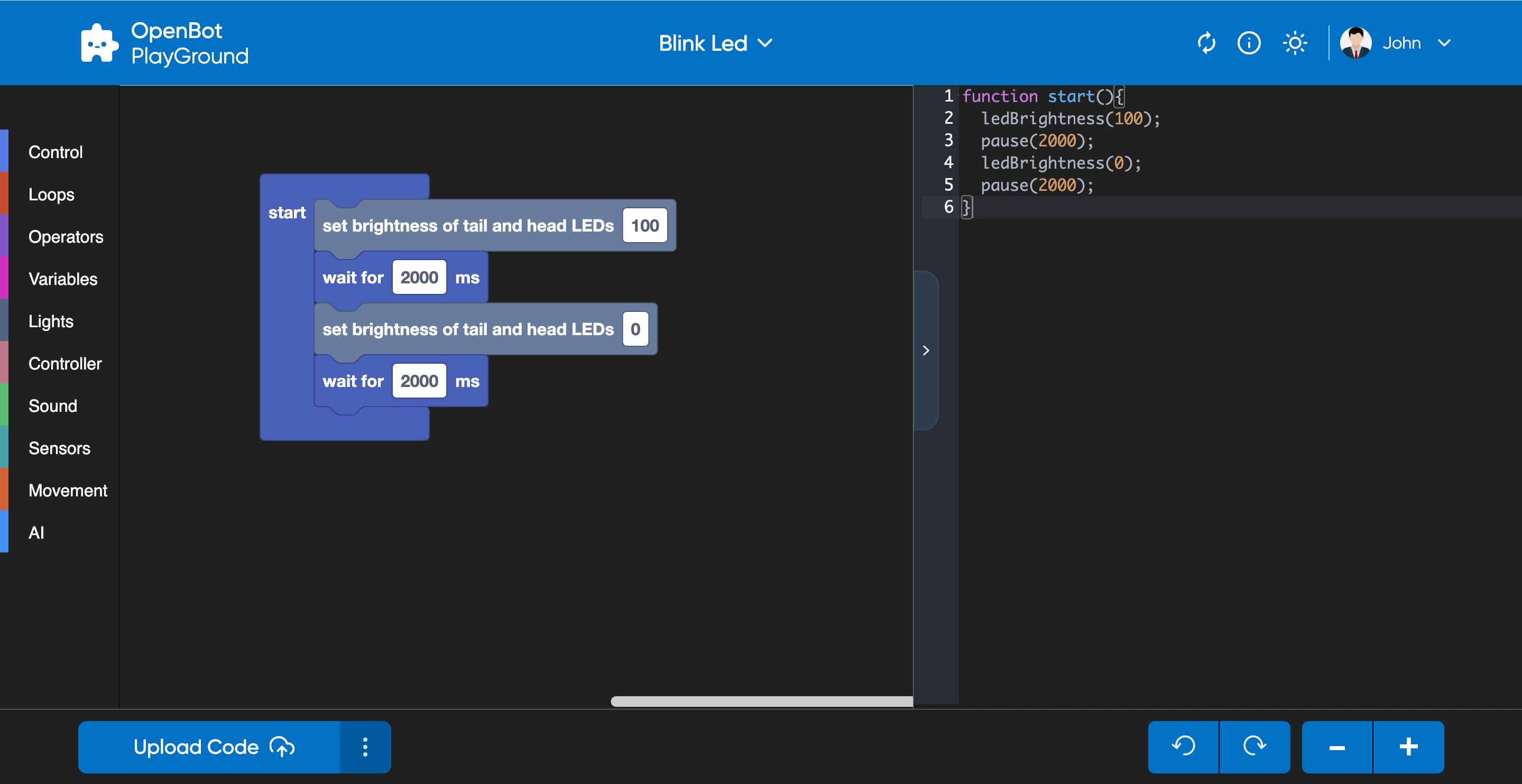
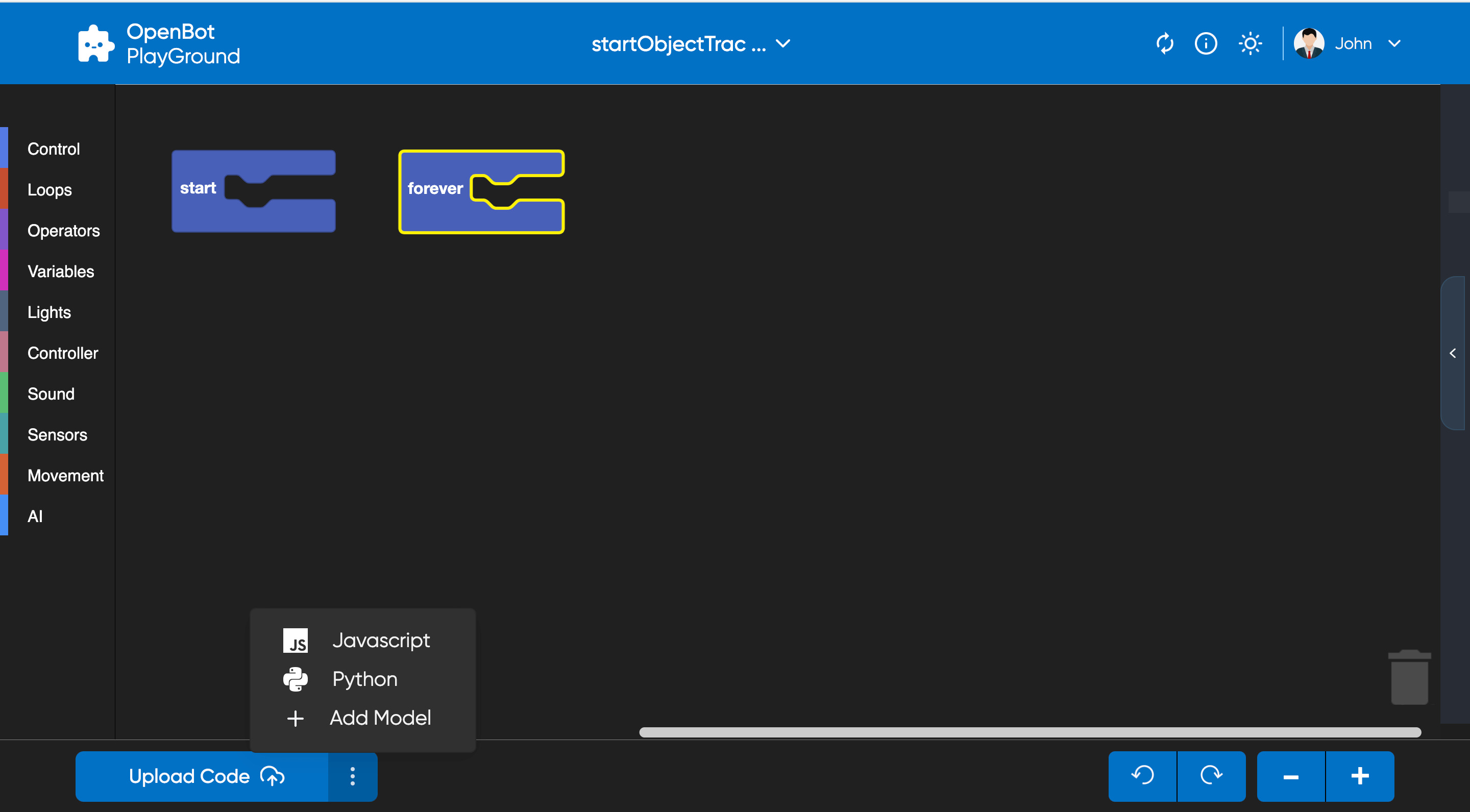
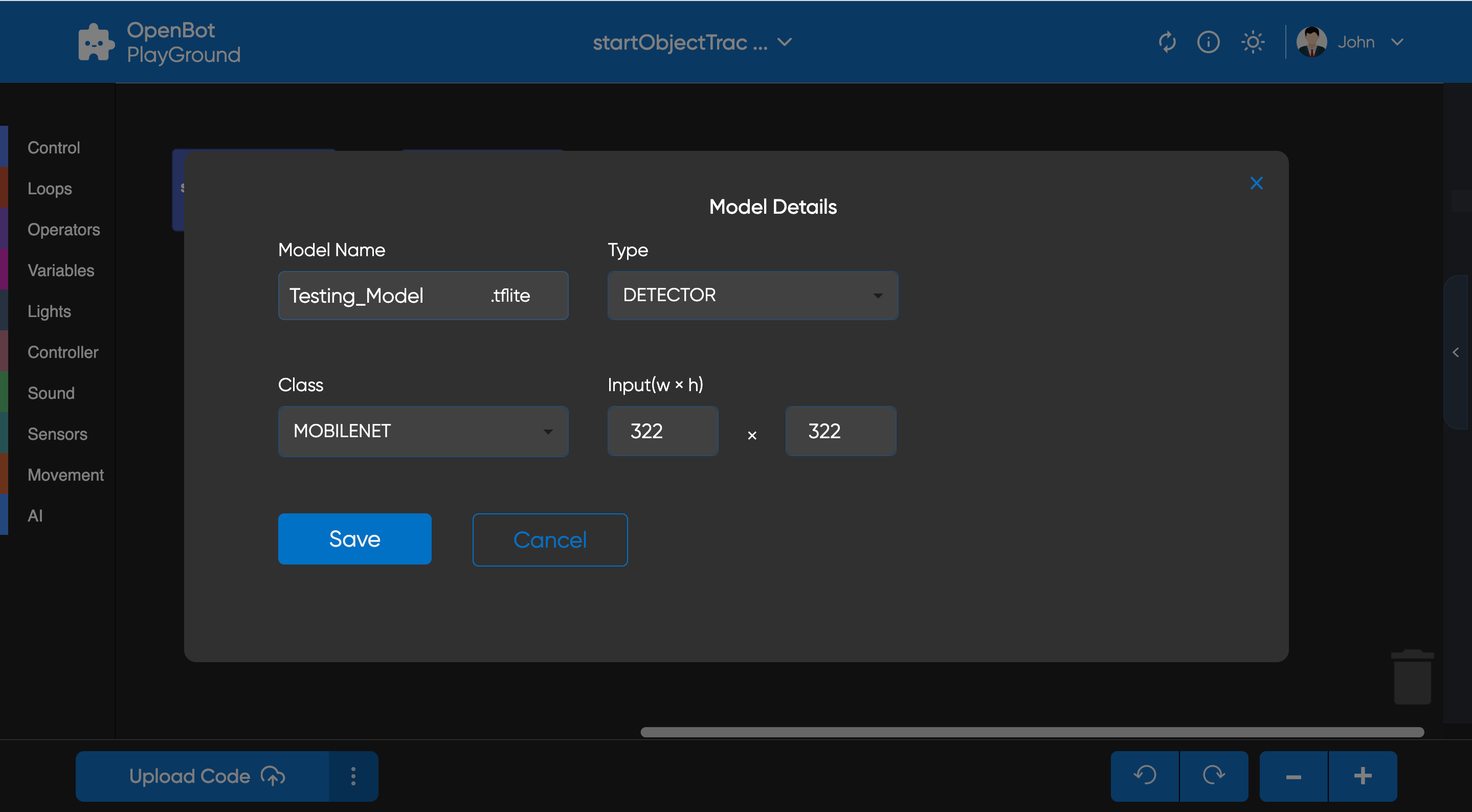
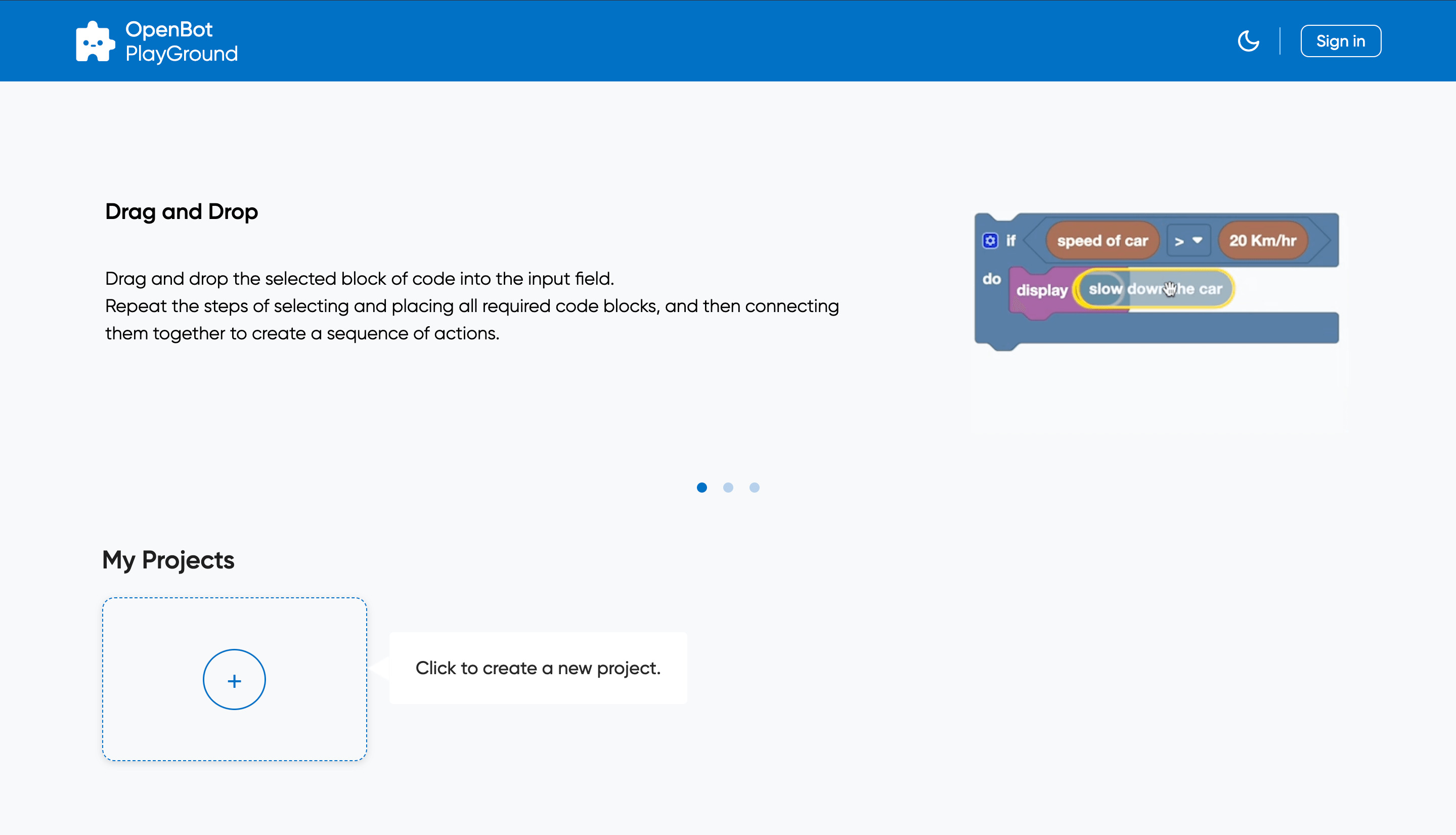
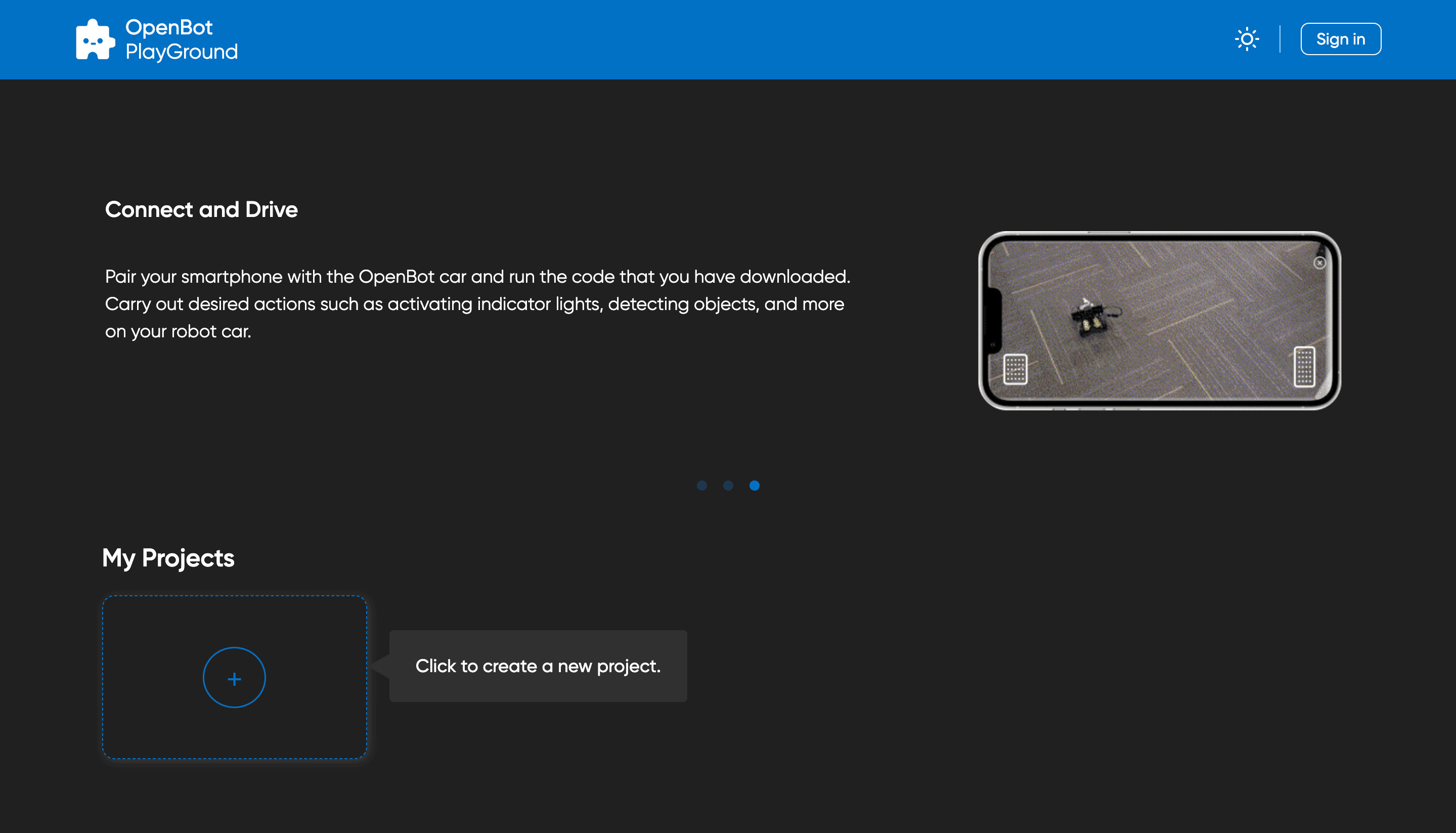
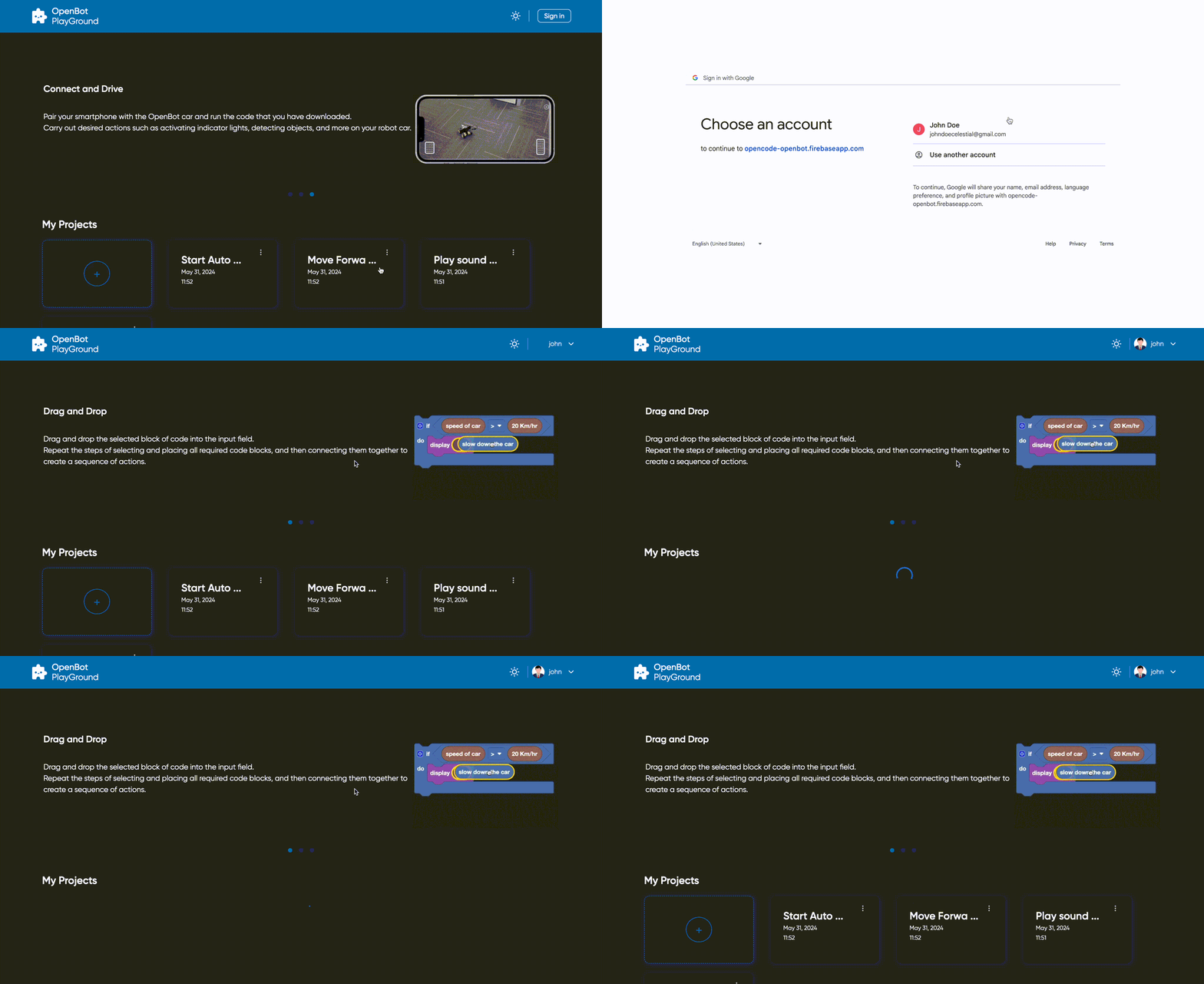
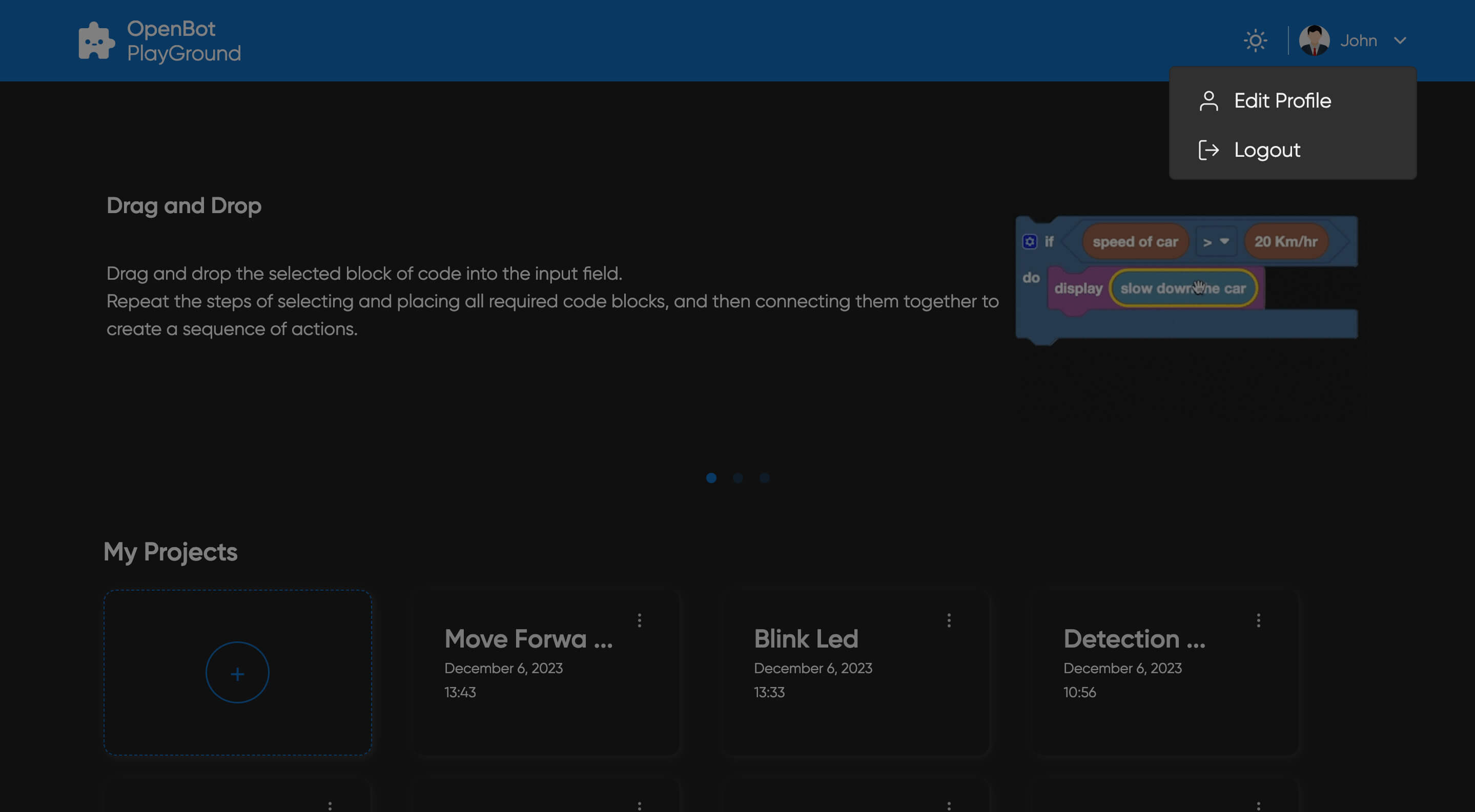
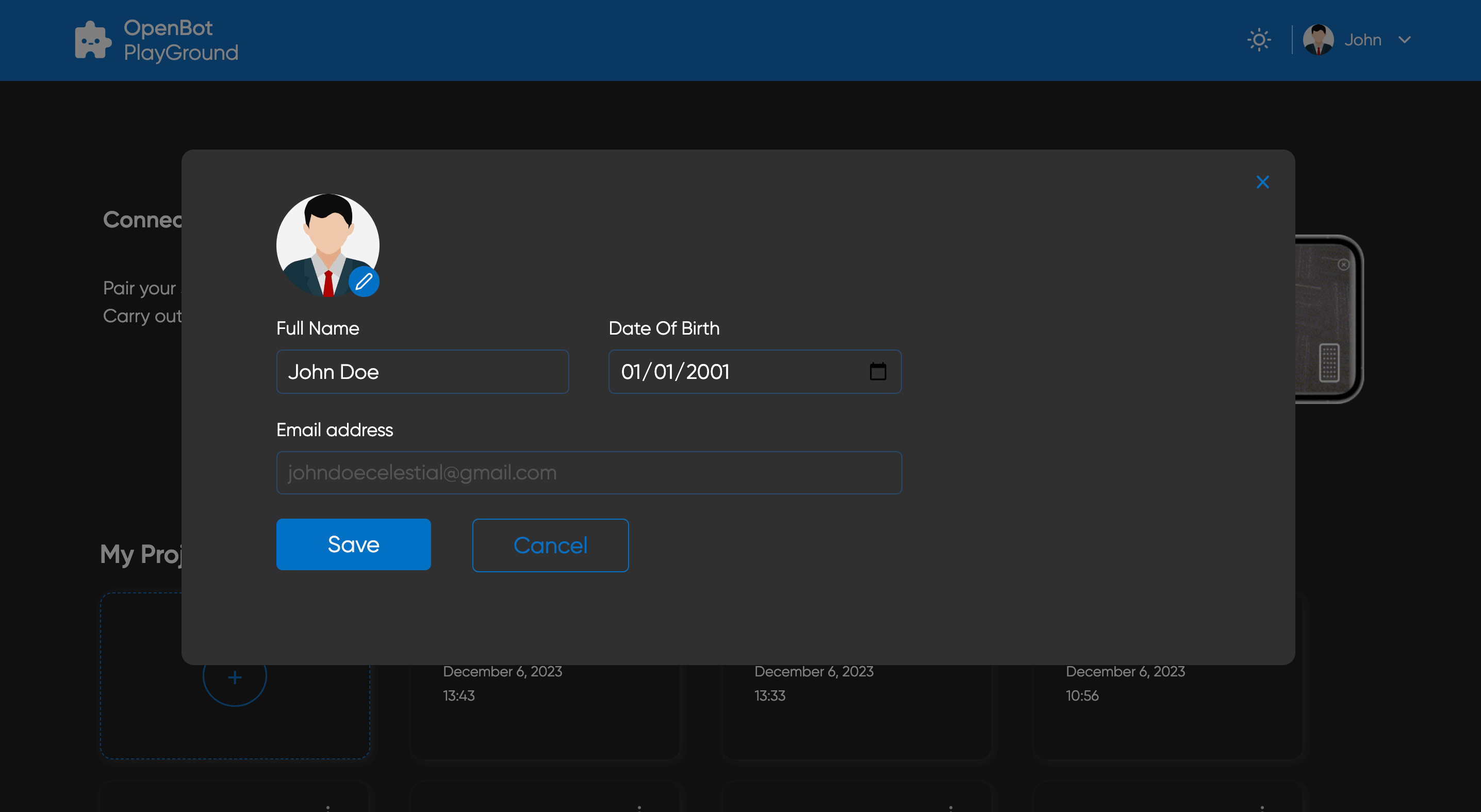
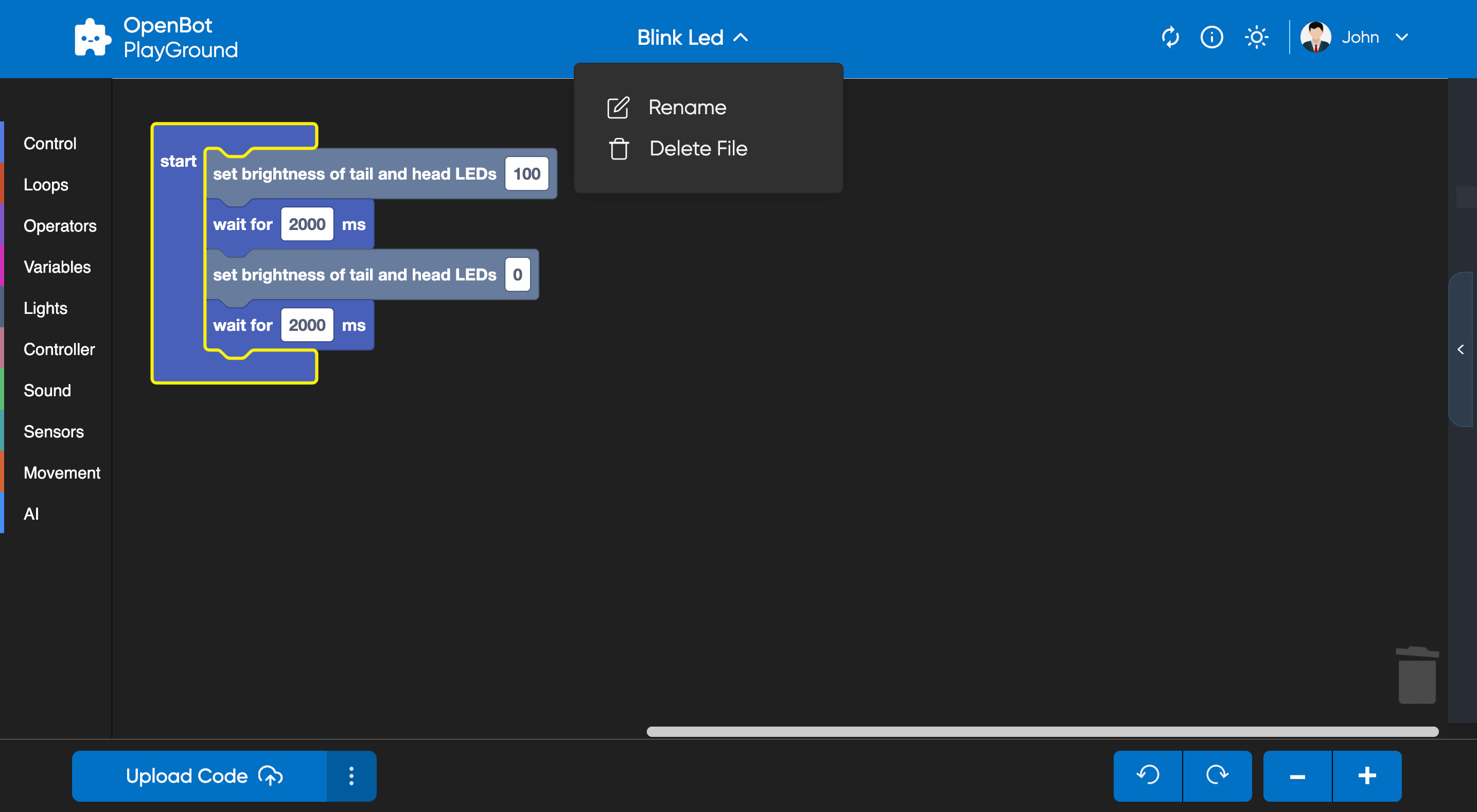
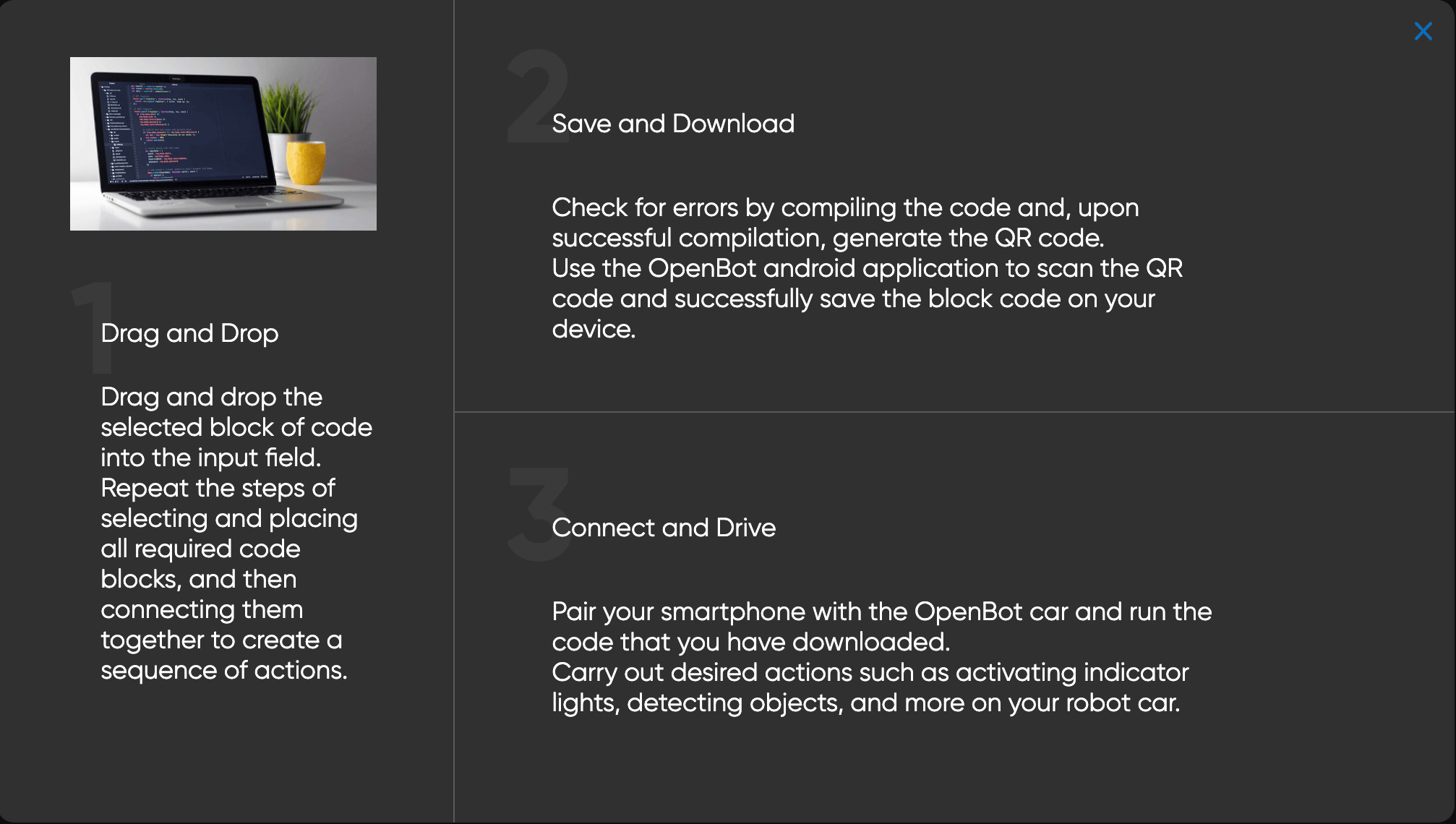
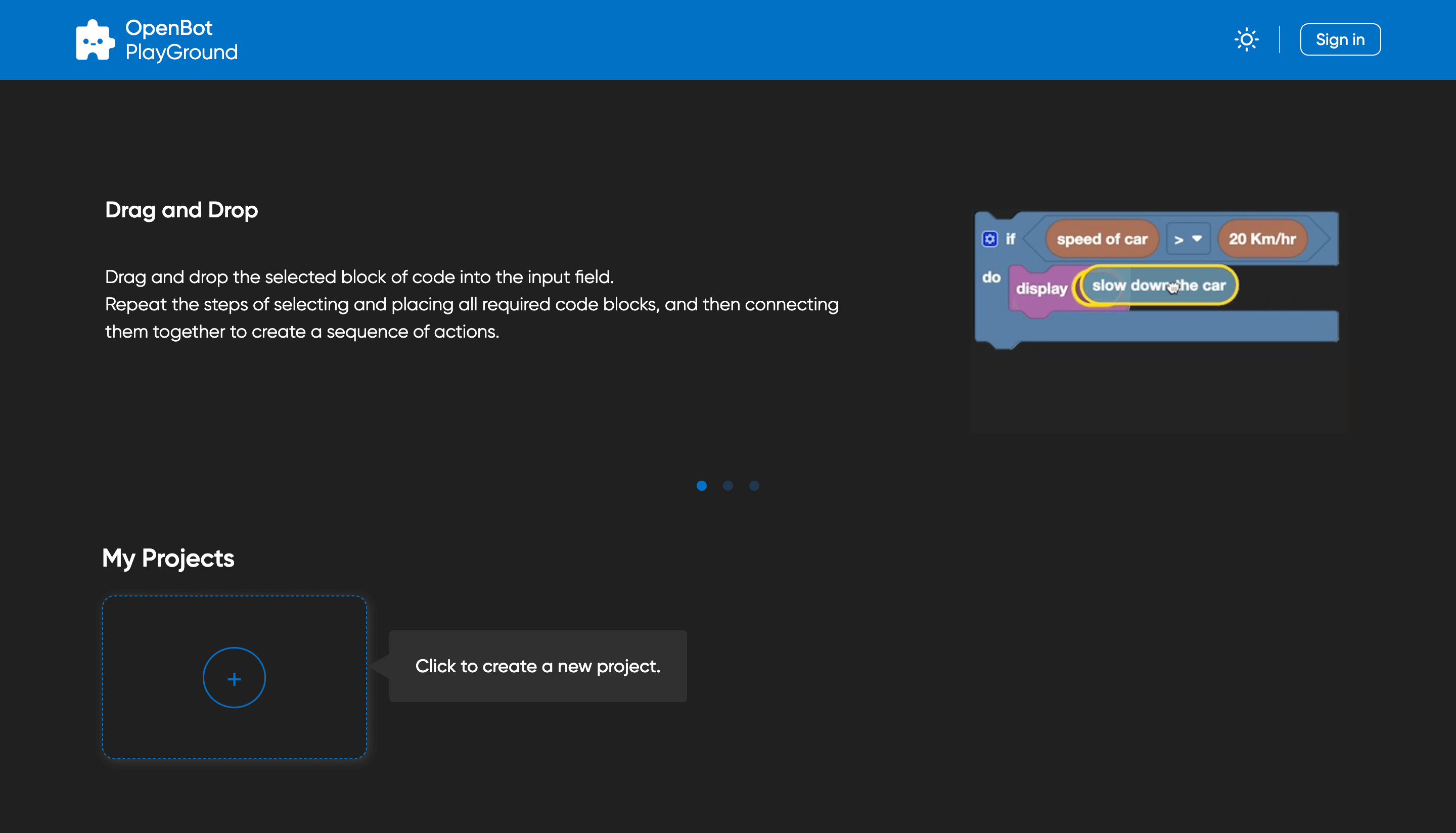
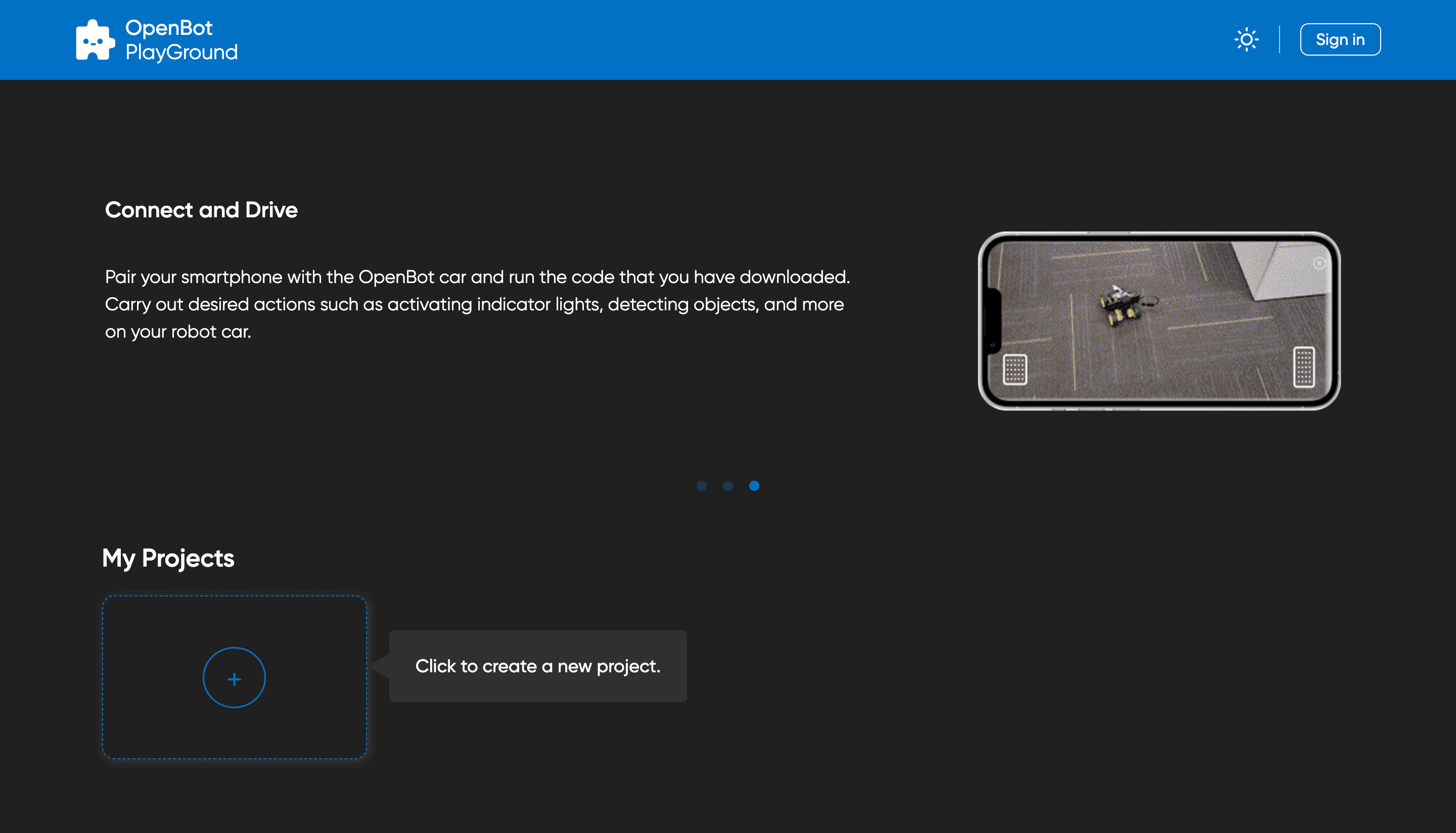
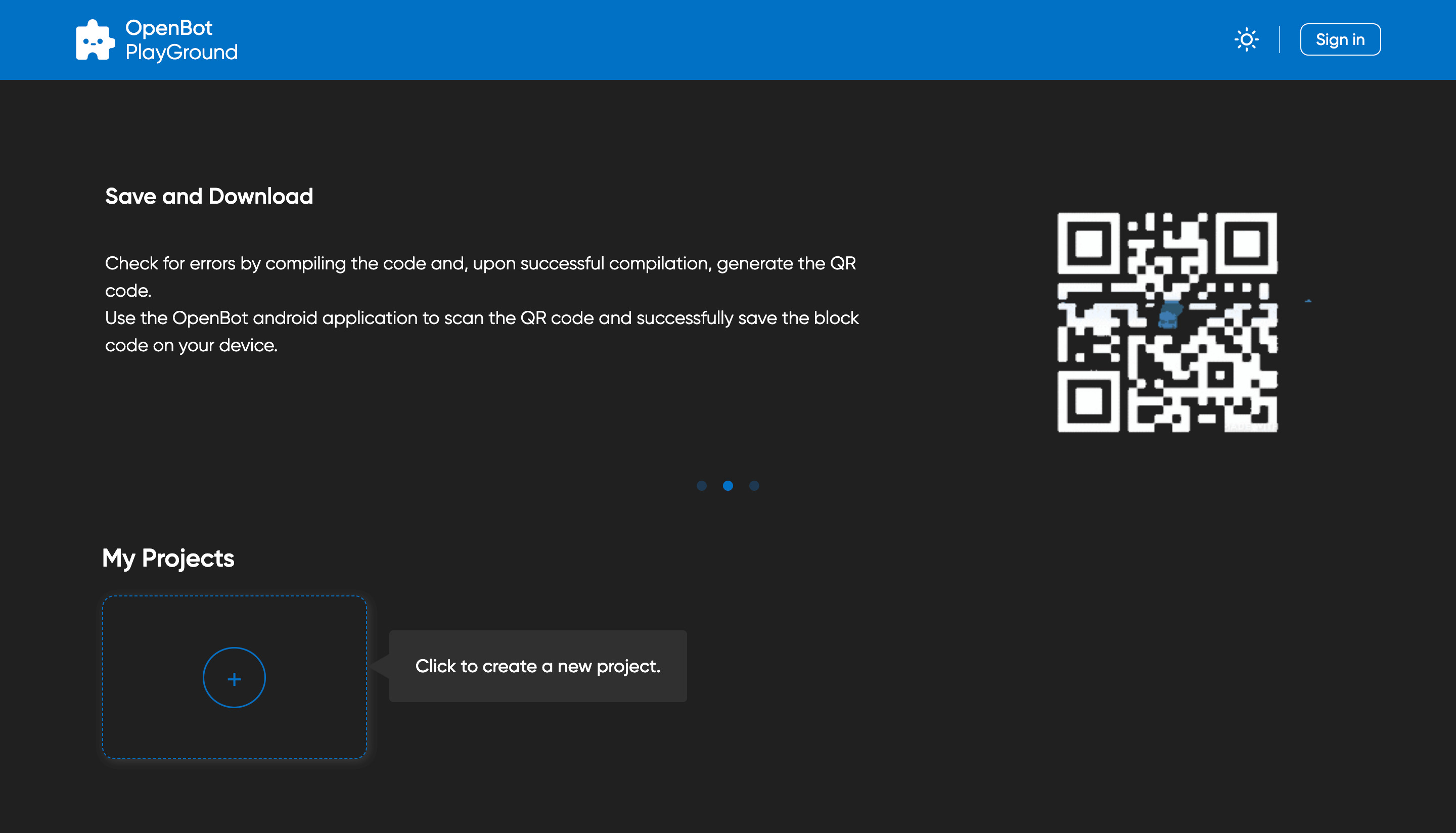
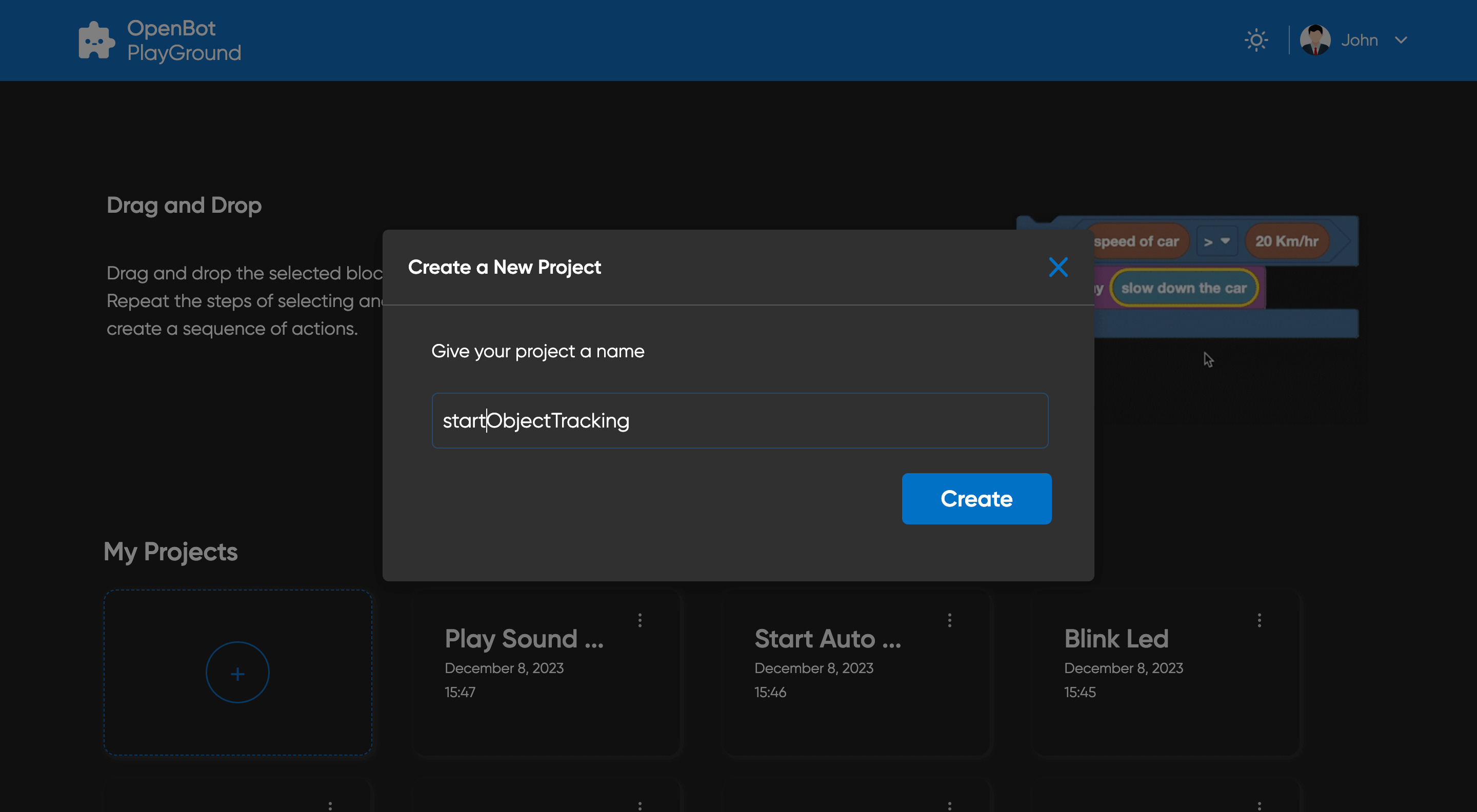
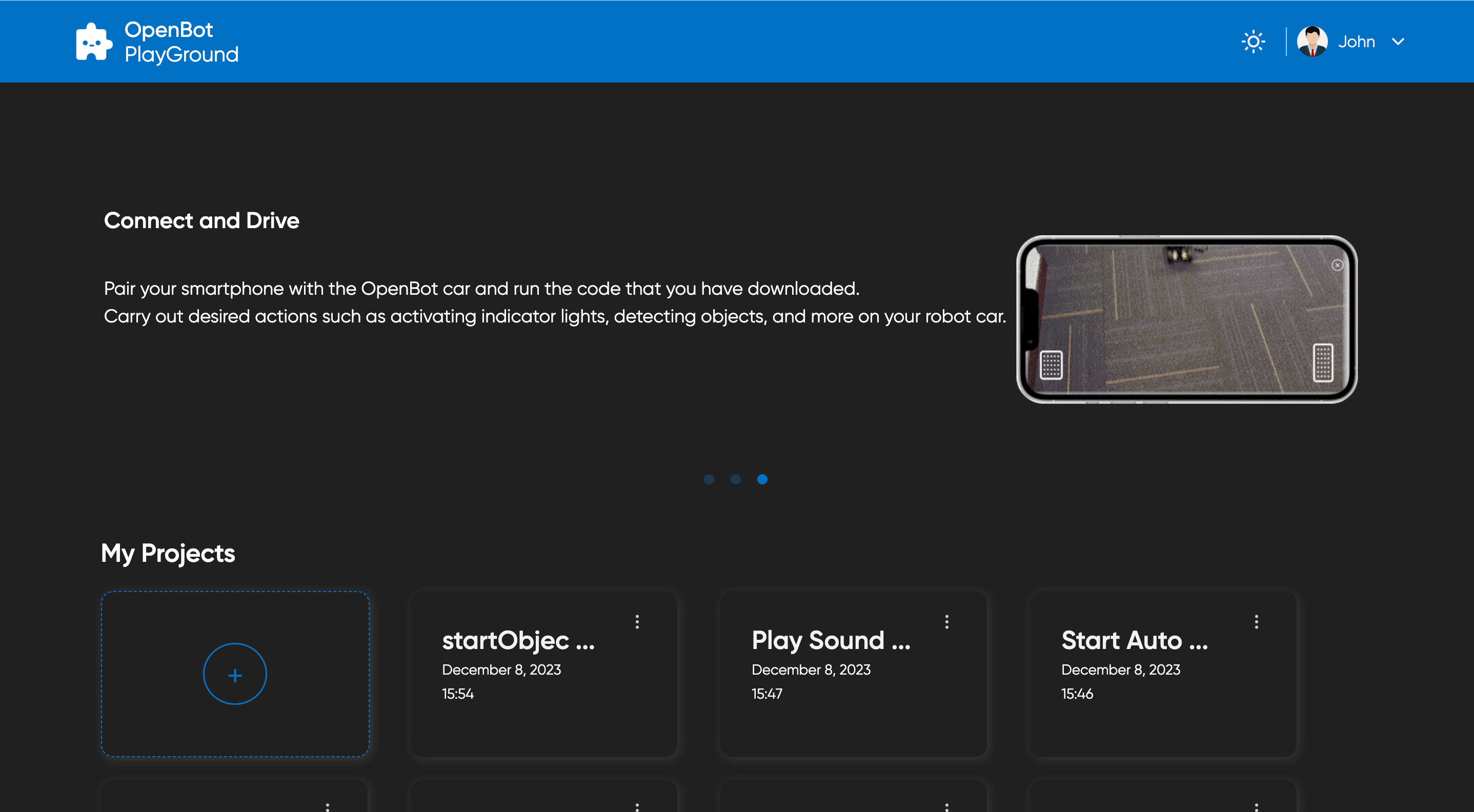
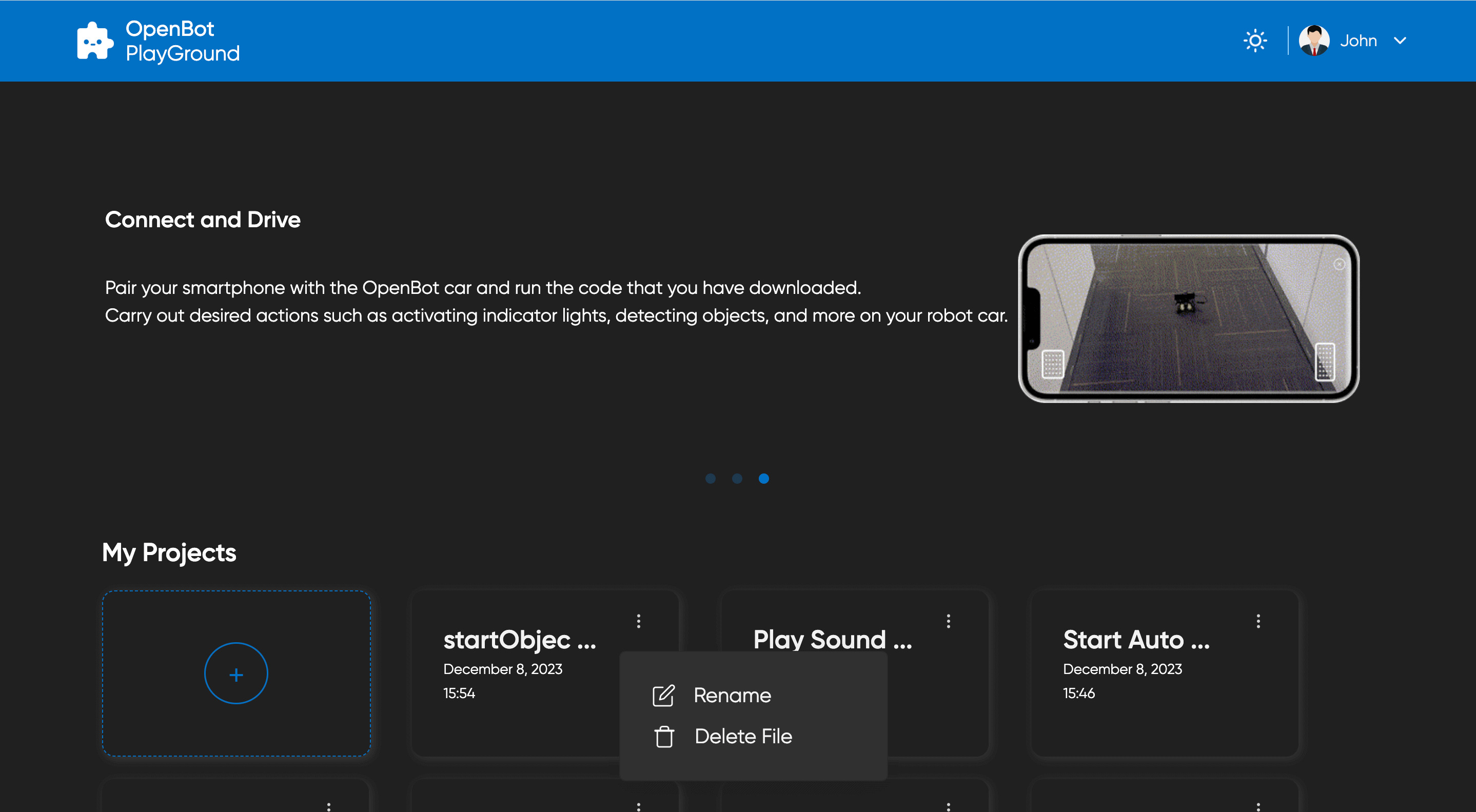
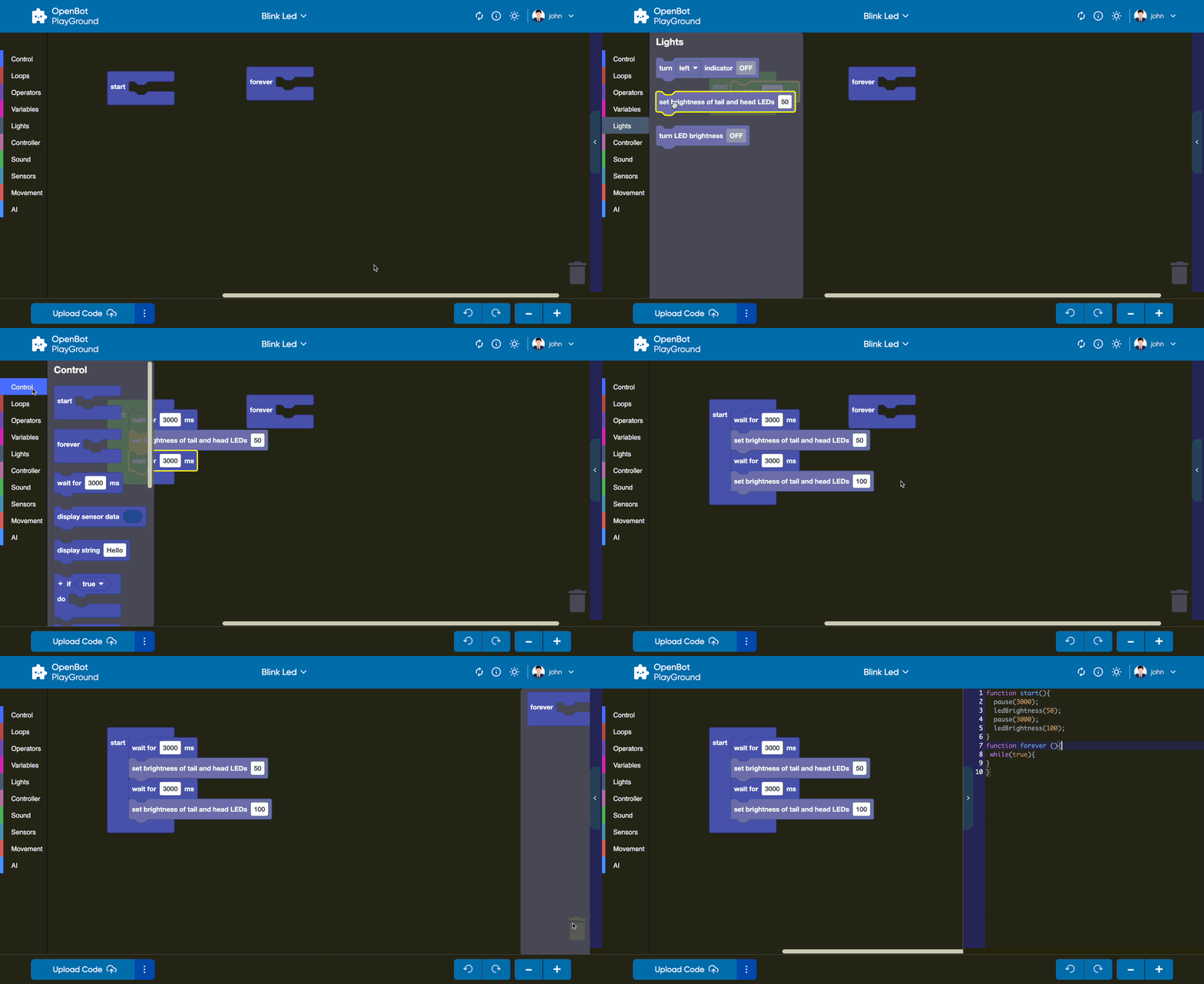
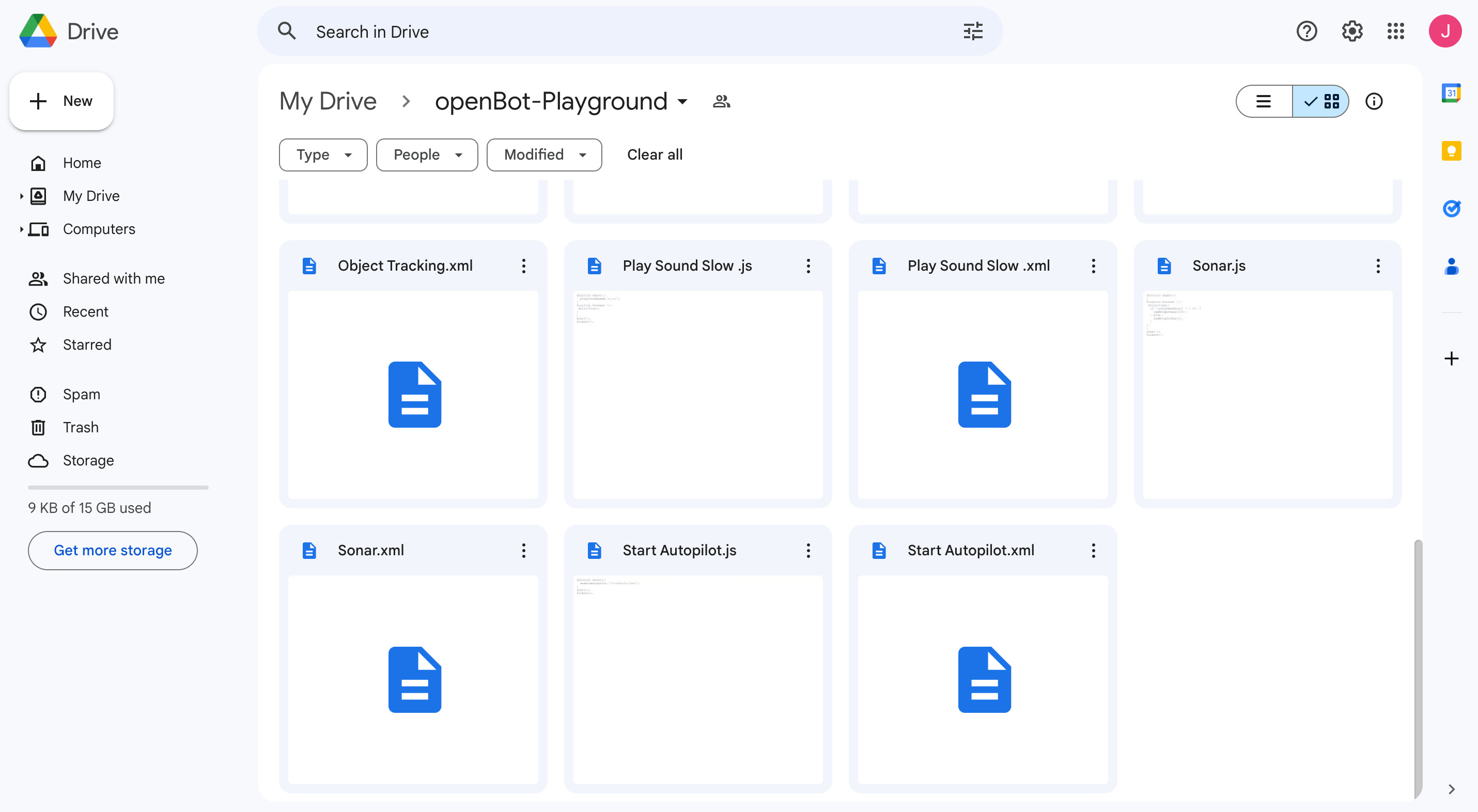
OpenBot Playground is a drag and drop platform to support OpenBot application, where anyone can build instructions for the robot. ## Getting Started You can run this application directly from the [Link](https://www.playground.openbot.org/ "Link"). You can also run it locally via creating a local copy of the project. To achieve this, navigate into the `openBot/open-code` folder, [set firebase project](src/services/README.md) and run application. After [firebase setup](src/services/README.md) run following commands: If you're using npm ```bash npm install ``` In case of yarn ```bash yarn install ``` Run application ```bash npm start ``` ### Application Features 1. Sync your Google Drive with the OpenBot, and it will automatically save the data on it. 2. Store the data into local storage. 3. Scan the output QR directly from the OpenBot application to run the program. 4. In OpenBot mobile apps, after logging in, you can retrieve the saved files from Google Drive and load them with just one click. 5. Design the instructions for OpenBot with zero code. 6. Fully responsive design optimized for mobile and tablet browsing. 7. OpenBot Playground blocks to [explore](https://www.youtube.com/watch?v=8oPbCGZmwTU&list=PLXGqaCYqUFZDK6CWP1bP3J6upNOFDbvkA). ### Project Storage This project allows users to store their data both locally and on `Google Drive`. When the project is created, it is automatically stored in the `local storage` of the user's device. As changes are made to the project, the local storage is updated in real-time. Additionally, users can upload their project to Google Drive by clicking on the [upload button](#generate-Code). This allows users to access their project from any device with internet access, making it easier to work on the project from different locations. - #### Local Storage Local storage is a built-in web technology that allows web applications to store data locally within the user's browser. This means that the project is stored on the user's device and can be accessed without an internet connection. In this project, the local storage is used to store the project whenever changes are made to it. The project is stored in the browser's cache, which means that it will persist even if the user closes the tab or the browser. - #### Google Drive Storage Google Drive is a cloud-based storage service provided by Google. It allows users to store and share files online, as well as access them from any device with internet access. In this project, users can upload their project to Google Drive by clicking on the upload icon when they are signed in to the website. The project is then stored on the user's Google Drive account, which means that it can be accessed from any device with internet access. To access their project from Google Drive, users can simply log in to their Google account and navigate to [my projects](#project-section), where all their stored projects will be displayed. ## OpenBot Playground Screens ### Home Page The `OpenBot Playground` starts with homepage that contains following component: - [Header](#header) : Header contains the following two sections, change theme and sign-in user. - [Carousel](#Carousel): Carousel's Content Explains how the Playground works. - [Project Section](#project-section) :Project section contains List of Projects and Create new Project button. ### Playground Page The `Playground` page is a key feature of the `OpenBot Playground` platform that provides a variety of coding blocks for users to create different types of functionality, such as Control, Loops, Movement, Operators, Sensors, and many more. - [Header](#header) : Header contains project name, help centre, AutoSync ,change theme and signIn user section. - [Workspace](#workSpace): Space where users can drag and drop the coding blocks to generate their code, which can be converted into both JavaScript and Python. - [Playground Bottom Bar](#Playground-Bottom-Bar) : Bottom bar Contains buttons to generate code ,upload project in drive, zoom in and out blocks ,Add model ,undo and redo changes in workspace. ### Header The header of the `Openbot-Playground` website has its logo in the top left section. The right side of the header have two buttons. - #### Change theme Theme icon allows you to switch between light mode and dark mode, and vice versa.
 - #### Generate Code
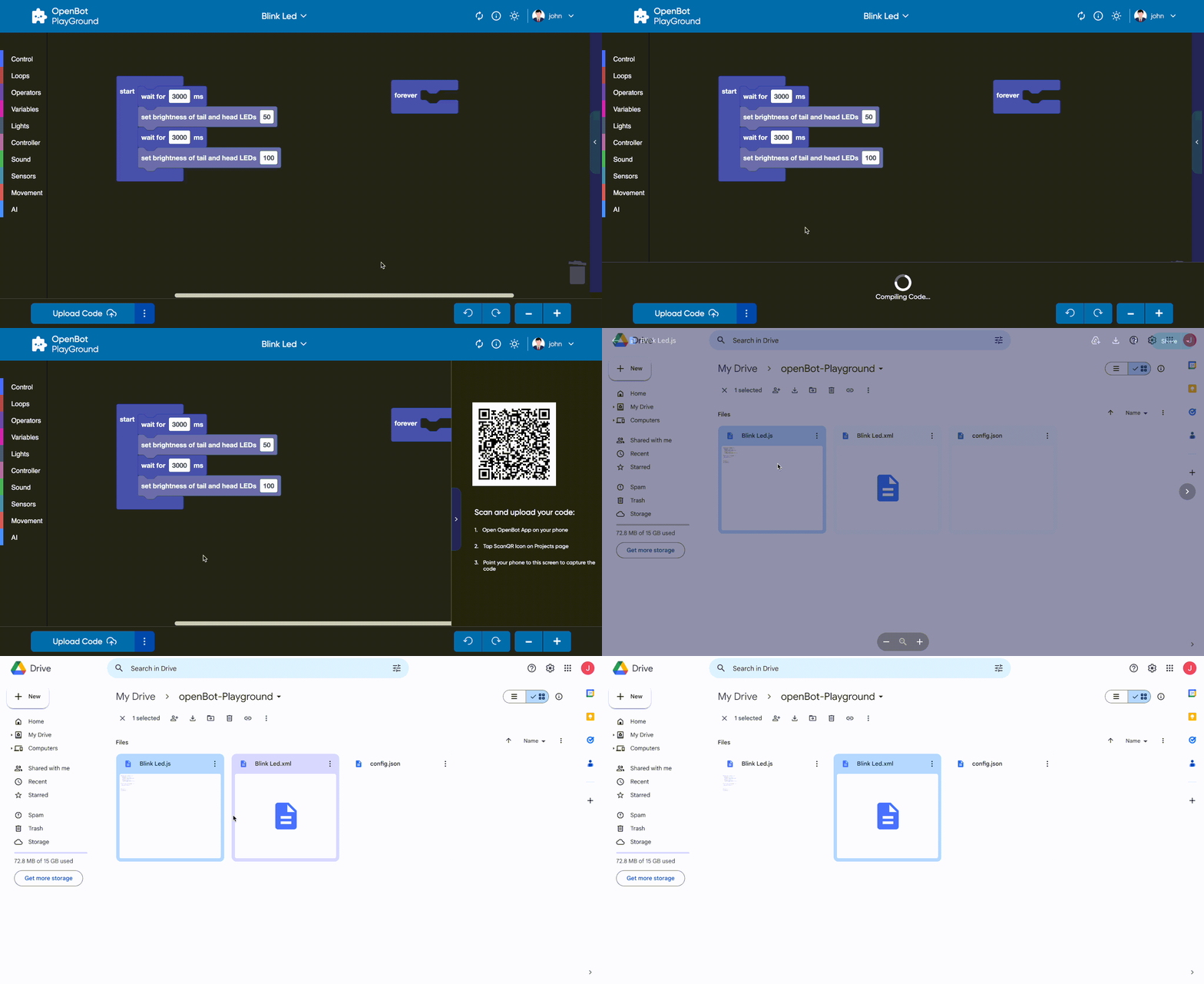
Generate Code button on the Playground bottom bar serves three important functions. Firstly, it generates a QR code
that represents the link of the JavaScript/Python file uploaded to the user's Google Drive as part of the project. This QR
code is displayed in a side window for easy access and sharing. Secondly, the button uploads a JavaScript/Python
file containing the code for the project to the user's Google Drive. And lastly, uploading an XML file which
represents the current project's block configuration. This XML file contains the structure and arrangement of the blocks used in the
project.
- `Convenient Sharing` -
The QR code generated by the button provides a public shareable link to the JavaScript/Python file on Google
Drive.
This link can be accessed by scanning the QR code using the OpenBot IOS/Android app. This allows users to run the
car
based on the code generated using the coding blocks directly from their mobile device. The ability to share the QR
code and access the code on mobile devices adds another level of convenience and accessibility to the openBot
playground.
The integration with Google Drive allows you to have a comprehensive backup of their project. By including the XML
file, the exact structure and logic of the blocks used in the project are preserved. This is beneficial for you to
share,
collaborate, and revisiting projects in the future.
- #### Generate Code
Generate Code button on the Playground bottom bar serves three important functions. Firstly, it generates a QR code
that represents the link of the JavaScript/Python file uploaded to the user's Google Drive as part of the project. This QR
code is displayed in a side window for easy access and sharing. Secondly, the button uploads a JavaScript/Python
file containing the code for the project to the user's Google Drive. And lastly, uploading an XML file which
represents the current project's block configuration. This XML file contains the structure and arrangement of the blocks used in the
project.
- `Convenient Sharing` -
The QR code generated by the button provides a public shareable link to the JavaScript/Python file on Google
Drive.
This link can be accessed by scanning the QR code using the OpenBot IOS/Android app. This allows users to run the
car
based on the code generated using the coding blocks directly from their mobile device. The ability to share the QR
code and access the code on mobile devices adds another level of convenience and accessibility to the openBot
playground.
The integration with Google Drive allows you to have a comprehensive backup of their project. By including the XML
file, the exact structure and logic of the blocks used in the project are preserved. This is beneficial for you to
share,
collaborate, and revisiting projects in the future.