User Interface
— PageEdit Menus and Toolbars —
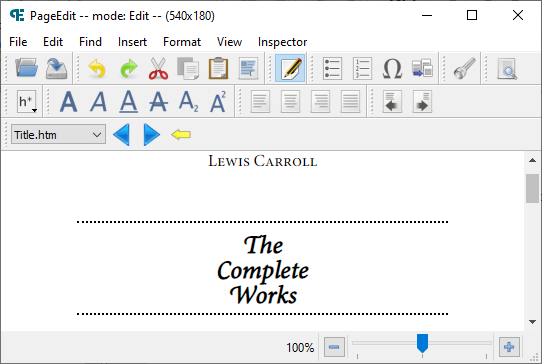
PageEdit’s user interface consists of:
- Main Menu: Most of the available commands, like , are listed here.
- Toolbar Buttons: Movable buttons that provide quick access to many menu items.
- Context Menus: Commands shown when you right-click on something.
The screenshots in the User Guide may be slightly different to what you see on your computer.
Main Menu
This is the list of menu items that is always at the top of PageEdit’s window:
File
- Open: Open an HTML file from your computer.
- Save: Save your file (use often!).
- Save As: Save your file under a different name.
- Quit: Exit PageEdit, asking if you want to save your file first if it hasn’t been saved.
- Preferences: Open the Preferences window to change options.
- About: Display build information.
Edit
- Undo: Restore text just deleted, inserted or replaced.
- Redo: Reverse the last Undo.
- Cut: Remove the selected text and store it for paste.
- Copy: Copy the selected text and store it for paste.
- Paste: Insert previously cut or copied text into your document.
- Select All: Select all text in document.
Find
- Find: Open the Find toolbar.
- Find Next: Search forwards for the next matching text.
- Find Previous: Search backwards for the next matching text.
Insert
- Split Marker: Insert a marker to use for Split at Markers.
- Special Character: Insert special characters from a list.
- Bulleted List: Create a bulleted list from selection.
- Numbered List: Create a numbered list from selection.
Format
- Heading:
- Heading 1: Format the paragraph as a level 1 heading.
- Heading 2: Format the paragraph as a level 2 heading.
- Heading 3: Format the paragraph as a level 3 heading.
- Heading 4: Format the paragraph as a level 4 heading.
- Heading 5: Format the paragraph as a level 5 heading.
- Heading 6: Format the paragraph as a level 6 heading.
- Normal: Format the paragraph as normal text.
- Preserve existing attributes: Keep attributes like class when formatting.
- Align Left: Align text to the left margin (use remove formatting to reset to default).
- Center: Align text centered on the screen.
- Align Right: Align text to the right margin.
- Justify: Align text to left and right margins.
- Decrease Indent: Decrease the indentation of the text.
- Increase Indent: Indent the text.
View
- Toolbars
- File: Show or hide the open and save buttons.
- Edit: Show or hide the undo, redo, cut and paste buttons.
- Mode: Show or hide the Mode button.
- Insert: Show or hide the list, insert split marker and special character buttons.
- Inspect: Show or hide the Inspect button.
- Find: Show or hide the Find button.
- Heading: Show or hide the heading buttons.
- Format: Show or hide the bold, italic and other formatting buttons.
- Align: Show or hide the text alignment buttons.
- Indent: Show or hide the indent buttons.
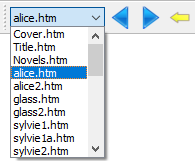
- Navigate: Show or hide the Navigate buttons.
- Zoom In: Increase the size of text and images in the view.
- Zoom Out: Decrease the size of text and images in the view.
- Zoom Reset: Reset the window zoom to 100%.
Inspector
- Inspector: Show the Inspector window.
Toolbars
Toolbars are the rows of buttons at the top of the window. But the buttons don’t have to remain at the top of the screen – you can click and drag groups of buttons anywhere you want.
To move buttons, click and hold on the small bar to the left of each button group then drag it to where you want it.
Right-click on the toolbar to easily select which buttons to show.
Main Toolbar
The main toolbar contains buttons used for shortcuts to PageEdit’s main features:
The buttons are listed below, with their equivalent menu entry:
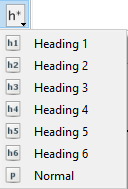
- Heading 1:
- Heading 2:
- Heading 3:
- Heading 4:
- Heading 5:
- Heading 6:
- Normal:
Zoom
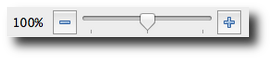
On the lower right of the main window is a zoom control that lets you shrink or enlarge the text and images:
The 100% indicates the zoom level of the view and this percentage will increase or decrease when you click on the + or – icons.
Status Bar
The bottom area on the main window (to the left of the zoom control) will occasionally list status information when an action is completed.
Many of the buttons, dropdown boxes, labels and fields have tooltips that provide information on how they are used.
To see a tooltip just hover your mouse over the button or other item and the help text should be displayed:
There are many tooltips available in PageEdit – most dialogs and buttons will provide some help text.