
|
layerlingEasy 3D CAD for 3D printingDrop a shape, cut a hole, round an edge, print it. In your browser, with no account and no CAD background. |




English · Deutsch · Nederlands · العربية · 简体中文 · 繁體中文
|
|
layerlingEasy 3D CAD for 3D printingDrop a shape, cut a hole, round an edge, print it. In your browser, with no account and no CAD background. |
English · Deutsch · Nederlands · العربية · 简体中文 · 繁體中文
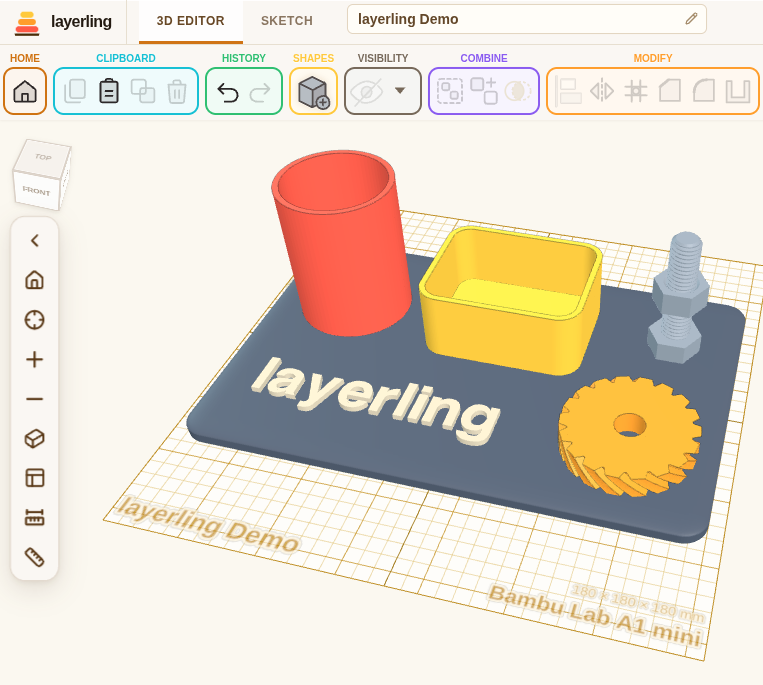
layerling in the browser
User guide, step by step and with pictures
## Who It Is For You own a 3D printer. You want a part that fits something, not a career in CAD. layerling works the way you already think: put a shape on the plate, drag it to size, turn a second shape into a hole, group the two, export, print. There is nothing to learn before you start and **nothing to sign up for** – open the page and build. Your designs stay in your own browser by default: no account, no cloud, nothing uploaded anywhere. If you run your own copy, they can live in a folder on your server instead, so every device in the house sees the same ones. ### Coming From Tinkercad? layerling sits a step beyond Tinkercad towards Fusion 360: it is operated the same way, so you will recognise everything – the plate, the shapes, solids and holes, group and ungroup, bundle, Alt-drag for a copy – but it does not stop where Tinkercad does. Things you have been missing are waiting for you: - **Chamfer and fillet.** Pick an edge and break it or round it – the one thing people ask for most once a printed part has to feel finished or slot into something. Applied edges stay changeable: take a treatment off again or press Edit to change its value on the same edges. - **Hollow, split, sketch, thread.** Hollow a body to an even wall, split it with a plane, draw sketches with exact lengths and angles and extrude or revolve them, and add screws, nuts and tapped holes. - **Patterns and wrapping.** Repeat a shape in a row, circle or spiral, or wrap a pattern or text around a cylinder. - **Hole patterns.** Click a flat face and spread round, square, rectangular, hexagonal or slot holes over it, in a grid or staggered, with spacing, margin and depth - vents, speaker grilles and baskets in one step. - **Scale by percent.** Make one or many parts larger or smaller by a percentage - together, so the layout grows with them, or each in place. - **Match sizes.** Hold Alt on an align dot and the parts stretch instead of moving: to the side of another part, or to its width, length or height - to swap a box for a cylinder of the same size, for instance. - **Measure and look inside.** Tape measure, rulers, a section view that cuts the model open, and a history slider to look back at earlier states. - **Real geometry underneath.** layerling keeps exact CAD shapes, not just a mesh, so a rounded edge stays a rounded edge – all the way into a STEP file for a full CAD program. It is not a full CAD package: there is no parametric timeline and no assemblies. And you can **run it yourself**: install it as an app (it then starts without internet), or host your own copy on Windows, a NAS or a home server – see [Getting Started](#getting-started). > **An AI can build along with you.** layerling ships an MCP server. An AI client such as Gemini, Claude or Codex sees an open > editor tab and works in it: add shapes, change measurements, group, cut, round edges, read the scene back, take pictures > of the viewport. You describe the part, the AI builds it, you watch it happen and step in whenever you want. This runs > locally, with nothing leaving the browser – see [layerling MCP Skill](#layerling-mcp-skill) for the setup. ## What It Does ### Building - **A real build plate** – grid, snapping, handles for moving, resizing and rotating, and a panel with the exact numbers when you need them. - **Type a position** – the Position card puts a body at exact X, Y and Z, measured from its middle or from its left and front edges, and parts can be parked beside the plate, as in Tinkercad. - **Axis arrows** – red, green and blue arrows at the plate's front left corner show X, Y and Z the way the numbers count, as in Bambu Studio and OrcaSlicer; they can be switched off in the settings. - **Pivot that stays** – set a pivot for one body and it stays with that body: it moves, turns and scales with it, is saved, and can be typed as X, Y and Z or dragged with the mouse, snapping to corners and edge midpoints - for hinges and joints. - **Light and shadows to taste** – shading contrast, shadow strength and softness, and the direction and height of the light, up to straight above as in Tinkercad, all in the settings. A "Tinkercad look" button sets colours, grid and light like there in one go, and the darker grid lines can come every centimetre in a colour of their own. - **Fast mode** – for slower computers: one switch in the settings turns off shadows, edge lines and the camera's inertia and draws the view at screen resolution; the camera's inertia can also be switched off on its own, so the view stops the moment you let go. - **Align faces and see the angles** – the Align faces tool brings a face of one part against a face of another, touching or flush, with an optional gap, or puts a hole or pin on the axis of another hole; a turned body shows its angles about X, Y and Z under the selection, and the Rotation card in its settings takes them as numbers. - **Snap to other shapes** – while moving, a shape locks its edges or centre onto the edges and centres of the shapes around it, with a guide line, so parts sit flush without typing numbers. Alt during the drag pauses it; Shift keeps the move on one axis, and Alt held from the start drags a copy, as in Tinkercad. - **Set down on faces** – like Cruise in Tinkercad: a new shape lies down on the face under the pointer, sloped ones too, and C picks the selection up and sets it down on another face the same way. - **Reference points** – right-click a body to mark its centre, corners or edge middles with points that nothing prints and that dragged shapes snap to; drag a point or type its coordinates, and the marks are saved with the design. The tape measure can mark the middle of a measurement - the centre of a round hole, for one. - **Interactive Help** – press Shift+F1 or the question mark in the Help group, then click any button, field or window: a small window shows the part of the user guide about it and opens it on request. - **Command search** – press Ctrl+K and type a tool, a shape or a command ("fillet", "mirror", "cylinder") to jump straight to it; it understands English and German words and shows the keyboard shortcuts beside each entry. - **History view** – look back at any earlier state of the project with a slider, without changing anything; export that state or start a new project from it. By @rmpel. - **Millimetres or inches** – with Imperial units every measure is shown in inches, as fractions like Tinkercad (1 5/8) or as decimals, the snap grid steps from 1/64 to 1 inch, and the plate's grid is drawn in inches. - **Your printer's plate** – pick one of more than 220 common printers and the plate takes its size. Its name and build volume show in the corner of the workplane (a switch in the settings hides this and the design's name), and a warning appears when a body reaches past the edge. - **Overhangs and filament** – "Show overhangs" hatches every face steeper than 45° (or your printer's own angle) that would need supports, and the export window shows volume, weight and metres of filament before you slice. - **Shape library** – boxes, cylinders, capsules (one end smaller if needed, say for a belt guard), spheres, cones, pyramids, wedges, text, roofs, half spheres, paraboloids, torus shapes, tubes, lofts from one outline to another (say square to round, solid or with a wall, straight or flaring smoothly, twisted or with a tilted top), polygon prisms from three to twenty-four sides, coil springs, a print-in-place hinge (with screw holes, or as a finger hinge), Gridfinity bins and baseplates, knurled grips (straight, crossed or round) and more. - **Vases, pots and lampshades** – a Vase shape of its own: body form, cross-section (also drawn) with a second one to blend into, twist, patterns, drain holes, a foot, a saucer and a lid, solid for the slicer's vase mode or hollow. By @marcus040473. - **Threads that fit** – threaded rods, screws with a socket, countersunk or hex head, hex nuts and tapped holes. M2 to M12, UNC/UNF from #4 to one inch and the Whitworth pipe threads G1/16 to G4 (ISO 228-1) are one pick away, or set your own diameter and pitch, left-hand as well; an inch or G size asks for threads per inch instead of millimetres. The ends take a chamfer, and a tapped hole is a cutter: drop it into a part, group, and the hole comes out threaded. - **Gears that mesh** – spur, helical, herringbone and bevel gears, ring gears and racks with involute teeth, set by module and number of teeth like a gear generator, with pressure angle and backlash for printing - or with round teeth, forgiving on small printed gears and a smooth grip on knobs. Select two gears and the panel gives the centre distance they mesh at. - **Solids and holes** – turn shapes into cutters and group them into the final geometry. Edit group (**E**) lays a group's parts loose to change them and rebuilds it with Done – also a group inside a group, as deep as the design goes. - **Multicolor groups** – a group can show every part in its own colour, also after holes were cut into it, and a 3MF or OBJ export keeps those colours, so the slicer can map the parts onto filaments. - **Bundle** – Ctrl+B holds parts together like Tinkercad's bundle: they move, turn and scale as one, but keep their colours and stay separate bodies in the export – handy for multicolour prints. - **Intersection** – keep only what two or more selected solids have in common, or where solids and holes overlap. - **Hull** – wrap the selected shapes in their convex hull, the smallest body without dents round all of them: a half sphere on a cylinder becomes a dome, four posts a box with round corners. Holes in the selection are cut out afterwards. - **Cookie cutter** – a wall and a flat rim round the outline of a sketch or an SVG, or of whatever a shape stands on, from one small window; the inside of an e or an a gets a wall of its own, held by bridges at the rim or by a plate over the whole outline, with small fillets so thin parts do not break off, and made lower it only presses a text into the dough instead of cutting it out. The outline is mirrored, so text and logos come out of the dough the right way round, and the wall runs up to a thin cutting edge. Wall thickness, cutting edge, height and rim are the sketch fill modes, so each can be changed afterwards. - **Flexi joints** – cut a flat body you drew yourself, a fish, a snake or a dragon, into links with a joint printed in place at every cut: an upright knuckle with 45° cones held in a socket of the next link, so the figure moves once printed, without support or assembly. Number of joints, clearance, swing and joint size can be set. - **Loft sketches** – two sketches or imported SVGs become one exact body, the outline of the lower one at the bottom and of the upper one at the top, with straight walls between them: a funnel, a square-to-round transition, or from two rings a tapered frame. Edit group opens the two sketches again. - **Split** – cut solids or holes in two with a plane; a hollowed body keeps its cavity. Turn the plane for an angled cut, drag its arrow, or lay it on any face with "Pick face". ### Refining - **Chamfer and fillet** – break or round any edge of a solid, and remove or change the treatment again later. - **Sketches** – draw outlines with lines, curves and ready-made shapes, set lines by length and angle as you draw ("50<30", Shift snaps in 15° steps), type lengths, angles and sizes (sums like "60+12.5" work in every number field), round or chamfer corners, snap to the outlines of other bodies, draw construction lines to snap to, and extrude, revolve or sweep them along a path into exact bodies. A revolve with a pitch winds the outline up as one continuous helical strand instead of rings, like filament on a spool. A sketch can also be built as a stroke: a closed outline becomes a frame, inside, outside or centred on the line, and an open line a stripe with flat, square or round ends. - **Hollowing** – turn a body into walls of one thickness, open on any sides you choose (top, bottom, front, back, left, right, in any combination) or closed – for boxes, cups and cases. - **Lids** – the lid for a box, a pot or a tray that is open at the top, from its own outline, round or angular: pushed into the opening, put over the outside or laid flat on it, with a tight, normal or loose fit (0.1, 0.2 or 0.3 mm per side) or a gap of your own, lid thickness and the depth and wall of the lip. It comes out beside the body, turned over with its plate down, ready to print without support. - **Offset and cut out** – grow or shrink an exact body along all its faces by 0.01 to 10 mm, for the clearance of a press fit or a snap joint, or cut one part out of another with a gap all round in one step, the part staying where it is. - **Surface texture** – lay a relief onto any body, for grip or for looks: grooves, knurling, honeycomb, bumps, Voronoi cells, bricks, knitting, rope, basket weave, carbon fibre, tree bark, wood grain, cracks, a picture as a height map or text, around round bodies or flat along an axis. - **Delete face** – click the faces of a fillet, a hole or a boss and delete them: the faces around them grow to close the gap, and the body stays exact for more fillets and the STEP export. - **Custom shapes** – keep bodies you need again and again at the top of the shape library and insert them into any design with a click or by dragging; in the browser, or with the shared store on the server for every device. "Back up all" takes them along. - **Hole pattern** – perforate a flat face of a body: pick the face, choose round, square, rectangular, hexagonal or slot holes, set size, spacing, grid or staggered, the margin to the edge and the depth (through the whole part or a set depth), and see the holes as a preview before creating them. They stay ordinary holes grouped with the body, so ungrouping frees them again. - **Face** – push a flat face of a body out or cut a pocket into it: pick the face, choose Out or In, set an inset from the edge, a corner radius and the depth, and see the result as a preview. It works on imported STLs too, and what it adds stays an ordinary sketch body grouped with the body. - **Wrap around a cylinder** – lay an SVG pattern, a logo or lettering onto the wall of a cup or tube, raised or engraved, and centre it on the cylinder. ### Files - **Fonts of your own** – use any TrueType, OpenType or WOFF font for text, or in Chrome and Edge a font installed on the computer. A design keeps only the outlines of the letters it uses, so it opens anywhere. Arabic and Hebrew run right to left, Arabic letters join up. - **Bring your own models** – import STL, OBJ, 3MF, STEP, SVG or DXF and build around it. A DXF part outline, as a laser cutting shop or a supplier sends it, comes in as a body with its holes as holes of their own, arcs and circles kept true. An SVG comes in as a sketch body: an area, a stroke outside or inside its lines, a silhouette without its holes, or the drawing widened all round - together a cookie cutter from one file, or the layers of a multicolour logo. The Text shape has the same fill modes and can stack its letters top to bottom; the shape library has a name tag: a text in coloured layers for a multicolour print, with an optional key ring hole and a rounded or chamfered edge on the letters, and an icon tag: an SVG icon in the same coloured layers, with a count and "as many as fit" to fill a plate. A coloured OBJ – from layerling, or from Tinkercad as a ZIP with its `.mtl` – or a coloured 3MF, slicer projects included, comes in as one body per colour, and a 3MF with several objects as one body per object. A STEP file with several solids comes in as one body each, under its name and in its colour. - **Export what your slicer wants** – STL, 3MF with names and colours, or OBJ with colours, for the selection or the whole scene (hidden parts stay out), plus STEP if the design should travel on into a full CAD program, and the top view as SVG or as DXF with true arcs and circles for a laser cutter, with optional stencil bridges that hold the middle of an o or a b in place. PNG saves a clean picture of the view, at twice the resolution and with a transparent background if you like. - **Drawing export** – select a part, or clear the selection for the whole visible design, then choose **Export → Drawing → PDF or SVG**. Generates front, top and right-side views in first-angle layout on a bordered engineering sheet with zone numbers and a lower-right title block, with overall dimensions, hidden edges, and diameter/position tables for axis-aligned circular bores. Views are 1:1 in millimetres; the sheet uses the smallest fitting ISO landscape size (or a larger custom size). Print at **100% / actual size**. Positions are measured from each view's lower-left overall corner. Hole tables use nominal mesh geometry and do not automatically dimension angled/non-circular holes, threads, depths or tolerances. The projection engine is adapted from [Cadverix-3D](https://github.com/WC3D/Cadverix-3D)'s drawing work. - **Update notice** – on the published program an open page notices a new version by itself and offers to save and reload, listing what is new. - **Delete several designs at once** – **Select** on the start page chooses designs by a click on their cards (or all of them), and one question deletes the whole choice; it works in the server folder too. - **Folders for your designs** – sort the designs on the start page into folders (and folders into folders) by dragging them or with "Move to …"; the search looks through all of them, and "Back up all" keeps them. - **Projects as files** – save a whole project, history, sketches and groups included, as a `.lyl` file and carry on elsewhere. In Chrome and Edge you choose the folder yourself and Ctrl+S saves into that same file again; other browsers download it. Older `.skf` files from earlier versions still open; saving then writes a `.lyl` beside them. - **Bug report** – one link in the footer saves a ZIP with the design as a `.lyl` and a text with the version, browser and last messages, ready to attach in the forum or on GitHub, which refuse a bare `.lyl`. - **Designs you recognise** – each design with a thumbnail, in your own browser or in the server folder. - **Attachments** – keep notes, a photo of the printed part or a datasheet inside the design: `.md` and `.txt` files, `.png`, `.jpg` and `.webp` pictures and PDF files travel with the `.lyl` file. The eye opens a text or a picture in a window; a PDF is downloaded. SVG is not accepted, since it can carry scripts. ### Viewing - **Perspective or straight-on** – switch between the normal view and a flat, orthographic one with the cube button beside the zoom controls, or by pressing **O**. Your viewing direction and framing are kept. - **Turn the view at the cube** – dragging the view cube turns the view like the right mouse button, with one finger on a tablet; a click still jumps to that side, and a click on a corner or an edge looks from there. Keys **1**–**6** jump too, and **Shift+1**–**6** also zoom to the selection. - **Four saved views per design** – **Shift+7**, **8**, **9** or **0** saves the view exactly as it is (angle, pan, zoom), and the key alone brings it back. Each design keeps its own, and a saved `.lyl` file carries them along. - **The view cube in any corner** – Settings > Appearance > **View cube position** puts the cube in the top left, top right, bottom left or bottom right; in any corner but the top left, the camera controls move up into its place. - **In your language** – the program and its user guide come in English, German and 17 more languages; the language list is at the very top right. - **Look from below** – the eye over a grid in the camera bar hides the plate, so the underside of a design can be seen without it in the way. - **A second view in its own window** – a button in the camera bar opens a second window that shows the same design through a camera of its own, with its own view cube and camera bar, and follows every change. It opens where you last left it. - **Panels where you want them** – the object list, the settings, the section view, the tape measure and the tool panels for edges, hollowing and patterns move by their title bar and open there again; a double-click docks them. - **Right-click menu** – a short right click on a body brings up the most used commands: duplicate, hole or solid, group, chamfer, fillet and hollow for one body, mirror and scale by percent, hide, lock, drop to the workplane, delete. Dragging with the right button still turns the view. - **Section view** – cut the view open along a plane across X, Y or Z to look at walls, cavities and parts that fit into each other, with a coarse and a fine slider. Only the view is cut: the design and every export stay whole. "Section as SVG" saves the cut itself at 1:1, for a laser or a template, and "Measure" reads wall thickness and gaps right on the cut, snapping square to the wall. - **Workplane on any face** – press W and click a face to build on it; a click near a corner puts it exactly on the corner, near an edge on the edge with the grid running along it, and on the empty plate where you click. An eye hides the plane for a clear view while it keeps applying. An AI can set it on a face too. - **On a tablet** – one finger works the design, exactly as the left mouse button does: tap to select, drag to move, drag on empty space for a selection box. **Two fingers belong to the view**: spread or pinch them to zoom, move them together to shift the workplane. Putting a second finger down takes back whatever the first one had started, so a pinch never nudges a part. Turning the view has no gesture of its own; the camera rail carries a switch for it, shown only on a touch screen, and while it is on, one finger orbits instead of selecting. Number fields hand you their whole value when you tap them, ready to be overwritten – a decimal keypad has no arrow keys to move the caret with. A finger reaches a little further to sketch points, lines, handles, measuring points and edges than a mouse does, but **a stylus is the better tool on a tablet**: finer, and it does not cover what you aim at. ### Videos Made by others, not by this project: - [Layerling Tutorials](https://www.youtube.com/playlist?list=PLZ-ZWS0D1JIk) – HL ModTech (English). A playlist by a Tinkercad user, so far with a look at layerling of about 23 minutes (free, browser-based CAD that extends Tinkercad), a deeper dive into its features and a short update on printed threads. - [Layerling – Playlist](https://www.youtube.com/playlist?list=PLCsBmX2kOGWs) – Making Layers (English). A series about layerling, so far with "Tinkercad alternative / upgrade? Introducing Layerling!", an overview for people coming from Tinkercad, and "Layerling Sketch Tools!" on the sketch tools. - [Layerling](https://www.youtube.com/playlist?list=PLYqVFeqYBrPE) – TECHNOBENTO (English). A playlist about layerling, so far with “A new way to sketch in Layerling”. - [Layerling CAD Videos](https://www.youtube.com/playlist?list=PLc09BHr_6nn8) – Printology (English). A playlist about layerling, so far with “I'm 100% In on Layerling - The Next Big Free CAD” and “Layerling Features That Blow Tinkercad Out Of The Water”. - [I Tried Layerling After Tinkercad… Is It REALLY Better?](https://youtu.be/5DpOxdoNwqs) – Maker Mates Studio 3D Printing (English). Someone coming from Tinkercad tries layerling and compares the two. - [Print by Layer](https://www.youtube.com/playlist?list=PLejZBz4L7CGQ) – Print N Repeat (English). A playlist about layerling, so far with “The EASIEST Way to Design Hinges in Layerling” and “The EASIEST Way to 3D Model Threads!”. - [Tinkercad Too Basic? Fusion 360 Too Much? Meet Layerling for 3D Printing](https://youtu.be/kzV7fQ3rXhw) – 3D Jesus | 3D Printing & Design (English). A first test of layerling without any manual: fillets and chamfers, hollowing, threads, sketches, revolved bodies, patterns, import and printer profiles. - [Layerling la nueva herramienta gratuita de modelado 3D, más completo que Tinkercad](https://youtu.be/-EEt0RSINoY) – Fulcro 1900 (Spanish). A video about layerling as a new free 3D modelling tool that is more complete than Tinkercad. - [Layerling](https://www.youtube.com/playlist?list=PLQuXPoMXTnRQ) – Werkplaats Marc (Dutch). A playlist about layerling, so far with a first look for Tinkercad users (“Layerling - De Gratis Tussenstap van Tinkercad naar Fusion 360”) and a tutorial on sketches: tracing a photo, revolve and sweep along a path (“Schetsen Uitgelegd”). ## Getting Started The shortest way is the hosted version. Nothing to install, nothing to sign up for – open it and build: **https://layerling.com/** The rest of this section is about running your own copy: on your computer, or on a machine in the workshop that everyone opens in their browser. Wherever the app is served from, nothing is sent to anyone else: designs stay in the browser they were made in (or in the server folder you set up yourself), and exports download straight to the person's own computer. ### Windows Quickstart Never used a terminal before? On a Windows 11 (or current Windows 10) machine with nothing installed yet, open **PowerShell** (search for it in the Start menu, no administrator rights needed) and paste this one line: ```powershell irm https://raw.githubusercontent.com/henmedia/layerling/main/scripts/windows-quickstart.ps1 | iex ``` It installs Git and Node.js if they are missing, downloads layerling into `%USERPROFILE%\layerling`, and opens it in your browser at `http://127.0.0.1:3000/`. Leave the PowerShell window open while you use layerling; `Ctrl+C` in that window stops it. Run the very same line again whenever you want to **update** layerling – it notices the existing folder and pulls the latest version instead of downloading it a second time. The script itself lives at [`scripts/windows-quickstart.ps1`](scripts/windows-quickstart.ps1), so you can read exactly what it does before running it, or download it and run it locally instead of piping it into PowerShell. #### Opening It Again Later The one-liner above also leaves a shortcut named **“Start layerling”** on your desktop. Double-click it whenever you want to open layerling again – no PowerShell, no re-installing, no re-downloading, just the server starting and your browser opening on its own. It also **updates layerling first** (when the folder has no changes of your own) and opens the browser only once the server is really ready. If layerling is already running, it starts no second server and does not update underneath the running one - it just opens the page. Wanted layerling somewhere else, say on another drive? Run the script with the folder you want: ```powershell & ([scriptblock]::Create((irm https://raw.githubusercontent.com/henmedia/layerling/main/scripts/windows-quickstart.ps1))) -InstallPath "D:\3DPrinter\Layerling" ``` If your shortcut was made by an older version of the script, run the one-liner once more; it replaces the shortcut with the new one. Prefer doing it by hand? Open PowerShell and run: ```powershell cd $env:USERPROFILE\layerling npm run dev ``` then open `http://127.0.0.1:3000/` yourself. `Ctrl+C` in that window stops it either way. ### Docker To run layerling on a computer, NAS (Synology, Unraid, etc.) or home server without installing Node.js, use the ready-made image **`henmedia/layerling`** on Docker Hub (also at **`ghcr.io/henmedia/layerling`**, the same image). Every release publishes it for amd64 and arm64 (Raspberry Pi, ARM NAS) under its version number and as `latest`. The app listens on port **3000**. The quickest way is a single command: ```bash docker run -d --name layerling -p 3000:3000 -v layerling-thumbnails:/app/.codex/project-thumbnails --restart unless-stopped ghcr.io/henmedia/layerling:latest ``` The `-v` option keeps the preview pictures of the start page in a Docker volume named `layerling-thumbnails`, so they survive an update; without it they are inside the container and gone each time it is created again (the designs themselves are not affected: they live in the browser or in the server folder). On a NAS with a container manager (Synology Container Manager, Unraid, Portainer), search for `henmedia/layerling` in its registry (Docker Hub) or enter `henmedia/layerling:latest`, map port 3000, and add a volume for `/app/.codex/project-thumbnails`. To update, pull the image again and recreate the container (or let Watchtower do it). The image tags are plain version numbers **without a "v"**: `ghcr.io/henmedia/layerling:1.42.0`, while the GitHub release is called `v1.42.0`. A pull only fetches the new image; a container that already exists keeps running the old one until it is removed and created again: ```bash docker pull ghcr.io/henmedia/layerling:latest docker stop layerling docker rm layerling docker run -d --name layerling -p 3000:3000 -v layerling-thumbnails:/app/.codex/project-thumbnails --restart unless-stopped ghcr.io/henmedia/layerling:latest ``` `docker inspect layerling | grep image.version` shows which version the container really runs. If you mounted a folder for the server storage, add the same `-v` option again. To build the image yourself instead, use the included [`Dockerfile`](docker/Dockerfile) and [`compose.yml`](docker/compose.yml): 1. **Install Docker.** On Windows or macOS, install and start [Docker Desktop](https://www.docker.com/products/docker-desktop/). On Linux or a NAS you need Docker with Compose (`docker compose` or the standalone `docker-compose`). 2. **Get the files.** Either download the repository as a ZIP ([Code → Download ZIP](https://github.com/henmedia/layerling/archive/refs/heads/main.zip)) and extract it, or clone it: ```bash git clone https://github.com/henmedia/layerling.git cd layerling ``` 3. **Start it.** In the project folder, open a terminal (e.g. PowerShell on Windows) and run: ```bash docker compose -f docker/compose.yml up -d --build ``` With the older standalone binary, write `docker-compose` instead of `docker compose`. Docker builds the image and runs the container in the background (`-d`); the first build takes about 2–3 minutes. Without `--build`, the same command pulls the ready-made image instead. 4. **Open it.** On the same computer at **`http://localhost:3000/`**, from other devices on your network at **`http://