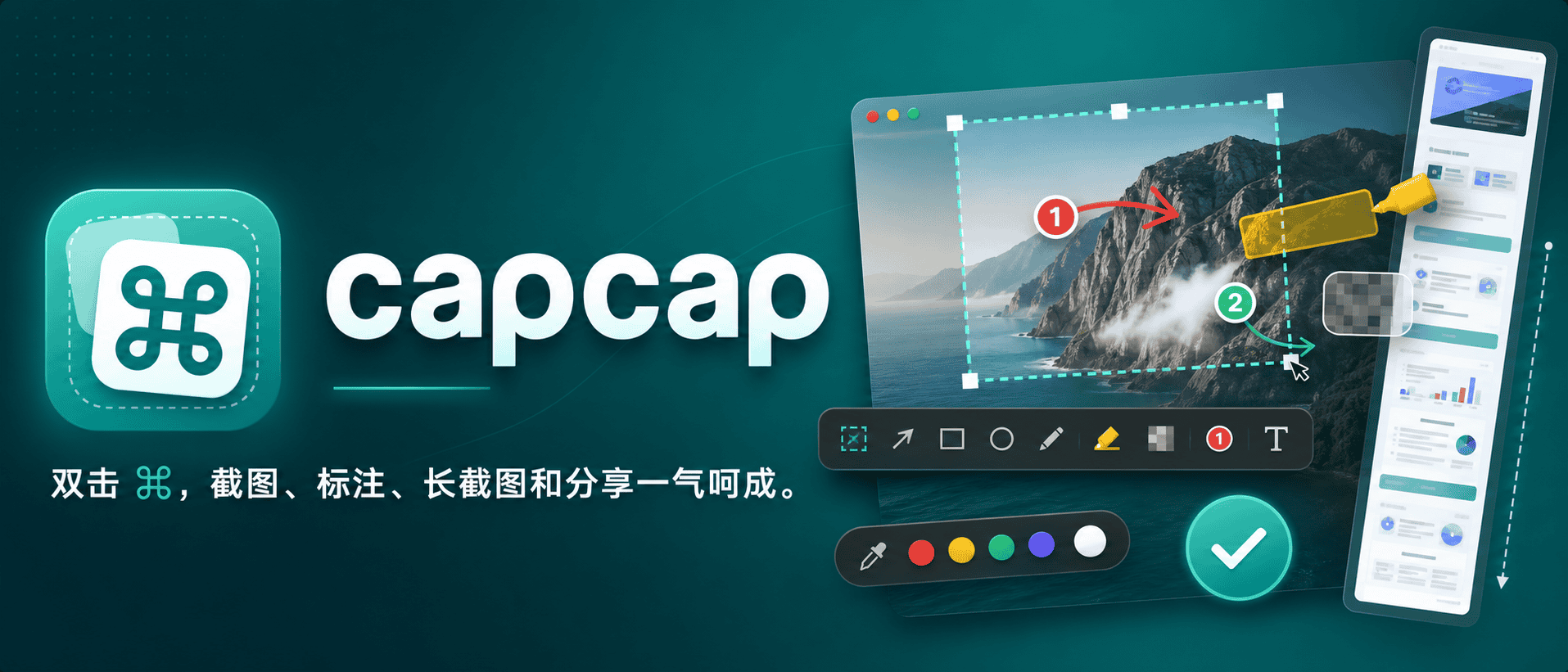
capcap
The fastest menu bar screenshot tool for macOS: double-tap ⌘ to capture, annotate, scroll-stitch, beautify, pin, and upload.



简体中文 ·
繁體中文 ·
English ·
日本語 ·
한국어 ·
Français ·
Русский ·
Tiếng Việt
Download ·
Homebrew ·
Changelog ·
Issues
**The fastest way to grab, mark up, and share screenshots on macOS.** Double-tap `⌘` from anywhere — snap to a window, drag a region, scroll-stitch a long page, then annotate and beautify in one tight floating window. Lives in your menu bar. No Dock icon, no telemetry, no subscription, no third-party dependencies. Bring your own object storage if you want a one-click cloud URL.
Download Latest Release ·
Install with Homebrew ·
macOS 14+ · Universal (Apple Silicon + Intel)
## Why capcap
- **One shortcut, zero friction.** Double-tap `⌘` anywhere and capcap is on screen in milliseconds — or record any global hotkey you like.
- **Snap-to-window or pixel-perfect region.** Hover any window for a one-click capture, or drag a region with full Retina output across every connected display.
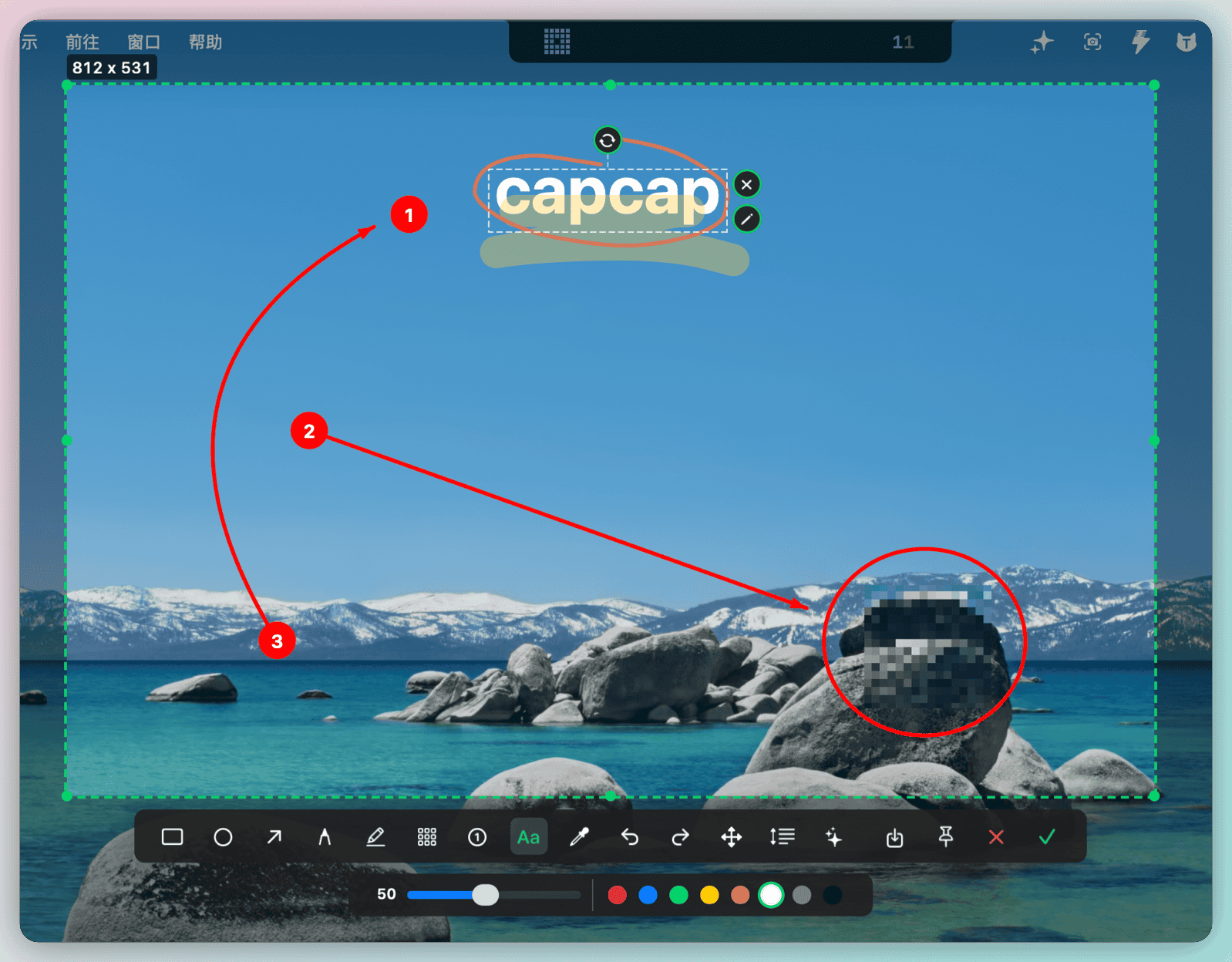
- **A real annotation editor.** Arrows, numbered callouts, text, mosaic, highlighter, pen — all editable, draggable, rotatable and undoable *after* you place them.
- **Scroll-stitch long content.** Capture a scrolling area, watch the stitched preview live, and keep editing the merged result.
- **Beautify and pin.** Wrap shots in gradient or wallpaper backgrounds with rounded corners and shadow, or pin the final image floating above any window.
- **Edit Finder images too.** Select a single image file in Finder and trigger the same shortcut to load it straight into the editor — the original is never touched.
- **Menu bar history.** Recent screenshots and picked colors are one click away from re-copying — local-only, configurable size.
- **One-click upload to your own image host.** Optional: configure Tencent COS, Qiniu Kodo, or Aliyun OSS once and the editor's upload button copies a public URL straight to your clipboard. Credentials stay on your Mac.
- **Built with pure AppKit.** No SwiftUI, no Electron, no telemetry. Small, fast, and respectful of macOS.
## Showcase
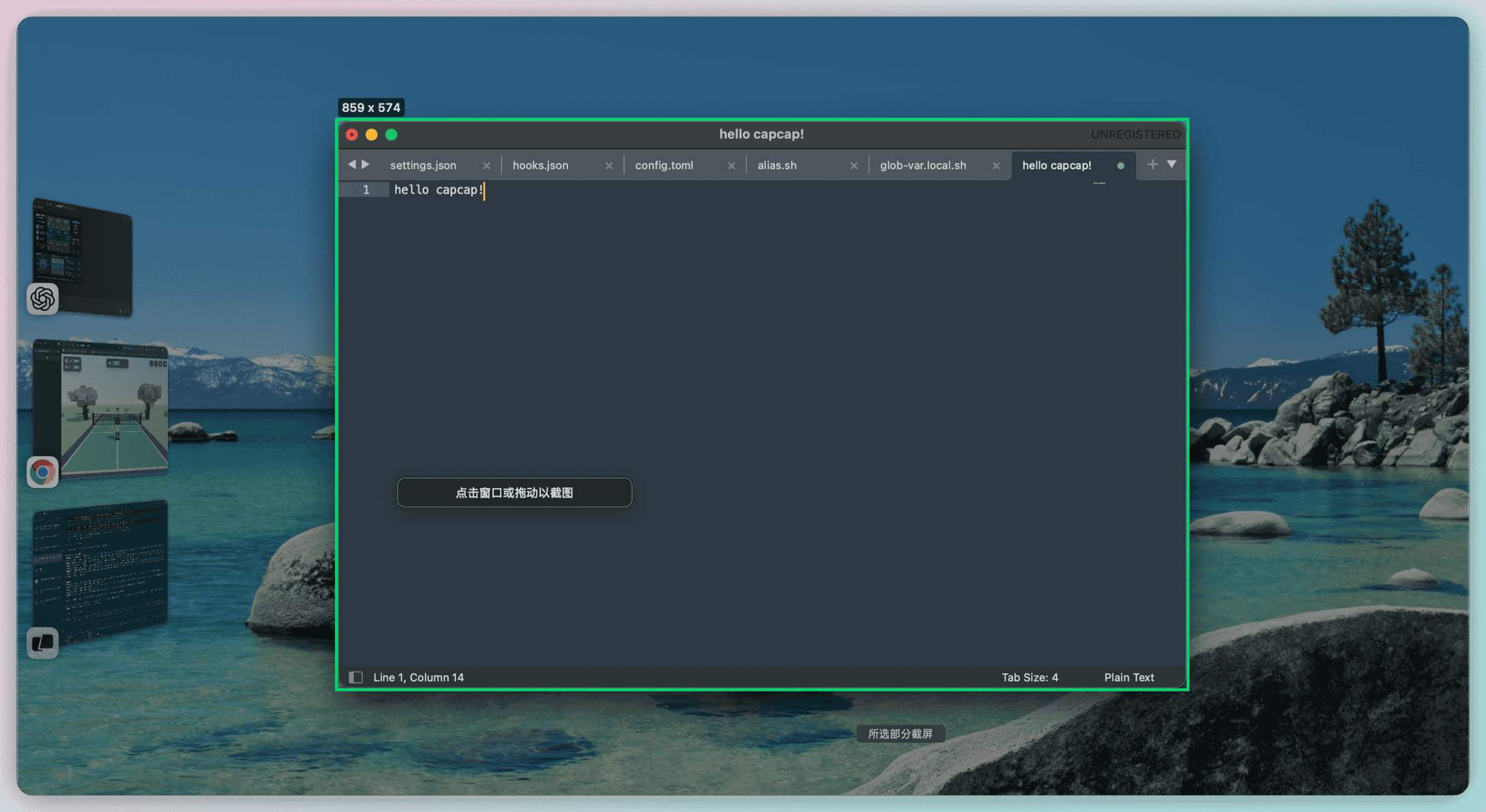
Snap to any window in one click
No precise dragging — capcap detects window bounds for you.
|
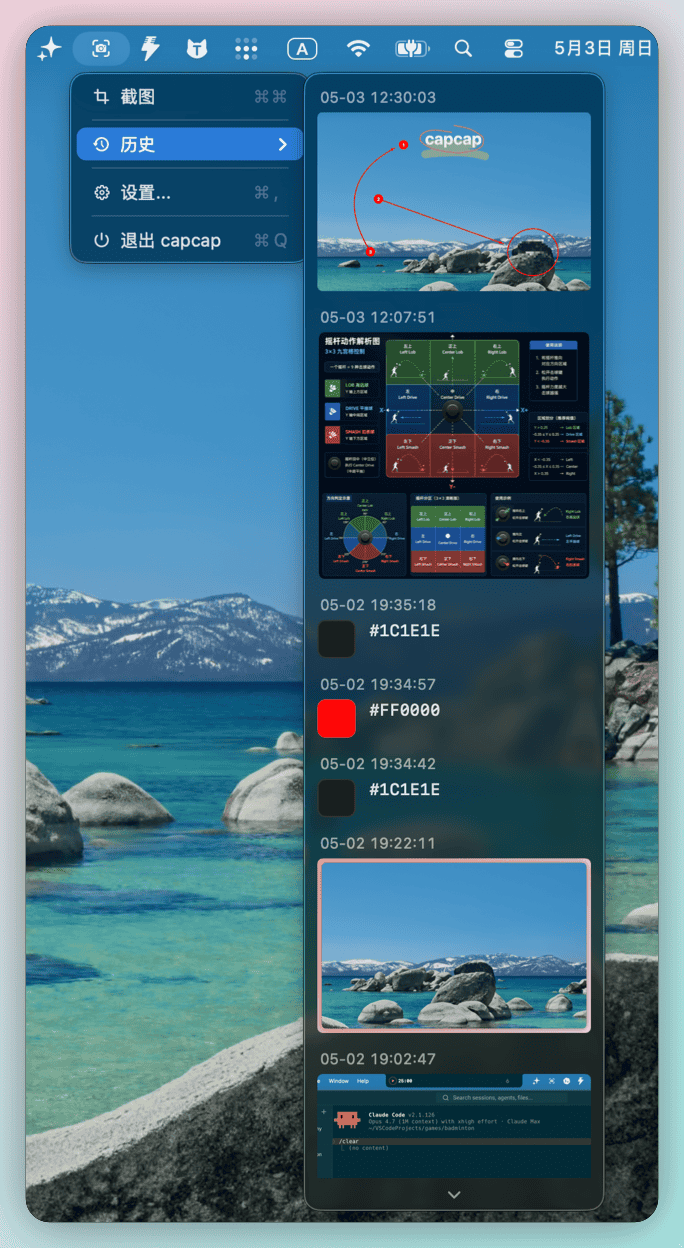
History at the menu bar
Re-copy any recent screenshot or picked hex color in a click.
|
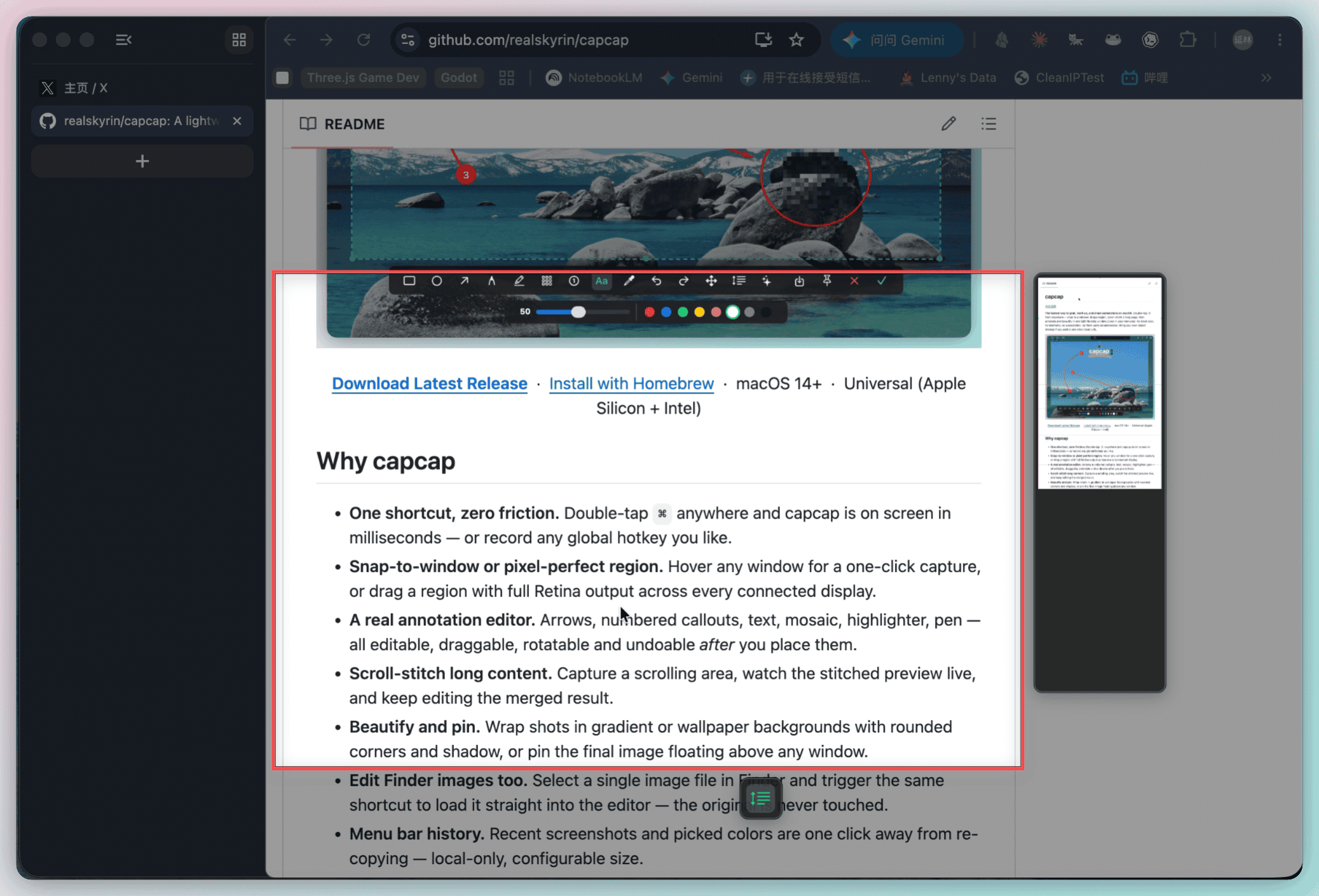
Scroll-stitch long pages
Scroll inside the selection, watch frames merge live, and keep editing the result.
|
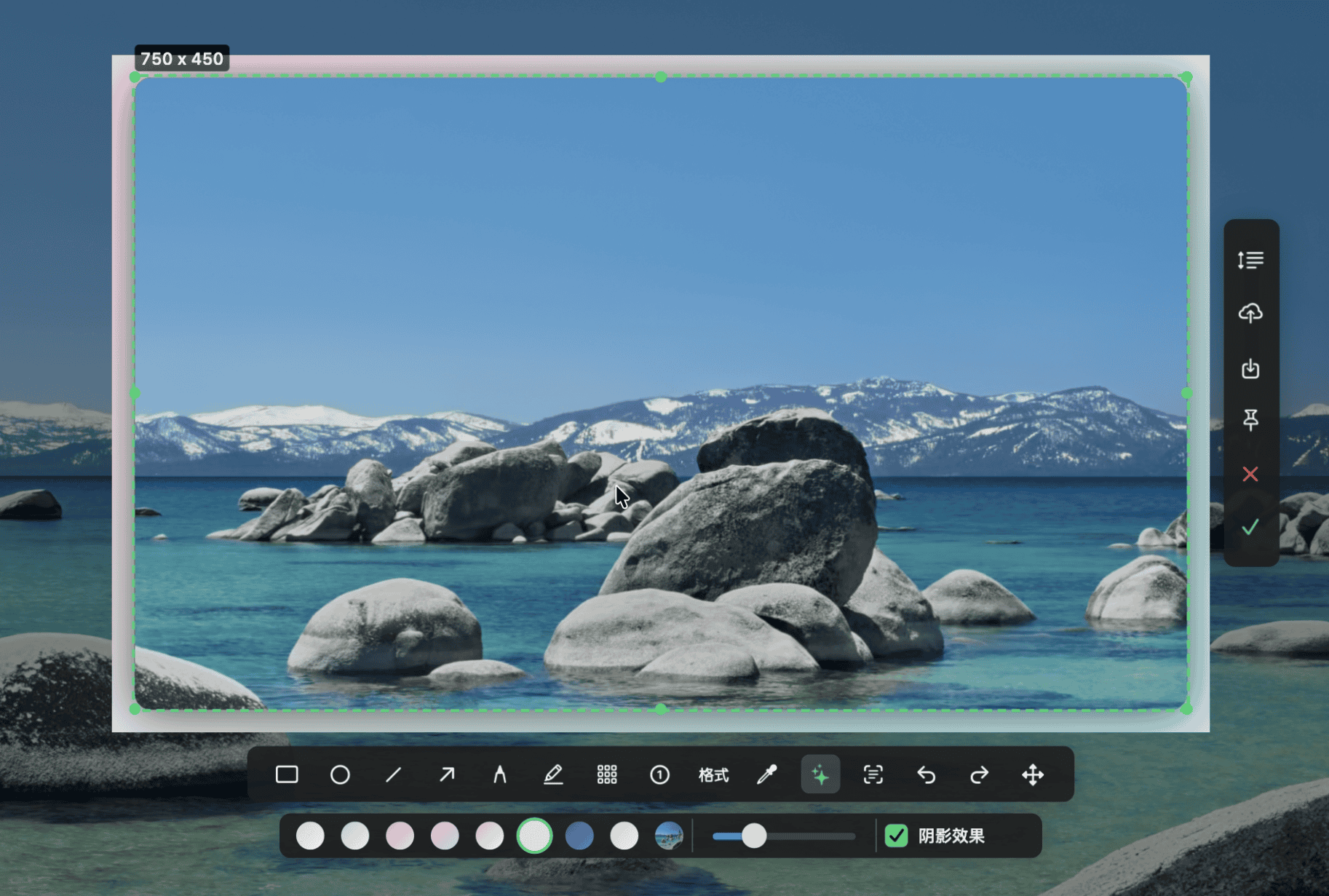
Beautify in one click
Gradient or wallpaper backgrounds, rounded corners, shadow and padding — all adjustable.
|
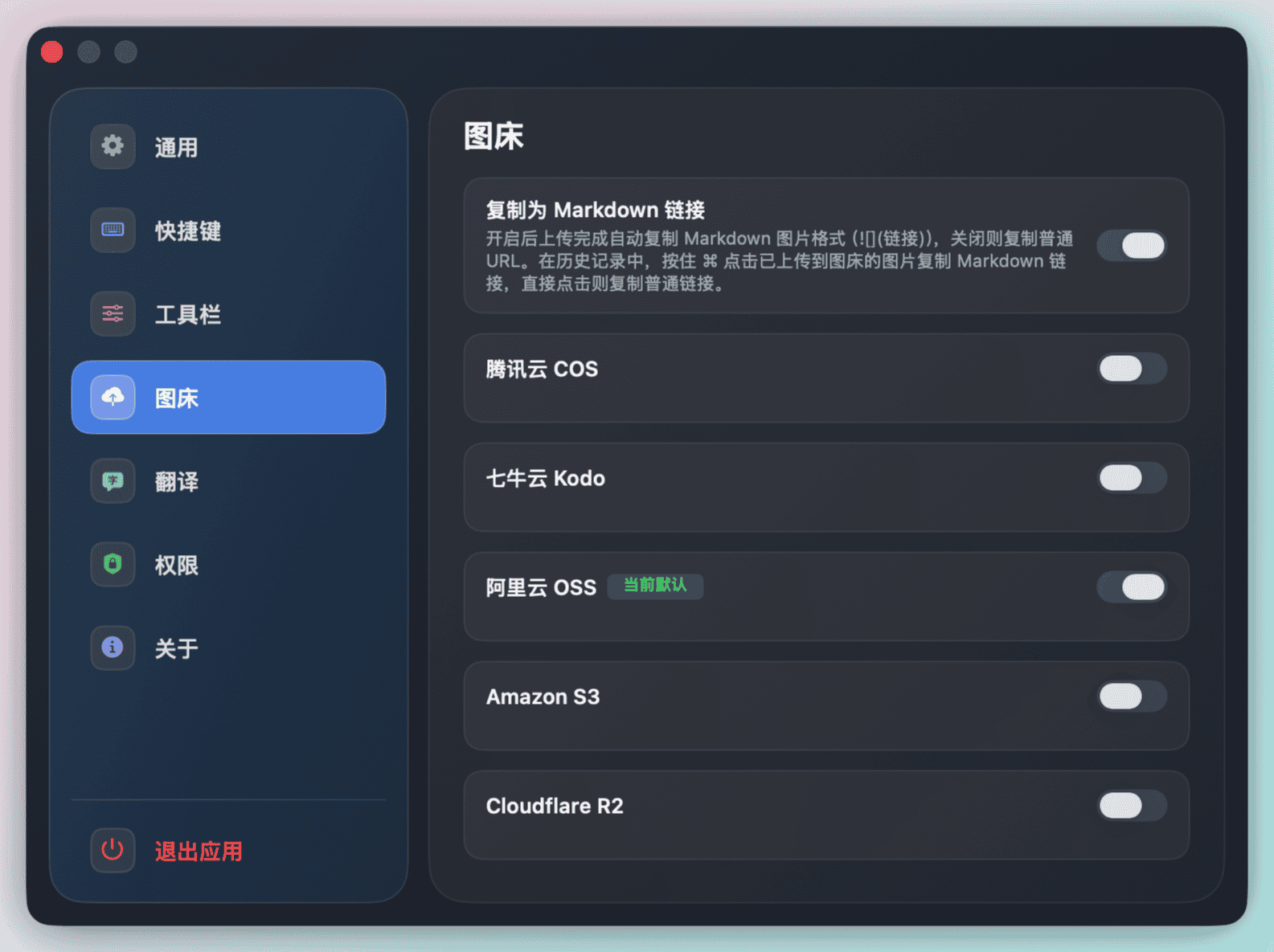
Bring-your-own image host
Configure Tencent COS, Qiniu Kodo, or Aliyun OSS once — upload the current screenshot and copy its public URL with a single click.
|
## Features
- **Edit any image directly** — select a single image file in Finder (Desktop or any window) and trigger the screenshot shortcut to open that image in the annotation editor instead of taking a screenshot. The original file is never modified; the edited result goes to the clipboard and history like a normal capture.
- **Fast region and window capture** — drag any area, or hover and click a detected window to snap to its bounds.
- **Multi-display support** — creates overlays on every connected screen and captures at full Retina resolution.
- **Full annotation editor** — rectangle, ellipse, arrow, pen, highlighter, mosaic, numbered callouts, and text.
- **Editable annotations** — move existing marks, change color and size, rotate supported annotations, bend arrows/callouts, edit text, delete marks, and use undo/redo.
- **Scroll capture** — capture a selected scrolling area, preview the stitched image live, and merge it back into the editor.
- **Beautify mode** — wrap screenshots in rounded corners, soft shadow, gradient presets, wallpaper background, and adjustable padding.
- **Color picker** — use the macOS color sampler, copy the picked hex value, and keep it in history.
- **Pin to screen** — float the current screenshot above other windows as a draggable reference image.
- **Save or copy** — save as PNG, confirm to copy PNG/TIFF data to the clipboard, or cancel without output.
- **Recent history** — menu bar history with thumbnails and picked colors for quick re-copy, with a configurable cache size.
- **Image-host upload** — optional one-click upload to Tencent COS, Qiniu Kodo, or Aliyun OSS; the public URL is copied to the clipboard and stored alongside the thumbnail in History. Credentials live only in your local UserDefaults; pick one provider as the default and the editor's upload button lights up.
- **Custom trigger** — use the default double-tap `⌘`, or record a custom global shortcut in Settings.
- **Settings and localization** — UI in Simplified Chinese, Traditional Chinese, English, Japanese, Korean, French, Russian, and Vietnamese, plus menu bar icon toggle, launch at login, demo mode, permission status, shortcut recording, and history cache size.
- **Menu bar app** — runs as an agent app without a Dock icon.
## Requirements
- macOS 14.0+
- Accessibility permission, used for the default double-tap `⌘` trigger
- Screen Recording permission, used by ScreenCaptureKit and screenshot capture
- Automation permission for Finder, requested on first use of the "edit selected image" shortcut
On first launch, capcap opens a setup window that shows both permission states. The app can launch once both required permissions are granted.
## Install with Homebrew
The Homebrew cask lives in the shared `realskyrin/tap` Homebrew tap:
```bash
brew tap realskyrin/tap
brew install --cask realskyrin/tap/capcap
```
See the [homebrew-tap README](https://github.com/realskyrin/homebrew-tap) for tap maintenance.
## macOS Verification Warning
If macOS shows a warning like `Apple cannot verify "capcap" is free of malware`, remove the quarantine flag from the app bundle you trust, then open it again:
```bash
xattr -dr com.apple.quarantine /Applications/capcap.app
```
If you are running a locally built copy instead of the app in `/Applications`, replace the path with your actual app location, for example:
```bash
xattr -dr com.apple.quarantine ./build/capcap.app
```
Only do this for builds downloaded from this repository or ones you built yourself.
## Build from Source
```bash
# Build and bundle build/capcap.app
./scripts/bundle.sh
```
For local development, this script rebuilds the app, kills any running instance, launches the new bundle, and verifies that it started:
```bash
bash scripts/rebuild-and-open.sh
```
To package a draggable DMG:
```bash
scripts/package-dmg.sh
```
The app bundle is output to `build/capcap.app`; DMGs are output to `dist/`.
## Usage
1. Double-tap `⌘ Command`, press your custom shortcut, or choose **Take Screenshot** from the menu bar.
2. Hover a window and click to capture it, or drag to select any region.
3. Use the floating toolbar to annotate, pick a color, start scroll capture, beautify, save, pin, cancel, or confirm.
4. Click the green checkmark or press `Enter` to copy the final image to the clipboard. Press `Esc` or click `x` to cancel.
To edit an existing image instead of taking a screenshot, click a single image file in Finder (so it's the current Finder selection), then trigger the same shortcut. capcap copies the file into a temporary working location and opens it in the editor with the toolbar already up. If anything other than exactly one image is selected, the shortcut behaves as a normal screenshot trigger.
## Editor Tools
| Tool | What it does |
|------|--------------|
| Rectangle / Ellipse | Draw outlined shapes with selectable colors and stroke widths |
| Arrow | Draw straight arrows; select an arrow later to move endpoints or bend the shaft |
| Pen | Draw smoothed freehand strokes |
| Highlighter | Draw semi-transparent marker strokes without darkening overlaps |
| Mosaic | Brush pixelated regions over sensitive content, with adjustable block size |
| Numbered | Add incrementing callout badges; drag while placing to add an arrow |
| Text | Add editable single-line text with color and 10-100 pt size controls |
| Eyedropper | Pick any screen color and copy its `#RRGGBB` value |
| Undo / Redo | Revert and restore editor changes |
| Move Selection | Drag the whole selected screenshot region after selection |
| Scroll Capture | Scroll inside the selected area, stitch frames, and continue editing the merged result |
| Beautify | Add gradient or wallpaper backgrounds, rounded corners, shadow, and padding |
| Save | Save the current result as a PNG |
| Pin | Keep the current result floating above other windows |
| Upload | Upload the current result to the configured image host and copy the public URL |
| Confirm | Copy the final result to the clipboard |
When an annotation is selected, capcap shows adjustment handles where supported: rotation for shapes, strokes, and text; curve handles for arrows and numbered callouts; endpoint handles for arrows; and edit/delete actions for text and selected annotations.
## Settings
Open Settings from the menu bar to configure:
- Language: Simplified Chinese, Traditional Chinese, English, Japanese, Korean, French, Russian, or Vietnamese
- Menu bar icon visibility
- Launch at login
- Demo Mode, which allows external screen recorders to capture capcap's overlay and editor
- Screenshot shortcut: keep double-tap `⌘`, record a custom shortcut, or restore the default
- History cache size, from 5 to 20 recent screenshots/colors
- Image-host upload: enable Tencent COS, Qiniu Kodo, or Aliyun OSS, fill in their credentials, and pick which one is the default for the editor's upload button
- Accessibility and Screen Recording permission shortcuts
## History
The menu bar **History** submenu stores recent screenshots and picked colors in `~/Library/Application Support/capcap/History`. Click an image entry to copy it back to the clipboard, click a color entry to copy its hex value, or clear the full history from the submenu.
## Project Structure
- `capcap/App/` — app entry point, delegate, and bundle metadata
- `capcap/Capture/` — overlay, selection, window detection, ScreenCaptureKit capture, scroll stitching, clipboard, and history
- `capcap/Editor/` — annotation models, editor canvas, floating toolbar, beautify rendering, mosaic, scroll preview, and pin windows
- `capcap/Trigger/` — double-tap `⌘` monitor and custom Carbon hotkey registration
- `capcap/UI/` — menu bar controller, toast, cursor chip, and tooltips
- `capcap/Settings/` — startup/settings window and preferences UI
- `capcap/Upload/` — image-host providers (Tencent COS, Qiniu Kodo, Aliyun OSS), HMAC signing, progress-tracking HTTP wrapper, and the floating upload chip
- `capcap/Utilities/` — defaults, localization, and launch-at-login support
- `scripts/` — compile check, bundle, rebuild/open, icon, and DMG helpers
## Development
```bash
# Fast compile validation for Swift-affecting changes
bash scripts/compile-check.sh
# Build, restart, and verify the local app
bash scripts/rebuild-and-open.sh
```
## Acknowledgments
Thanks to the [Linux.do](https://linux.do) community for testing, feedback, and discussion.
## Third-Party Licenses
- [PermissionFlow](https://github.com/jaywcjlove/PermissionFlow) is licensed under the MIT License. See [ThirdParty/PermissionFlow/LICENSE](ThirdParty/PermissionFlow/LICENSE).
## License
[MIT](LICENSE)