
OpenDJ Control Panel offers a graphical user interface for managing both local and remote servers. You choose the server to manage when you start the Control Panel. The Control Panel connects to the administration server port, making a secure LDAPS connection.
Start OpenDJ Control Panel.
-
(UNIX) Run opendj/bin/control-panel.
-
(Windows) Double-click
opendj\bat\control-panel.bat. -
(Mac OS X) Double-click
opendj/bin/ControlPanel.app.
When you login to OpenDJ Control Panel, you authenticate over LDAP. This means that if users can run the Control Panel, they can use it to manage a running server. Yet, to start and stop the server process through OpenDJ Control Panel, you must start the Control Panel on the system where OpenDJ runs, as the user who owns the OpenDJ server files (such as the user who installed OpenDJ). In other words, the OpenDJ Control Panel does not do remote process management.
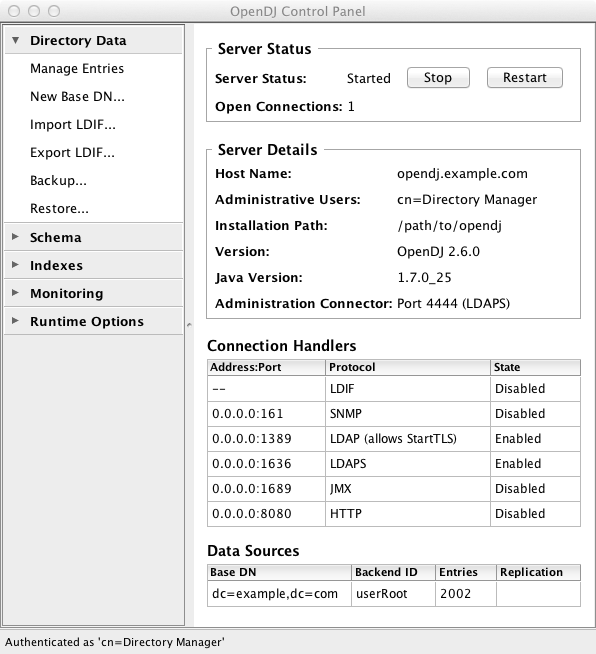
Down the left side of OpenDJ Control Panel, notice what you can configure.
- Directory Data
-
Directory data provisioning is typically not something you do by hand in most deployments. Usually entries are created, modified, and deleted through specific directory client applications. The Manage Entries window can be useful, however, both in the lab as you design and test directory data, and also if you modify individual ACIs or debug issues with particular entries.
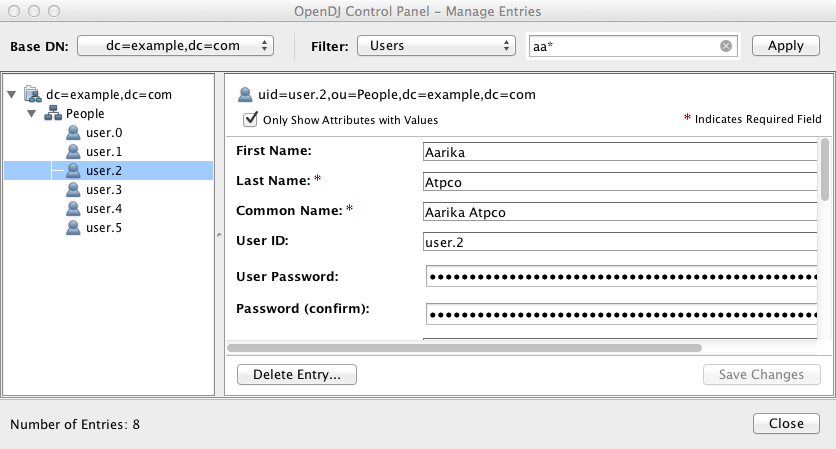
The Manage Entries window can check that your changes are valid before sending the request to the directory.
Additionally, the Directory Data list makes it easy to create a new base DN, and then import user data for the new base DN from LDIF. You can also use the tools in the list to export user data to LDIF, and to backup and restore user data.
- Schema
-
The Manage Schema window lets you browse and modify the rules that define how data is stored in the directory. You can add new schema definitions such as new attribute types and new object classes while the server is running, and the changes you make take effect immediately.
- Indexes
-
The Manage Indexes window gives you a quick overview of all the indexes currently maintained for directory attributes. To protect your directory resources from being absorbed by costly searches on unindexed attributes, you may choose to keep the default behavior, preventing unindexed searches, instead adding indexes required by specific applications. (Notice that if the number of user data entries is smaller than the default resource limits, you can still perform what appear to be unindexed searches. That is because the
dn2idindex returns all user data entries without hitting a resource limit that would make the search unindexed.)OpenDJ Control Panel also allows you to verify and rebuild existing indexes, which you may have to do after an upgrade operation, or if you have reason to suspect index corruption.
- Monitoring
-
The Monitoring list gives you windows to observe information about the system, the JVM used, and indications about how the cache is used, whether the work queue has been filling up, as well as details about the database. You can also view the numbers and types of requests arriving over the connection handlers, and the current tasks in progress as well.
- Runtime Options
-
If you did not set appropriate JVM runtime options during the installation process, this is the list that allows you to do so through the Control Panel.
